How to fix
“A driver cannot load on this device” (iqvw64e.sys) error
on Windows
Resolve the "A driver cannot load on this device" error in Windows 10 and 11 effortlessly. Get expert-tested solutions for quick fixes!


What causes How to fix “A driver cannot load on this device” (iqvw64e.sys) error in Windows?
- Recent Windows updates
- Installation of update KB4023057
- Driver marked as a vulnerable threat by Windows
- Memory Integrity feature blocking the driver
- Genuine iqvw64e.sys file being part of Intel's Network Adapter Diagnostic Driver
Repairs Windows system files, removes malware, and restores a clean OS state — without reinstalling.
Hello. After recent Windows updates, I started receiving the error "A driver cannot load on this device" with driver being mentioned iqvw64e.sys. Kindly help me to resolve this, if it is possible at all.
Some users reported receiving "A driver cannot load on this device" (iqvw64e.sys) error whenever they boot their Windows computer up, although it may also show up under different circumstances, such as when updating drivers or launching certain programs. Most reported that the problem occurred right after installing a Windows update, for example, KB4023057, marked as a reliability update.
Whenever users receive the error, they are shown a pop-up message which claims that iqvw64e.sys was marked as a vulnerable driver and is a threat to Windows security. This block is usually performed by Windows' Memory Integrity feature.
The genuine iqvw64e.sys file is a key component of Intel's Network Adapter Diagnostic Driver, designed to facilitate the diagnostics process for all Intel drivers. This specialized tool allows users to quickly and easily diagnose any issues related to their network adapters or other associated drivers. Due to its functionality many users are unwilling to uninstall the related software, albeit they have to deal with "A driver cannot load on this device" error
Memory integrity is a security feature that ensures the confidentiality, integrity, and availability of memory against malicious attacks. It verifies whether code running in the system's memory has been tampered with or not. It also checks whether the memory is being used in an unauthorized manner or not. Memory integrity protection helps protect against malicious code, buffer overflow attacks, and other types of memory abuse.
Since the "A driver cannot load on this device" (iqvw64e.sys) error occurs due to Memory integrity, the first solution would be to disable this feature, although this is not an optimal solution. Other method would be uninstalling the update which caused the error to show up, which also is not ideal.
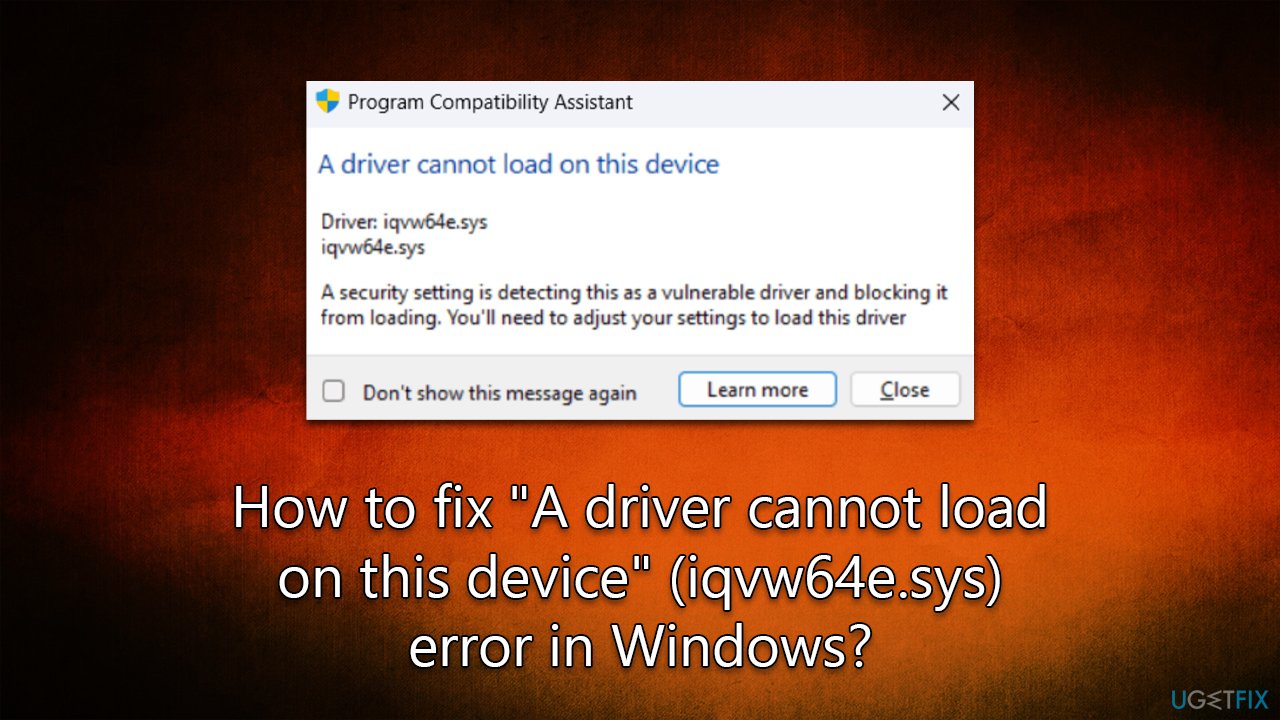
The best and easiest way to deal with the situation is updating the related driver, which is Network Adapter Diagnostic Driver from Intel. We provide instructions below on how to do that. For some users, this method may not work, as they claim that there are no updates for the driver available. We address this issue as well.
We recommend scanning the system with [d1] PC repair tool to check your system for integrity violations and corrupted files, which would eliminate any underlying issues that could have caused the error to show up in the first place.
1. Update Intel driver
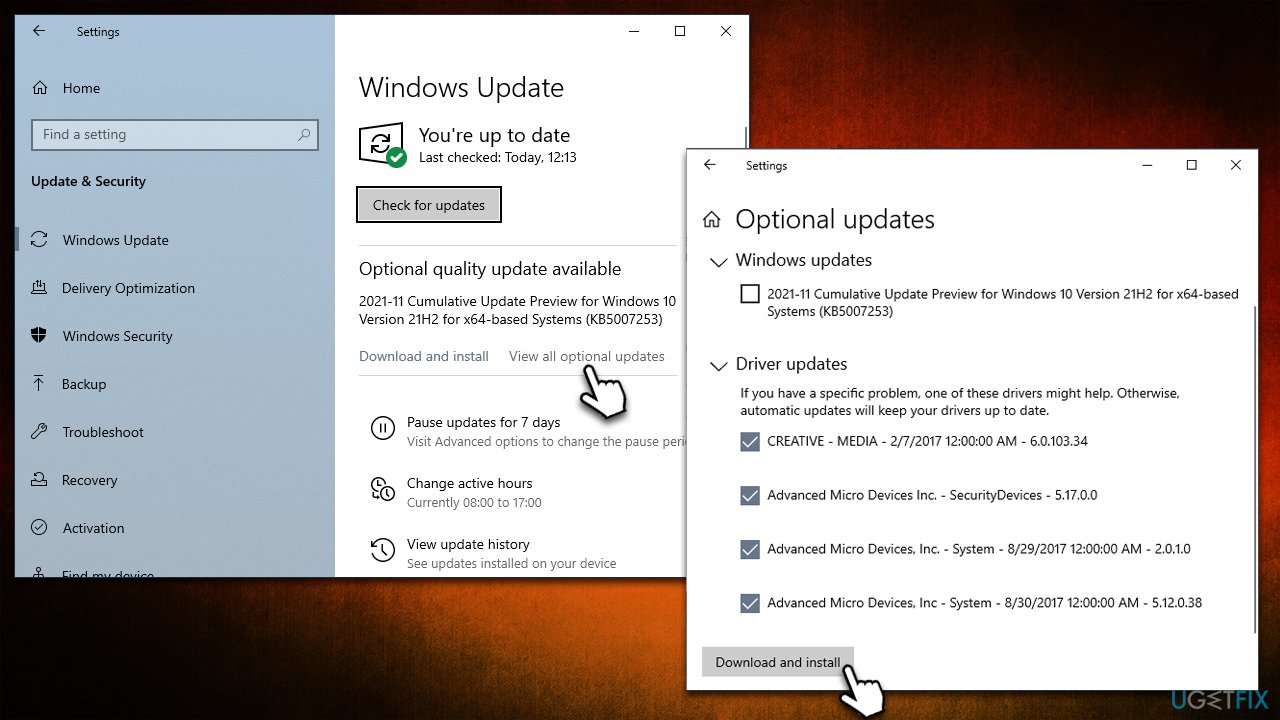
There are several ways you can update your drivers, the most simple and efficient being using [rev id="DriverFix"] automatic updater. Alternatively, you can try downloading the newest driver from Intel official website, although this may be confusing to do for some users. Finally, you can try using Windows update feature which may or may not be successful in finding the latest drivers for your system:
- Type Update in Windows search and hit Enter
- Click Check for updates and install everything available
- Then, click View optional updates
- Find the Driver Updates section, tick the checkboxes, and click Download and Install
- Reboot your system to apply changes.
2. Reinstall the driver
If you weren't successful in updating the driver, try reinstalling it altogether:
- Type in Device Manager in Windows search and press Enter
- Expand Network adapters section
- Find the Intel's Network Adapter Diagnostic Driver
- Right-click and select Uninstall
- Follow on-screen instructions and restart your device
- Use one of the methods described in the previous step to install the latest driver.
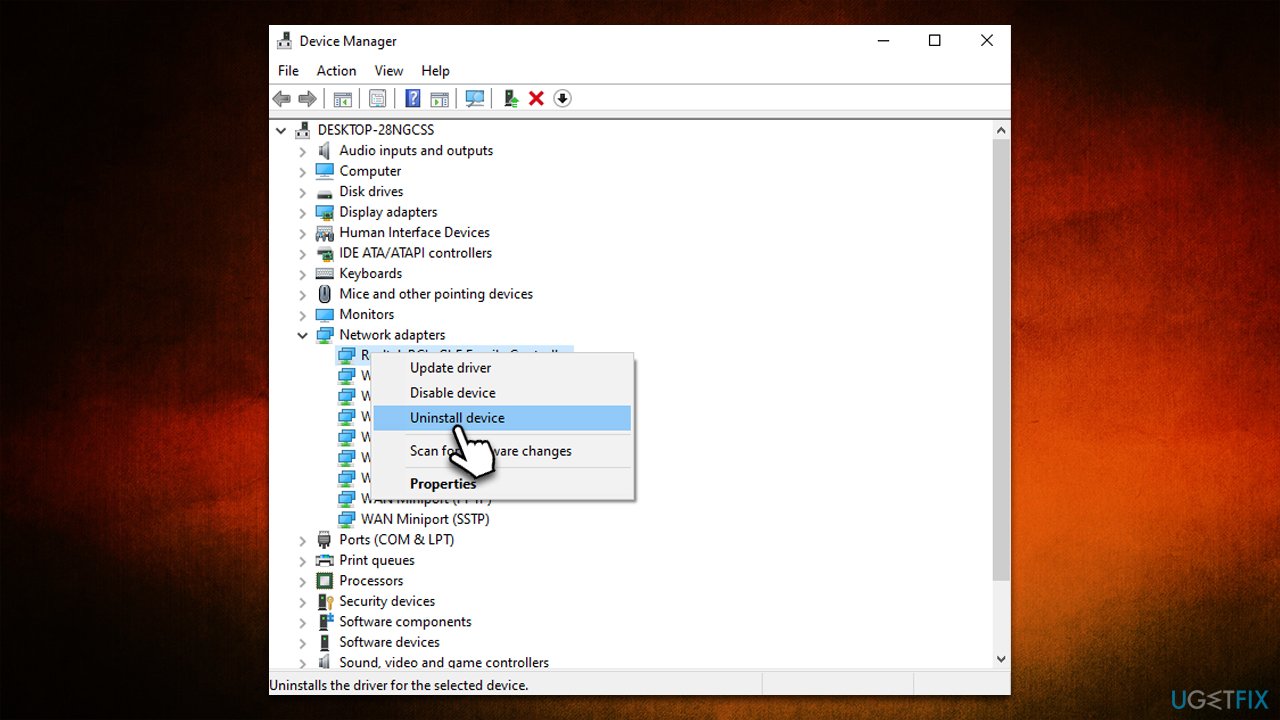
Some users reported they were unable to delete the driver. In this case, please follow steps below.
3. Use Autoruns
If you can't get rid of the driver whether you want to reinstall it or update it, you can use autoruns to delete corrupted driver entries and then delete the driver manually
- Navigate to the official Microsoft website to download Autoruns
- Go to the Downloads folder
- Right-click on the ZIP file and select Extract to Autoruns and enter the folder once done
- Select the right version: Autoruns.exe if you are using 32-bit Windows or go for Autoruns64.exe if you are using 64-bit Windows
- Right-click on the correct EXE file and select Run as administrator
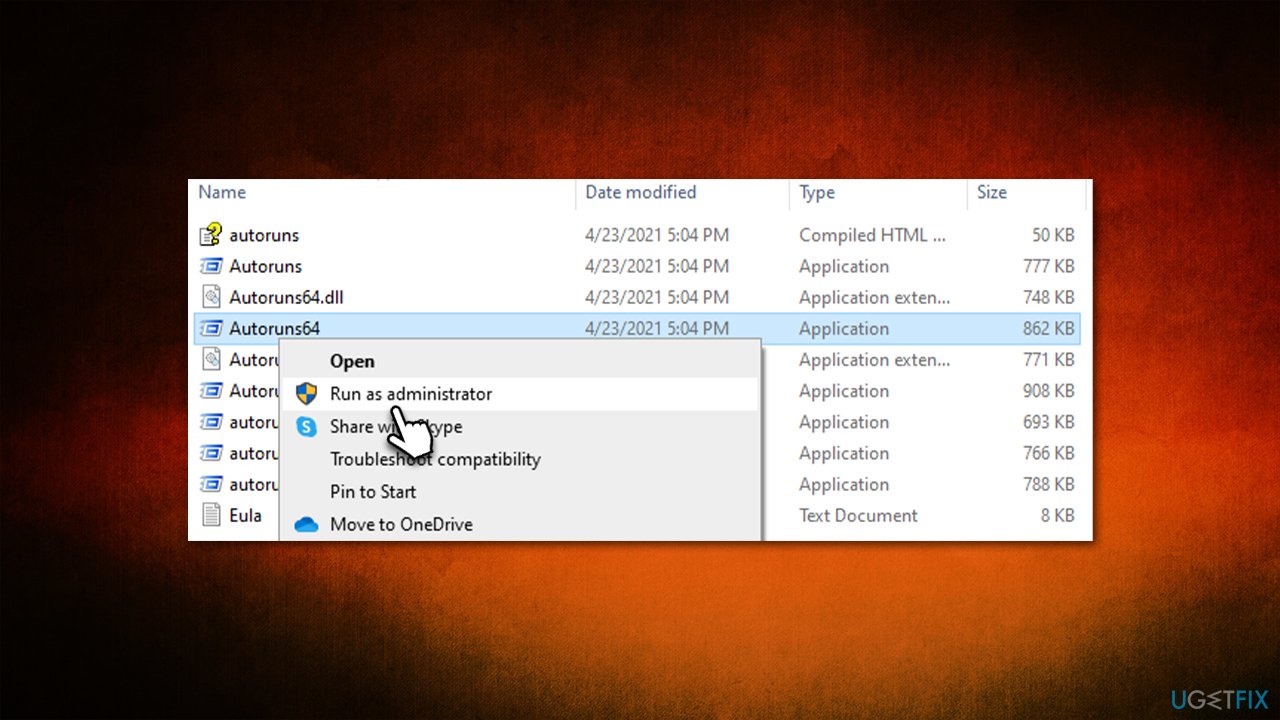
- When UAC comes up, click Yes
- At the top of the window, type in iqvw64e
- Delete all the related entries
- press Win + E on your keyboard and navigate to the following location (make sure hidden files are visible):
C:\Windows\System32\Drivers\ - Find the iqvw64e.sys driver and press Shift + Del to remove it.
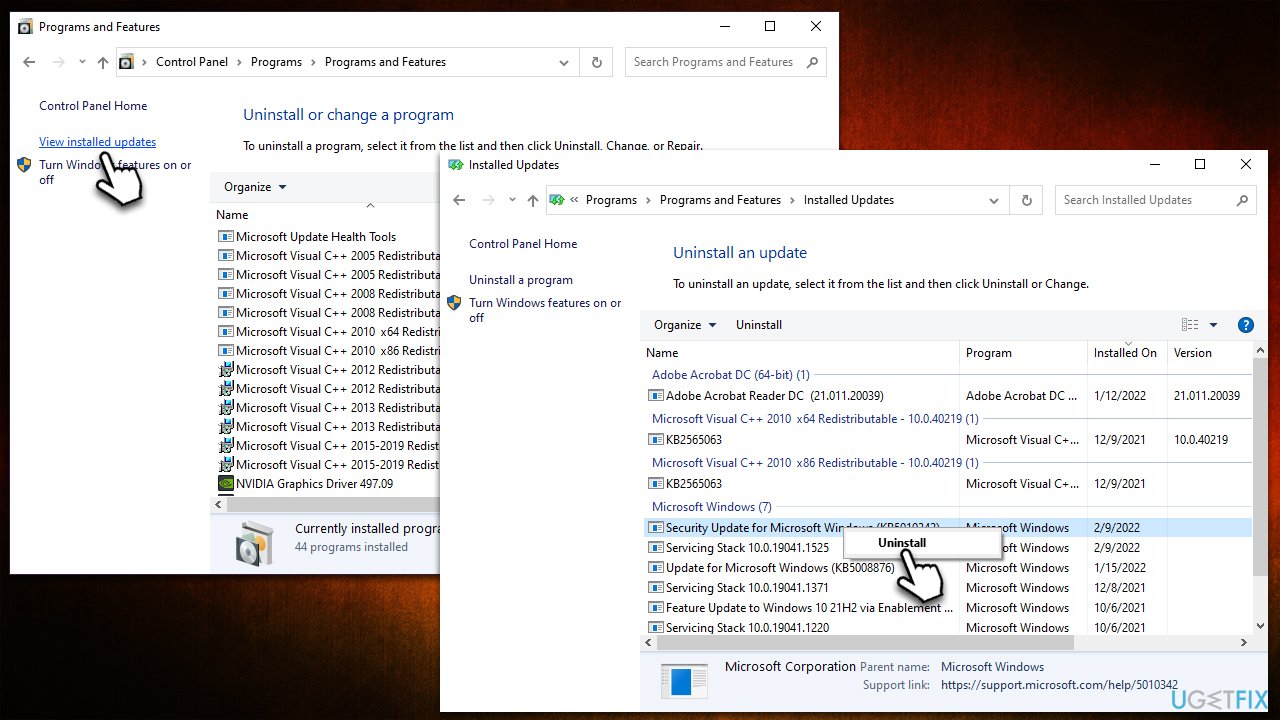
4. Uninstall the most recent Windows update [workaround]
- Type Control Panel in Windows search and hit Enter
- Select Programs > Uninstall a program
- Pick View installed updates on the left
- Sort all the installed updates by date
- Right-click on the newest installment and pick Uninstall
- Once done, restart your computer.
5. Disable Memory integrity [workaround]
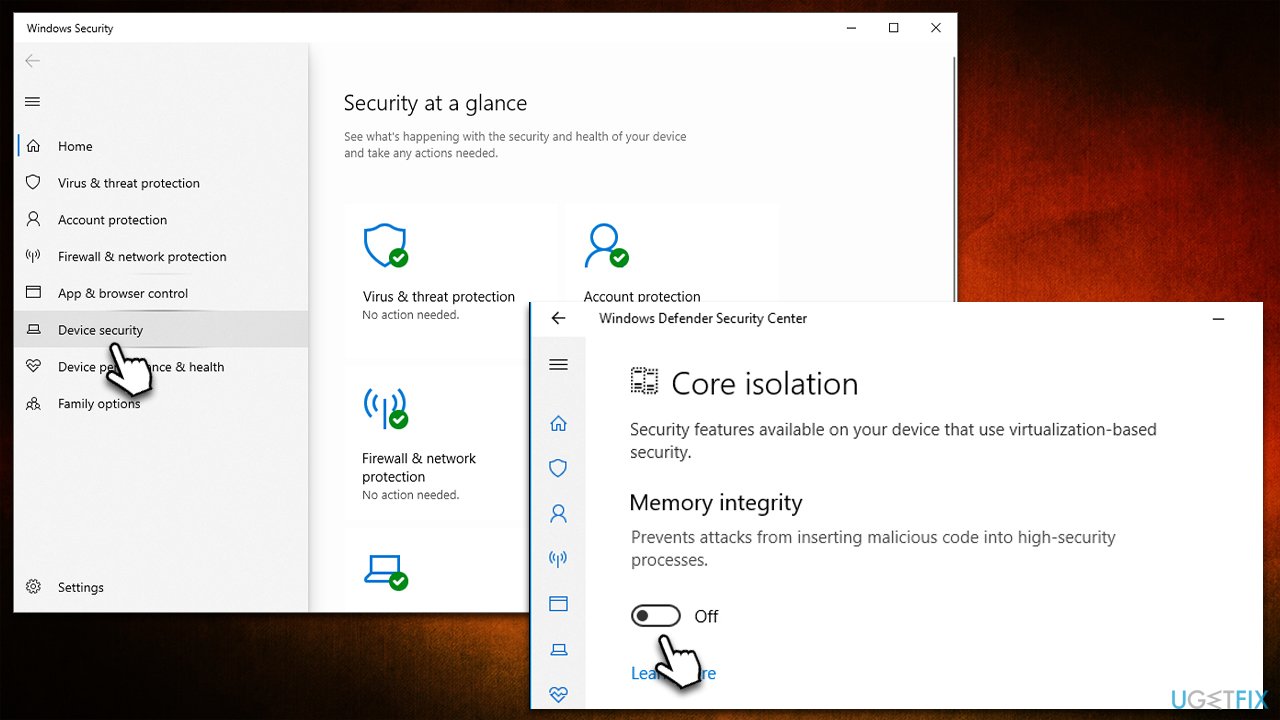
While Memory Integrity sounds good on paper, it is not necessarily useful for home users and is primarily designed for corporate versions of Windows. With personal user devices running so many different software, Memory Integrity can struggle to work correctly, as it needs special hardware and hardware driver compatibility, which may not always be possible. As a result, some installed software may start failing to work properly or result in errors, such as "A driver cannot load on this device." Thus, you can simply disable the feature as follows:
- Open the Start menu and search for Windows Security and press Enter
- Click on Device Security on the left side of the window
- Scroll down to the Core isolation section and click on the Security Processor Details link
- Under Memory Integrity, toggle the switch to the Off position.
Bottom line
To fix the 'A driver cannot load on this device' error, you can try updating the related driver or disabling the Memory Integrity feature. Another option is to uninstall the Windows update that caused the issue. If none of these solutions work, consider seeking further assistance or checking for additional updates.
Frequently asked questions
This error typically indicates a problem with the Intel graphics driver, preventing it from loading properly on your device. It often arises after a Windows update or driver installation.
To fix this error in Windows 11, you can try updating the Intel graphics driver via Device Manager or reinstalling the driver from the Intel website. If the issue persists, consider rolling back to a previous driver version.
Yes, you can perform a system scan using the Command Prompt to check for corrupted system files, or use the Windows Troubleshooter for hardware and devices to identify the problem. Additionally, ensuring Windows 10 or 11 is fully updated can help resolve compatibility issues.




Report an issue
What's wrong with this guide? We review every report and update or remove content.
Report received — thank you. We'll review and fix it.
You need a free account to submit a report.
Be the first to comment