How to fix
“Your current security settings do not allow this file to be downloaded” Error
on Windows
Resolve the "Your current security settings do not allow this file to be downloaded" error on Windows 10 quickly and easily, with expert-tested solutions.

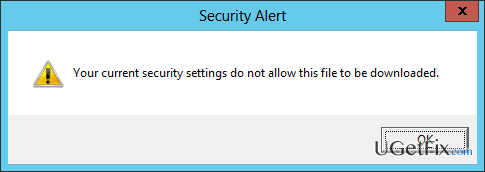
What causes How to Fix “Your current security settings do not allow this file to be downloaded” Error on Windows 10?
- Old Windows bug affecting multiple versions
- Internet Explorer security settings
- Software conflict with antivirus programs
- Inbuilt antivirus blocking downloads
- Temporary disabling of antivirus may resolve issue
Repairs Windows system files, removes malware, and restores a clean OS state — without reinstalling.
I tried to download iTunes, VLC player, Chrome browser, and several other programs, but I was not allowed to do so. Each attempt ended up with an error message “Your current security settings do not allow this file to be downloaded.” What should I do? Please help.
“Your current security settings do not allow this file to be downloaded” error is an old Windows bug, which has been harassing the users of Windows 7, 8, 8.1, Vista, and now 10 since 2010. In most of the cases, this message is thrown to the screen when a PC user is trying to install Norton antivirus. However, in some of the cases, the issue occurs when downloading programs that are not related to system’s security, for example, Google Chrome web browser, iTunes, Facebook, RAR opener or similar. The culprit of “Your current security settings do not allow this file to be downloaded” bug may be related to the Internet Explorer security settings. In addition, the error may be delivered due to the software conflict. For example, if you are using Windows 10, which has an inbuilt antivirus Windows Defender, the installation of Norton may be blocked by the current security software. Luckily, security experts have already provide some tips that may help you to fix “Your current security settings do not allow this file to be downloaded” error.
How to Fix “Your current security settings do not allow this file to be downloaded” Error on Windows 10?
Method 1. Disable your anti-virus
If you cannot download software via Windows Store or other download sources on the net, try to disable your anti-virus temporarily. For that, press Ctrl + Shift + ESC to open Task Manager, locate your anti-virus, right-click it, and select End Task. After that, find the icon of your anti-virus software on the toolbar, right-click it, and select Disable. Once done, try to download the app you tried before and check if the problem was resolved.
Method 2. Change Internet Explorer Security Settings
- Open Internet Explorer and click Tools (top right corner).
- Select Internet Options and click on Security tab.
- Select Internet Zone and click Custom Level button.
- Locate Downloads and enable File Download.
- Click Apply and OK to save the changes.
- Re-open Internet Explorer and try to download needed apps.
Method 3. Reset your web browser’s settings
Google Chrome
- Open Google Chrome and then look for a Menu button (three bars located in the top right corner). Click it, select Tools on a drop-down menu and click Extensions.
- Locate suspicious browser extensions and click on the trash icon placed next to them. Confirm the removal by clicking Remove.
- Click Menu button again and select Settings.
- Scroll down and find Show advanced settings option.
- Open Advanced settings and find Reset settings button. Read all information provided on the notification and, if you agree with all conditions, click Reset.
Mozilla Firefox
- Open Mozilla Firefox. Find Menu button (three bars) and click it.
- Open Add-ons section and open Extensions tab.
- Locate suspicious add-ons or extensions click Remove button next to each of them.
- Click Menu button again, then on "?" button and then select Troubleshooting Information.
- Click on Refresh Firefox on the right pane.
- To confirm the changes, click Refresh Firefox again.
Internet Explorer
- Click on Gear icon at the top right corner of the screen and select Manage Add-ons.
- Find all suspicious add-ons and extensions, Right-click on them and select Disable.
- Then click on Gear icon again and select Internet Options.
- Click Advanced and select Reset.
- Mark Delete Personal Settings box and then click Reset to confirm the changes.
To finish the “Your current security settings do not allow this file to be downloaded” error fixes, don't forget to optimize your PC to ensure that all registry entries and system files are correct. For this purpose, we ould recommend using [d1].
Bottom line
To fix the error, you can disable your antivirus temporarily or change the Internet Explorer security settings. If these methods do not resolve the issue, consider further troubleshooting or seeking additional support.
Frequently asked questions
This error typically occurs due to restrictive security settings in Internet Explorer or Edge, which block certain downloads. It can also be triggered by group policy settings or antivirus configurations.
To fix the error, open Internet Options, navigate to the Security tab, and adjust the settings for the Internet zone to a lower level. Ensure that 'Enable Protected Mode' is unchecked for the Internet zone.
Yes, in Windows 11, you can fix this error by going to the Edge browser settings, clicking on 'Privacy, search, and services,' and adjusting the security settings under 'Security.'




Report an issue
What's wrong with this guide? We review every report and update or remove content.
Report received — thank you. We'll review and fix it.
You need a free account to submit a report.
Be the first to comment