How to fix
Night light not turning off
on Windows
Struggling with Night Light not turning off in Windows 11? Discover effective solutions to restore your display settings effortlessly. Expert-tested tips!

What causes How to fix Night light not turning off in Windows 11?
- Night light feature not properly configured
- Outdated graphics driver
- Registry settings may be incorrect
- Schedule for night light feature not adjusted
- User preference for night light only at night
Repairs Windows system files, removes malware, and restores a clean OS state — without reinstalling.
Hello. I have a Windows 11 laptop and the night light option is not turning off. I don't want to use it during the day as it is not comfortable. Is there a way to fix this?
The night light feature in Windows is designed to reduce strain on the eyes when viewing the screen for extended periods. It does this by emitting warmer colors, which are easier on the eyes and can even help with sleep. The night light feature can be especially helpful during the night when the surrounding environment is dark and your eyes may struggle to focus on bright colors.
Research has shown that the warmer colors produced by the night light feature can help reduce eye strain and even induce sleep in some people. It's worth noting that the night light feature is not just available in Windows, but also on iPhone, Macbook, and Android devices.
However, some users have reported that the night light feature is not turning off in Windows 11, which can be a problem if you prefer to use it only at night. There are a number of different ways you can try to fix the issue if the night light feature is not turning off in Windows 11. One solution is to check the system settings to ensure that the feature is properly configured. You can also try reinstalling or updating your graphics driver,[ref en-1] as this may resolve any issues with the night light feature.
Another option is to modify the registry, which is a database of configuration settings used by the operating system. This can be a more advanced solution and should only be attempted if you are comfortable working with the registry. It is always a good idea to make a backup of the registry before making any changes, as this will allow you to restore the previous settings if something goes wrong.
There are other methods you can try as well, such as adjusting the schedule for the night light feature or manually turning it on and off. In this guide, you will find 6 steps that should help you fix night light not turning off. However, keep in mind that this can be also caused by an underlying system issue.
If you are looking for an automatic solution to common Windows system problems, you can use a maintenance tool like [d1]. It can fix most system errors, BSODs,[ref en-2] corrupted files, registry[ref en-3] issues, or clear cookies, and cache. Otherwise, follow the step-by-step instructions below.
Solution 1. Update Windows
- Click Start and select Settings
- Go to the Windows Update section
- Click Check for updates and wait
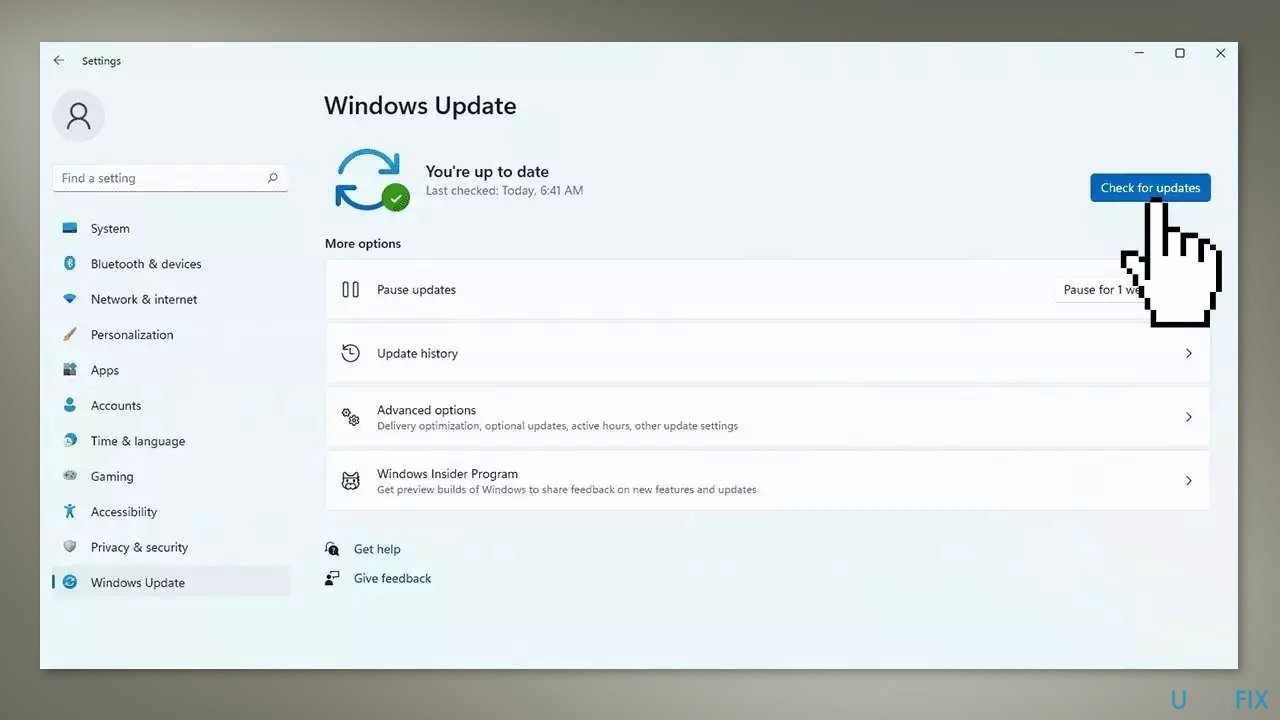
- Go to the Advanced options and install optional updates
- Reboot your system
Solution 2. Disable the Schedule night light option
- Press Windows + I to launch the Settings app
- Click on Display on the right in the System tab
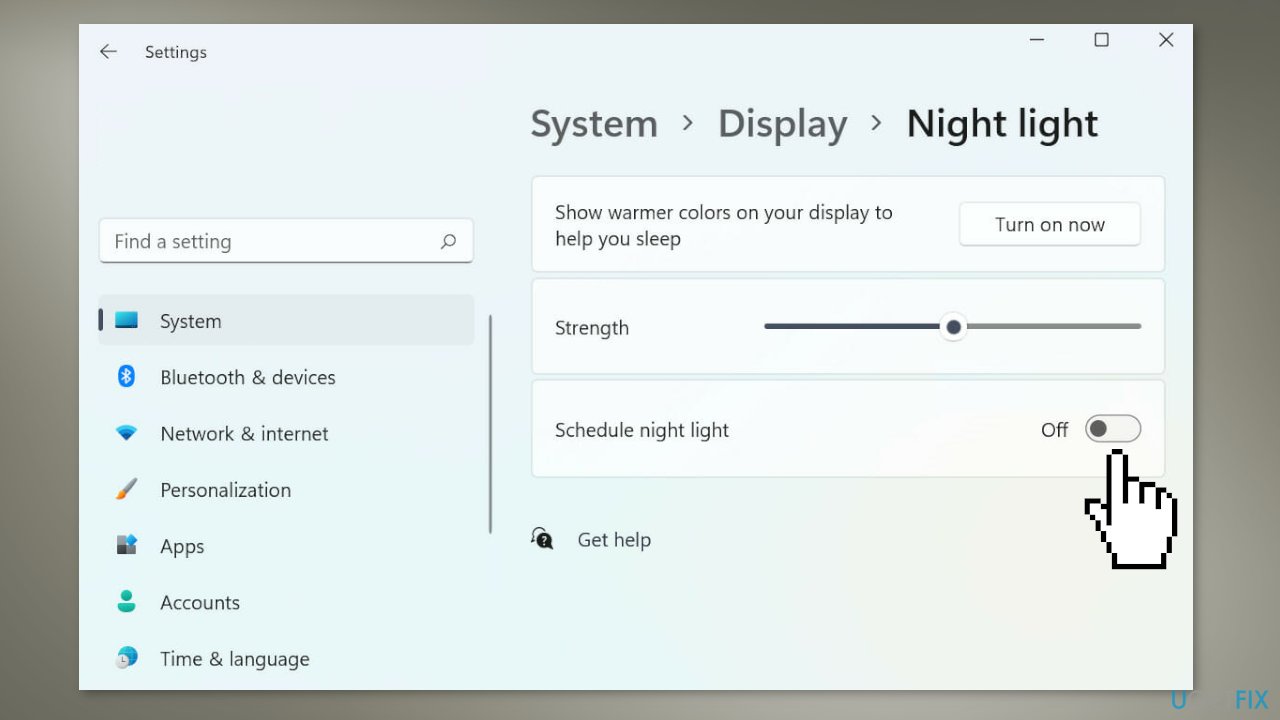
- Click on the Night light option, and make sure that the toggle for the Schedule night light option is disabled
Solution 3. Reinstall the graphics driver
- Right-click on the Start icon or press Windows + X to launch the Quick Access menu
- Select Device Manager from the list of options
- Double-click on the Display adapters entry and right-click on the graphics adapter
- Select Uninstall device from the context menu
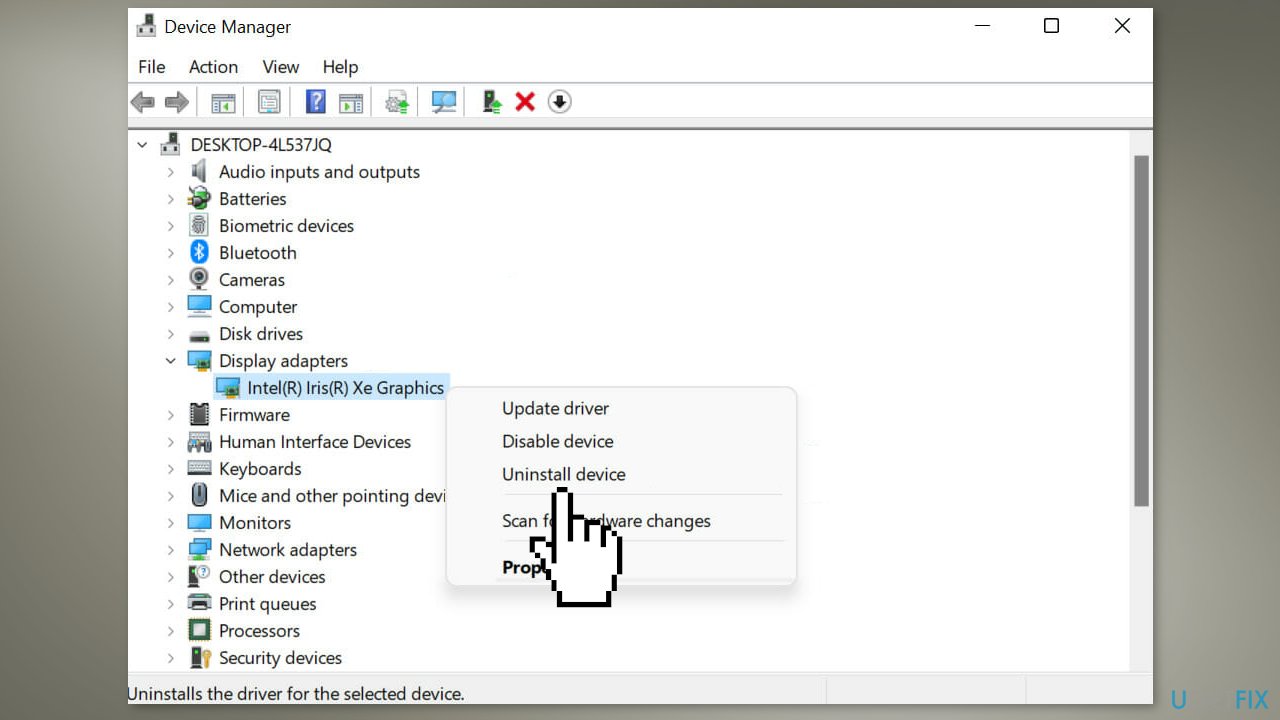
- Select the checkbox for Attempt to remove the driver for this device and click on Uninstall at the bottom
- Restart the computer after the driver is uninstalled
- You can also use a dedicated utility like [rev id="DriverFix"] that can find the best drivers for your machine and install them automatically
Solution 4. Update the graphics driver
- Press Windows + S to launch the Search menu
- Enter Device Manager in the text field at the top, and click on the relevant search result
- Double-click on the Display adapters entry and right-click on the graphics adapter
- Select Update driver from the context menu
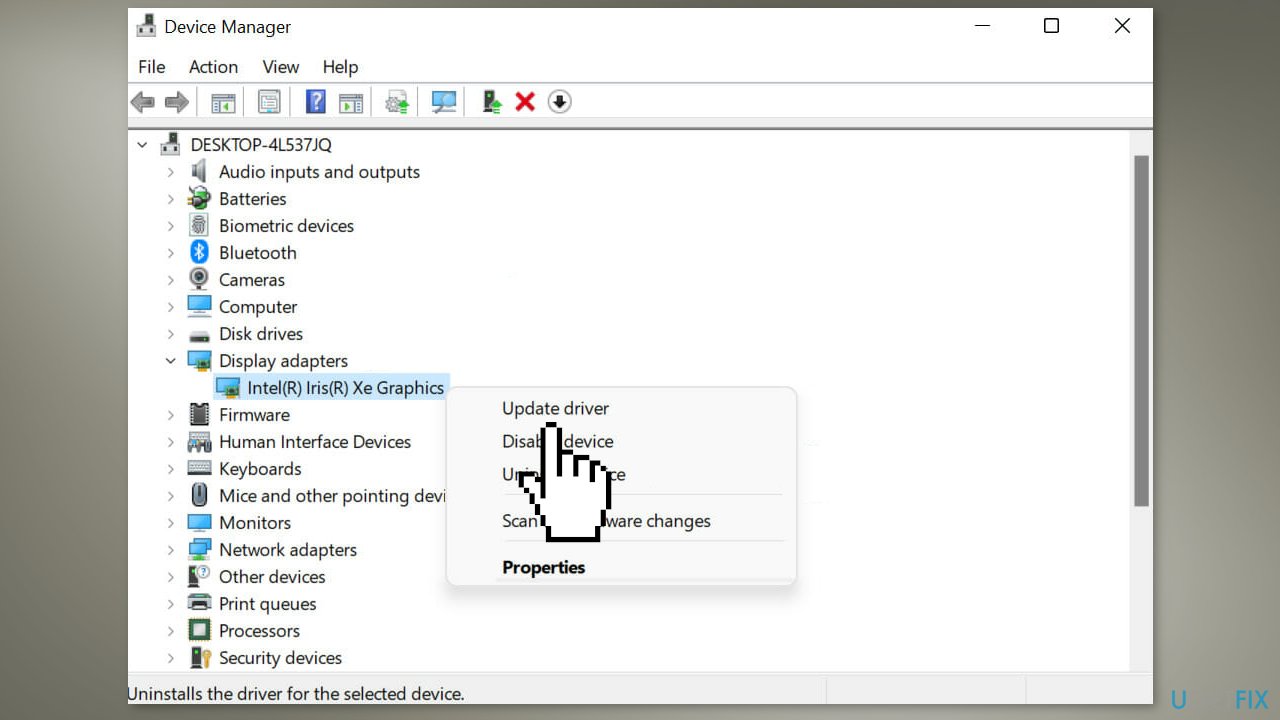
- Select Search automatically for drivers from the two options listed in the Update Drivers window
Solution 5. Modify the registry
If users absolutely need to perform changes in the Registry Editor it is best to create a backup and restore it if something goes wrong. You can follow the steps in the How to back up and restore the Windows registry? article.
- Press Windows + R to launch the Run command
- Type regedit in the text field, and either click on OK or hit Enter
- Click Yes on the User Account Control (UAC) prompt that appears
- Paste the following path in the address bar at the top, and hit Enter:
HKEY_CURRENT_USER\Software\Microsoft\Windows\CurrentVersion\CloudStore\Store\DefaultAccount\Cloud
- Right-click on the following key and select Delete from the context menu:
$$windows.data.bluelightreduction.bluelightreductionstate
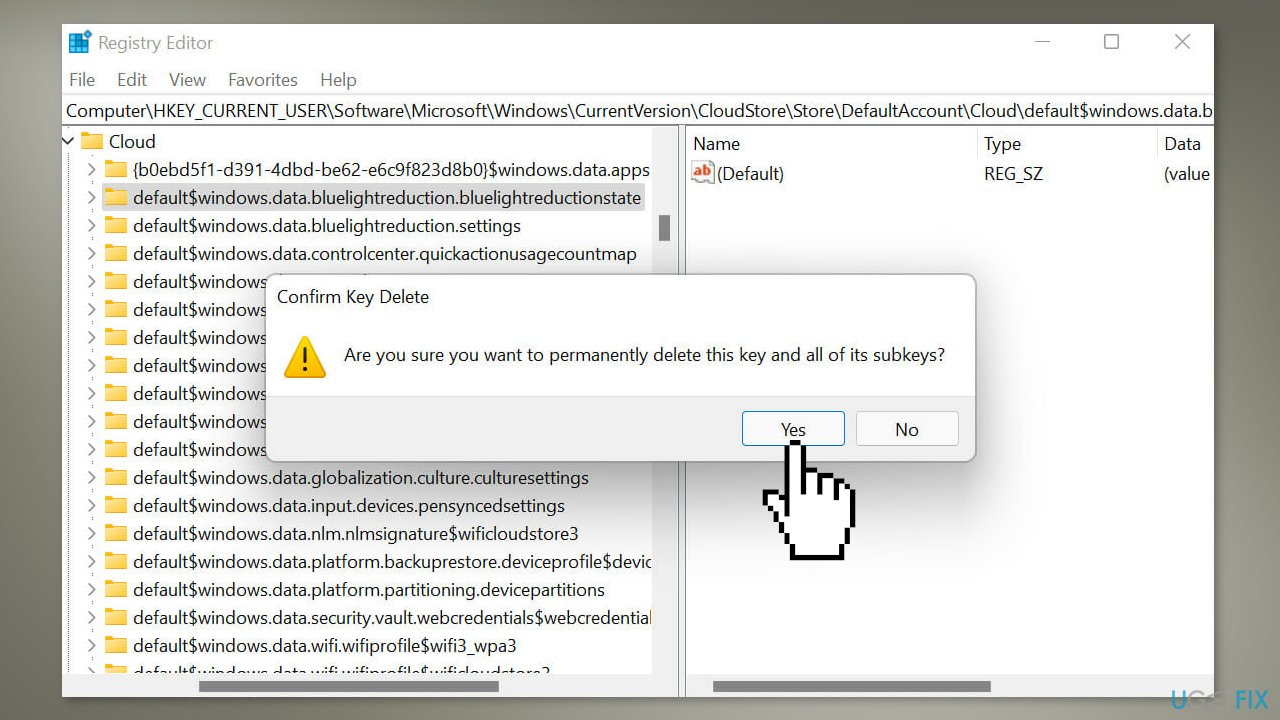
- Click Yes in the confirmation prompt that appears
- Similarly, delete the following key as well:
$$windows.data.bluelightreduction.settings
- Restart the computer for the changes to take effect
Solution 6. Create a new user account
- Press Windows + I to launch Settings
- Select Accounts from the tabs listed on the left and click on Family & other users on the right
- Click on the Add account button next to Add other user
- Select I don’t have this person’s sign-in information and click on Add a user without a Microsoft account
- Enter the user name, password, and answer the three security questions (if you enter a password) in the respective fields
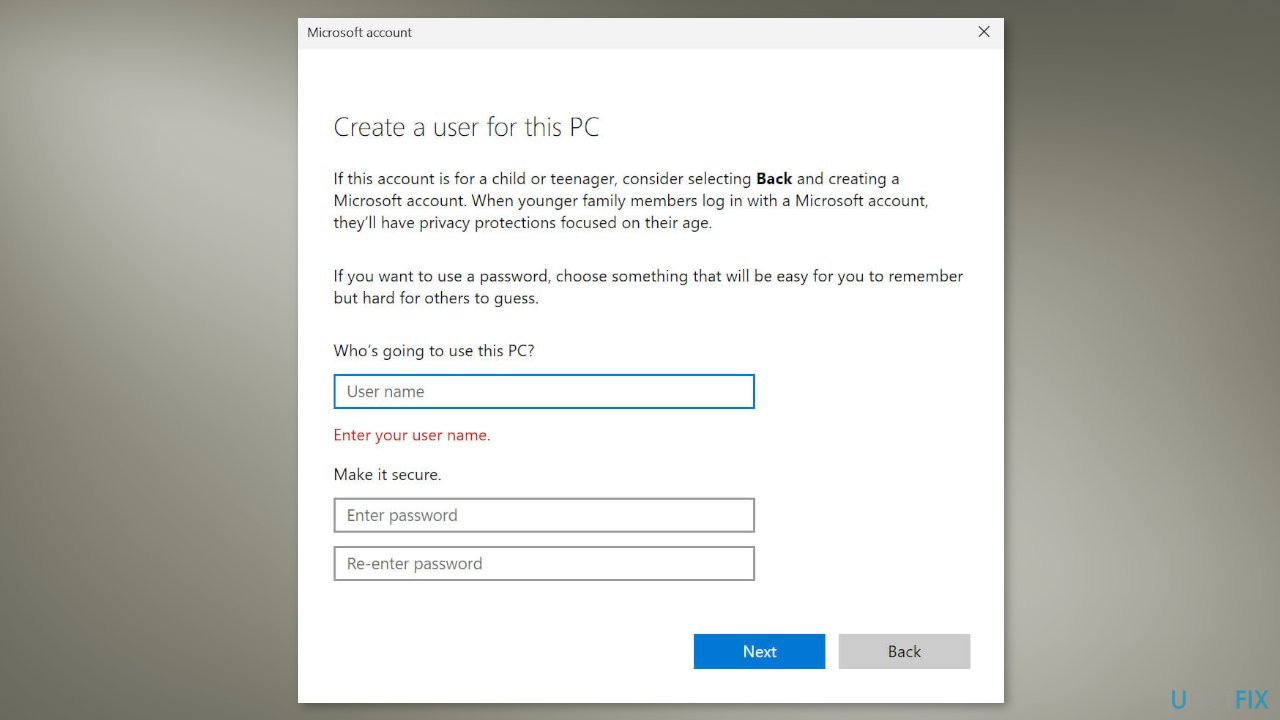
- Click on Next to create the local account
- If you don’t want to create a password-protected local user account, leave the password field blank
Bottom line
To fix the issue of the night light not turning off in Windows 11, you can check the system settings, update or reinstall your graphics driver, and modify the registry if necessary. Additionally, adjusting the schedule for the night light feature may help. If none of these solutions work, consider seeking further technical support.
Frequently asked questions
The Night light feature may not turn off due to a system glitch or incorrect settings. Check your display settings and ensure that the Night light toggle is properly set.
You can manually disable Night light by going to Settings > System > Display and toggling the Night light switch off. If that doesn't work, try restarting your PC.
If Night light is stuck on, you can reset the graphics driver by pressing Windows + Ctrl + Shift + B. Alternatively, ensure your Windows 11 is updated to the latest version for potential fixes.




Report an issue
What's wrong with this guide? We review every report and update or remove content.
Report received — thank you. We'll review and fix it.
You need a free account to submit a report.
Be the first to comment