How to fix
Disable “Set up OneDrive” Pop-Up
on Windows
Eliminate the pesky OneDrive pop-up on Windows 10 effortlessly. Enjoy a smoother experience with expert-tested solutions that fix the issue in minutes.

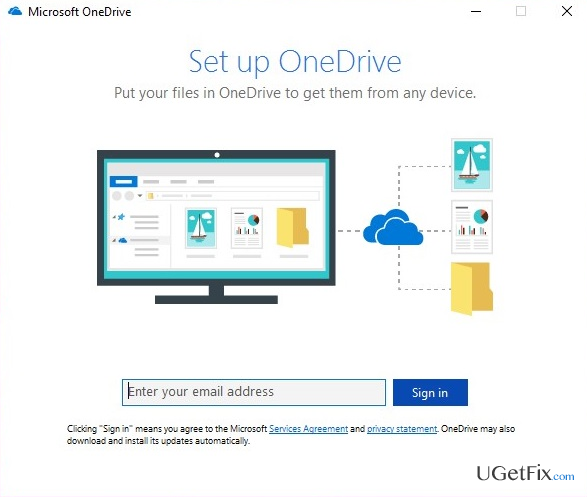
Why does How to Disable “Set up OneDrive” Pop-Up on Windows 10 occur?
- OneDrive is pre-installed on Windows 10 by default
- Windows 10 automatically enables OneDrive for Microsoft account users
- Local account users experience regular pop-ups for OneDrive setup
- The 'Start OneDrive automatically when I sign into Windows' option does not eliminate the pop-up
- The pop-up reappears even after closing it
Repairs Windows system files, removes malware, and restores a clean OS state — without reinstalling.
Hello, I’m getting a pop-up message from OneDrive, which asks me to set it up by entering my email address and signing in. Actually, I’m not a OneDrive fan and do not intend using it. I’m using Windows 10 OS from 2015 and have unchecked the "Start OneDrive automatically when I sign into Windows" option, but the pop-up did not go away. Could you please tell me if there is a way to disable OneDrive pop-ups? Thanks in advance!
OneDrive is a Microsoft’s service, which allows transmitting, sharing, and keeping personal files on the “cloud.” All Microsoft Windows users can use the service for free. Earlier Windows versions did not have OneDrive pre-installed, so people who opted to use it had to download it from the store. However, with the Windows 10, the service comes installed by default and Microsoft highly recommends using it due to the fact that it can also be used for the synchronization of visual customization, themes, app settings, IE, Edge, history, saved passwords, and system’s settings on Xbox One, Windows 8.1, Windows 10, and Windows Phone. Despite many advantages, people a free to choose whichever cloud storage to use and many decide to use an alternative one due to some personal attitudes.
The problem is that Windows 10 system automatically enables OneDrive if a PC user signs in to the system with a Microsoft account. Nevertheless, if a PC owner uses a local account for signing in to Windows, the “Set up OneDrive” pop-up occurs regularly. The message introduces OneDrive in one sentence and asks the PC user to enter his/her email address and sign in. It is possible to close the pop-up by pressing the X button at the top right corner of it, but it will reoccur after a while. Indeed, “Set up OneDrive” error is irritating. Luckily, there is a quite easy solution, which will help you to disable “Set up OneDrive” pop-up permanently.
How to Disable “Set up OneDrive” Pop-Up on Windows 10?
Method 1. Disable OneDrive via Group Policy Editor
This option applies for Pro version of Windows 10 because it has the Group Policy Editor. Thus, if you are using a Pro version, here’s what you have to do to lock out “Set up OneDrive” notification:
- Press Windows key, type gpedit.msc, and press Enter.
- In the Local Group Policy window, go to the following location:
Local Computer Policy > Computer Configuration > Administrative Templates > Windows Components > OneDrive. - Locate Prevent the usage of OneDrive for file storage on the right pane and double click it.
- When the Properties window opens, select Enabled.
- Click Apply and OK to save the changes.
- Now close everything and check if the “Set up OneDrive” error reappears.
Method 2. Stop “Set up OneDrive” pop-up from appearing using Command Prompt
If you are not using Pro version of Windows 10, then you don’t have the access to Group Policy Editor. Therefore, the only way to stop the system from generating OneDrive’s set up messages is to add a registry entry that will prevent OneDrive from running. Since this method requires modifying the registry, don’t forget to create registry backups.
- Press Windows key + R, type regedit, and press Enter.
- Use the left pane to navigate to the HKEY_LOCAL_MACHINE\Software\Policies\Microsoft\Windows entry.
- The right-click on Windows and select New -> Key.
- Name the new key as OneDrive (if such a key already exists, skip this step).
- After that, right-click on OneDrive registry key and select New -> DWORD (32-bit) Value.
- Name the new value as DisableFileSyncNGSC. Again, if this value is already present, skip this step.
- Then double click on the DisableFileSyncNGSC value that you have just created and change its value to 1.
- Finally, close Registry Editor and reboot your PC.
Hopefully, you have successfully disabled “Set up OneDrive” pop-up using the instructions above. If none of the methods worked, please let us know so that we could re-address the issue.
TIP: Windows specialists highly recommend installing and regularly scanning the system with a professional optimization tool, such as [d1]. This program will prevent storing of damaged registry entries, corrupted system files, malware or other potentially dangerous content that may negatively influence PC’s performance.
Bottom line
To disable the 'Set up OneDrive' pop-up permanently, you can use the Group Policy Editor if you have the Pro version of Windows 10. If this method does not work, consider checking other settings or using alternative cloud storage solutions.
Frequently asked questions
To disable the OneDrive setup pop-up on Windows 10, right-click the OneDrive icon in the system tray, select 'Settings', and under the 'Settings' tab, uncheck 'Start OneDrive automatically when I sign in to Windows'.
Yes, you can uninstall OneDrive by going to 'Settings' > 'Apps' > 'Apps & features', finding OneDrive in the list, and selecting 'Uninstall'.
Disabling OneDrive will stop the pop-up but won't delete any files stored in the cloud; they will remain accessible through the OneDrive website.




Report an issue
What's wrong with this guide? We review every report and update or remove content.
Report received — thank you. We'll review and fix it.
You need a free account to submit a report.
Be the first to comment