How to fix
Windows 11 stuck in Tablet Mode
on Windows
Resolve your Windows 11 stuck in Tablet Mode issue quickly and effortlessly. Follow our expert-tested solutions and get back to normal in minutes!

What causes How to fix Windows 11 stuck in Tablet Mode?
- Windows 11 gets stuck in Tablet Mode due to software glitches
- Improper settings configuration
- Issues with system updates
- Corrupted files or registry issues
- Device not recognizing keyboard and mouse input
Repairs Windows system files, removes malware, and restores a clean OS state — without reinstalling.
Hello. My Windows 11 laptop is stuck in Tablet Mode. What do I do? I cannot use my device properly. Any tips would be appreciated.
Tablet Mode is a feature in Windows 11 that allows users to switch their desktop interface to a touch-optimized layout, making it easier to use on a tablet or touch-screen device. It automatically hides the taskbar, and expands all open windows to take up the full screen. This mode is designed to provide a more intuitive and touch-friendly experience for users who frequently use their device in a tablet configuration.
Some users have reported an issue where Windows gets stuck in Tablet Mode, even when the device is being used with a keyboard and mouse. This can be a frustrating experience for users as it can impact their ability to use the device effectively. For example, the taskbar and other interface elements may not be easily accessible, and it can be difficult to open and switch between multiple windows.
Usually, this issue can be resolved by disabling Tablet Mode in the settings. However, some people report that the issue is deeper than that. It is unknown why exactly Windows 11 gets stuck in Tablet Mode as there are many possibilities. In this guide, you will find 7 steps that should help you fix the problem.
Keep in mind that the manual troubleshooting process can be lengthy. You can use a maintenance tool like [d1] that can fix most system errors, BSODs,[ref en-1] corrupted files, registry[ref en-2] issues, or clear cookies and cache[ref en-3] automatically. Otherwise, follow the step-by-step instructions below.
Method 1. Restart Your Computer
Rebooting your system can sometimes bring it back to its original state.
- Click the Start button in the Taskbar to launch the Start menu
- Click the Power button
- Select Restart from the options
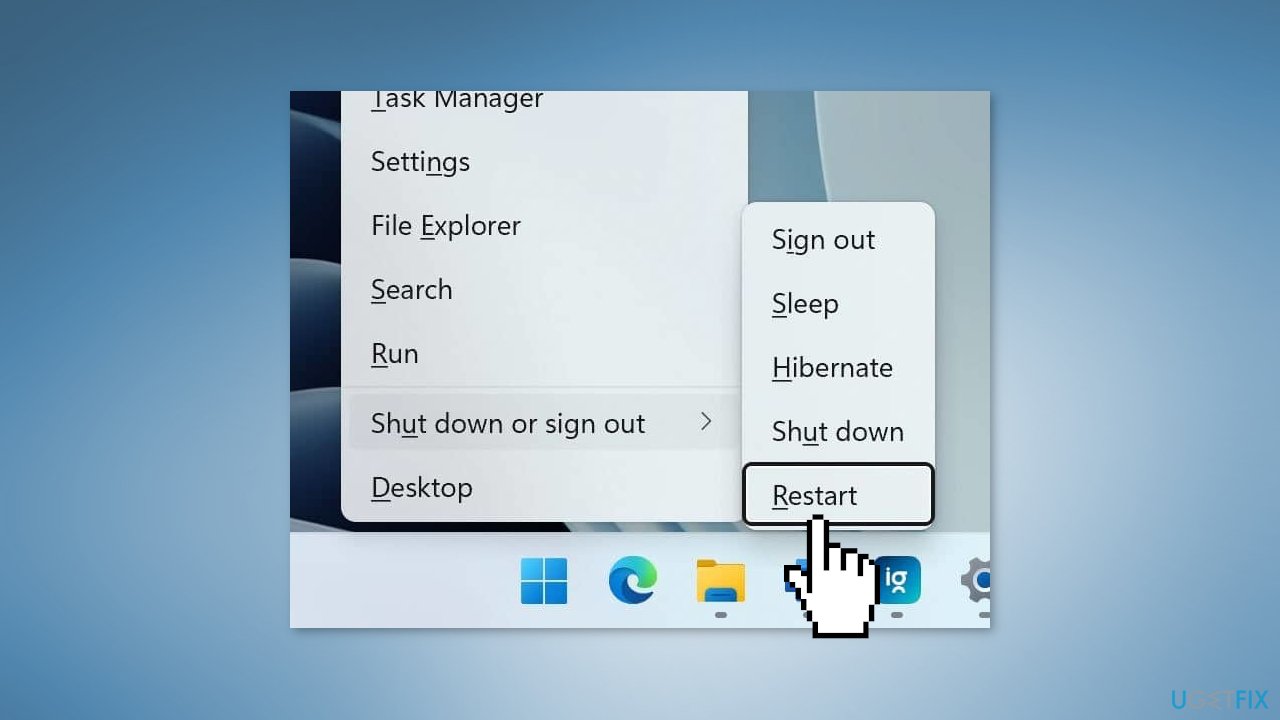
- After your system has rebooted, check if the issue persists
Method 2. Update Windows
- Click Start and select Settings
- Go to the Windows Update section
- Click Check for updates and wait
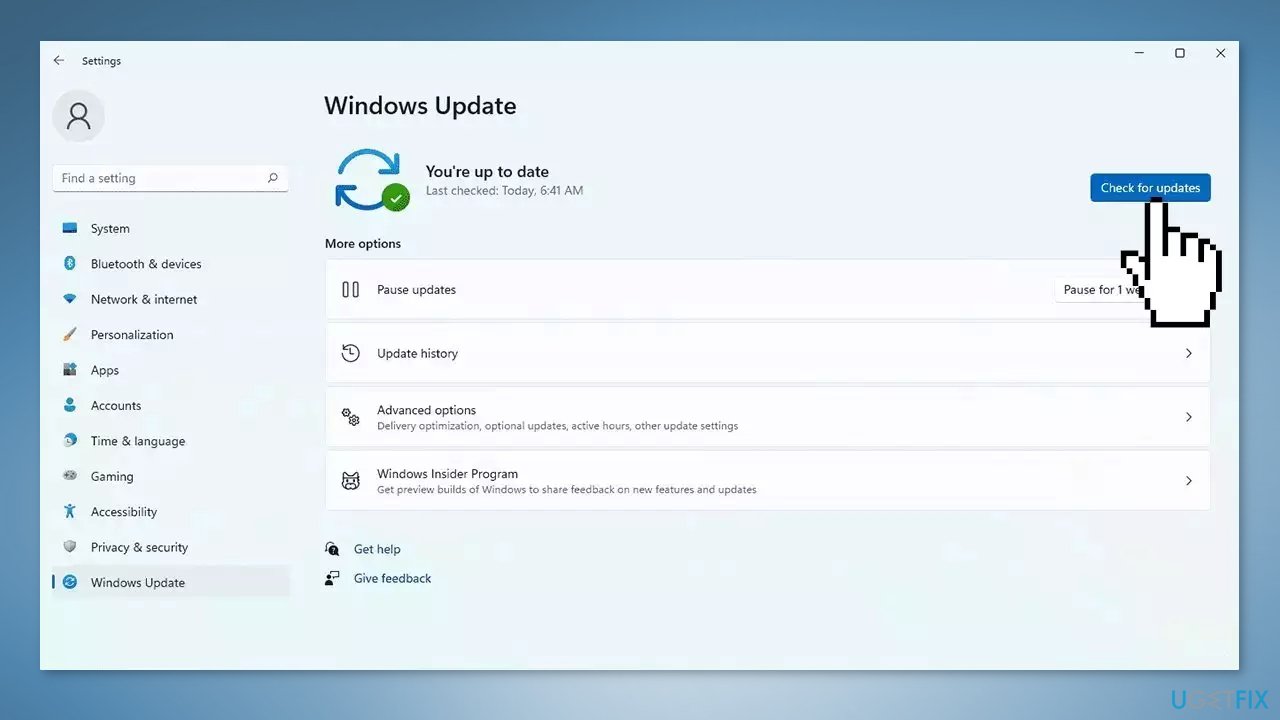
- Go to the Advanced options and install optional updates
- Reboot your system.
Method 3. Fix Corrupted System Files
Use Command Prompt commands to repair system file corruption:
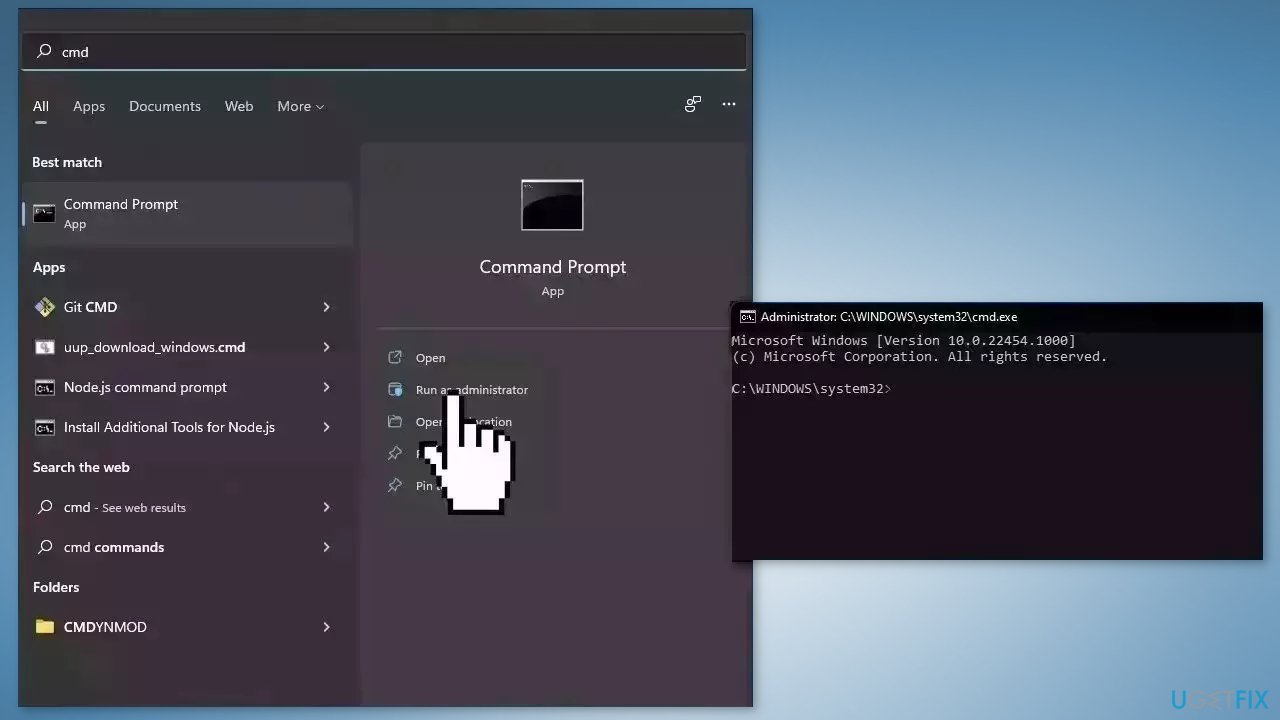
- Open Command Prompt as administrator
- Use the following command and press Enter:
sfc /scannow
- Reboot your system
- If SFC returned an error, then use the following command lines, pressing Enter after each:
DISM /Online /Cleanup-Image /CheckHealth
DISM /Online /Cleanup-Image /ScanHealth
DISM /Online /Cleanup-Image /RestoreHealth
Method 4. Disable Rotation Lock
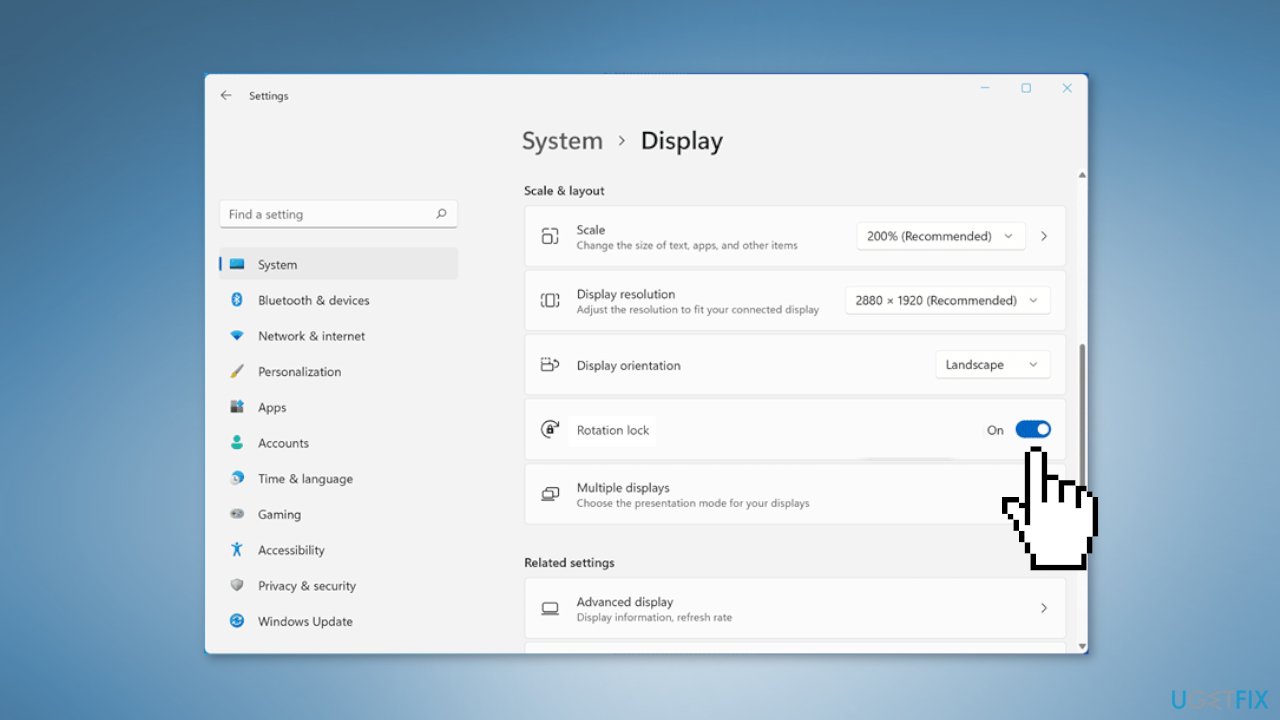
- Press the Windows key + I to open the Settings app
- In the System tab that opens by default, click on Display
- Scroll down and disable the toggle for Rotation lock
Method 5. Refresh Laptop Components
- Plug in the keyboard and shut down the laptop
- Unplug the charger and any other peripherals connected to the laptop
- Press and hold the power button for at least 30-40 seconds
- Attempt to boot the system
Method 6. Use the Registry Editor
Users should be especially careful when modifying the registry as it contains a wide variety of settings and configurations for the Windows operating system and the programs that run on it. If users absolutely need to perform changes in the Registry Editor it is best to create a backup and restore it if something goes wrong. You can follow the steps in the How to back up and restore the Windows registry? article.
- Press the Windows key + R to open the Run dialog box
- Type regedit and press Enter
- Navigate to the following location:
HKEY_CURRENT_USER > SOFTWARE > Microsoft > Windows > CurrentVersion > Immersiveshell
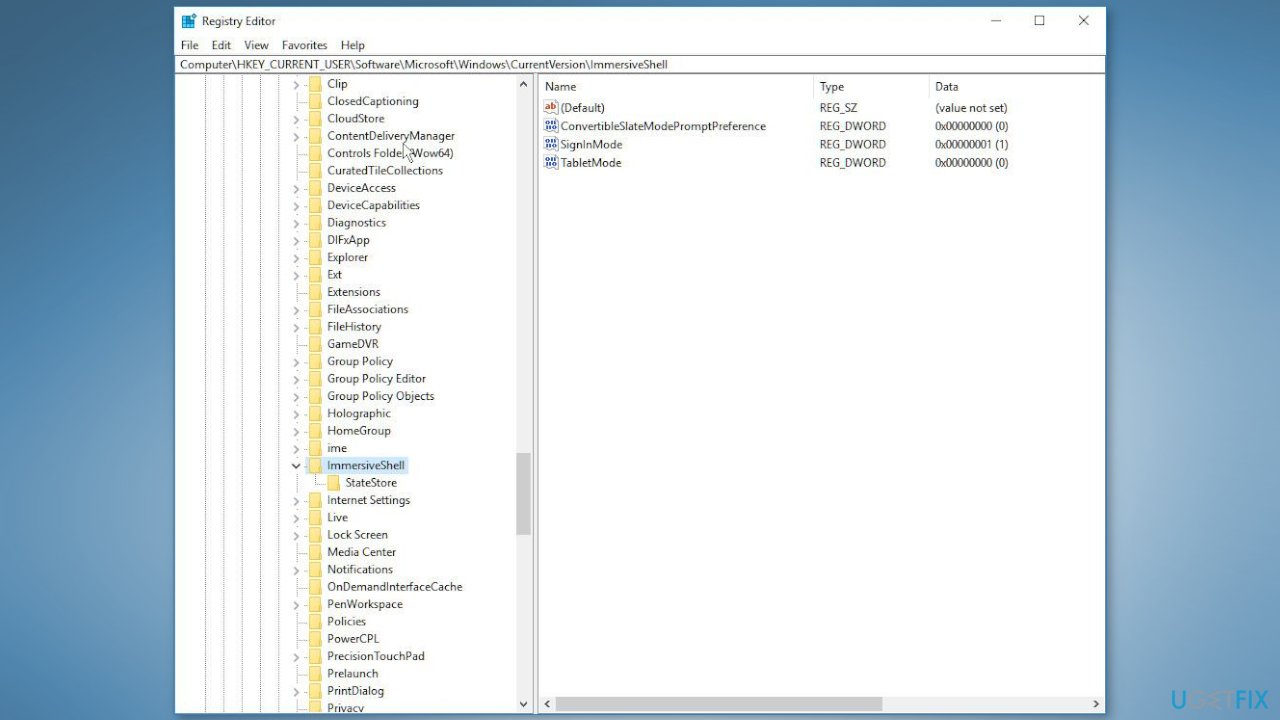
- Double-click on TabletMode and set its value to 0
- Double-click on SignInMode and set its value to 1
- Restart the computer
Method 7. Use System Restore
System Restore is a feature in Microsoft Windows that allows users to revert their computer's state to a previous point in time. This can be helpful if you have made changes to your system that are causing problems.
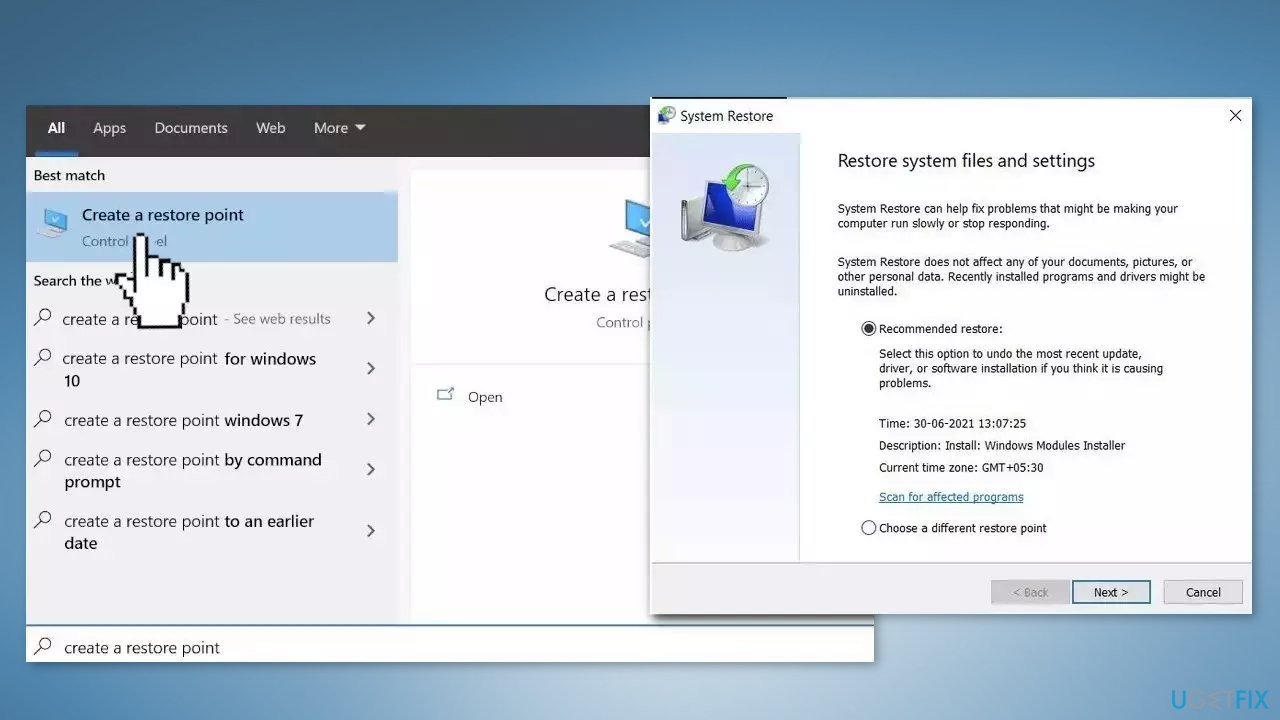
- Go to the Start menu, type restore, and click on Create a restore point
- Click System Restore, then follow the prompts until you can select a restore point
- Select the one you want (ideally before the issue started occurring) and go ahead with the process
Bottom line
To fix Windows 11 stuck in Tablet Mode, you can try restarting your computer, updating Windows, and checking for optional updates. If these methods do not resolve the issue, consider using a maintenance tool to address deeper system errors.
Frequently asked questions
To disable Tablet Mode in Windows 11, open the Action Center by clicking on the network icon in the taskbar, then click on the 'Tablet mode' button to turn it off.
If your device keeps reverting to Tablet Mode, go to Settings > System > Tablet and adjust the settings under 'When I use this device' to 'Don't switch to tablet mode'.
Yes, updating your device drivers can help resolve issues with Windows 11 being stuck in Tablet Mode; go to Device Manager, right-click on your display and input devices, and select 'Update driver'.




Report an issue
What's wrong with this guide? We review every report and update or remove content.
Report received — thank you. We'll review and fix it.
You need a free account to submit a report.
Be the first to comment