How to fix
“Your device is offline. Try a different sign-in method”
on Windows
Resolve the "Your device is offline" error in Windows 10 and 11 quickly. Follow our proven methods for a seamless sign-in experience. Expert-tested.

What causes How to fix “Your device is offline. Try a different sign-in method” in Windows?
- Network connectivity problems
- Incorrect login credentials
- Account suspension
- Issues after reboot or power on
- Repeated login attempts leading to account lock
Repairs Windows system files, removes malware, and restores a clean OS state — without reinstalling.
Hello. When I try to sign in to my Windows PC using the password, I receive this message - "Your device is offline. Try a different sign-in method." What should I do?
The "Your device is offline. Try a different sign-in method" error in Windows can be caused by a variety of issues, including network connectivity problems, incorrect login credentials, and account suspension.
This error can occur when a user tries to log in to their Microsoft account after a reboot or when the device is powered on. Sometimes, the error may also occur even if the device has been working properly. It's important to note that repeatedly trying to log in to a Microsoft account that has been suspended can result in the account being locked. This will prompt the user with the message "That password is incorrect. Make sure you’re using the password for your Microsoft account."
This issue can impact users by preventing them from accessing their Microsoft account and Windows operating system on the device. It is unknown what exactly causes the issue but possible solutions include checking network connectivity, switching to a local user account, restarting the device in Safe Mode, etc.
In this guide, you will find 6 steps that should help you fix "Your device is offline. Try a different sign-in method" error in Windows. If you notice any underlying problems with your system, it is a good idea to have a maintenance tool like [d1]. It can fix most system errors, BSODs,[ref en-1] corrupted files, and registry[ref en-2] issues. Otherwise, follow the step-by-step instructions below.
Solution 1. Connect to your network
- Remove the network plug-in cable
- Wait a few seconds
- If you have a network adapter, reset it
- Reconnect your network wire on your Windows device
- Try to log in
- Check that the WiFi transmitter is turned on and providing a good signal to your device
Solution 2. Reset Microsoft Account
Check if your Microsoft account has been suspended due to multiple login attempts:
- Go to the Reset Your Microsoft Account Password page
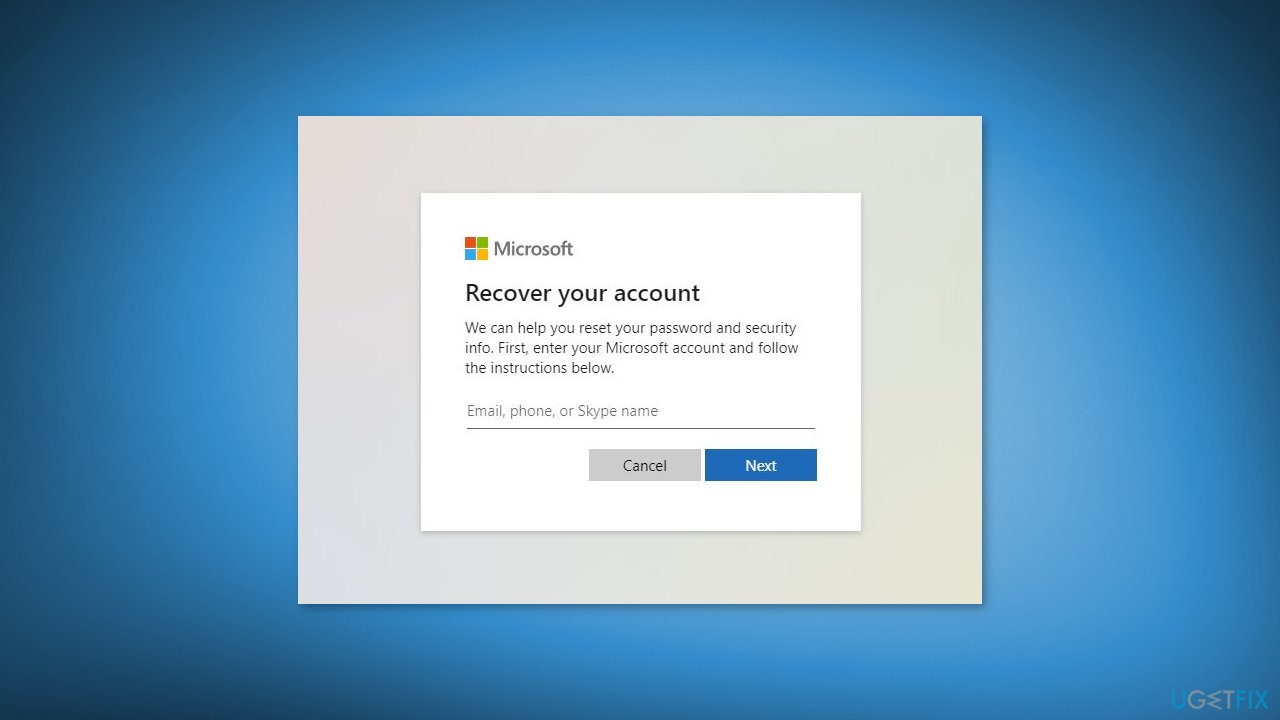
- Follow the on-screen prompts to reset your account
- Wait for Microsoft to reset your account and provide access to your Windows device
Solution 3. Enable Safe Mode
Safe Mode is a troubleshooting feature in the Windows operating system that starts the computer with a minimal set of drivers[ref en-3] and services. This mode is intended to help fix issues with the computer, such as when the system is not starting properly or when a driver is causing problems.
- Restart your computer while holding the Shift button
- Select Troubleshoot from the Advanced Startup menu that appears
- Select Advanced options > Startup Settings
- Click the Restart button
- Press 5 or F5 to choose Enable Safe Mode with Networking from the startup options that appear
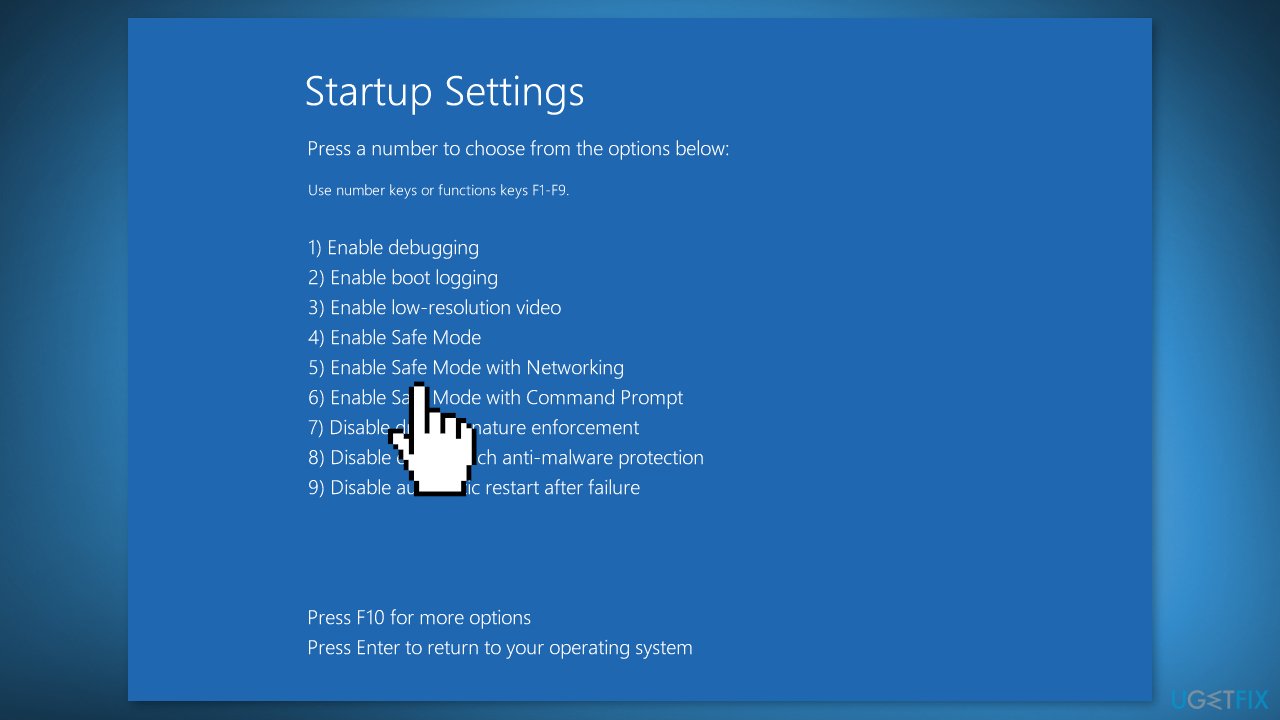
- Wait for your computer to boot into Safe Mode with Networking
Solution 4. Check the Network Connection
- Press the Windows key + X to open the Power User menu
- Select Device Manager from the list
- Find your networking device, right-click on it, and click Disable
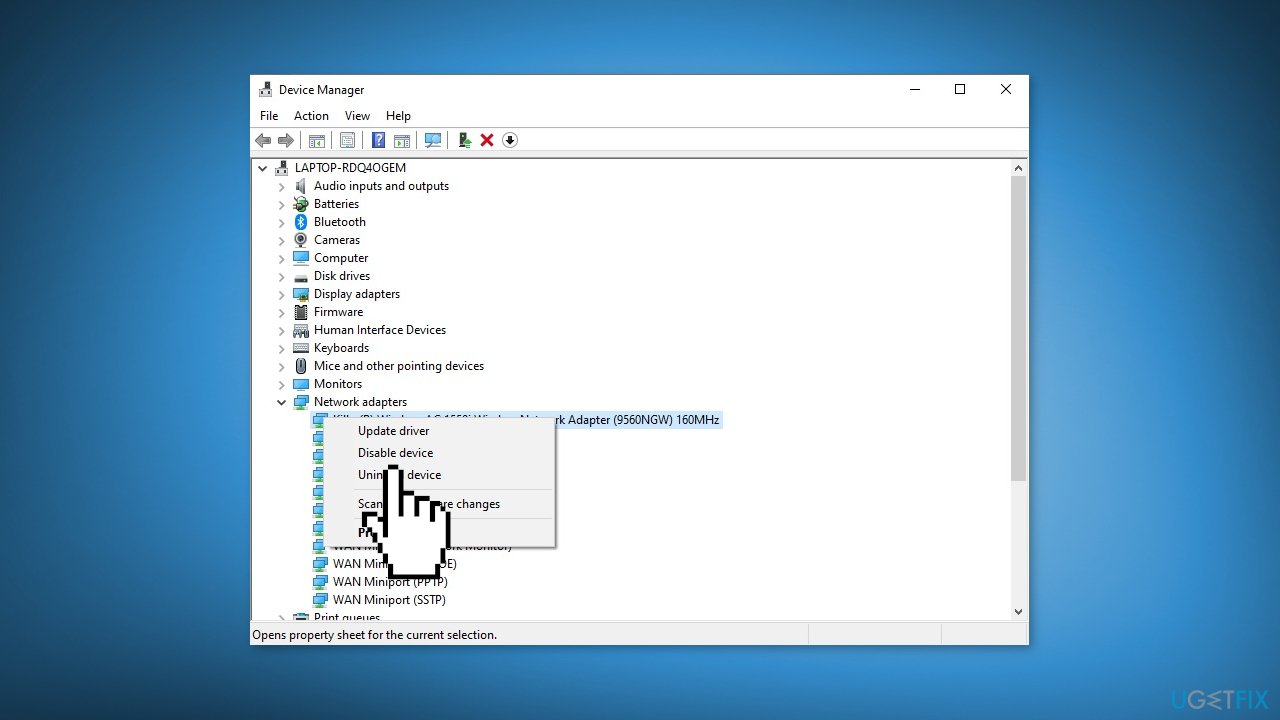
- Restart your computer
- Go to Device Manager again
- Enable the networking device by right-clicking it and selecting Enable
- Check if your network connection is now available. If yes, proceed with the following solutions.
Solution 5. Switch to Local Account
- Open the Windows Settings app
- Go to the Accounts section
- Navigate to the Your info tab
- Click Sign in with a local account instead
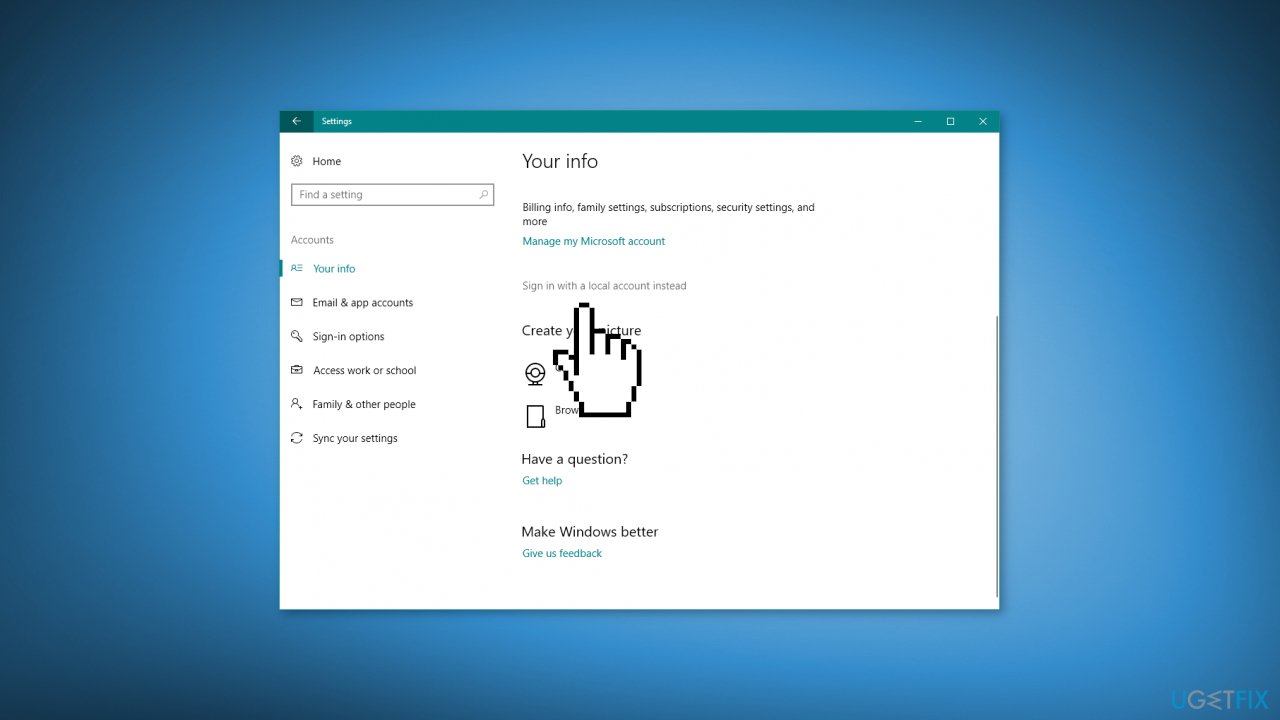
- Enter your password and click Next
- Enter a username for your local account and click Next
- Click the Sign-out and finish button
- Log into Windows with your new local account
Note: Switching to a Local User Account could be a temporary solution to the "Your pc is offline. Please sign in with the last password you used on this device." error because using a Local Account allows you to log in without a password and without being online.
Solution 6. Modify Windows Registry
- Go to Search, type Regedit and open the Registry Editor
- Navigate to the following registry key: Computer\HKEY_USERS.DEFAULT\Software\Microsoft\IdentityCRL\StoredIdentities
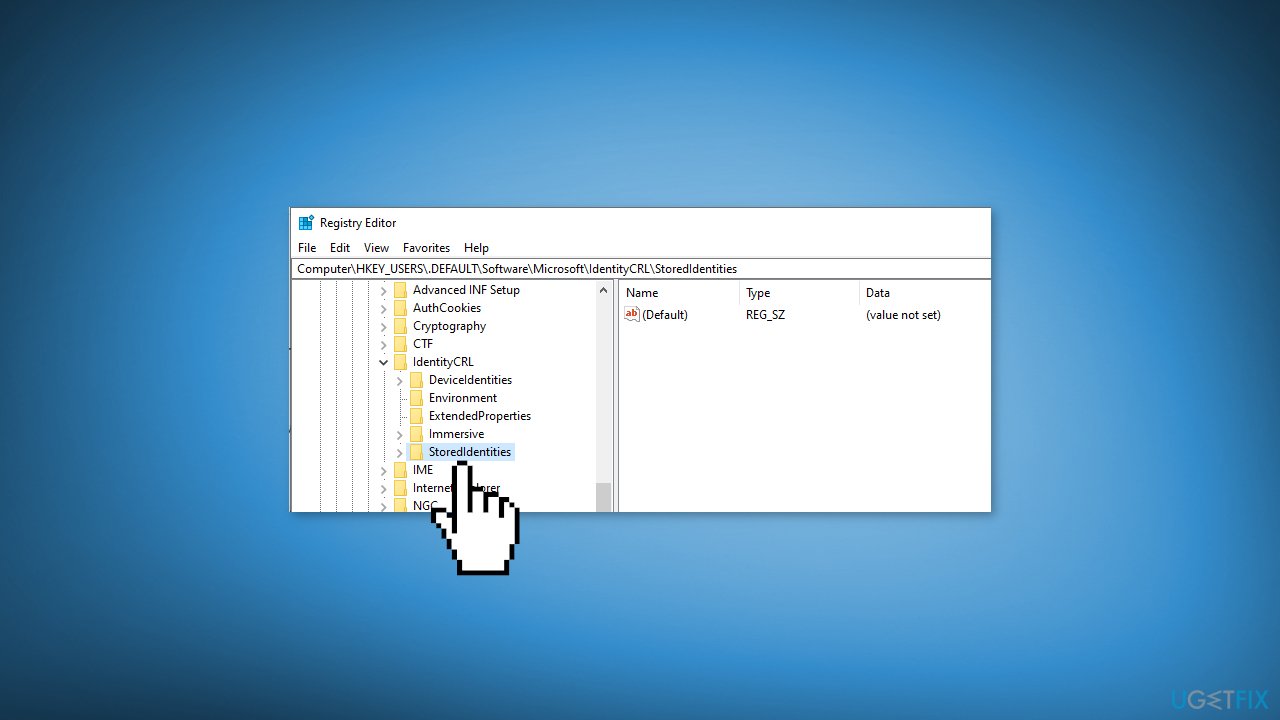
- Expand the StoredIdentities key
- Locate the problematic sub-key under it and delete it
- Restart your computer
Note: modifying the Windows registry can be dangerous if not done correctly. It's recommended to create a backup of your registry before making any changes. You can follow the instructions in our How to back up and restore the Windows registry? article.
Bottom line
To fix the "Your device is offline. Try a different sign-in method" error, you can check your network connectivity, reset your Microsoft account, or switch to a local user account. If these solutions do not resolve the issue, consider restarting your device in Safe Mode or using a maintenance tool to address underlying system problems.
Frequently asked questions
First, ensure that your internet connection is stable. If the issue persists, try restarting your device and checking your network settings.
You can fix this by connecting to a reliable Wi-Fi network or using Ethernet, then attempt to sign in again. If that doesn't work, consider resetting your network settings.
Yes, you can try signing in with a local account if you have one set up, or access safe mode to troubleshoot further.




Report an issue
What's wrong with this guide? We review every report and update or remove content.
Report received — thank you. We'll review and fix it.
You need a free account to submit a report.
Be the first to comment