How to fix
Forspoken crashes and other issues
on Windows
Resolve Forspoken crashes and issues on Windows 10 or Windows 11 with expert-tested solutions. Get back to gaming in minutes!

What causes How to fix Forspoken crashes and other issues on Windows?
- Compatibility issues with the player's computer
- Outdated drivers
- Problems with the game's code
- Insufficient system requirements
- Background programs running during gameplay
Repairs Windows system files, removes malware, and restores a clean OS state — without reinstalling.
Hello. I just installed Forspoken and tried to play it but the game keeps stuttering and crashing. Is there anything I can do about this?
Forspoken, the highly-anticipated action role-playing game developed by Luminous Productions and published by Square Enix, was released on January 24, 2023, for PlayStation 5 and Windows. The game is set in an open-world format, and players take on the role of Frey, a character with access to a variety of magical spells.
Players earn experience points after each combat encounter and can upgrade Frey's cloak to improve her combat efficiency and stats, as well as craft new items and restore health by resting at safe locations. However, despite the game's promising features, many players have reported experiencing crashes and other issues while playing Forspoken on Windows. These issues can range from game crashes during play, to freezing and stuttering, to difficulty launching the game at all.
One of the most common issues reported by players is game crashes. These crashes can occur at any point during play and can be caused by a variety of factors such as compatibility issues with the player's computer, outdated drivers, or problems with the game's code. These crashes can be frustrating for players, as they can disrupt gameplay and force players to start over from a previous save point.
Another issue that has been reported is freezing and stuttering. This can occur when the game is running on a computer that does not meet the recommended system requirements, or when the player's computer is running other programs in the background. This can make the game unplayable, as the player's character will become stuck in place and unable to move.
These issues can have a significant impact on players' enjoyment of the game. Crashes and freezing can disrupt gameplay and force players to start over, while difficulty launching the game can prevent players from playing the game altogether.
In this guide, you will find 8 different solutions that should fix common Forspoken issues on Windows. Keep in mind that the manual troubleshooting process can be lengthy. You can use a maintenance tool like [d1] that can fix most system errors, BSODs,[ref en-1] corrupted files, registry[ref en-2] issues, or clear cookies and cache.[ref en-3] Otherwise, follow the step-by-step instructions below.
Solution 1. Check System Requirements
| Minimum Requirements | RECOMMENDED REQUIREMENTS |
|---|---|
| OS: Windows® 10 64-bit (After November 2019 Update) or Windows® 11 64-bit | OS: Windows® 10 64-bit (After November 2019 Update) or Windows® 11 64-bit |
| Processor: AMD Ryzen™ 5 1600 (3.7GHz or better) / Intel® Core™ i7-3770 (3.7GHz or better) | Processor: Ryzen™5 3600 (3.7 GHz or better) / Intel® Core™ i7-8700K (3.7GHz or better) |
| Memory: 16 GB RAM | Memory: 24 GB RAM |
| Graphics: AMD Radeon™ RX 5500 XT 8GB / NVIDIA® GeForce® GTX 1060 6 GB VRAM | Graphics: AMD Radeon™ RX 6700 XT 12GB / NVIDIA® GeForce® RTX 3070 8 GB VRAM |
| DirectX: Version 12 | DirectX: Version 12 |
| Storage: 150 GB available space | Storage: 150 GB available space |
| Additional Notes: 720p 30fps | Additional Notes: 1440p 30fps, SSD 150GB |
Solution 2. Install Windows Updates
- Click Start and select Settings
- Go to the Windows Update section
- Click Check for updates and wait
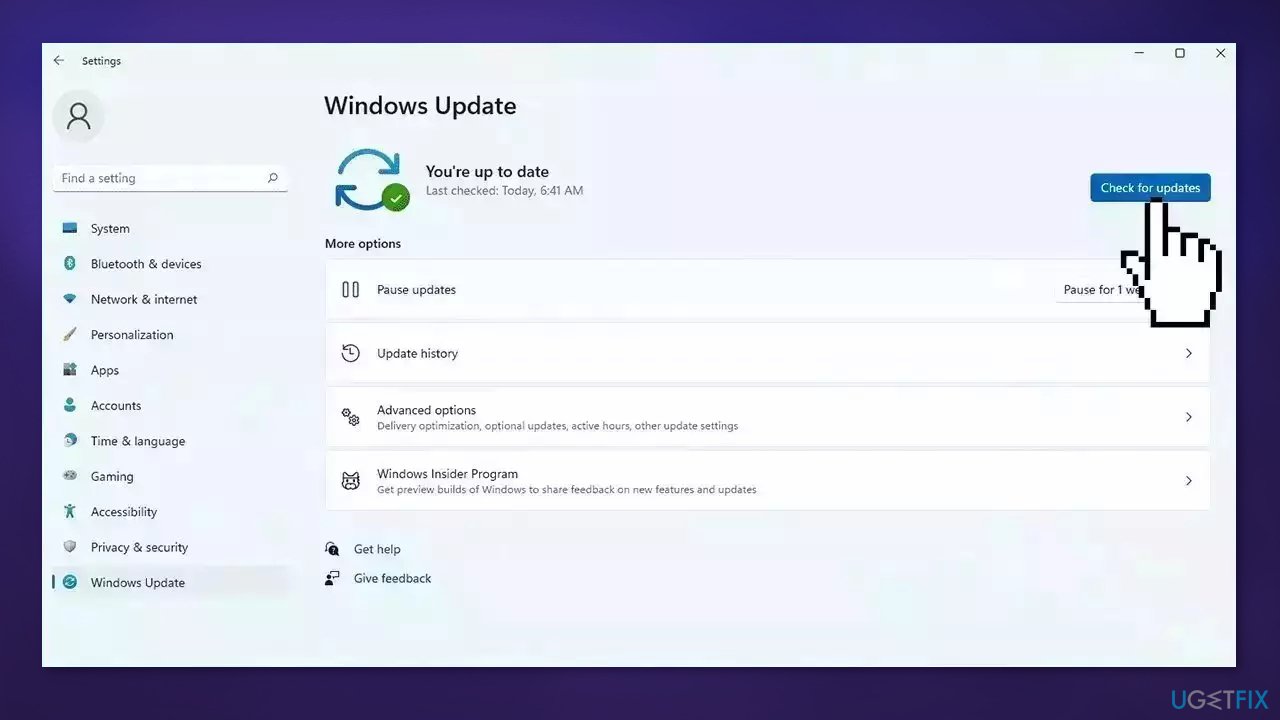
- Go to the Advanced options and install optional updates
- Reboot your system
Solution 3. Update Graphics Driver
- Open Device Manager and expand the Display Adapters tab
- Right-click on your graphics driver and select Properties
- Go to the Driver tab and click on Update Driver
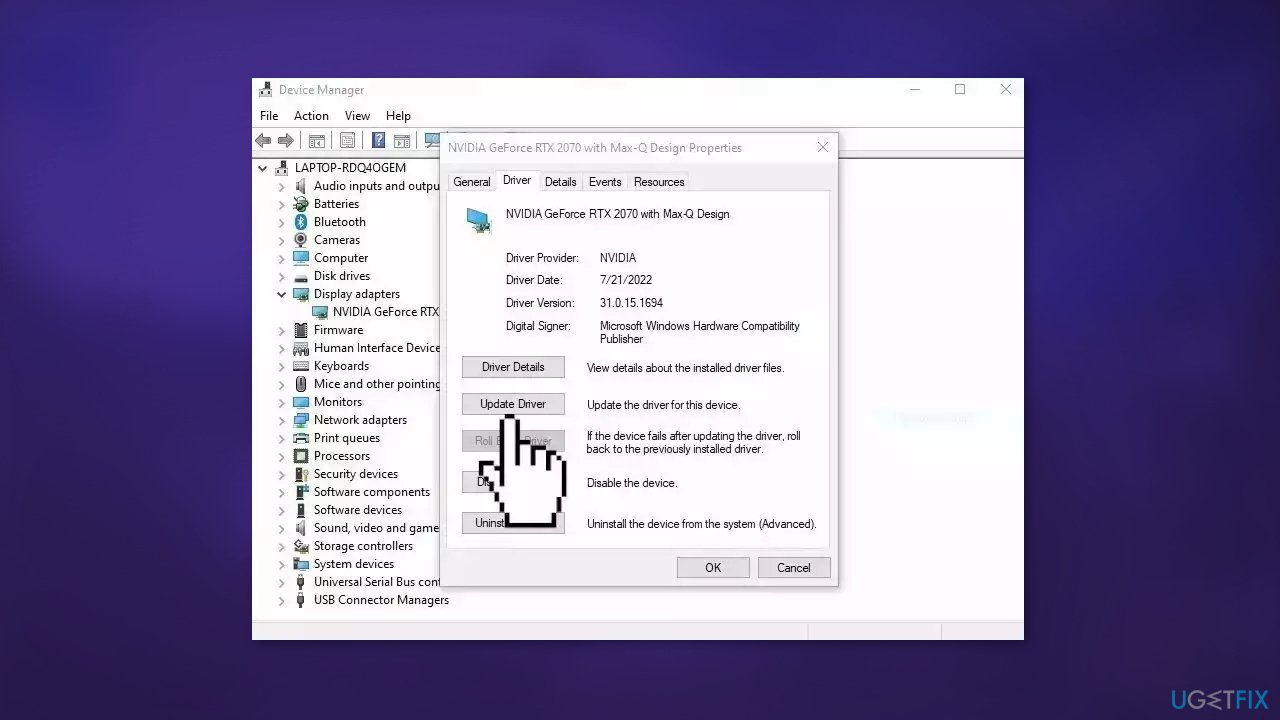
- Press on Search Automatically for Drivers
- If a graphic driver update is available, install it and then restart your PC
- Upon restart, launch the Forspoken game and check if it fixed the issue.
- You may also use a dedicated utility like [rev id="DriverFix"] that can find the best drivers for your machine and install them automatically
Solution 4. Verify Integrity of Game files
- Open Steam and go to LIBRARY
- Right-click on Forspoken, and choose the Properties option
- Navigate to the LOCAL FILES tab and click on the Verify integrity of game files button
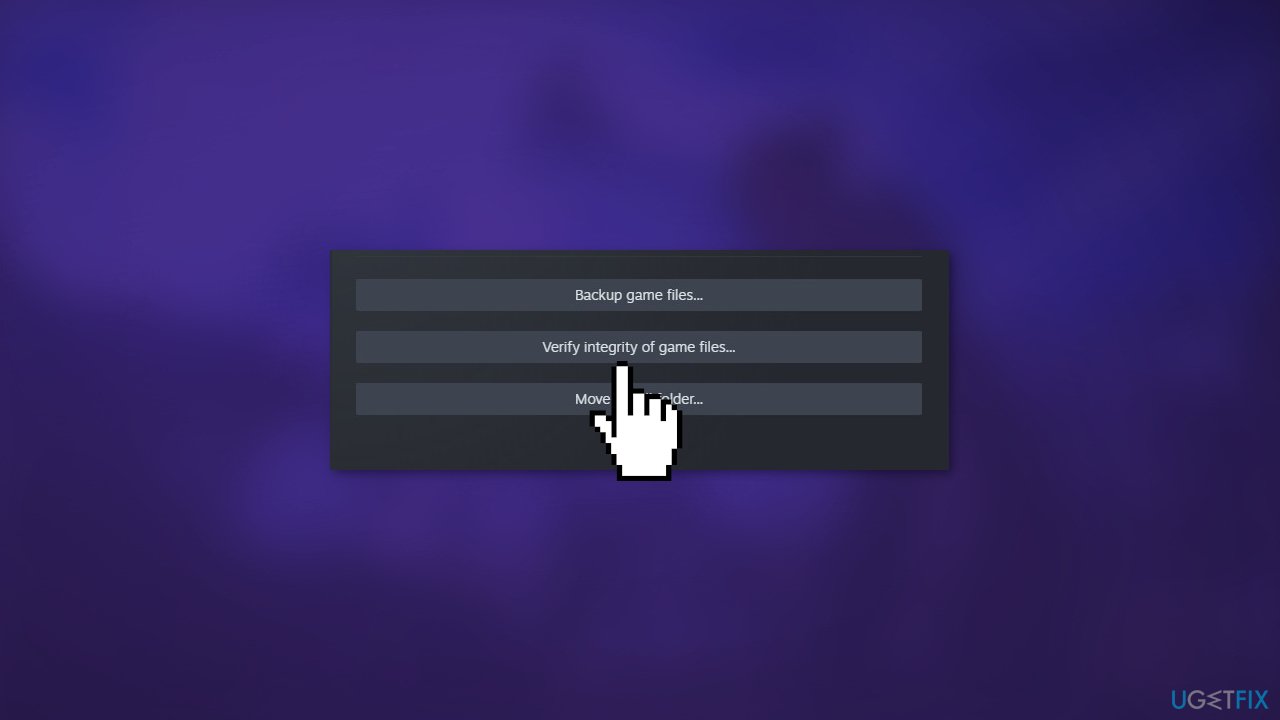
- When the process is done, you can reopen the game and check if the error disappeared
Solution 5. Run Forspoken as an Administrator
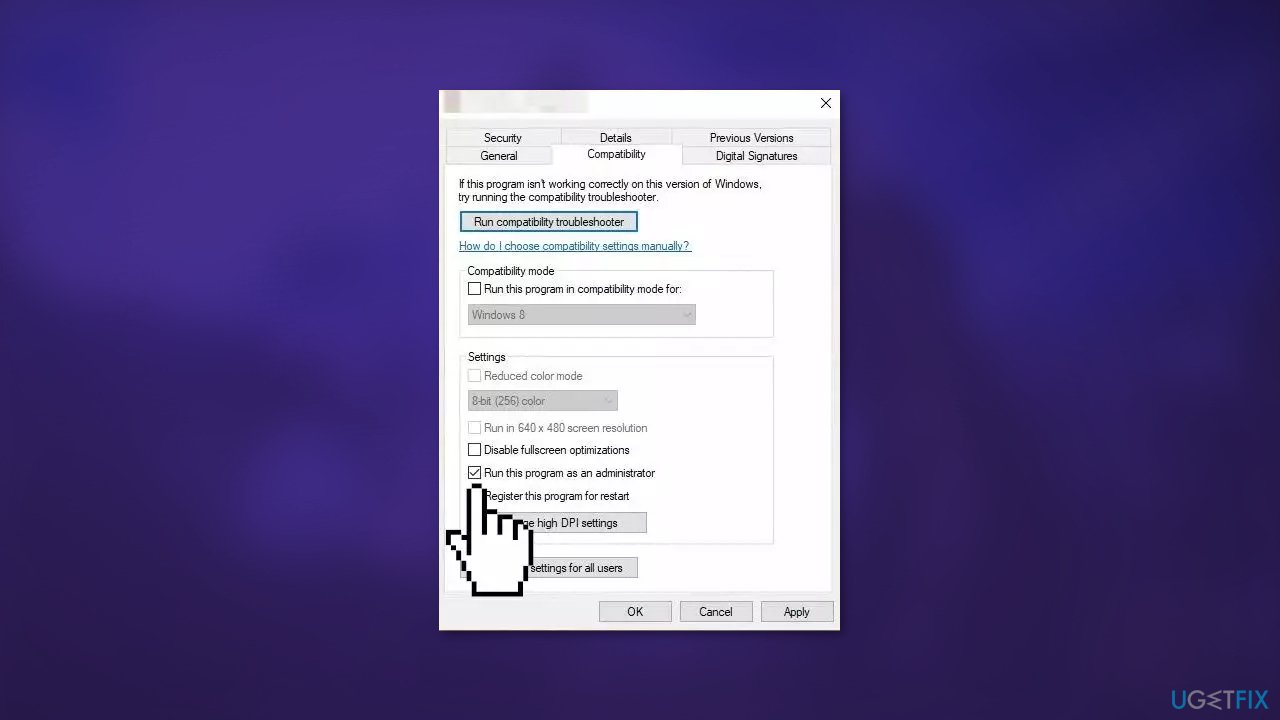
- Locate the installation folder of Forspoken
- Right-click on the file and choose the Properties option
- Go to the Compatibility tab and tick the checkbox next to Run this program as an administrator
- Press the Apply and OK to save changes
Solution 6. Disable Overlays
In-game overlays are features that are built into some games or can be added through third-party software that allows players to access certain information or tools while playing a game. These overlays can include things like system performance monitoring, chat windows, and recording tools. In-game overlays can be a useful tool for players, allowing them to access important information and tools without having to alt-tab out of the game.
However, in-game overlays can also cause games to crash. This can happen when the overlay software conflicts with the game's code or when the game's code is not optimized to work with the overlay software. Additionally, in-game overlays can also consume a lot of system resources, which can cause performance issues and crashes if the player's computer does not have enough resources to support both the game and the overlay.
Steam:
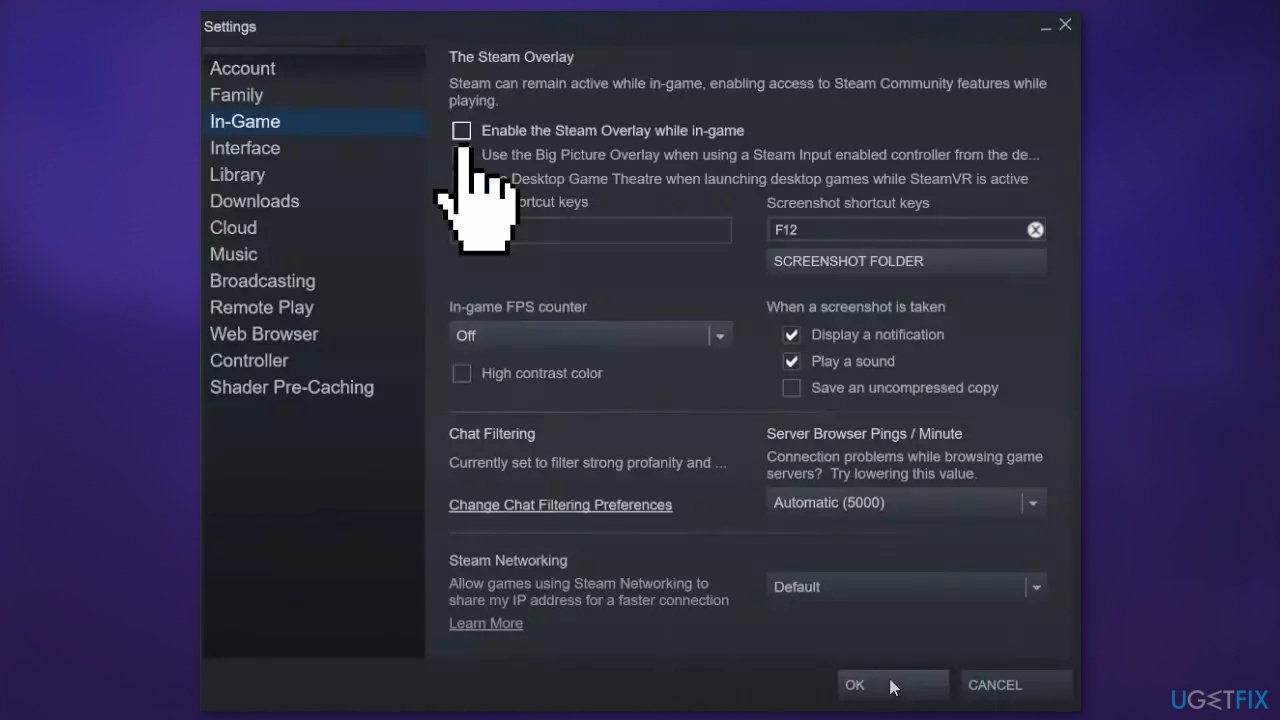
- Open the Steam app and go to the Settings
- Navigate to the In-Game tab and untick the Enable the Steam Overlay while in-game checkbox
Discord:
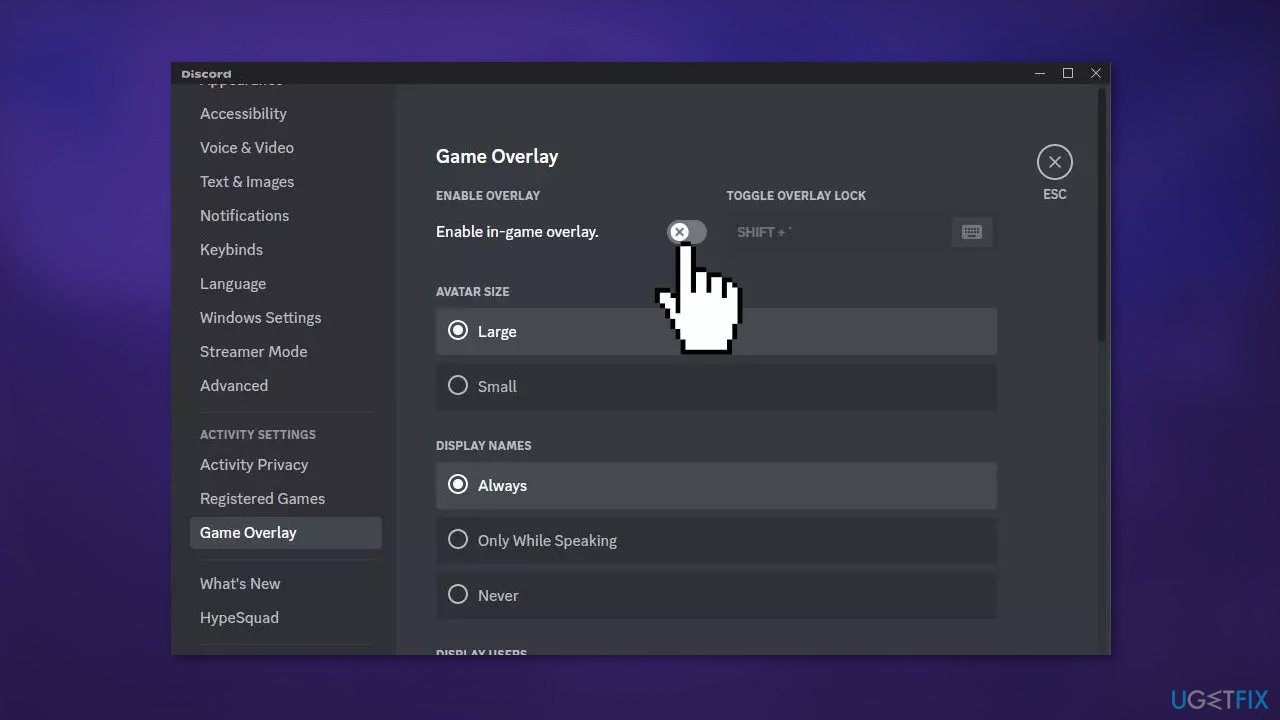
- Open your Discord app and press the User Settings (gear icon) button
- Locate the ACTIVITY SETTINGS section and move to the Game Overlay option
- Disable the Enable in-game overlay toggle from the right-side pane
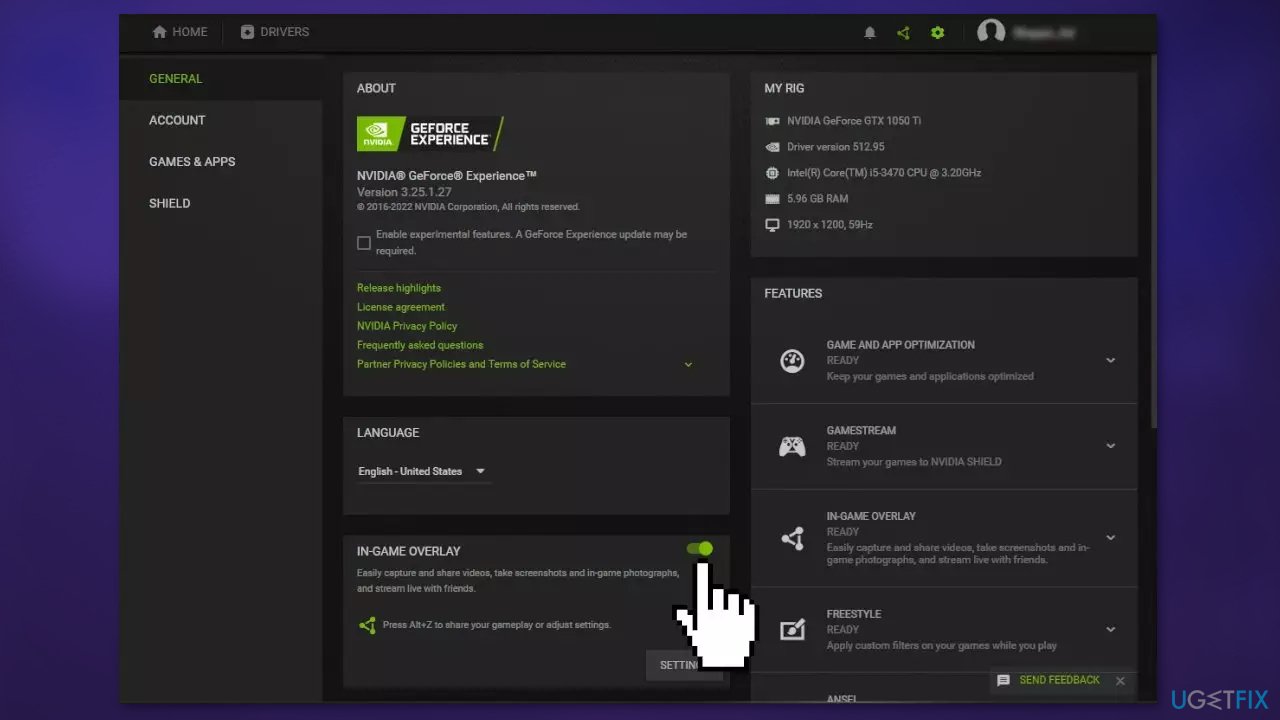
NVIDIA GeForce Experience:
- Open the GeForce Experience application and click on the gear-shaped icon from the menubar
- From the General section, disable the toggle associated with the In-Game Overlay option
Windows Game Bar:
- Click on the Start menu and choose Settings
- Click Gaming
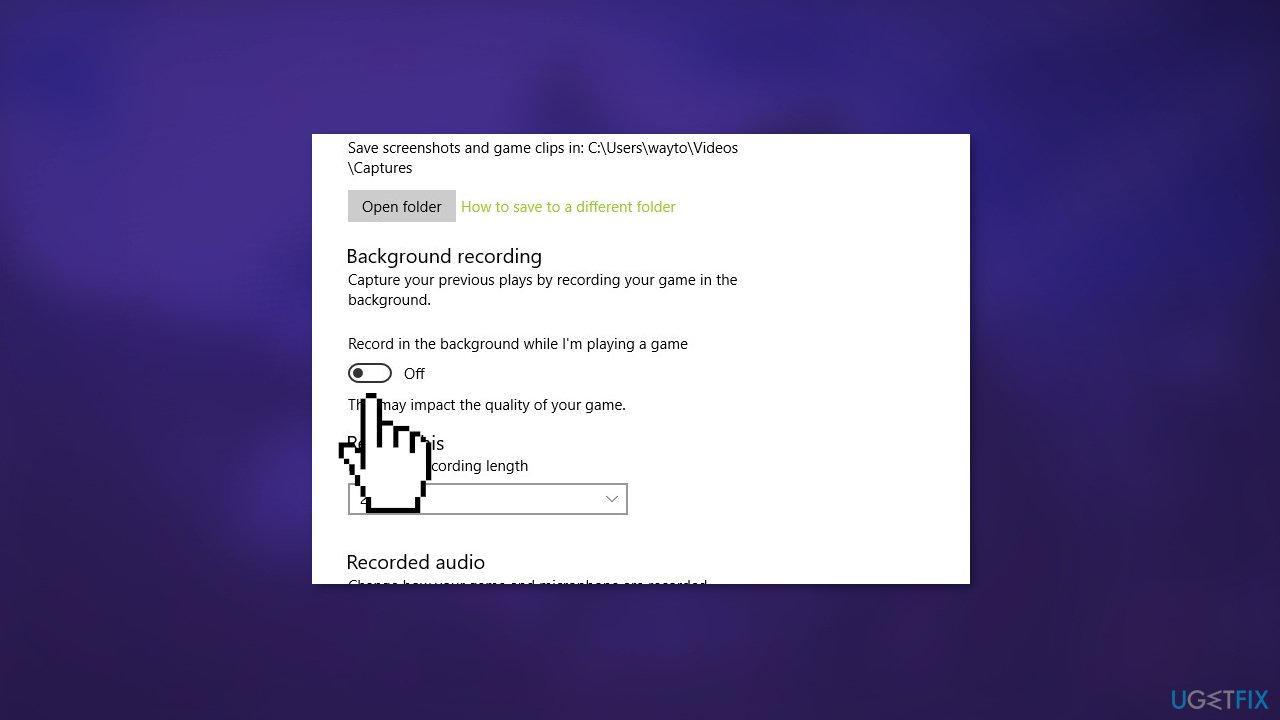
- On the Game Bar, set Record game clips, screenshots, and broadcast using Game bar to off
- Head to the Captures tab
- Set the Record the background while I’m playing a game to Off
- Test turning Game Mode on or off, one by one
Solution 7. Disable Overclocking
Overclocking is the process of increasing the clock speed of a computer's central processing unit (CPU) or graphics processing unit (GPU) beyond their factory-set specifications. This can be done by adjusting settings in the computer's BIOS or using software designed specifically for overclocking. The purpose of overclocking is to increase the performance of a computer, by making it run faster and more efficiently.
However, overclocking can sometimes cause issues when gaming, as the increased clock speeds can put extra strain on the computer's components. This can lead to overheating, which can cause the computer to shut down or crash. Additionally, overclocking can also cause instability in the computer's performance, resulting in stuttering, freezing, and other issues during gameplay.
In addition, not all games are optimized for overclocked hardware, which can result in issues such as graphical glitches, poor performance, and even crashes. Some games may also be incompatible with certain overclocking settings, which can further exacerbate these issues.
- Open the BIOS (basic input/output system) settings of your computer. This can typically be done by pressing a specific key during startup, such as Delete, F2, or Esc
- Navigate to the overclocking settings in the BIOS. This may be located in different places depending on your motherboard, but it is typically found under the Advanced or Overclocking tab
- Look for options such as CPU Ratio, CPU Clock, or CPU Frequency. Change the values to the default or normal settings, or set them to Auto
- Save the changes and exit the BIOS
- Restart your computer
Note: Some motherboards come with default overclocking settings, so you may need to check the manual or reach out to the manufacturer for more information on how to disable overclocking on your specific device.
Solution 8. Try Clean Boot
A clean boot is a process in Windows where the operating system is started with a minimal set of drivers and startup programs. This helps to eliminate any potential conflicts between software that may be causing issues on the computer, such as game crashes.
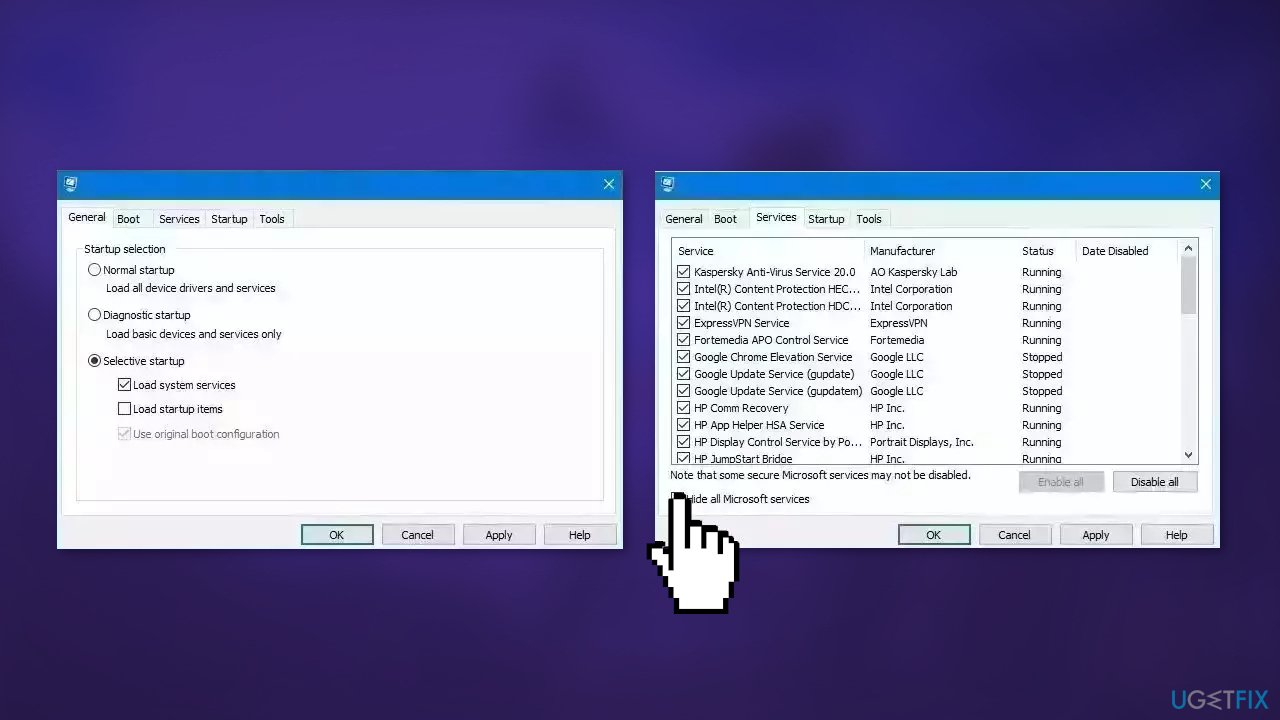
- Open the Search menu, type in system configuration, and press Enter
- Under the Services tab, tick the Hide all Microsoft services box
- Click on Disable all button
- Head over to the Startup tab and click on Open Task Manager
- Select a third-party program and click on Disable at the top
- Repeat this step to disable all third-party apps and programs
- Restart your PC to enter the clean boot state and see if the issue persists
- If the issue disappeared in the clean boot state, then you can be certain that a third-party app is causing it
- Go through all recently installed apps or programs and remove them one by one
Bottom line
This guide provides 8 different solutions to address common issues with Forspoken on Windows, including updating drivers and optimizing system performance. If none of these fixes work, consider checking for game updates or reaching out to customer support for further assistance.
Frequently asked questions
Try updating your graphics drivers and ensuring that your Windows 10 is fully updated to the latest version. Additionally, lowering the in-game graphics settings may help stabilize performance.
Check for background applications that might be consuming system resources and close them. You can also try adjusting the game’s resolution and frame rate settings to improve performance.
Make sure your Windows 11 is updated with the latest patches as they often include performance improvements and bug fixes that can enhance gameplay.




Report an issue
What's wrong with this guide? We review every report and update or remove content.
Report received — thank you. We'll review and fix it.
You need a free account to submit a report.
Be the first to comment