How to fix
Error Code 30088-29 in Microsoft Office
on Windows
Resolve Error Code 30088-29 in Microsoft Office on Windows 10 or 11 effortlessly. Get expert-tested solutions that work fast and efficiently!


What causes How to fix Error Code 30088-29 in Microsoft Office?
- Issues with the user's internet connection
- Problems with the Office installation files
- Conflicts with other software on the computer
- Corrupted or damaged Office installation files
- Expired or invalid Office license
Repairs Windows system files, removes malware, and restores a clean OS state — without reinstalling.
Hello. For the past few weeks now, I keep getting Error Code 30088-29 error whenever I try to use Microsoft Office. This happened one day after I restarted my PC. Please advise.
Error Code 30088-29 in Microsoft Office is a common error that occurs when installing, updating or activating the software. This error message indicates that there is an issue with the installation process and that the software is unable to complete the installation or activation.
This error code can be caused by a variety of factors, including issues with the user's internet connection, problems with the Office installation files, or conflicts with other software on the computer.
Sometimes, the Office installation files can become corrupted or damaged, which can cause Error Code 30088-29 to occur. The user should download the installation files again and try reinstalling MS Office. In other cases, the reason could lie with conflicting software installed on the system, most commonly - other versions of the application.
If the user's Office license is expired or invalid, it can cause the error to occur. The user should check their license status and ensure that it is valid and up-to-date.
If you want to fix Error Code 30088-29 in Microsoft Office, please check the instructions below. However, before you do proceed with the manual steps, we recommend you try using automatic repair software.
To fix various computer errors automatically, we recommend using [d1], which can be used to repair and optimize a computer's performance. It can fix issues such as crashes, freezes, and errors, as well as improve the overall speed and stability of the system. The program scans the computer for problems and then repairs any issues that it finds by replacing damaged files and settings.
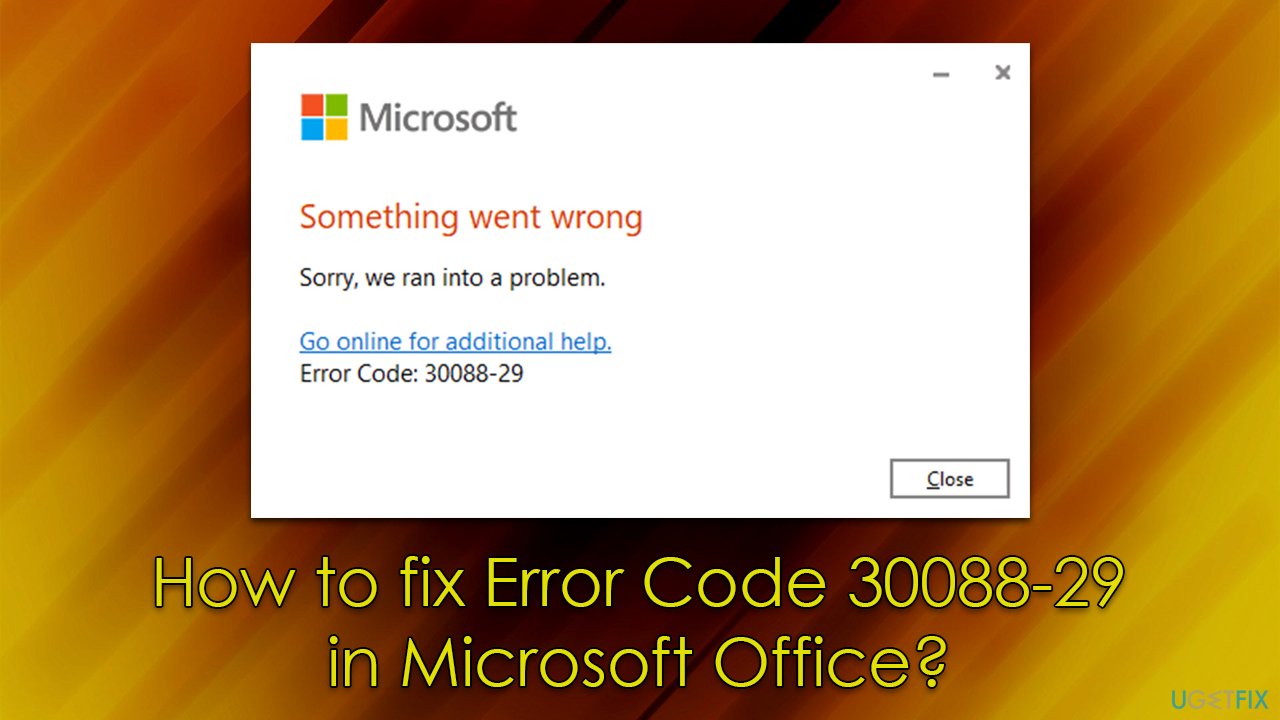
Fix 1. Uninstall the free online app/Office 365 version
Office 365 is a subscription-based version of Office that is updated on a regular basis, providing the latest features and security updates to users. That being said, the app can be used for free in legitimate ways, such as by using it online via a Microsoft account or by using the trial version.
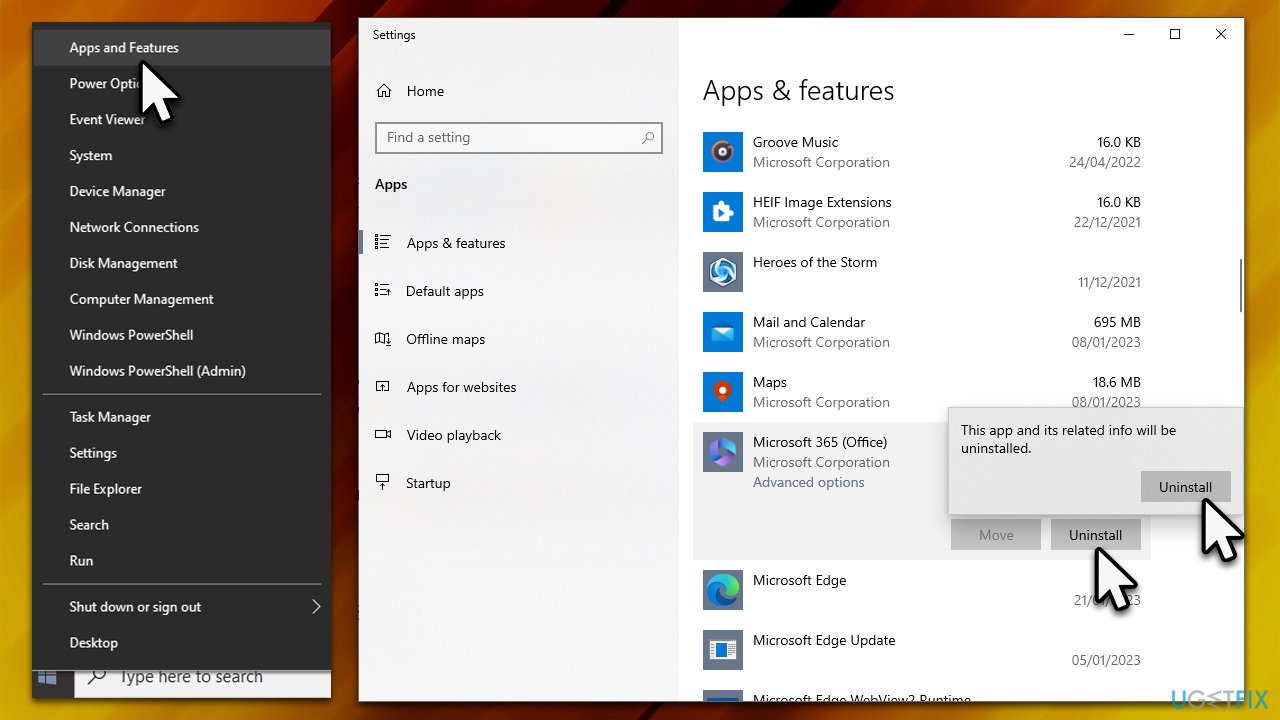
If you have two versions of Office installed, you might face Error Code 30088-29. Thus, uninstall the second version you have installed.
- Right-click on Start and pick Apps and Features.
- Scroll down and check for duplicate versions of MS Office, for example, Office 365.
- Click Uninstall and then confirm with Uninstall.
- Follow the on-screen instructions and reboot your PC.
- Check if the error is gone.
Fix 2. Update the app
It was reported that bugs in updates for Office might result in Error Code 30088-29. Please follow these steps:
For Office 365 subscription users:
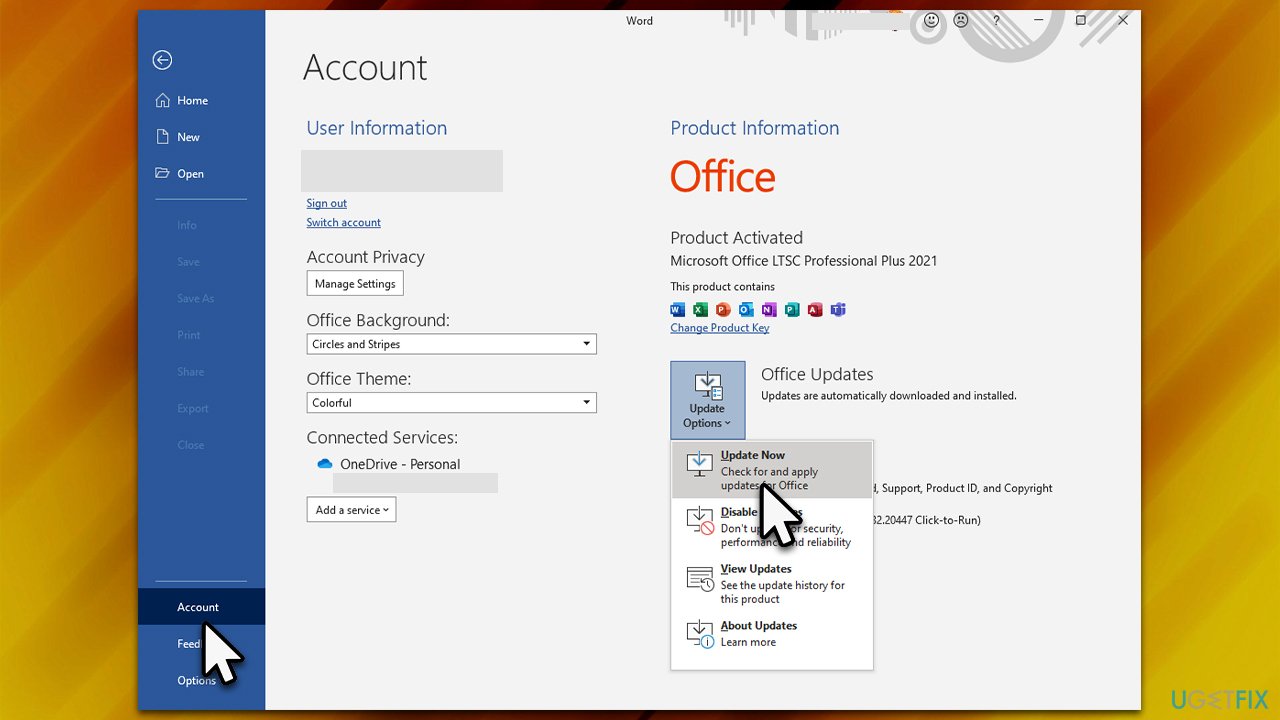
- Open any Office app, such as Word or Excel.
- Click on the File menu, and then select Account or Office Account.
- In the Account or Office Account section, click on Update Options and then select Update Now to check for updates.
- Restart your system.
For one-time purchase version of Office:
- Open any Office app, such as Word or Excel.
- Click on the File menu, and then select Account or Office Account.
- In the Account or Office Account section, click on Check for Updates to check for updates.
- If any updates are available, the user will be prompted to download and install them.
- After the updates are installed, the user may be prompted to restart their computer.
Fix 3. Repair the installation
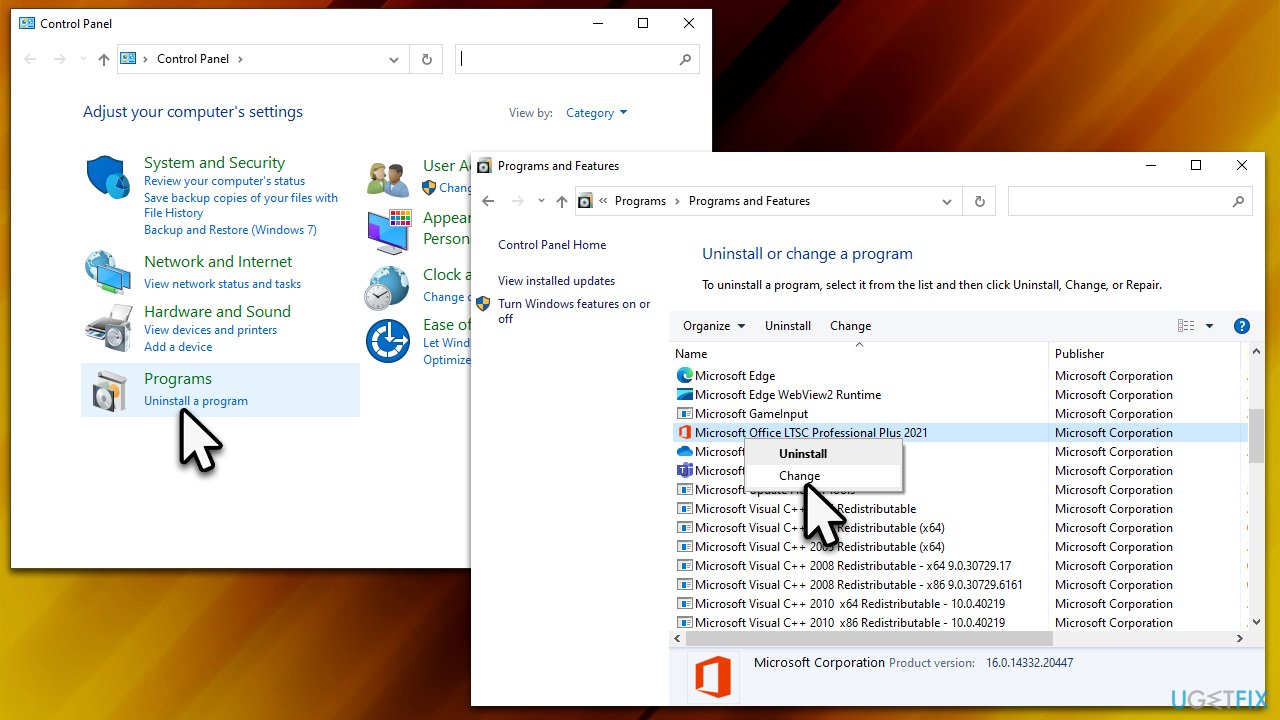
- Type Control Panel in Windows search and press Enter.
- Go to Programs > Uninstall a program.
- Locate MS Office entry.
- Right-click and select Change.
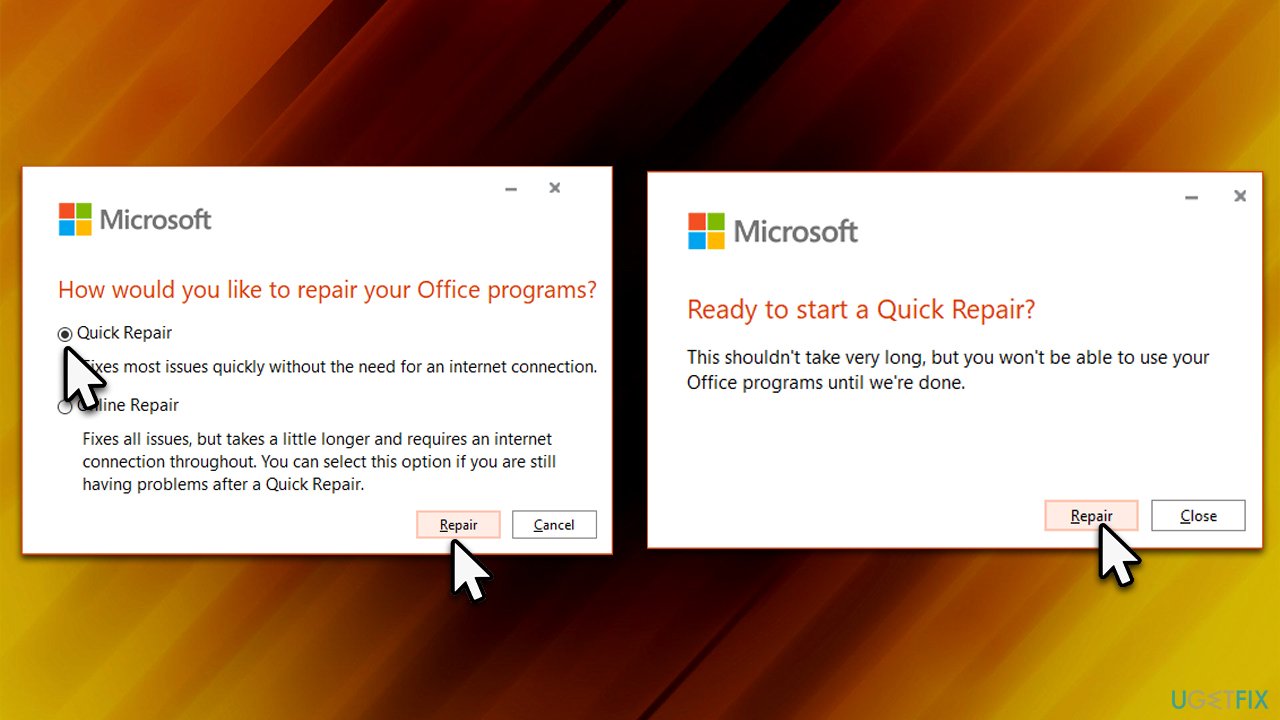
- First, select Quick Repair (and click Repair.
- Confirm with Repair and finally click Close when done.
Fix 4. Reinstall the app
- Type Control Panel in Windows search and press Enter.
- Go to Programs > Uninstall a program.
- Find the Office app, right-click and pick Uninstall
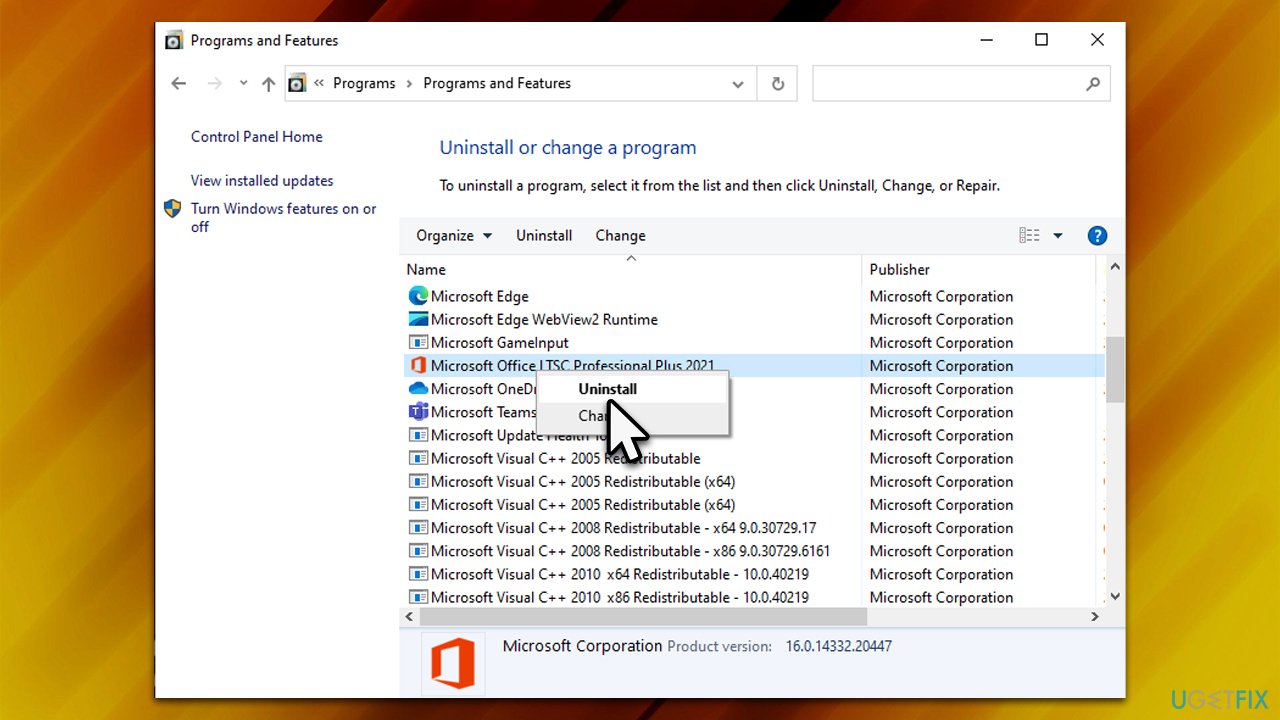
- Follow the on-screen instructions to remove it.
- Once done, download the same version from the official Microsoft page and install it again.
Related:
Bottom line
To fix Error Code 30088-29 in Microsoft Office, you can try uninstalling the free online app or Office 365 version, downloading the installation files again, and checking your Office license status. If these steps do not resolve the issue, consider using automatic repair software to address various computer errors.
Frequently asked questions
Error Code 30088-29 typically indicates an issue with the installation or update process of Microsoft Office, often due to network connectivity or corrupted files.
To fix this error, try running the Office Repair tool from the Control Panel or reinstall Microsoft Office to ensure all files are properly installed.
Yes, you can attempt to reset the Office installation by using the 'Quick Repair' option in the Apps & Features settings, which usually resolves this error without needing to uninstall.




Report an issue
What's wrong with this guide? We review every report and update or remove content.
Report received — thank you. We'll review and fix it.
You need a free account to submit a report.
Be the first to comment