How to fix
KB5022358 fails to install
on Windows
Resolve KB5022358 installation issues on Windows 11 effortlessly. Discover expert-tested solutions and fix the problem in minutes with our detailed guide.

What causes How to fix KB5022358 fails to install in Windows 11?
- Compatibility issues
- Software conflicts
- Glitches in the updating process
- Insider Preview build instability
- Network issues
Repairs Windows system files, removes malware, and restores a clean OS state — without reinstalling.
I was about to install the newest KB5022358 Preview build, but it failed to install with no particular error. The next day, the issue continues. Any idea of what is going on? I have never had this problem before.
Microsoft regularly releases Windows updates to ensure users have the best security, stability, and performance of their operating system. These important software updates address existing vulnerabilities, fix bugs and even add new features to enhance your user experience - all while keeping you safe from potential risks online.
Microsoft ships updates every second or sometimes the third Tuesday of every month, in a process widely referred to as Patch Tuesday. These updates can consist of security, cumulative, feature, quality, and other types of updates. Microsoft also releases major version updates such as 22H2, which come out once or twice a year.
Windows updates come with the option to be installed automatically or manually. By default, they can be done in the background without your input. However, if you need more control over when and how to update your system - manual installation is perfect for that. Regardless of which method you use, you might come across an issue where KB5022358 fails to install on Windows for you.
KB5022358 is one of the Insider Preview builds that was released for public testing on January 26, 2023. The newest iteration is meant to fix Taskbar issues related to quick settings, Task Manager crashes, increased memory usage by ReFs, and slow copying speeds on networks, along with several quality and feature improvements.
Unfortunately, some users reported that KB5022358 fails to install for them, and repeated tries do not yield any results. While some people might get an error code, others are not provided with one, making it difficult to troubleshoot.
Windows updates are susceptible to failure for a variety of reasons, including compatibility issues, software conflicts, or even glitches in the updating process itself. To ensure your computer remains up-to-date and running optimally, it's essential that these updates install properly - otherwise, you risk leaving yourself open to security risks as well as performance issues.
Below, you will find several ways to fix KB5022358 not installing issue. Before you proceed, we recommend you attempt to fix Windows issues automatically with [d1].
Fix 1. Run the troubleshooter
A built-in troubleshooter is an excellent place to start.
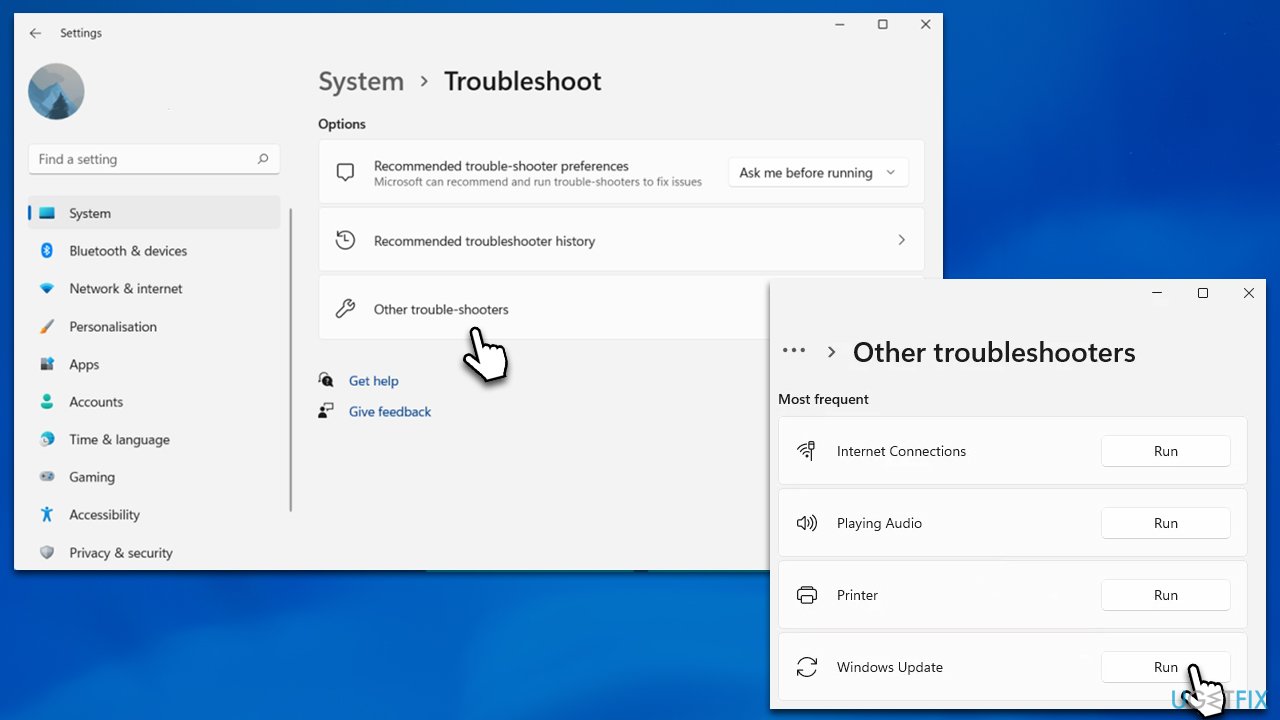
- In Windows search, type in troubleshoot and press Enter (you can also go to Start > Settings > System > Troubleshoot).
- Select Other troubleshooters.
- Location Windows Update on the list.
- Click Run.
- Apply the suggested fixes and restart Windows.
Fix 2. Check if relevant services are running
Services such as BITS and Windows Update should be running in order for the update to go through. If they are already running, restart them instead.
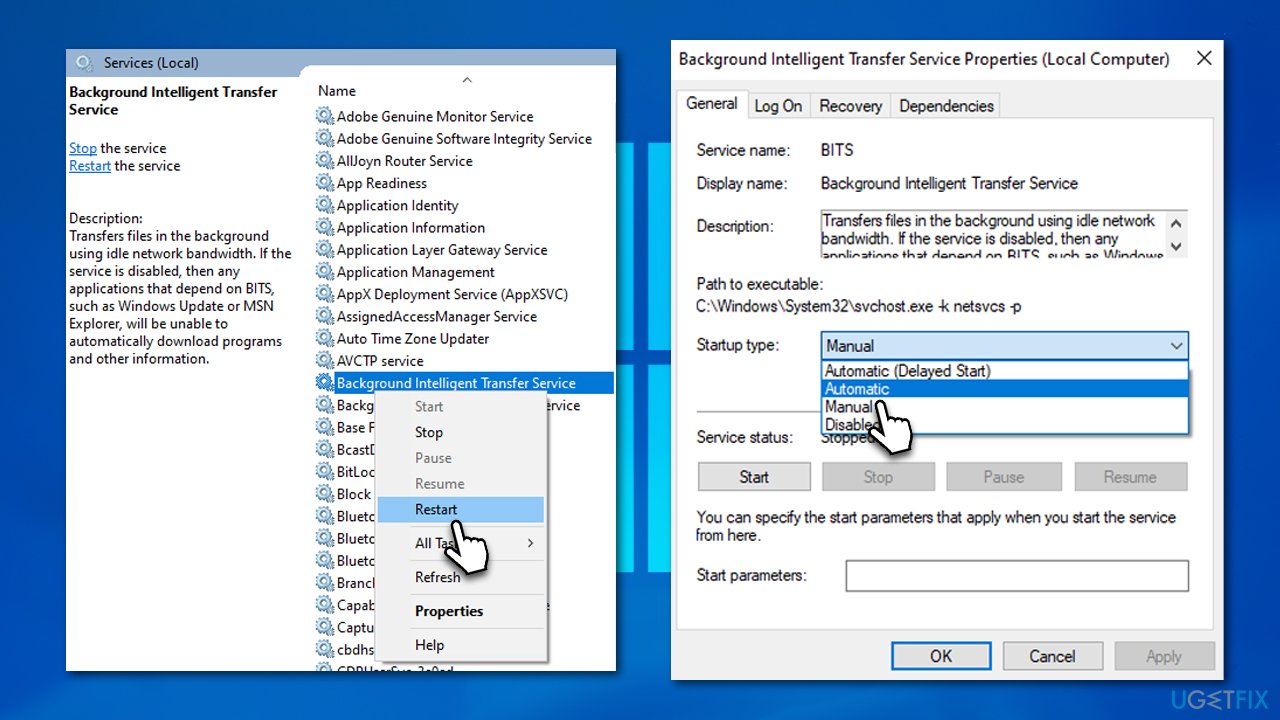
- Type in Services in Windows search and hit Enter on your keyboard.
- Find Background Intelligent Transfer Service (BITS).
- If it is already running, right-click and select Restart.
- if the service is not running, double-click it, and select Automatic under the Startup type from the drop-down menu.
- Click Start, Apply, and OK.
- Locate Windows Update Service and repeat the process.
Fix 3. Run SFC and DISM
SFC and DISM scans can help you resolve any issues with Windows file integrity.
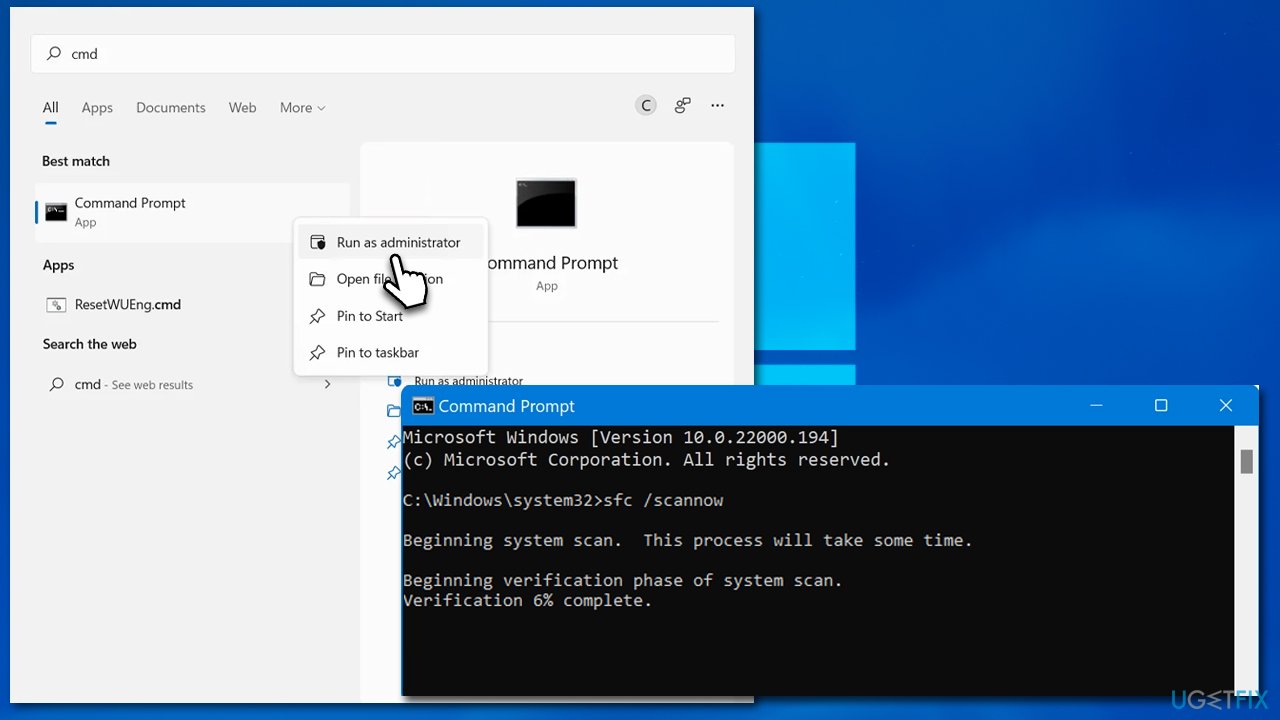
- Search for cmd in the Windows search bar.
- Right-click on Command Prompt in the search results and select Run as administrator.
- In the Command Prompt window, paste the following command and press Enter:
sfc /scannow - Wait for the scan to complete.
- Once the SFC scan is finished, run the following set of DISM commands, pressing Enter after each one:
DISM /Online /Cleanup-Image /CheckHealth
DISM /Online /Cleanup-Image /ScanHealth
DISM /Online /Cleanup-Image /RestoreHealth - After completing the DISM commands, restart your system.
Fix 4. Check time and date settings
- Type Control Panel in the Windows search field and press Enter.
- Select Clock and Region and click on Date and Time.
- Pick the Internet Time tab and select Change Settings.
- Make sure that Synchronize with an Internet time server box is ticked.
- Click Update now and OK.
Fix 5. Disable or uninstall third-party anti-virus
Windows users sometimes experience errors when attempting to install the latest updates due to third-party security software. This is because antivirus programs modify kernel settings during installation, which can interfere with your device's connection with specific servers. Consequently, preventing you from reaching the full performance and stability of your Windows operating system.
Windows update issues have the potential to happen when safe connections are mistaken as malicious ones. To solve this potential problem, you can try either removing the program or temporarily disabling your antivirus protection and attempting to acquire the newest version of updates available. This should address whether that is indeed what's causing your issue or not.
Fix 6. Reset Windows Update Components
- Open Command Prompt as administrator, as explained previously.
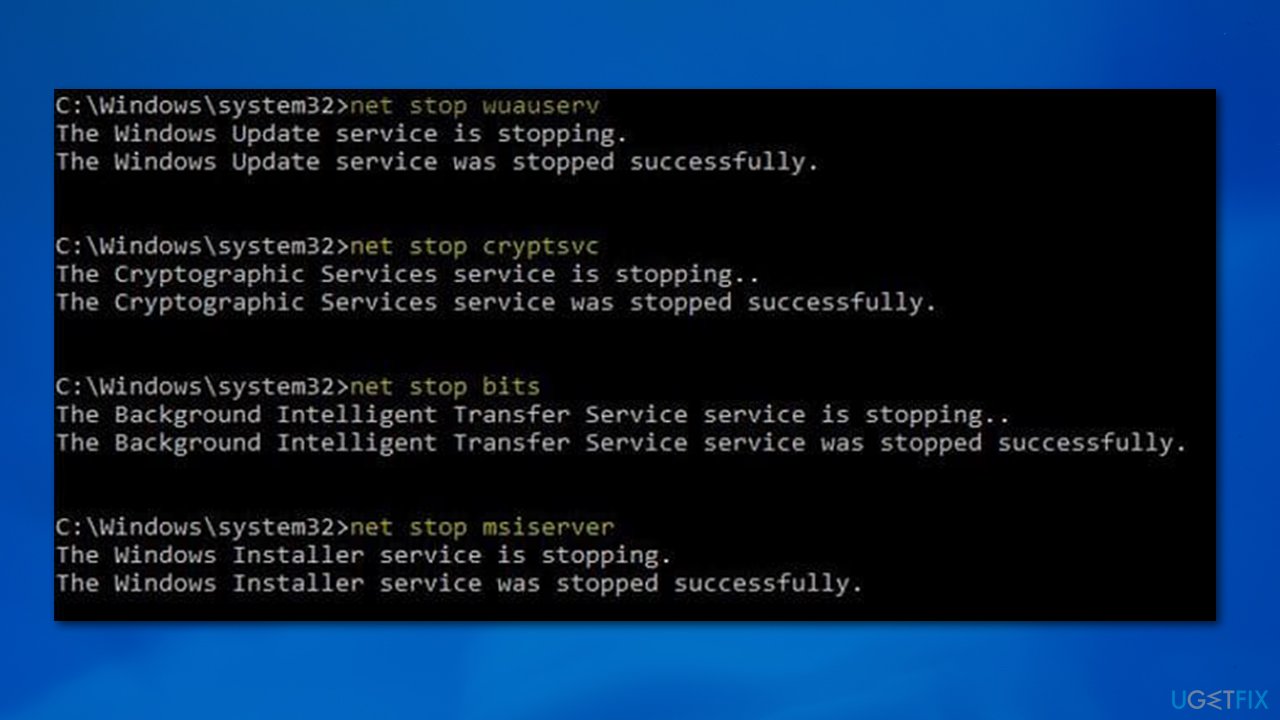
- copy and paste the following commands, pressing Enter each time:
net stop bits
net stop wuauserv
net stop appidsvc
net stop cryptsvc
Del “%ALLUSERSPROFILE%\Application Data\Microsoft\Network\Downloader\*.*”
rmdir %systemroot%\SoftwareDistribution /S /Q
rmdir %systemroot%\system32\catroot2 /S /Q
regsvr32.exe /s atl.dll
regsvr32.exe /s urlmon.dll
regsvr32.exe /s mshtml.dll
netsh winsock reset
netsh winsock reset proxy
net start bits
net start wuauserv
net start appidsvc
net start cryptsvc - Reboot your system..
Bottom line
To fix the KB5022358 installation failure, you can try resolving compatibility issues, checking for software conflicts, or addressing any glitches in the update process. If these solutions do not work, consider seeking further assistance or checking for additional updates.
Frequently asked questions
Common reasons include corrupted system files, insufficient disk space, or conflicts with antivirus software. Ensuring your system is updated and free from errors can help resolve these issues.
You can troubleshoot by running the Windows Update troubleshooter, checking for disk space, and ensuring that your system files are intact using the System File Checker tool.
Yes, you can manually download and install the update from the Microsoft Update Catalog by searching for KB5022358 and following the on-screen instructions.




Report an issue
What's wrong with this guide? We review every report and update or remove content.
Report received — thank you. We'll review and fix it.
You need a free account to submit a report.
Be the first to comment