How to fix
Microsoft Teams not launching
on Windows
Resolve Microsoft Teams launch issues on Windows 10 and 11 effortlessly. Get expert-tested solutions and start collaborating in minutes!

What causes How to fix Microsoft Teams not launching?
- Compatibility issues
- Outdated software
- Incorrect installation
- Corrupted files
- Registry issues
Repairs Windows system files, removes malware, and restores a clean OS state — without reinstalling.
Hello. For some reason, the Microsoft Teams app is not launching on my Windows computer. How do I fix this?
The Microsoft Teams app is a platform for collaboration and communication that combines chat, video conferencing, file sharing, and other features. Individuals and organizations use it to collaborate and stay connected. However, some Windows users have reported that the Microsoft Teams app does not launch. This can happen for a variety of reasons, including compatibility issues, outdated software, or incorrect installation.
The inability to launch the Teams app can cause missed opportunities and a lack of collaboration among team members. Users, for example, may be unable to attend important meetings, resulting in missed opportunities and decreased productivity. Teams is also frequently used as a central storage location for files and information. Users may be unable to access important files and documents they require to complete their work if they are unable to access the app.
This problem can be resolved by running the Windows Store Apps troubleshooter and repairing or resetting the app in Windows Settings. Users may be able to resolve the issue by reinstalling the app or using the Teams web app instead in some cases.
In this guide, you will find 6 steps that should help you fix Microsoft Teams not launching. Keep in mind that the manual troubleshooting process can be lengthy. Instead, you can try using a maintenance tool like [d1] that can fix most system errors, BSODs,[ref en-1] corrupted files, registry[ref en-2] issues, or clear cookies and cache.[ref en-3] Otherwise, follow the step-by-step instructions below.
Solution 1. Run the Windows Store Apps Troubleshooter
- Press the Windows key + I to open Windows Settings
- Select the System section and scroll down until you see Troubleshoot and click on it
- Click on Other troubleshooters to see more troubleshooters available on your computer
- Scroll down at the bottom until you see Windows Store Apps
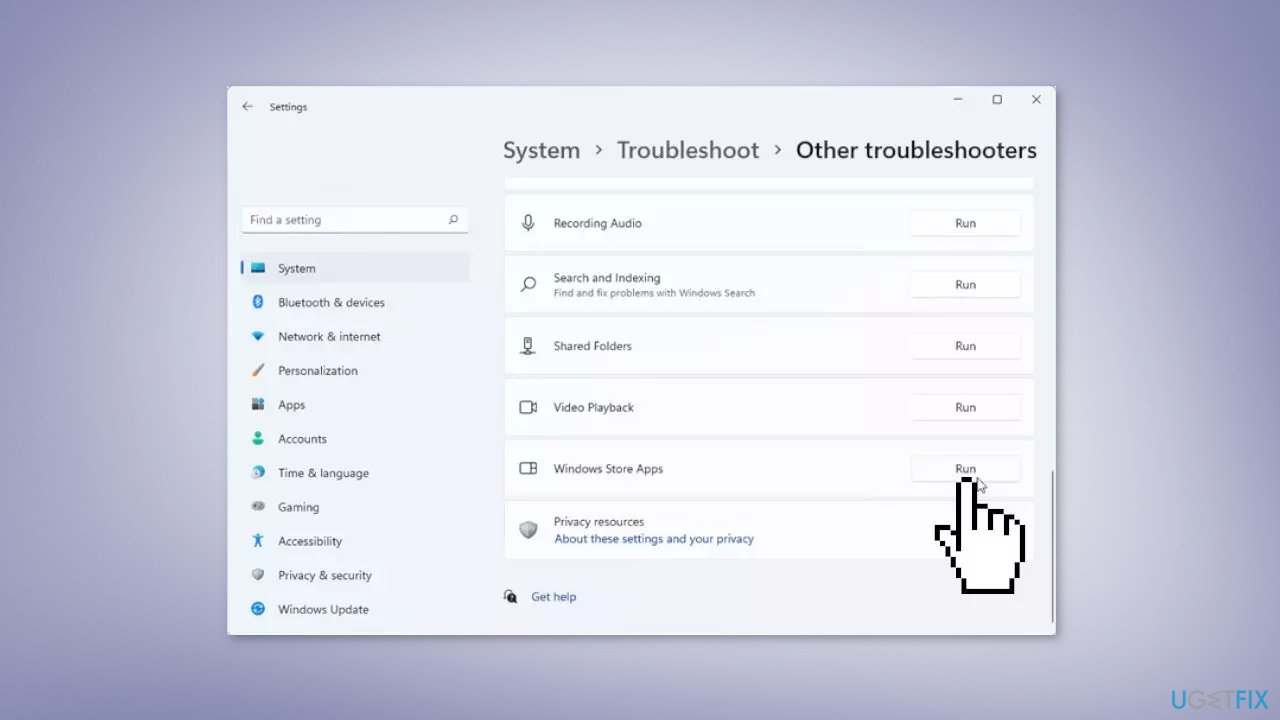
- Click on Run to start the troubleshooting process
- Wait until the process is complete
Solution 2. End Microsoft Teams tasks
- Press Ctrl + Shift + Esc to open Task Manager
- Go to the Processes tab
- Check if there is a task related to Microsoft Teams running in the background
- If yes, right-click on the Teams task and choose End task
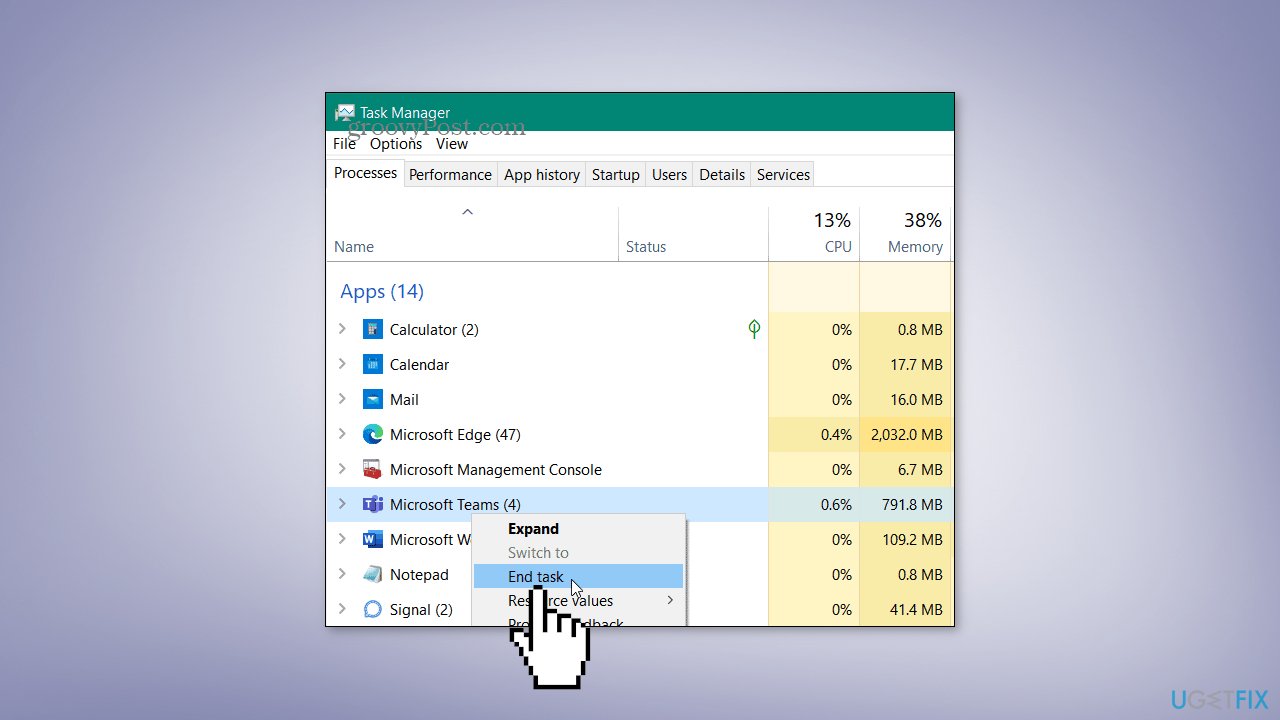
- End all Microsoft Teams tasks
- Try opening the app and check if the problem is resolved
Solution 3. Repair or Reset Teams
- Launch the Windows Settings app
- Go to Apps > Apps & features
- Locate Microsoft Teams
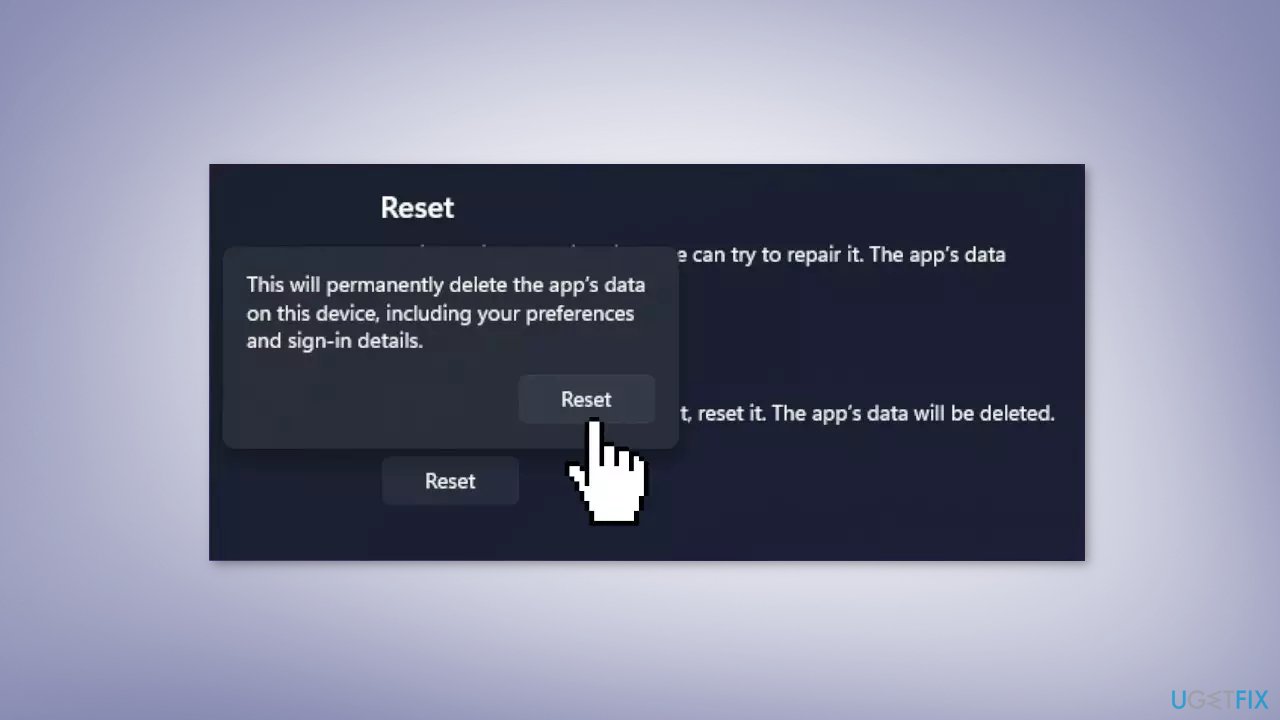
- Click on Advanced options
- Click on Repair, wait for the process to finish, and check if the issue is solved
- If not, press the Reset button and check again
Solution 4. Use System Restore
System Restore is a feature in Microsoft Windows that allows users to revert their computer's state to a previous point in time. This can be helpful if you have made changes to your system that are causing problems.
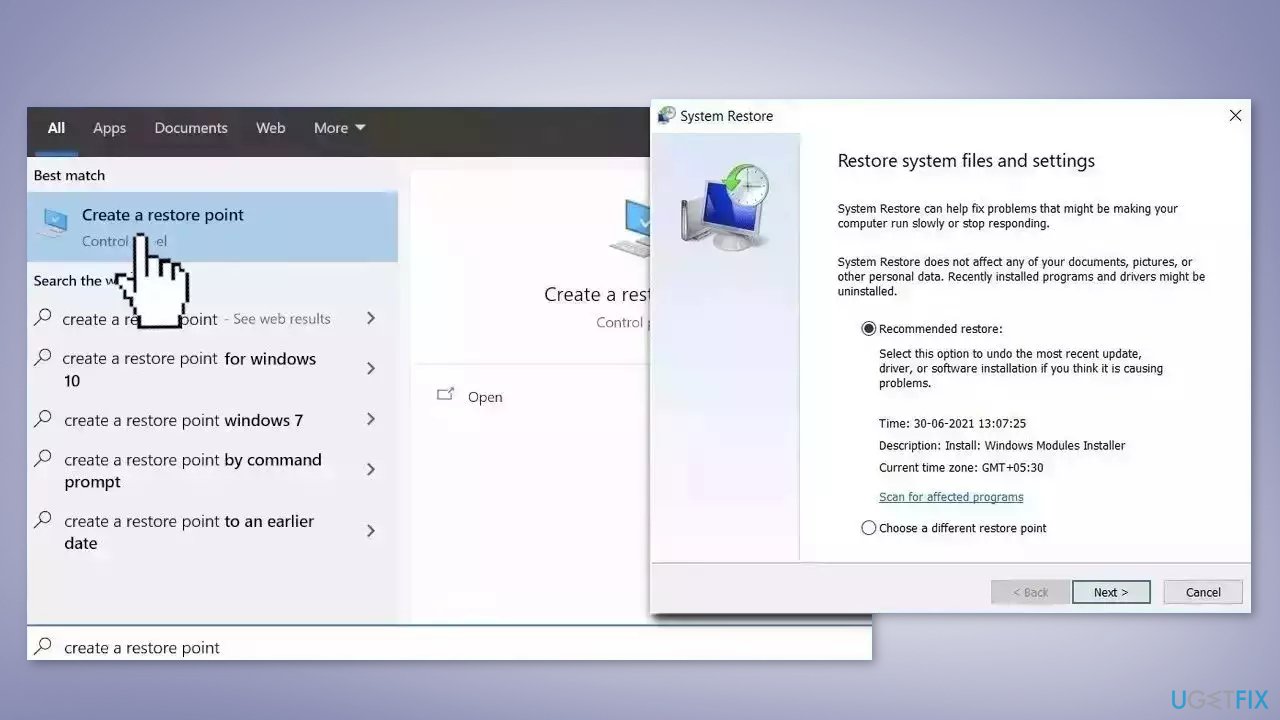
- Go to the Start menu, type restore, and click on Create a restore point
- Click System Restore, then follow the prompts until you can select a restore point
- Select the one you want (ideally before the issue started occurring) and go ahead with the process
Solution 5. Use Teams Web (workaround)
If the problem persists, you can use the web app version of Microsoft Teams
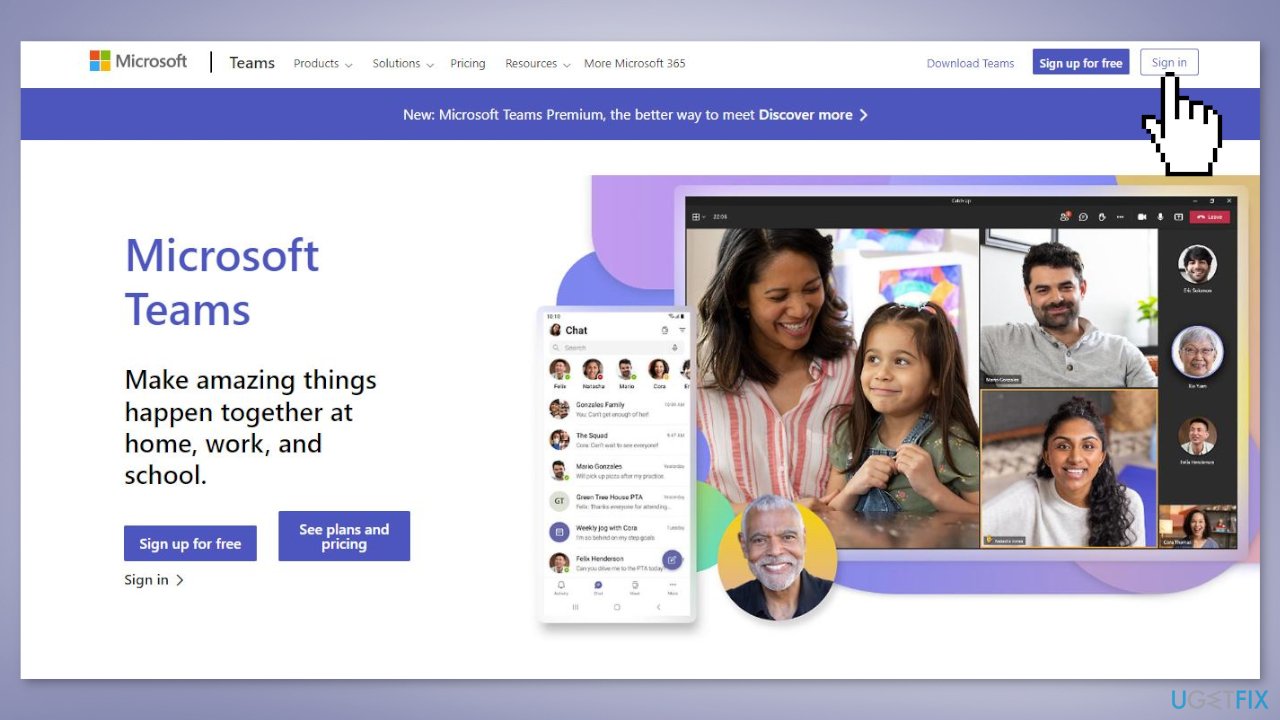
- To access Teams in a web browser, open a modern browser like Microsoft Edge, Google Chrome, or Mozilla Firefox
- Enter the URL for the Teams web app, sign in to your account, and start using Teams in the browser
Solution 6. Reinstall Microsoft Teams
- Make sure Microsoft Teams is closed and not running in the background
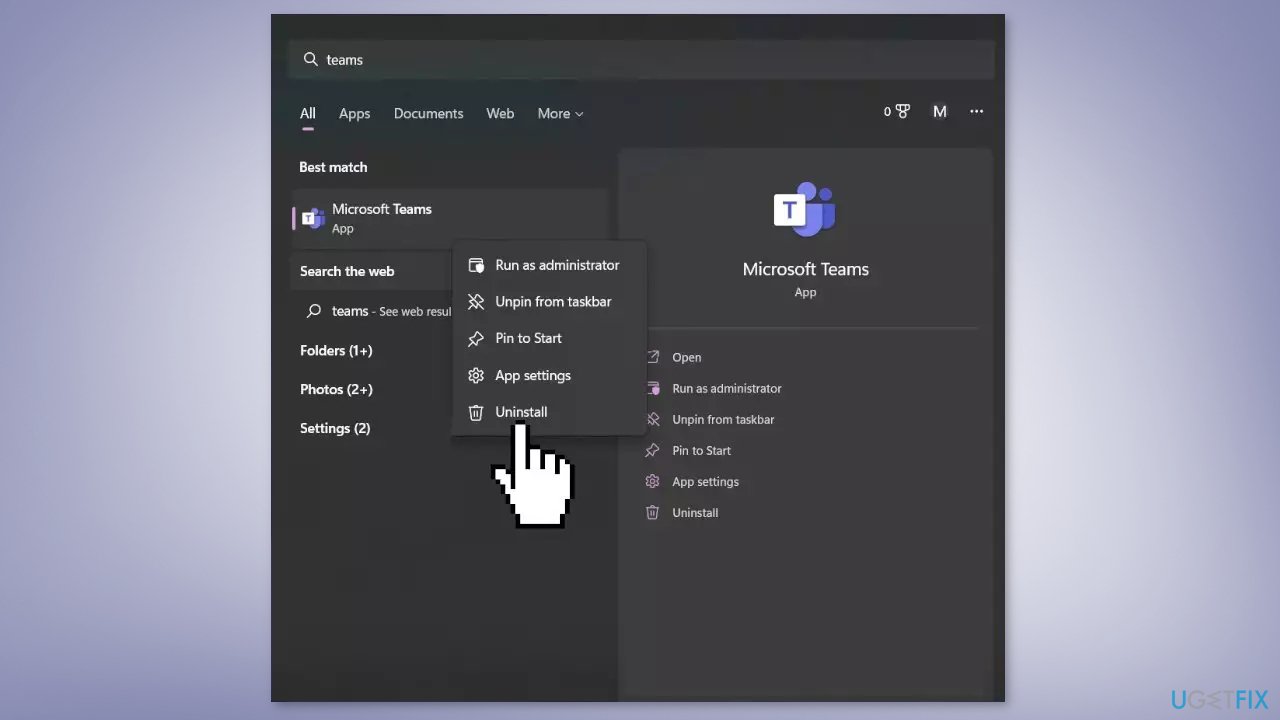
- Type Teams in the Windows Search Menu
- Right-click on Microsoft Teams and click on Uninstall
- Wait until the uninstallation is complete
- Now, open your browser and navigate to the official download page of Microsoft Teams
- Click on Download for Desktop
- Right-click on the downloaded executable and choose Run as administrator
- Microsoft Teams will automatically open once the UWP installation is complete
Bottom line
To fix Microsoft Teams not launching, you can run the Windows Store Apps troubleshooter, end Microsoft Teams tasks, or reinstall the app. If these solutions do not work, consider using a maintenance tool or accessing the Teams web app as an alternative.
Frequently asked questions
First, ensure that your Windows 10 is updated to the latest version and then try restarting your computer. If the issue persists, consider reinstalling Microsoft Teams.
On Windows 11, you can try clearing the Teams cache by navigating to %appdata%\Microsoft\Teams and deleting the contents of the Cache folder. After that, restart Teams to see if it launches successfully.
If Teams crashes on launch, it may be due to corrupted files or conflicting applications; ensure you close all background applications and perform a repair through the Apps & features settings in Windows 10 or 11.




Report an issue
What's wrong with this guide? We review every report and update or remove content.
Report received — thank you. We'll review and fix it.
You need a free account to submit a report.
Be the first to comment