How to fix
Bad Image – PresentationNative_v0400.dll contains an error
on Windows
Resolve the Bad Image error for PresentationNative_v0400.dll on Windows 10 and 11 quickly. Expert-tested solutions for a seamless experience!

What causes How to fix Bad Image – PresentationNative_v0400.dll contains an error in Windows?
- Missing DLL file
- Corrupt DLL file
- Incompatible DLL file
- Outdated drivers
- System crashes
Repairs Windows system files, removes malware, and restores a clean OS state — without reinstalling.
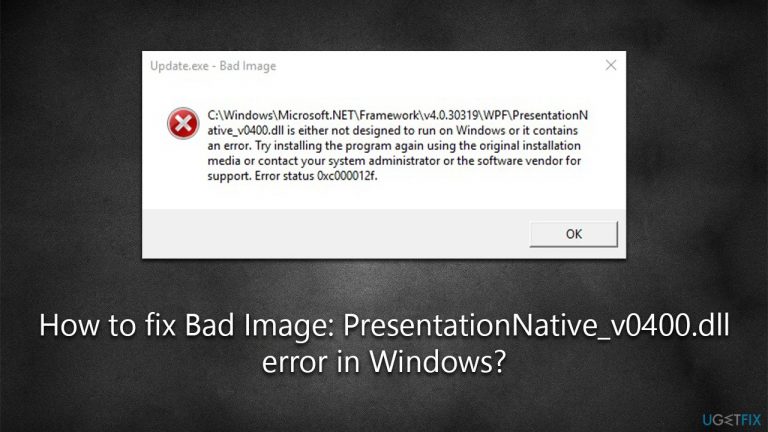
Hello, I am randomly getting a pop-up that reads " Bad Image - PresentationNative_v0400.dll is either not designed to run on Windows or it contains an error." This can happen anytime: when I boot my PC or browse the web. Advice is appreciated.
Bad image errors in Windows are a common issue that occurs when the system encounters a problem with a specific image file or DLL (Dynamic Link Library) file. These errors occur when the file in question is either missing, corrupt, or incompatible with the Windows version. The error message typically displays the file name, and location, and the message "is either not designed to run on Windows or it contains an error.”
In this case, users were reporting the PresentationNative_v0400.dll Bad Image error, which they encountered at inconsistent times. For example, some people claimed that the pop-up shows up whenever they boot Windows, while, in other cases, they aren't doing anything in particular when the issue arises.
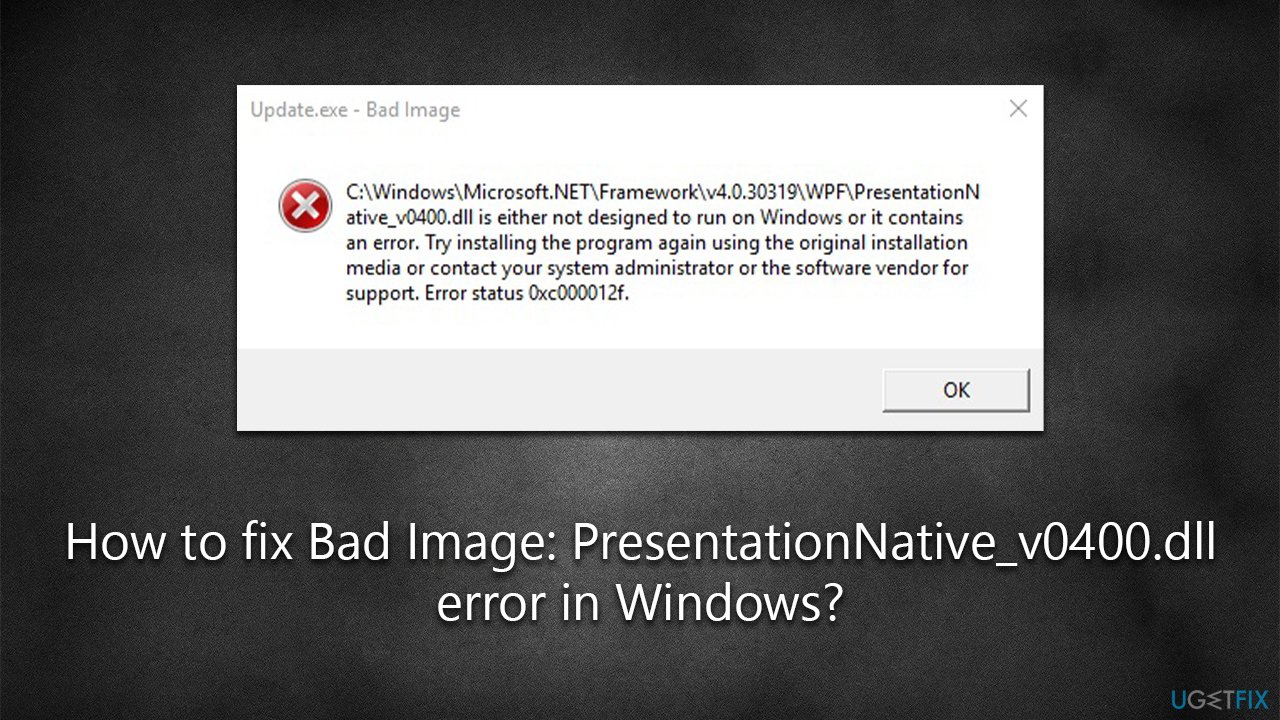
The PresentationNative_v0400.dll error message is also usually accompanied by an error code, such as 0xc000012f or 0xc0000020. It reads as follows:
Bad Image
C:\\Windows\Microsoft.NET\Framework\vX.X.XXXXX\WPF\PresenationNative_v0400.dll is either not designed to run on Windows or it contains an error. Try installing the program using the original installation media or contact your system administrator or the software vendor for support.
Error Status 0xc000012f
While many users immediately attempt to reinstall the program causing the issue, it usually doesn't help to fix the PresentationNative_v0400.dll error.
This error can be caused by a number of factors, such as system crashes, outdated drivers, or hardware issues. They can also occur after a recent update, software installation, or hardware change. In this case, it could be related to the NET Framework package, although it might not always be the case.
Below we provide several methods that should help you fix the PresentationNative_v0400.dll is missing error. Before proceeding, we recommend you try out an automatic PC repair tool [d1], which can quickly and easily identify corrupted system files and replace them with brand-new ones, ultimately resolving DLL errors.
Method 1. Install Windows updates
NET Framework is an important part of the Windows operating system, and any bugs are fixed via Windows updates. Thus, make sure you have the latest updates installed:
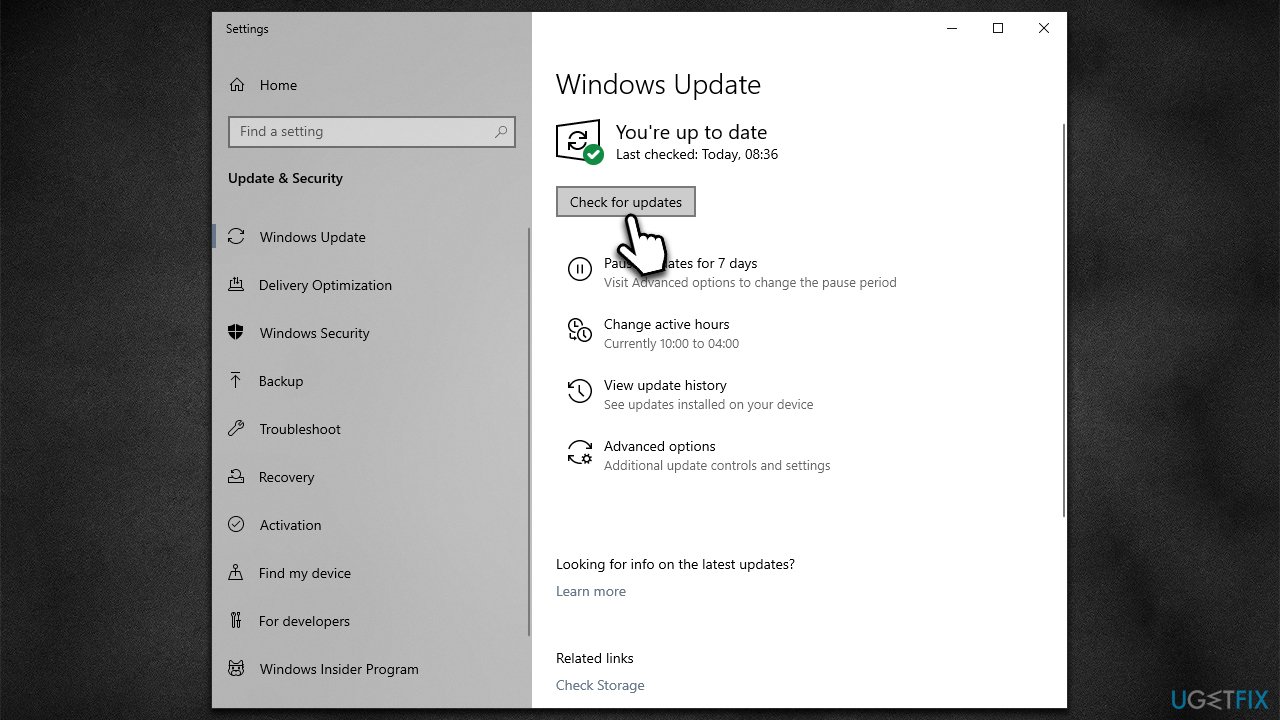
- Type Update in Windows search and hit Enter.
- Click Check for updates and wait till they are installed.
- If optional updates are available, install them as well because that's how you will likely get the NET Framework update.
- Once done, restart your computer.
Method 2. Repair .NET Framework
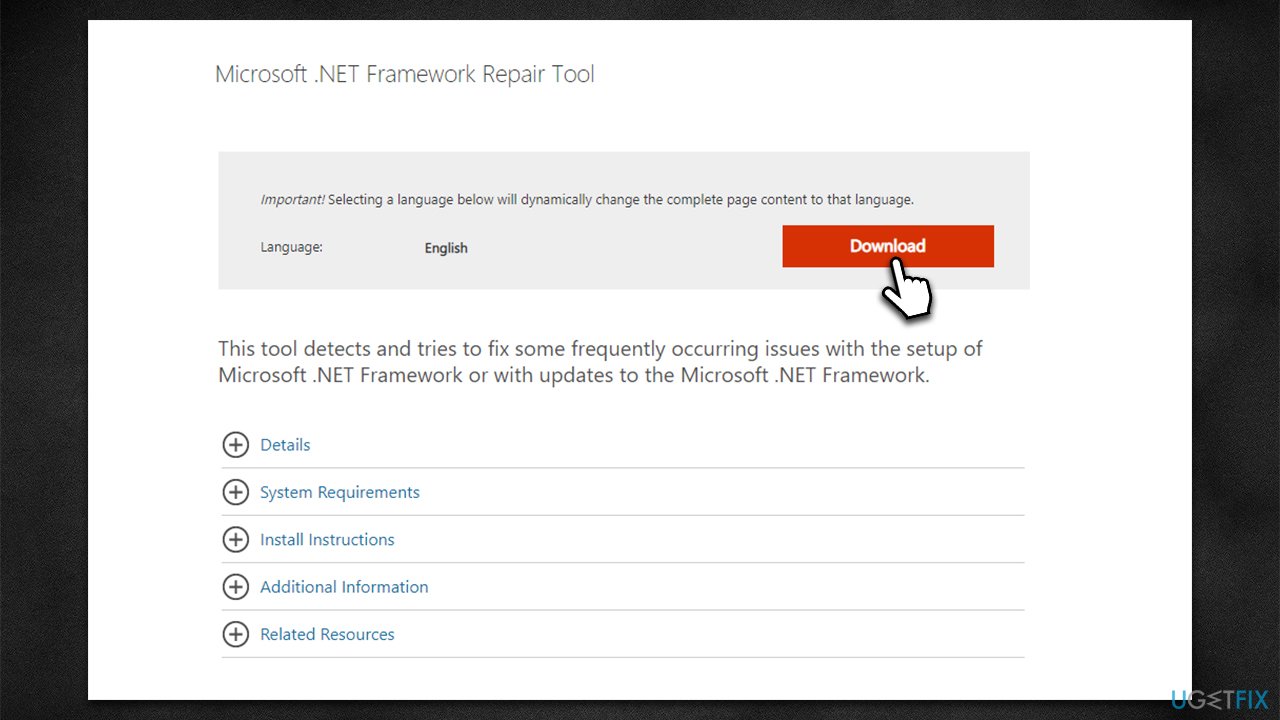
- Download Microsoft .NET Framework Repair Tool from the official Microsoft website.
- Start the launcher and select NetFxRepairTool.exe, pressing Next after.
- Double-click the file to begin the repair process.
- When prompted, mark the I have read and accept the license terms and click Next
- Windows will diagnose all the issues and repair them automatically for you
- Restart your computer if it doesn't happen automatically.
Method 3. Download and install Microsoft Visual C++ Redistributable packages
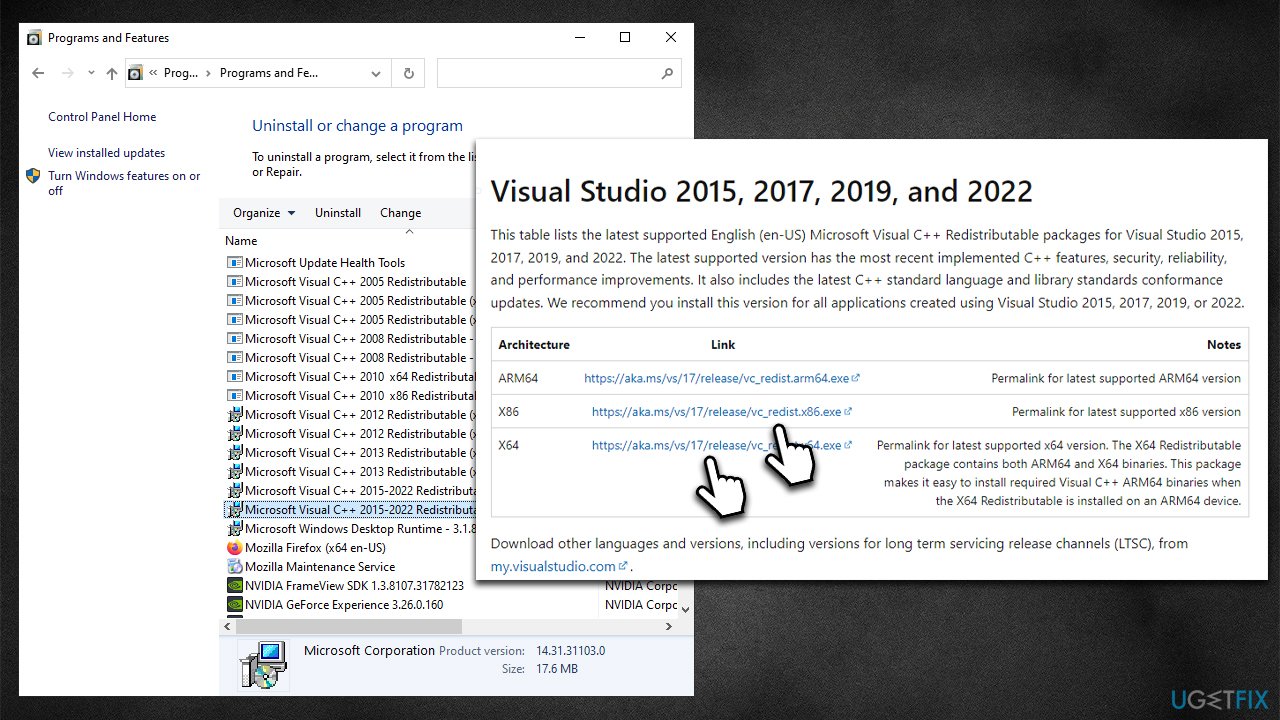
Some error codes, such as 0xc000012f, might indicate that Visual C++ is missing from your system. Try installing the missing versions.
- Open Control Panel and go to Programs > Uninstall a program.
- Here, scroll down and check the list of the installed Visual C++ versions.
- Now, open your browser and navigate to the official Microsoft Visual C++ download page.
- Download and install all the missing versions (including the x84 and x64 versions of Visual Studio).
- Then, restart your computer once done.
Method 4. Check system files for corruption
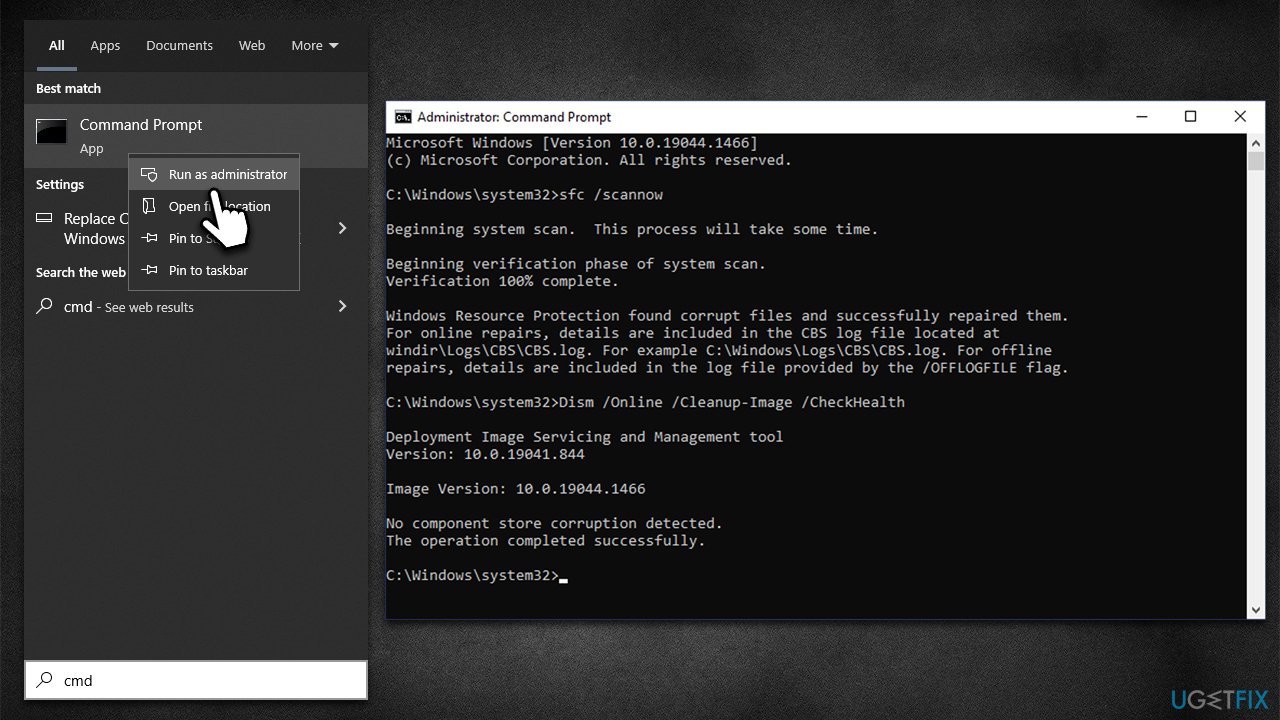
- Type cmd in Windows search.
- Right-click on Command Prompt and pick Run as administrator.
- When User Account Control shows up, click Yes.
- Use the following command lines, pressing Enter after each:
sfc /scannow
DISM /Online /Cleanup-Image /CheckHealth
DISM /Online /Cleanup-Image /ScanHealth
DISM /Online /Cleanup-Image /RestoreHealth - Restart your system.
Bottom line
To fix the PresentationNative_v0400.dll error, you can try using an automatic PC repair tool to identify and replace corrupted system files. Additionally, consider reinstalling the program associated with the error or checking for updates. If none of these solutions work, contact your system administrator or the software vendor for further assistance.
Frequently asked questions
The error indicates that the PresentationNative_v0400.dll file is either corrupted or missing, which can affect applications that rely on it for proper functioning.
You can repair the error by running the System File Checker tool, which scans and restores corrupted system files, or by reinstalling the application that triggers the error.
Downloading DLL files from unverified sources can be risky and may introduce malware, so it's best to use built-in troubleshooting tools or reinstall the affected application instead.




Report an issue
What's wrong with this guide? We review every report and update or remove content.
Report received — thank you. We'll review and fix it.
You need a free account to submit a report.
Be the first to comment