How to fix
Encrypt Files and Folders
on Windows
Secure your files on Windows 10 with easy encryption tips. Protect sensitive data effortlessly and enjoy peace of mind — expert-tested for your safety.


Why does How to Encrypt Files and Folders on Windows 10 occur?
- User wants to add extra security to important documents
- Files may be vulnerable to unauthorized access
- Microsoft Windows has a built-in feature for encryption
- Third-party tools can provide additional encryption options
- Specific files like Microsoft Office documents can be encrypted separately
Repairs Windows system files, removes malware, and restores a clean OS state — without reinstalling.
I keep loads of important docs on my computer and, although I have created backups, I would like to add some extra security and encrypt them. Could you please advise what method for encrypting files and folders would be the most reliable?
A professional hacker is not the only person who can encrypt your files. Each computer user, including you, can encrypt files and folders as easy as pie. The difference between file encryption initiated by you and the hacker is the intention. While hackers spread ransomware virus[ref en-2] to encrypt files and demand ransom to gain the profit, you can encrypt your files and folders to protect them from hackers and other people’s access.
Microsoft Windows has always had a feature known as Encrypted File Service allowing people to encrypt important files and, luckily, it hasn’t been disabled. As an alternative, you may also use some third-party encryption tool, but before installing one read some reviews and make sure that it’s trustworthy.
In case you don’t have a plethora of files/folders that are worth encryption and the ones you opt for securing are Microsoft Office files, you can encrypt separate files using Microsoft Office.[ref en-3] Haven’t tried any of these methods yet? Read the guidance provided below.
How to Encrypt Files and Folders on Windows 10?

Use Encrypted File Service
Starting with the Windows 7, Microsoft enabled the Encrypted File Service (EFS), which is a feature allowing to encrypt individual files and directories separately. In comparison to BitLocker (we will shortly introduce it at the end of the post), EFC requires changing the settings of each file that you want to encrypt via the File Explorer window.
To place a security code on any of your files, you just have to open File Explorer, right-click on a folder or an individual file, select Properties and click Advanced under Attributes. Then enable Encrypt contents to secure data, and that’s it.
Unfortunately, this method keeps the files encrypted only when the system is logged into a different user account, meaning that no authentification will be required when you or other people will try to open encrypted files via the account on which the encryption was placed.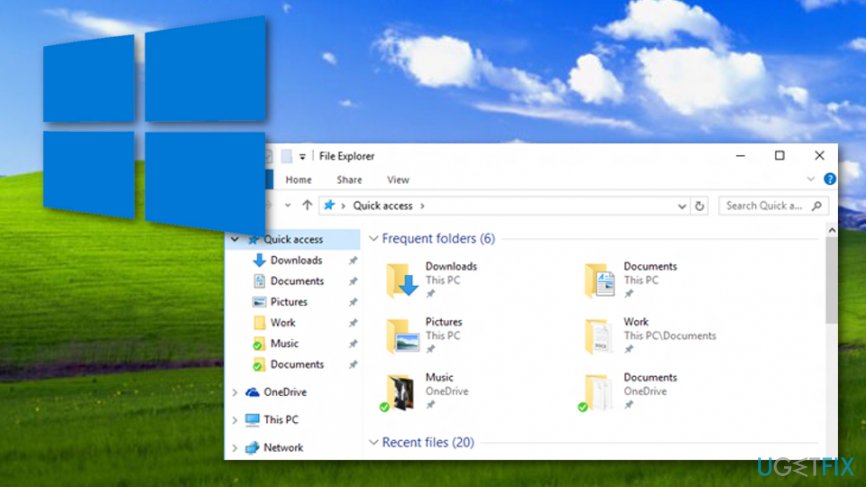
In case you would decide to open encrypted files or folder using another user account, don’t forget the login information of the account that you were using previously. To prevent confusion, we would highly recommend you to backup the ‘encryption key’ on the other device.
During the file encryption phase, you should receive a Microsoft notification offering to backup the encryption key, so click Backup Now option on the pop-up, follow the on-screen instructions, and enter the password twice. Then select the place to hold the password, name the file encryption backup file and press Next. Finally, click Finish to save the changes and close everything.
Use Microsoft Office
If you opt for encrypting important Microsoft Office files, you may use a specified Microsoft Office tool to protect them. To encrypt a particular Office file, open it and navigate to the File -> Info -> Protect the document -> Encrypt with a password. The type in your password twice, press Enter and click OK to save the changes.
IMPORTANT: DO NOT forget the password because you will need it all the time to open the encrypted Microsoft Office document.
Use Third-Party Software
If you opt for using additional software to encrypt the folders or files placed on your PC, you are free to do so. There is a great variety of third-party software encryption tools available on the Internet, but do not hurry to install it blindly. First of all, make sure to select a reliable download source and gather as much information about software encryption tool as possible. Otherwise, you may only get a potentially unwanted program, which may cause more problems than secure your data.
Use BitLocker service (Recommended)
Although the methods described above are reliable enough to password protect important data, we would strongly recommend using BitLocker service[ref en-1] instead of them. Bitlocker is an inbuilt Windows service available on the 10, 8, 8.1, and 7 versions. This particular tool is set to encrypt the entire volume or partition (e.g. Windows system partition, USB flash drive partition, or another partition on the internal drive).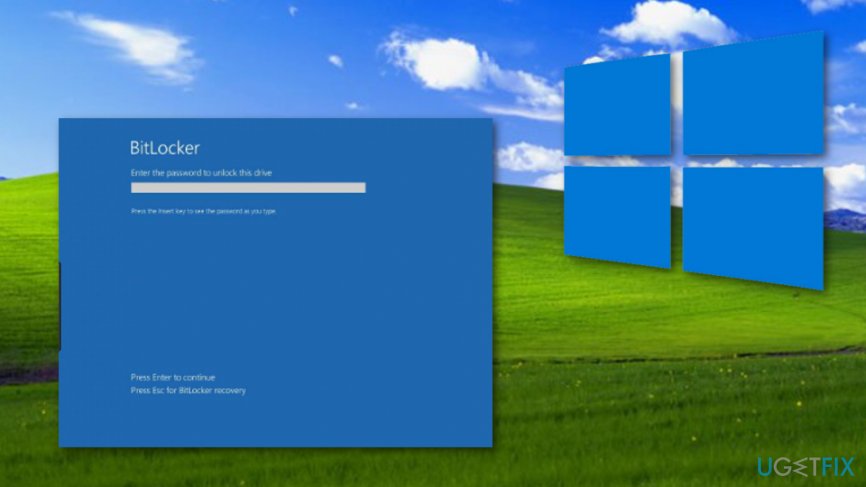
Besides, BitLocker’s encryption does not limit to the one single user account, meaning that the files on all user accounts will be encrypted. Consequently, if someone would steal your laptop, none of the files could be opened without authorization. To find out how to set up BitLocker, please refer to this page.
Bottom line
To encrypt files and folders on Windows 10, you can use the Encrypted File Service (EFS) by accessing Properties in File Explorer and enabling the encryption option. Alternatively, consider using trusted third-party encryption tools or encrypting individual Microsoft Office files. If none of these methods work, further research or professional assistance may be needed.
Frequently asked questions
Right-click the folder you want to encrypt, select 'Properties', click on the 'Advanced' button, and check the 'Encrypt contents to secure data' option.
Yes, Windows 10 includes BitLocker for drive encryption and the Encrypting File System (EFS) for encrypting individual files and folders.
If you forget your encryption password, you may lose access to your files unless you have a recovery key saved during the encryption process.




Report an issue
What's wrong with this guide? We review every report and update or remove content.
Report received — thank you. We'll review and fix it.
You need a free account to submit a report.
Be the first to comment