How to fix
“Windows PowerShell Has Stopped Working”
on Windows
Resolve the "Windows PowerShell Has Stopped Working" error quickly on Windows 10 or 11 with our expert-tested solutions. Fixed in minutes!


What causes How to Fix “Windows PowerShell Has Stopped Working” on Windows?
- Trojan called Poweliks
- High CPU memory usage tasks like dllhost.exe *32
- High CPU memory usage tasks like dllhst3g.exe *32
- Microsoft security update KB3163245 for Windows 7 and Vista
Repairs Windows system files, removes malware, and restores a clean OS state — without reinstalling.
Powershell app fails to start normally. I try to launch it, but all I get is “Windows Powershell has stopped working.” I ran the scan, but no threats were found. Can you tell me what the problem might be?
"Windows Powershell Has Stopped Working" error is certainly an unpleasant phenomenon. It would not be such a hindrance if not for the necessity and importance of the program. In general, Powershell[ref en-1] operates as an automation platform and scripting language which helps customize and improve the management of your system. This utility benefits virus removal.
More advanced users use the application for creating shortcuts, writing, and debugging scripts. It also comes in handy when resetting and cleaning your browsers. MS Edge functionality is closely related to Powershell as well, so its necessity and functionality are unquestionable.
As a result, "Windows Powershell Has Stopped Working" error repair should be initiated as soon as it occurs. The problem may strike any Windows OS version, including but not limited to Windows 7[ref en-2] or 10. 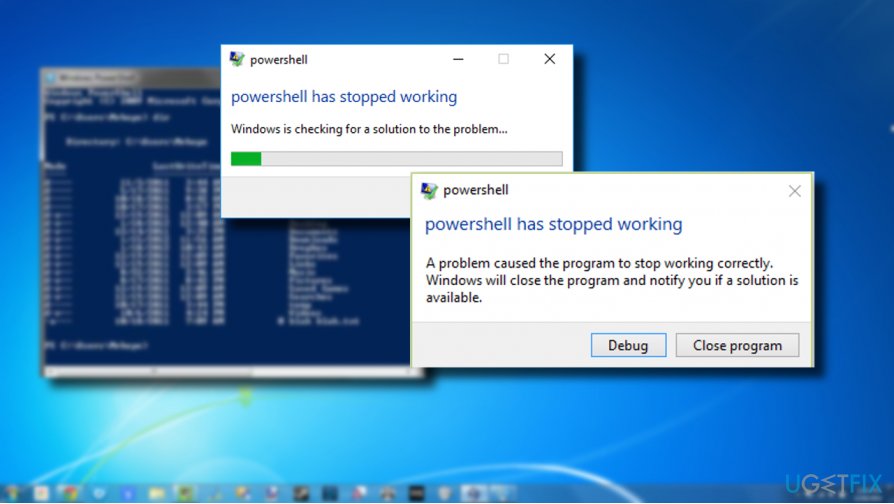
Specialists found out that the problem is usually caused by two recurring factors. In the first case, the error message might be triggered by a trojan[ref en-3] called Poweliks. The latter operates as an ordinary trojan: it may sign you out of your email account, launch high CPO memory usage tasks, such as dllhost.exe *32 or dllhst3g.exe *32, which directly affect the PC performance, cause blue screen of deaths, and frequent error messages.
Alternatively, "Windows Powershell Has Stopped Working" error might be the result of Microsoft security update KB3163245 for Windows 7 and Vista systems. Windows 10 users are less likely to experience this error over the update.
A Guide on How to Fix "Windows Powershell Has Stopped Working" Error on Windows
Option 1. Remove Poweliks virus
In case, one of the above-described synonyms matches your case, and you suspect that malware might be interfering with Powershell, install malware elimination utility and run the scan. For that purpose, [rev id=”Reimage”] or Malwarebytes Anti-Malware might be of service. The program should also end dllhost.exe *32 or dllhst3g.exe *32 process.
Option 2. Uninstall Microsoft Security update KB3163245 to solve the issue
If your security application has not found anything on the system, you might try uninstalling the mentioned security update. Try reinstalling it later on. Perhaps minor technical difficulties had prevented the update from installing successfully. Note that the update should be downloaded from the official MS web page.
To uninstall improperly installed update, follow these steps:
1. If you are using Windows 7, press F8 key to get into the boot menu and switch to Safe Mode.
2. Then open Control Panel -> Programs and Features.
3. Click on the View installed updates link on the left pane.
4. Select the KB3163245 update and click Uninstall.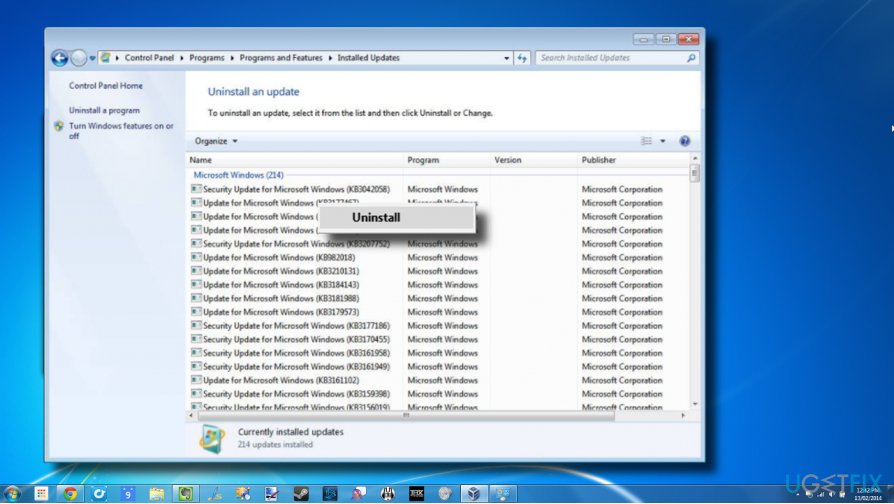
5. If you are using Windows 10, hold the Shift button while clicking on Restart button from the boot menu.
6. Now press Windows key + I and select Update & Security.
7. Click Update history link and Uninstall updates on the next window.
8. Right-click on the wrong update and select Uninstall.
9. Finally, reboot your PC.
Option 3. Repair registry file
"KernelBase.dll Not Found" error is yet another possible culprit of the "Windows Powershell Has Stopped Working" bug. Thus, if the two error messages occur simultaneously, you should try fixing the KernelBase.dll file and then check if the Powershell started working. .dll files and other Windows constituent files can be fixed using a professional PC optimization utility, such as [d1].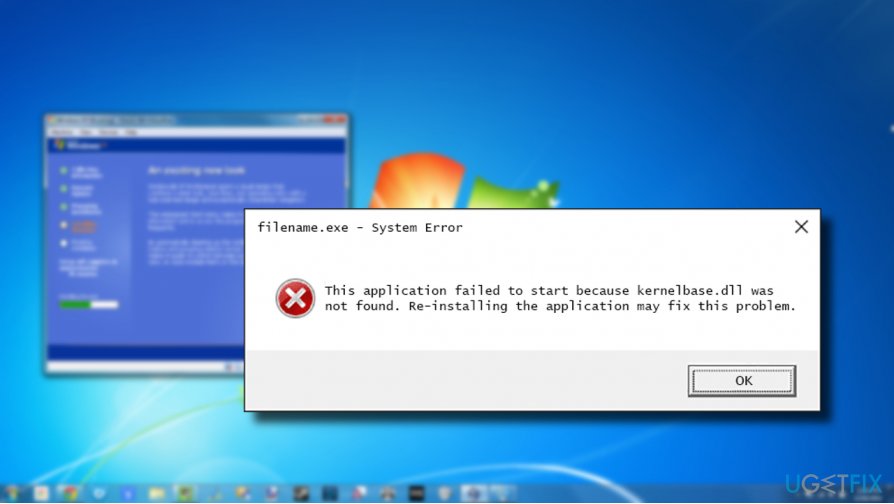
For more information on the "KernelBase.dll Not Found" error and its fixes, please refer to this post.
Bottom line
To fix the 'Windows Powershell Has Stopped Working' error, you can remove the Poweliks virus using malware elimination utilities like Reimage or Malwarebytes Anti-Malware. Additionally, ensure that any problematic processes are ended. If these solutions do not resolve the issue, further troubleshooting may be necessary.
Frequently asked questions
This error can occur due to corrupted system files, conflicts with third-party applications, or issues with Windows updates in Windows 10.
You can use the System File Checker tool by running 'sfc /scannow' in an elevated Command Prompt to scan and repair corrupted system files in Windows 11.
Yes, you can reinstall PowerShell by using the 'Add or Remove Features' option in the Settings app on Windows 10, ensuring that you select the PowerShell feature to reinstall.




Report an issue
What's wrong with this guide? We review every report and update or remove content.
Report received — thank you. We'll review and fix it.
You need a free account to submit a report.
Be the first to comment