How to fix
Enable Controlled Folder Access
on Windows
Protect your files in Windows 10 and Windows 11 by enabling Controlled Folder Access. Follow our expert-tested guide for secure and seamless setup!


Why does How to enable Controlled Folder Access in Windows occur?
- Unauthorized changes to critical data
- Malware or malicious software access
- Ransomware attacks encrypting files
- Lack of protection for sensitive data
- Inadequate monitoring of application access
Repairs Windows system files, removes malware, and restores a clean OS state — without reinstalling.
Hello. How do I enable the Controlled Folder Access feature in Windows?
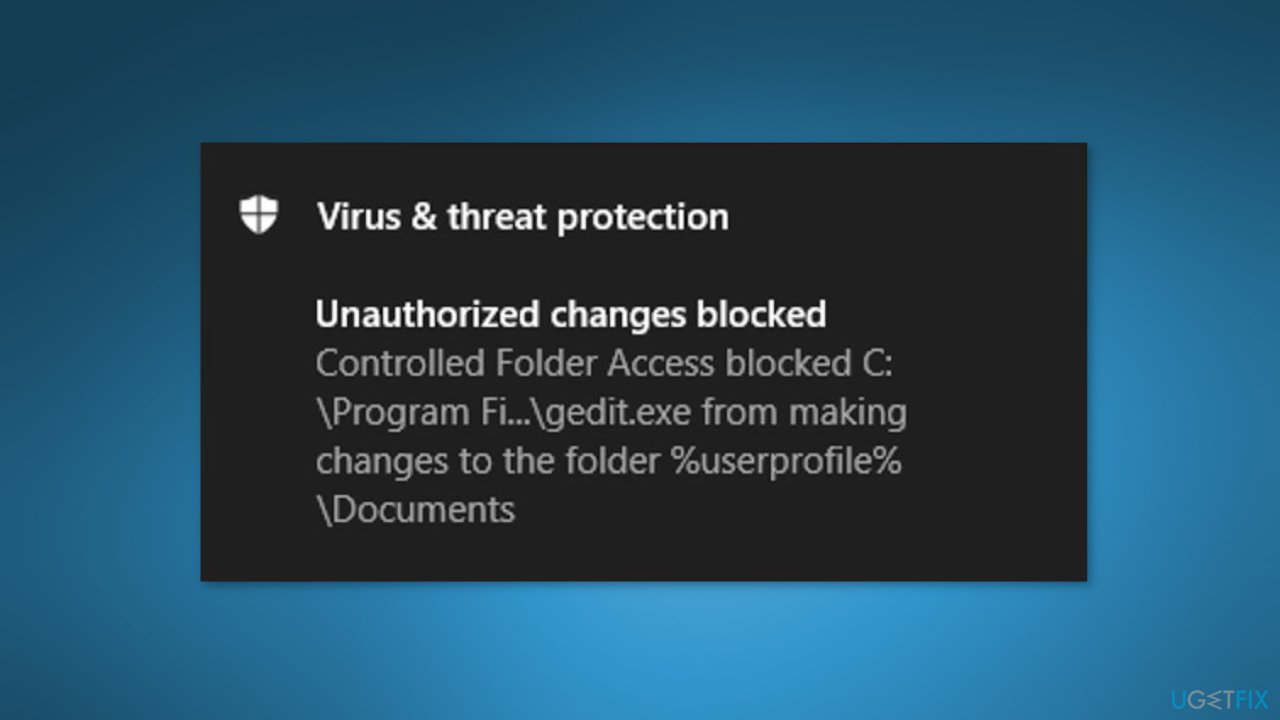
Controlled Folder Access is a Windows security feature that protects critical data from unauthorized changes or deletion by malware or malicious software. The feature is part of Windows Defender Antivirus and is used to monitor and control applications that have access to files and folders that the user has designated as protected.
Users can restrict write access to specific folders, such as their documents or pictures, and prevent any unauthorized or malicious application from modifying the data stored within by enabling Controlled Folder Access. This is especially beneficial for users who keep sensitive or confidential data on their computers.
Furthermore, Controlled Folder Access monitors and prevents ransomware attacks, which can encrypt files and demand payment in exchange for data unlocking. Users can prevent the spread of ransomware and ensure the safety of their data by protecting the designated folders.
Controlled Folder Access can be enabled in Windows using a variety of methods, including the Windows Security app, the Group Policy Editor, PowerShell commands, and scripts. All of these methods will be thoroughly explained in this guide.
If you experience any issues with your Windows operating system, we suggest using a maintenance tool like [d1]. It can fix most system errors, BSODs,[ref en-1] corrupted files, registry[ref en-2] issues, or clear cookies and cache[ref en-3] automatically. Otherwise, follow the step-by-step instructions below.
Method 1. Use Windows Security
- Double-click the Windows Security app shield system tray icon to view it
- Select the Virus & threat protection tab
- Click Manage ransomware protection to access the Controlled folder access setting
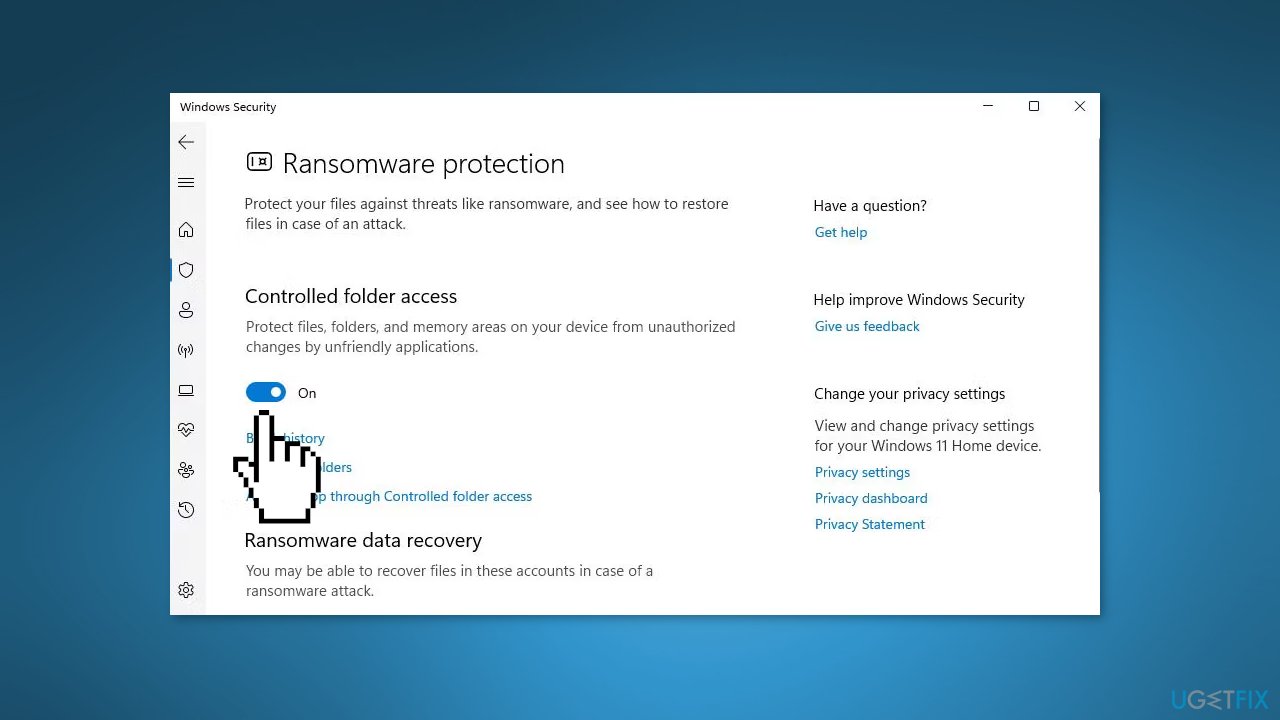
- Turn on the Controlled folder access option to enable it
- To view the list of protected user directories, click Protected folder
- To add more directories to the list, click Add protected folder, choose a directory, and then click Select Folder
Method 2. Use Windows Powershell
- Press the Windows key + S to activate the file search tool
- Input PowerShell within the activated search utility
- Open PowerShell in elevated mode by selecting Run as administrator
- To enable controlled folder access, input the following command and hit Enter:
Set-MpPreference -EnableControlledFolderAccess Enabled
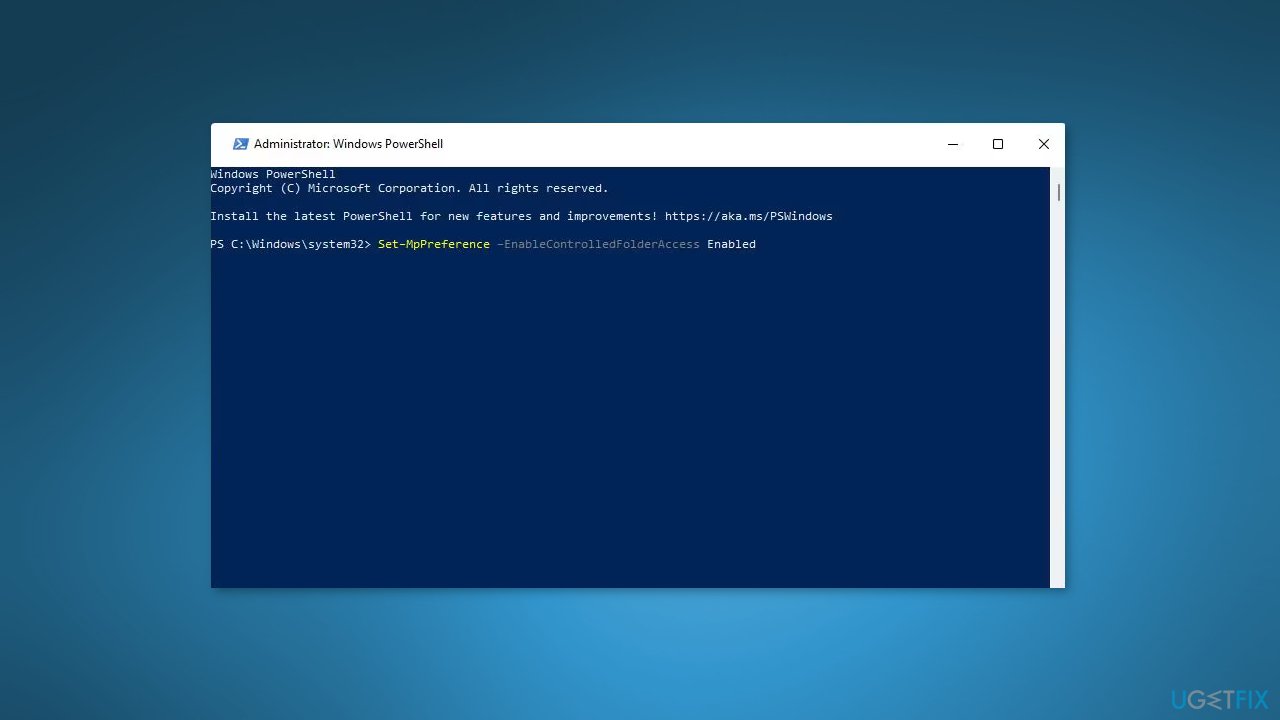
- To disable controlled folder access, input the following command:
Set-MpPreference -EnableControlledFolderAccess Disabled
Method 3. Use the Group Policy Editor
The Microsoft Windows Group Policy Editor (gpedit.msc) is a tool that allows administrators to manage the configuration of the operating system and its applications. It provides a centralized method for controlling and enforcing settings for an entire organization or group of computers, such as security policies and user preferences.
The Group Policy Editor is included in the Windows Pro, Enterprise, and Server editions, as well as the Windows Server editions. It is not available in Windows Home or some other editions of Windows.
- Bring up the search tool in Windows and enter gpedit.msc
- Open the Group Policy Editor
- Go to Computer Configuration > Administrative Templates
- Double-click Windows Components to expand it
- Expand Microsoft Defender Antivirus and Microsoft Defender Exploit Guard by clicking the arrows
- Select Controlled Folder Access to view its policy settings
- Double-click Configure Controlled folder access to open its setting window
- Select the Enabled radio button
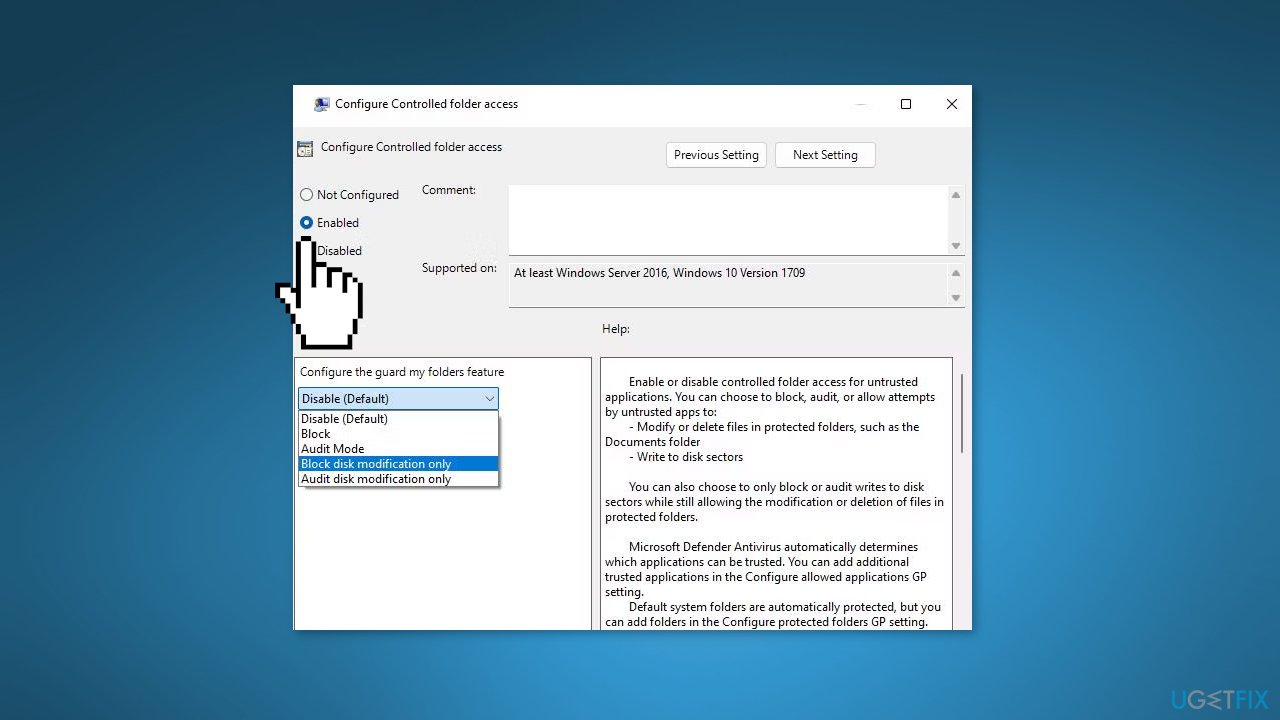
- To enable the strictest mode, select Block from the drop-down menu
- Select Apply in the Configure Controlled folder access window
- Click OK
Method 4. Use the Notepad
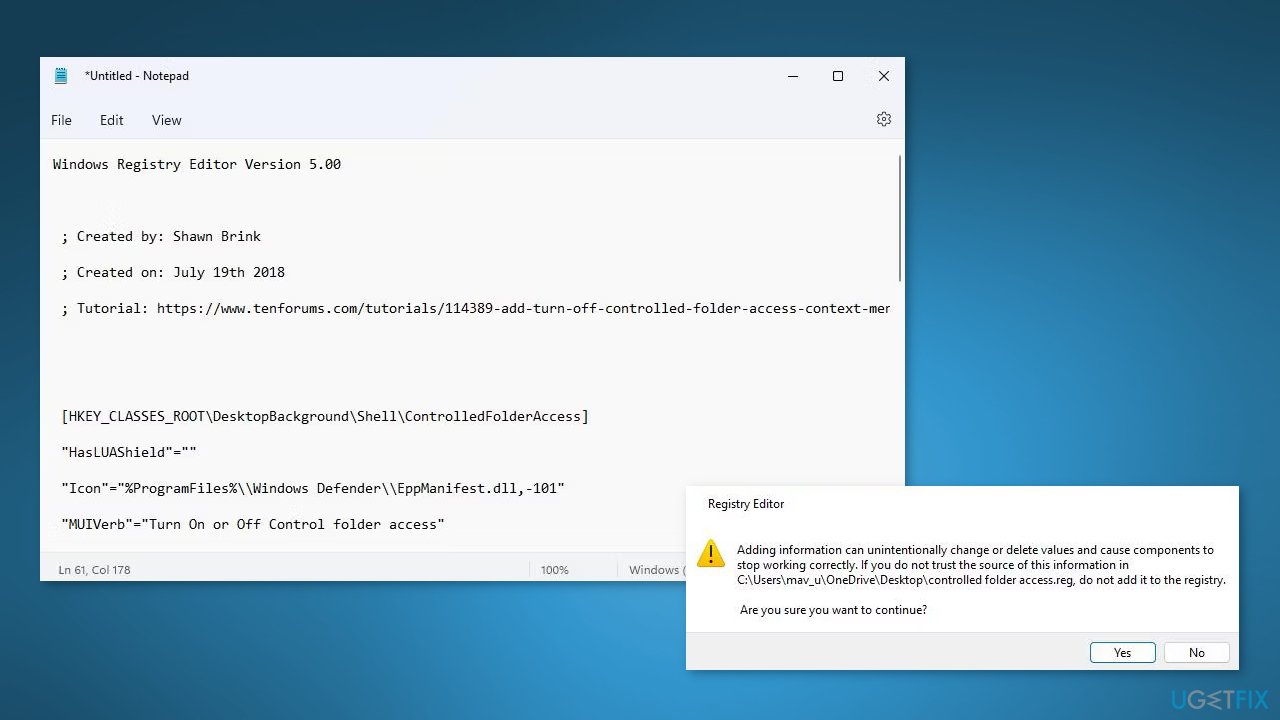
- Open Notepad
- Copy the following script text:
[HKEY_CLASSES_ROOT\DesktopBackground\Shell\ControlledFolderAccess]
"HasLUAShield"=""
"Icon"="%ProgramFiles%\\Windows Defender\\EppManifest.dll,-101"
"MUIVerb"="Turn On or Off Control folder access"
"Position"="Bottom"
"SubCommands"=""
[HKEY_CLASSES_ROOT\DesktopBackground\Shell\ControlledFolderAccess\shell\001flyout]
"MUIVerb"="Turn on Control folder access"
"HasLUAShield"=""
"Icon"="%ProgramFiles%\\Windows Defender\\EppManifest.dll,-101"
[HKEY_CLASSES_ROOT\DesktopBackground\Shell\ControlledFolderAccess\shell\001flyout\command]
@="PowerShell -windowstyle hidden -Command \"Start-Process cmd -ArgumentList '/s,/c,start PowerShell.exe Set-MpPreference -EnableControlledFolderAccess Enabled' -Verb RunAs\""
[HKEY_CLASSES_ROOT\DesktopBackground\Shell\ControlledFolderAccess\shell\002flyout]
"MUIVerb"="Turn off Control folder access"
"HasLUAShield"=""
"Icon"="%ProgramFiles%\\Windows Defender\\EppManifest.dll,-101"
[HKEY_CLASSES_ROOT\DesktopBackground\Shell\ControlledFolderAccess\shell\002flyout\command]
@="PowerShell -windowstyle hidden -Command \"Start-Process cmd -ArgumentList '/s,/c,start PowerShell.exe Set-MpPreference -EnableControlledFolderAccess Disabled' -Verb RunAs\""
- Paste the copied script into Notepad using Ctrl + V
- Save the script as a registry file by pressing Ctrl + Shift + S
- Set Save as type to All files
- Name the file Turn on Control folder access.reg
- Save the file to the desktop
- Close Notepad
- Double-click the Turn on Control folder access.reg file on the desktop
- Confirm trust in the script by selecting Yes
Remove Controlled Folder Access
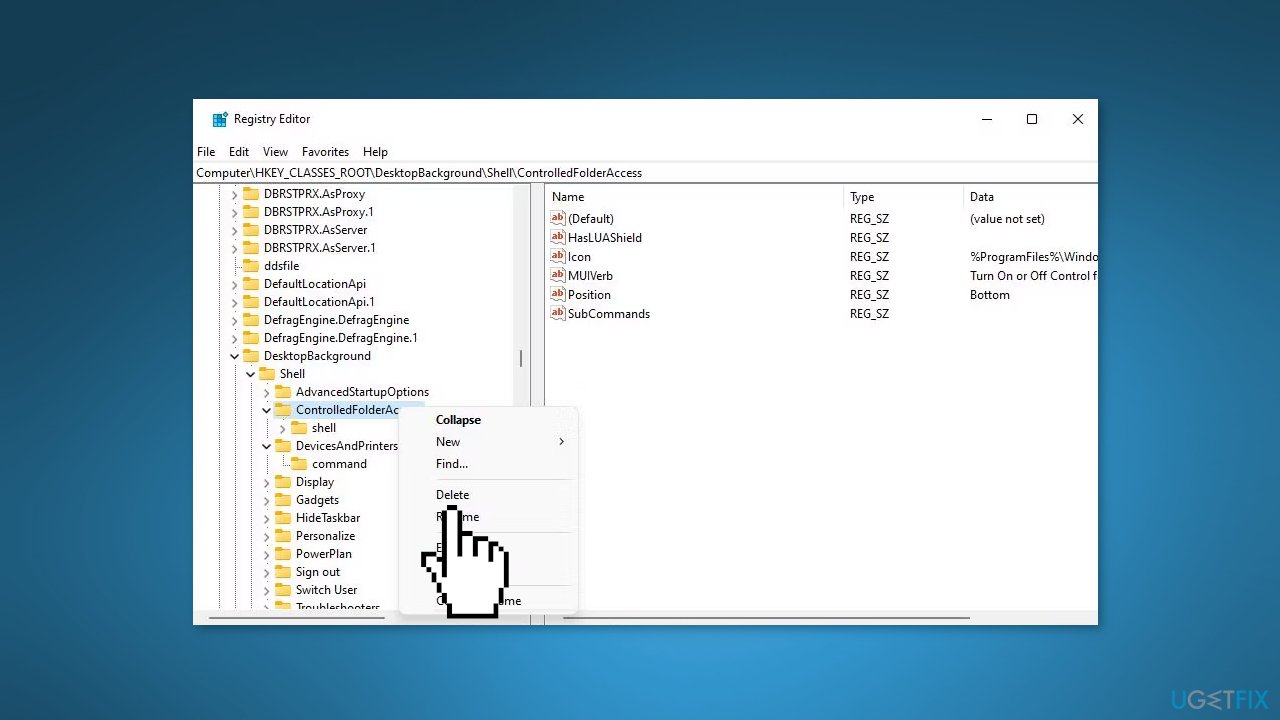
- Open the Registry Editor
- Navigate to the following registry key location: HKEY_CLASSES_ROOT\DesktopBackground\Shell\ControlledFolderAccess
- Right-click the Controlled Folder Access key
- Select Delete
- Confirm by clicking Yes to remove the key
Bottom line
To enable Controlled Folder Access in Windows, you can use methods such as the Windows Security app, Windows PowerShell, and Group Policy Editor. These methods allow you to restrict write access to designated folders and protect your data. If these solutions do not resolve your issues, consider using a maintenance tool to fix system errors.
Frequently asked questions
To enable Controlled Folder Access, go to Windows Security, select 'Virus & threat protection', then click on 'Manage settings' under 'Ransomware protection' and toggle on 'Controlled folder access.'
By default, Controlled Folder Access protects system folders like Documents, Pictures, and Desktop, but you can add additional folders to the protection list in the settings.
Yes, you can allow specific apps by going to the Controlled Folder Access settings and adding trusted apps to the list of allowed applications.




Report an issue
What's wrong with this guide? We review every report and update or remove content.
Report received — thank you. We'll review and fix it.
You need a free account to submit a report.
Be the first to comment