How to fix
Mfc71u.dll error
on Windows
Resolve the Mfc71u.dll error on Windows 10 or 11 easily and restore full functionality with our expert-tested solutions. Fixed in minutes!

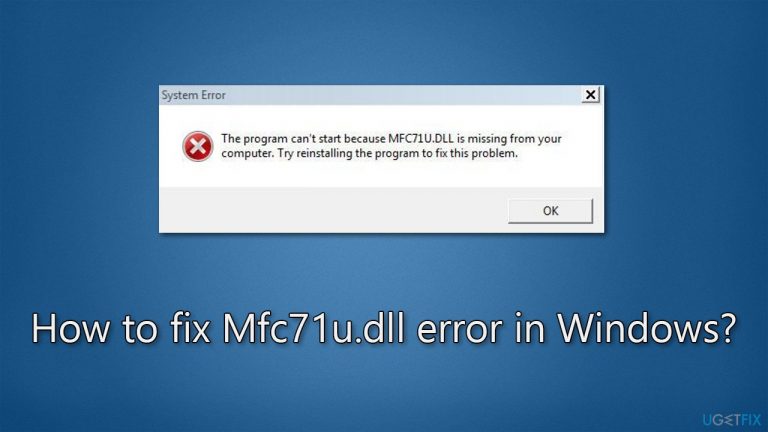
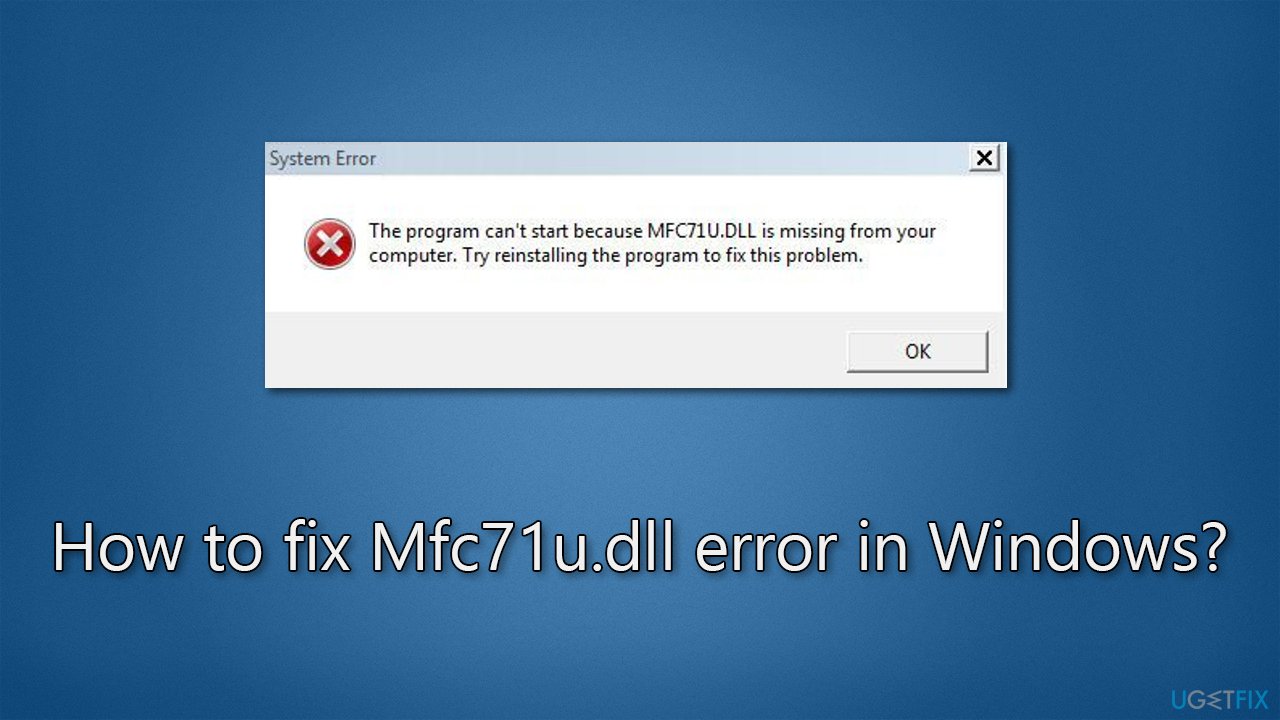
What causes How to fix Mfc71u.dll error in Windows?
- Missing Mfc71u.dll file
- Damaged Mfc71u.dll file
- Older applications causing conflicts
- Issues with Windows Store Apps
- Incorrect application settings
Repairs Windows system files, removes malware, and restores a clean OS state — without reinstalling.
Hi, I suddenly received a message that the Mfc71u.dll file is missing from Windows. I am unsure how this happened, as I did not change anything when using my Windows 10 PC. Please advise.
Mfc71u.dll is a dynamic link library (DLL) file that is associated with Microsoft Visual Studio 2003. This file is a part of the Microsoft Foundation Classes (MFC) library, which is a collection of pre-written code that developers can use to create Windows-based applications.
Mfc71u.dll provides a number of functions and resources that are necessary for applications developed with Microsoft Visual Studio 2003 to run properly. It is a Unicode version of the MFC library, meaning that it supports the use of Unicode characters in Windows-based applications.
If a responsible DLL file is missing or damaged, users might receive the "Mfc71u.dll is missing" error whenever they try to stop a particular application or even when Windows boots if that application was set to be launched at startup. In other cases, people have reported that they were unable to install programs due to this error as well.
Since Mfc71u.dll is a file related to the older version of Visual Studio, the error might be caused by older apps, although this is not always the case. DLL files are executables that can be shared between multiple applications, so it is sometimes difficult to pinpoint the app causing the issue.
In any case, there are several steps that you can perform in order to fix the Mfc71u.dll error in Windows. Since it is a DLL file, we recommend running a scan with a powerful PC repair tool [d1], which can quickly and easily repair damaged system files and resolve potential errors, crashes, and other issues.
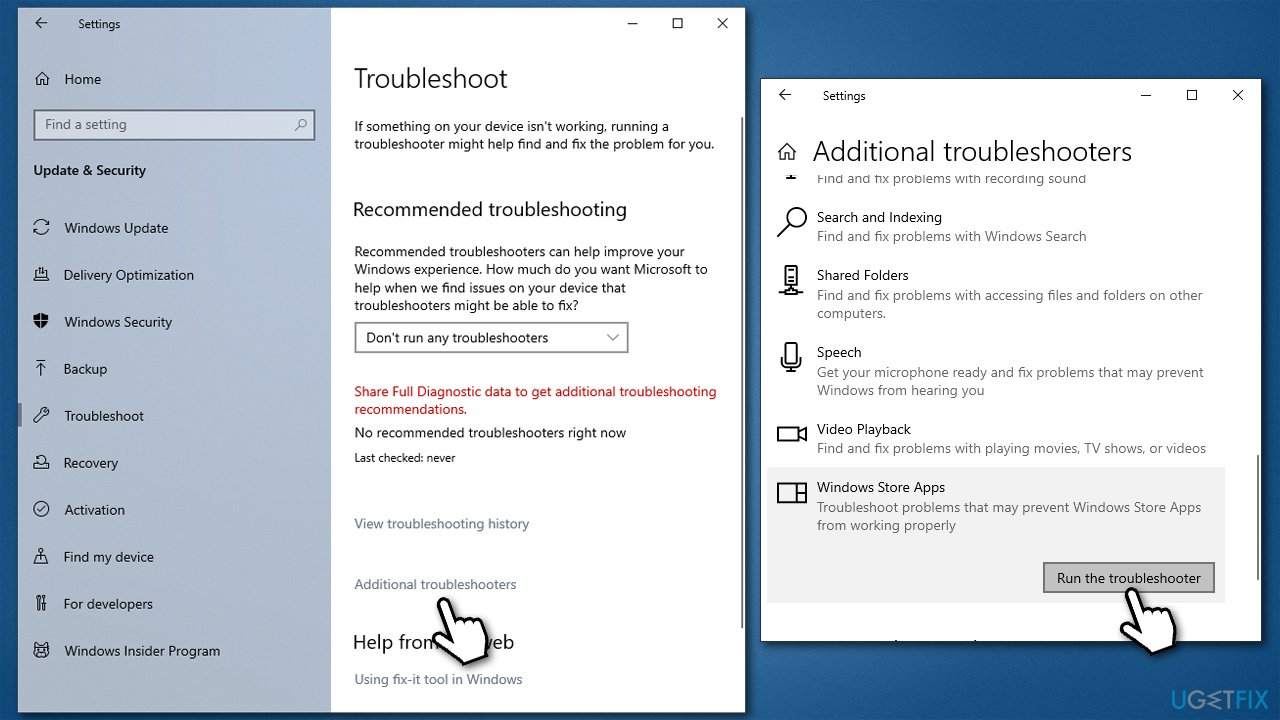
Fix 1. Run the troubleshooter
Windows Store App troubleshooter is an excellent tool that can sometimes detect and repair issues caused by certain apps. Please run the troubleshooter as follows:
- In Windows search, type in troubleshoot and press Enter.
- Click Additional troubleshooters/Other troubleshooters.
- Locate Windows Store Apps and click Run the troubleshooter/Run.
- Wait for the scan to finish and apply the suggested fixes.
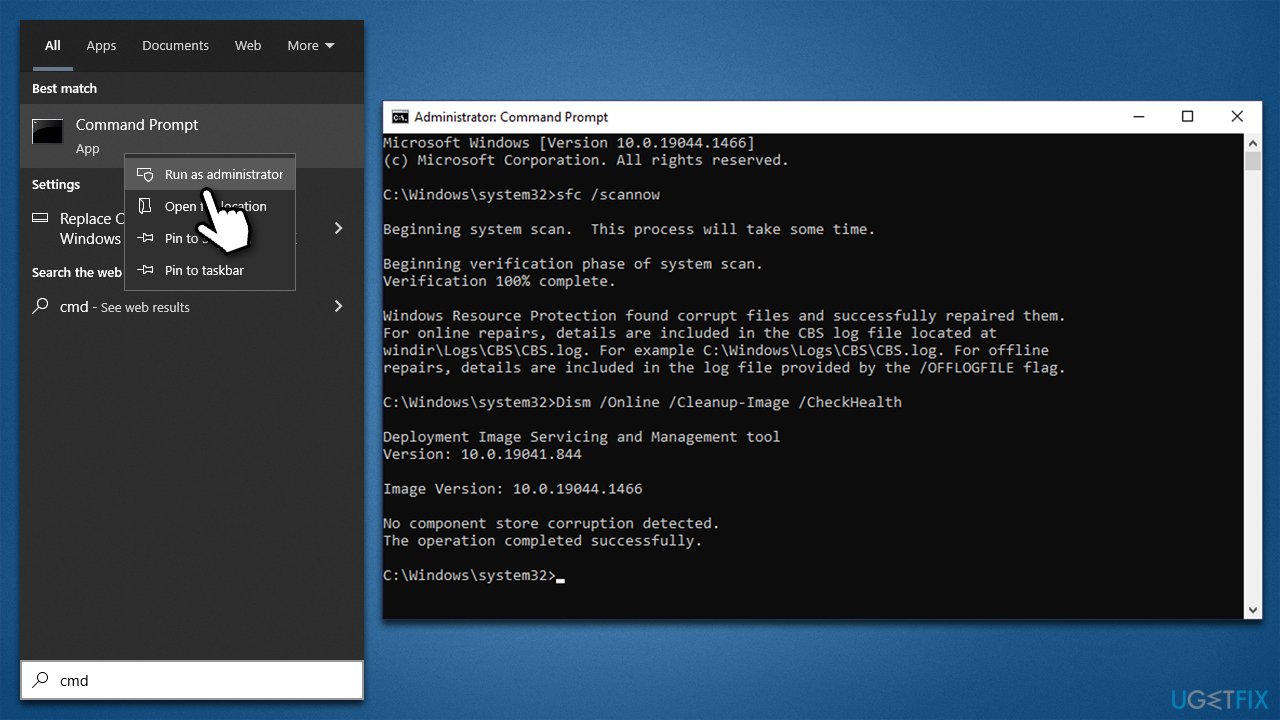
Fix 2. Scan the system for corruption
- Type cmd in Windows search.
- Right-click on Command Prompt and pick Run as administrator.
- When User Account Control asks you whether you want to allow changes, click Yes
- Paste the following command and press Enter:
sfc /scannow - Wait till the scan is finished
- Once that is done, use the following commands, pressing Enter each time:
dism /online /cleanup-image /scanhealth
dism /online /cleanup-image /checkhealth
dism /online /cleanup-image /restorehealth - Reboot your device.
Fix 3. Reinstall the program in question
If a Mfc71u.dll error shows up when launching or using a particular program, reinstalling it could be helpful.
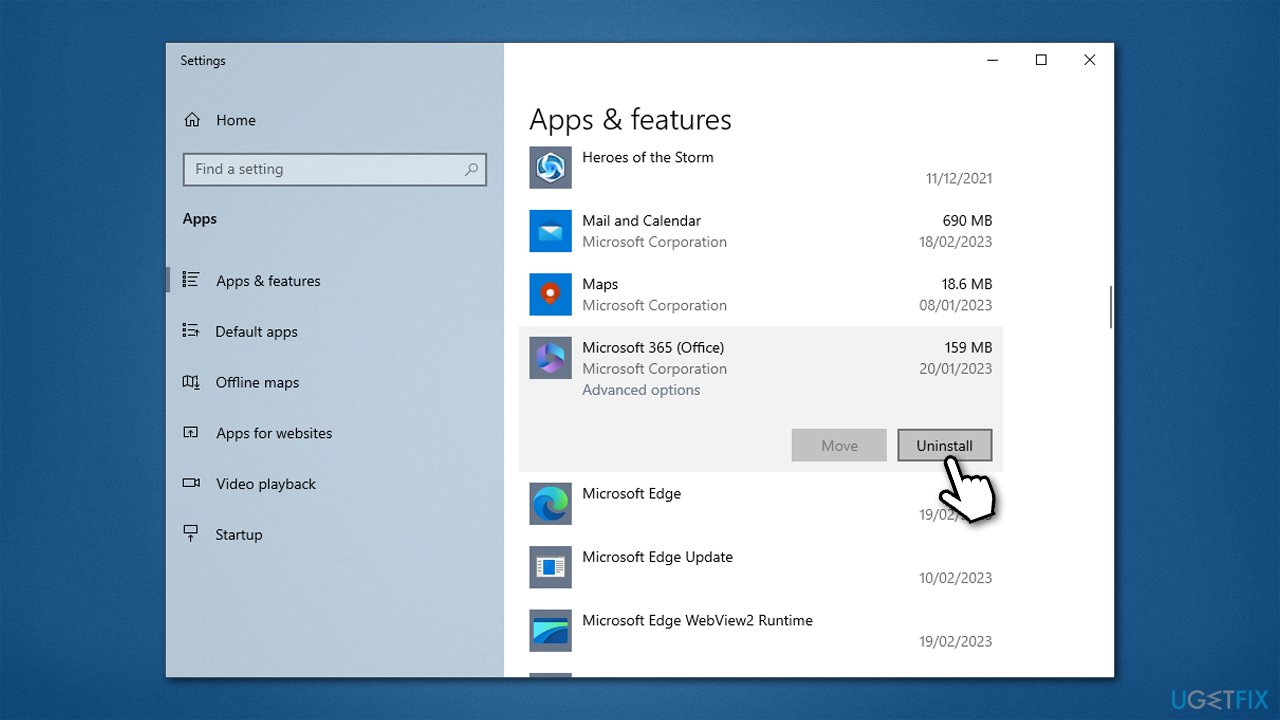
- Right-click on Start and pick Apps and Features.
- Scroll down to the app that's showing up in the error message.
- Click on it and select Uninstall, then confirm with Uninstall.
- Follow the on-screen instructions and restart the system.
- Then reinstall the app again.
Fix 4. Reinstall Visual Studio 2003
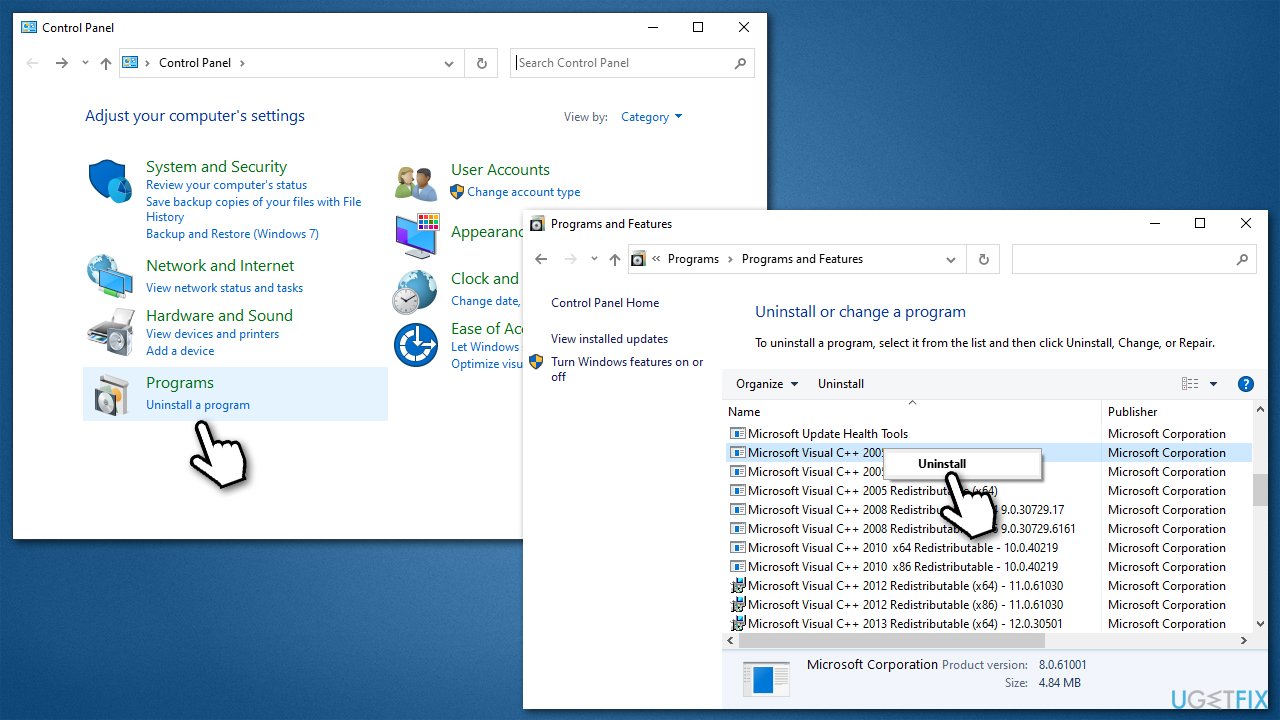
- Type Control Panel in Windows search and press Enter.
- Go to Program > Uninstall a program.
- Search for the Microsoft Visual C++ 2003 Redistributable entry.
- Right-click and select Uninstall.
- Follow on-screen instructions to remove the app.
- Once done, reboot your PC.
- Download Microsoft .NET Framework SDK, which includes Visual Studio 2003.
- Launch the installer and follow the on-screen instructions to install it.
Fix 5. Install all available Windows updates
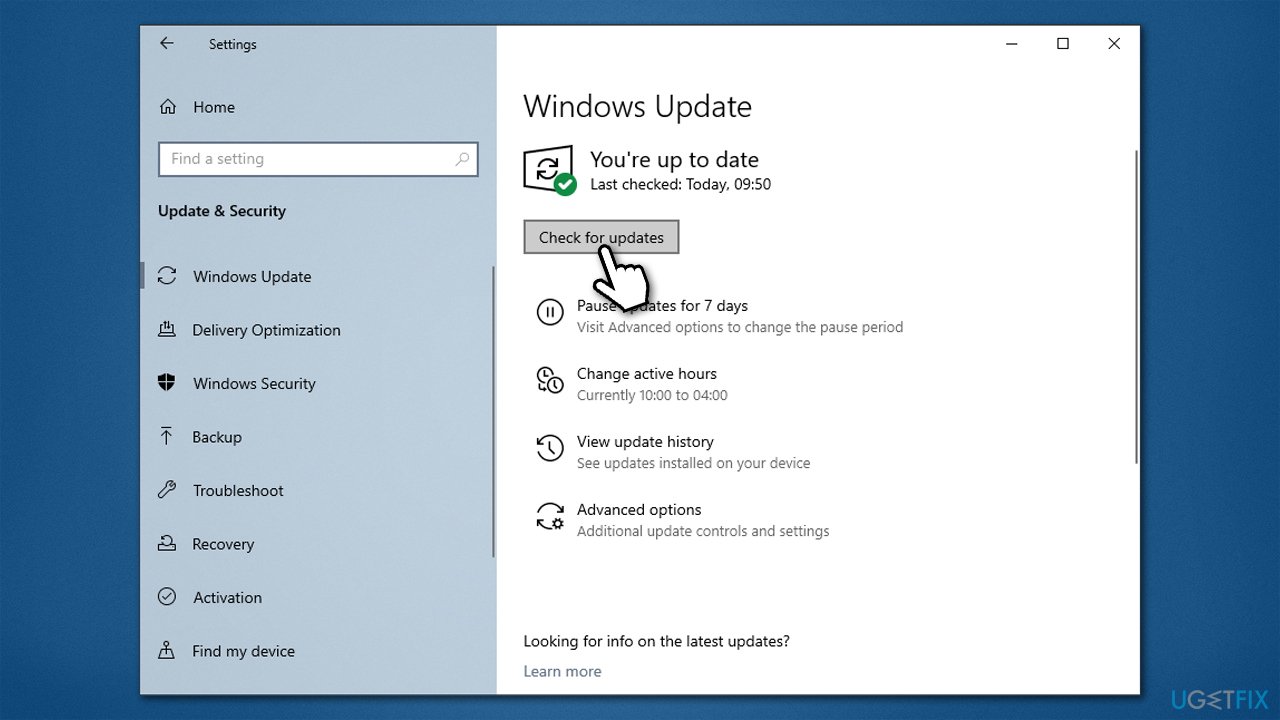
- Type Updates in Windows search and press Enter.
- Here, click Check for updates.
- Wait till Windows downloads and installs all the files.
- If optional updates are available, install them as well.
- Reboot your system.
Fix 6. Try System Restore
Restoring your system to a time when you did not experience an error can also help you find the solution. Use the following instructions:
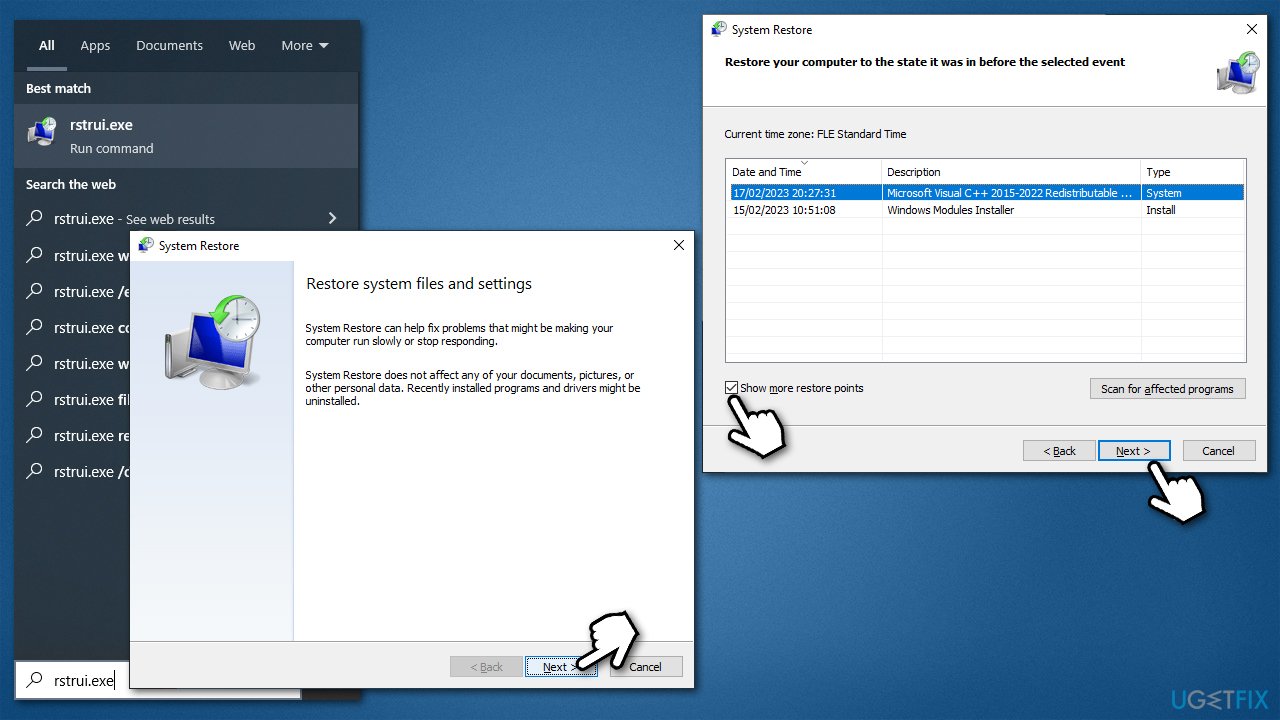
- Type in rstrui.exe in the Windows search bar and press Enter.
- In the new window, click Next.
- If available, mark the More restore points checkbox.
- Select the point in time when the issue did not exist and click Next.
- Finally, click Finish.
Bottom line
To fix the Mfc71u.dll error, you can run the Windows Store App troubleshooter and use a powerful PC repair tool to scan for damaged system files. If these steps do not resolve the issue, consider reinstalling the application associated with the error or seeking further technical support.
Frequently asked questions
The Mfc71u.dll error typically occurs due to missing or corrupted DLL files, often related to outdated software or improper installations. It can also arise from malware infections or system file corruption.
You can download the Mfc71u.dll file from a reputable DLL repository, then place it in the C:\Windows\System32 directory. After that, run 'regsvr32 mfc71u.dll' in the Command Prompt to register the file.
Yes, repairing the Microsoft Visual C++ Redistributable can often fix the Mfc71u.dll error, as it may restore any missing or corrupted components associated with the DLL. To do this, go to 'Apps & features' in Settings, find Microsoft Visual C++, and select 'Modify' to initiate the repair.




Report an issue
What's wrong with this guide? We review every report and update or remove content.
Report received — thank you. We'll review and fix it.
You need a free account to submit a report.
Be the first to comment