How to fix
Block Third-Party Cookies
on Windows
Protect your privacy on Windows 10 and Windows 11 by blocking third-party cookies. Follow our expert-tested guide and browse safely today!

Why does How to Block Third-Party Cookies occur?
- Receiving ads based on web browsing data
- Tracking activities by advertisers
- Cookies used for web tracking
- Privacy violation concerns
- Adware infection
Repairs Windows system files, removes malware, and restores a clean OS state — without reinstalling.
Hello. I need help and answers. I keep receiving ads when browsing, which, apparently, are generated according to my web browsing data. Should I block third-party cookies to avoid that? Could you please tell me is there a way to stop such activity completely on the browser? I receive them on my phone and web browser on the laptop.
Blocking third-party cookies become a common issue and a question because due to this tracking activities and continuous advertising content users cannot use the device as supposed to. Cookies are the most prevalent web-tracking technology used by advertisers and other not so trustworthy companies to track us.
These days people get the ability to access thousands of websites and use millions of services online for free thanks to the advertisements that bring profit to the website masters in exchange for free services.[ref en-1] The problem is that these advertisements are usually annoying, disruptive, and often very personal.
For example, if the PC user often visits online shopping sites, looks for information about technologies or visits adult content sites, he or she may notice the corresponding pop-ups. That's because of tracking cookies, i.e. small text files, which are stored on PC’s browsing directory or program data subfolder.[ref en-2]
Many websites and third-party software are filled with cookies so that their developers could keep track of how people navigate through the site, what content attracts visitors’ attention, how long the visitor stays on the site and so on.
Unfortunately, but for some Internet users associate cookies with privacy violation or, more worse, identity theft because they can collect, store, and transfer data like IP address, PC’s location, email address, web browsing history, and similar. Consequently, many opt for disabling and blocking them.
How to block Third-Party Cookies
One of the main reasons why people receive an enormous amount of advertisements while browsing is adware infection.[ref en-3] In this case, a scan with a professional anti-malware, for example, [rev id=”Reimage”] and web browser's reset should help. We will explain how to do disable third-party cookies manually, but you should know that doing so might initiate some problems, for example, unavailable web content, videos or software.
If nevertheless, you are already determined to disable cookies, you may easily do that with the help of instructions provided below. In case you would change your mind in the future, you will be able to enable third-party cookies by reverting the changes when disabling them.
Google Chrome (Desktop)
- Launch Chrome and click Menu (three horizontal lines in the upper-right corner).
- Open More tools and then find Clear browsing data.
- Choose the time and Clear data.
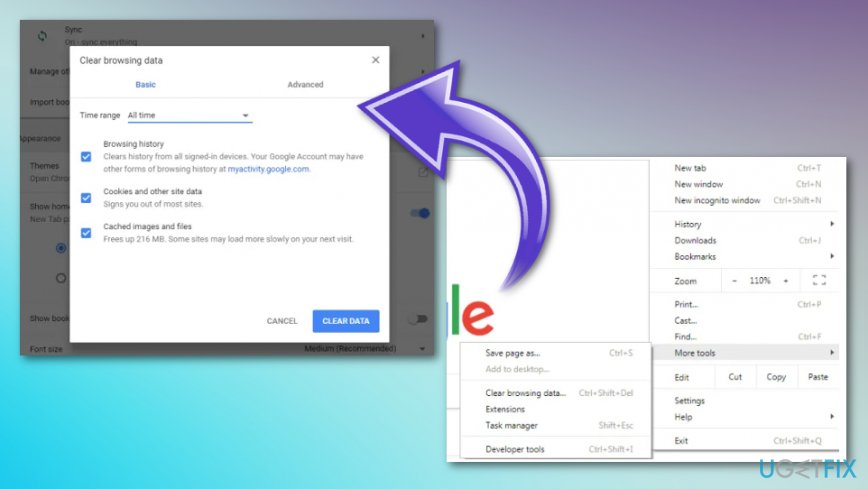
How to block third party cookies chrome clearing data
Also:
- Go to Menu and Advanced settings.
- Click on Content Settings under Privacy.
- Check the box next to Block third-party cookies and site data and close settings.
- Restart your web browser.
Google Chrome (Android)
- Launch Chrome and click Menu (three dots in the upper-right corner).
- Select Settings and locate Privacy settings under Advanced heading.
- Check the Do Not Track option.
- Then open Site Settings under Advanced and open Cookies.
- Deselect Allow third-party cookies option and restart web browser to save the changes.
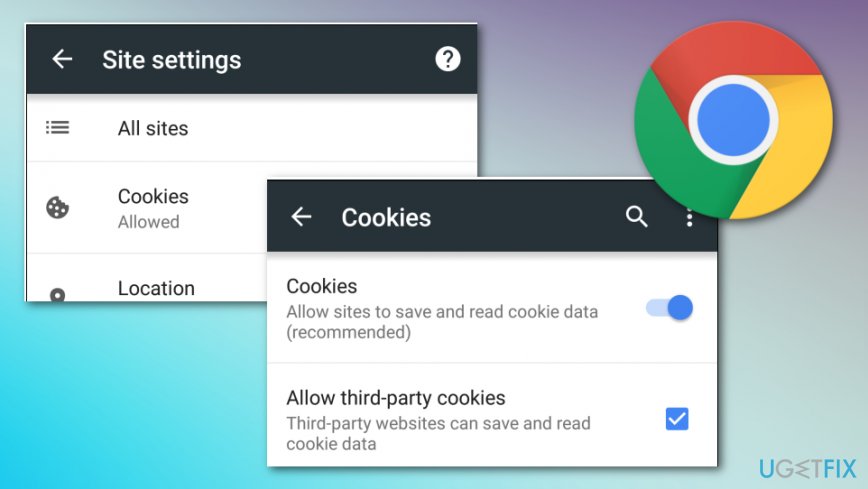
How to block third party cookies chrome android
Internet Explorer
- Open IE and click Menu (the gear icon in the upper-right corner).
- Open Internet Options and click Privacy tab.
- Set Medium High to block the third-party cookies.
- Press OK to save the changes and reopen IE.
Microsoft Edge
- Launch Edge and click Menu (three dots in the upper-right corner).
- Open Settings and select View advanced settings.
- Open Cookies and select Block only third party cookies from the drop-down menu.
- Once done, reopen Edge.
Mozilla Firefox
- Launch Mozilla Firefox and click Menu (three lines in the upper-right corner).
- Select Preferences and enable Do Not Track option.
- The open Tracking preferences and select Remember History.
- Open Use custom settings for history and open Accept third-party cookies from the drop-down menu.
- Select Never, click OK and Apply to save the changes.
- Finally, restart Mozilla Firefox.
Also:
- Go to Menu and select Content Blocking.
- Find Privacy& Security panel and select the Custom button.
- In the Cookies section, select All third-party cookies from the drop-down menu.
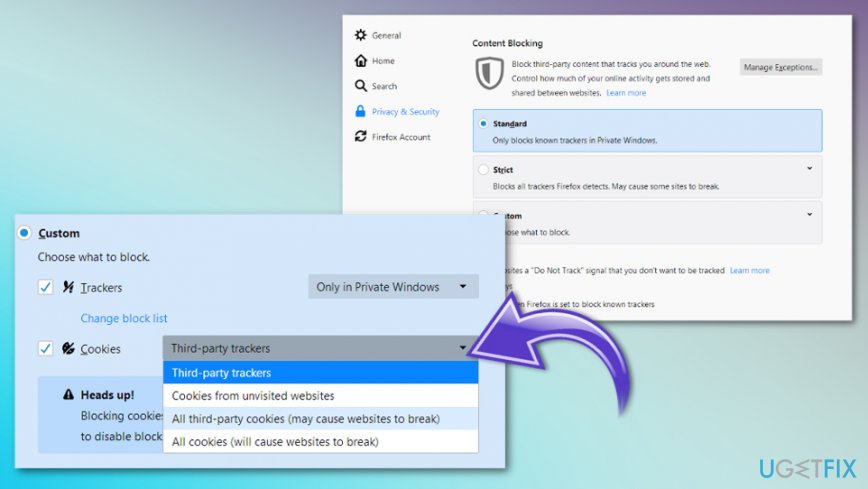
How to block third party cookies firefox custom
Apple Safari
- Open Safari and click Menu to open Preferences. Alternatively, you may click Command +.
- The open Privacy tab and locate Cookies and website data settings.
- Click Allow from current website only option.
- Then open the Privacy tab and enable Do Not Track feature.
- Finally, reopen Safari to save changes.
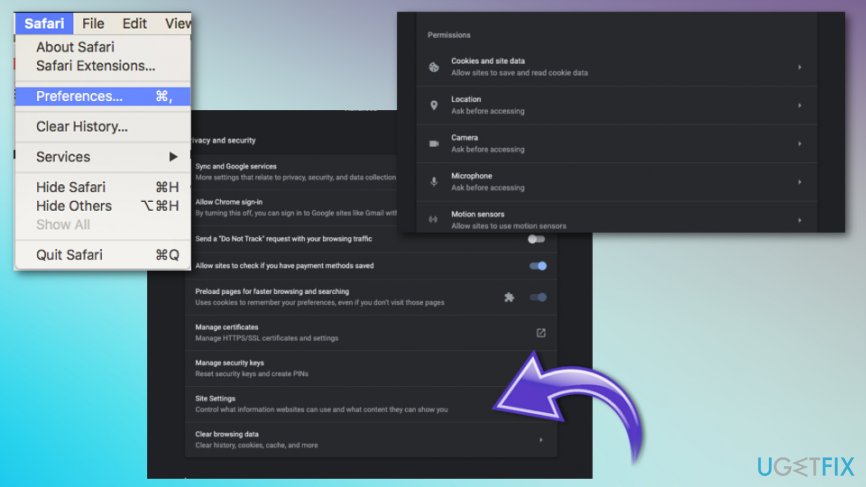
How to block third party cookies safari mac
Apple Safari on iOS
- Tap Settings and find Safari.
- The find Privacy&Security options.
- Once the section opens and you can see Block Cookies option, click Allow from Current Website only and exit.
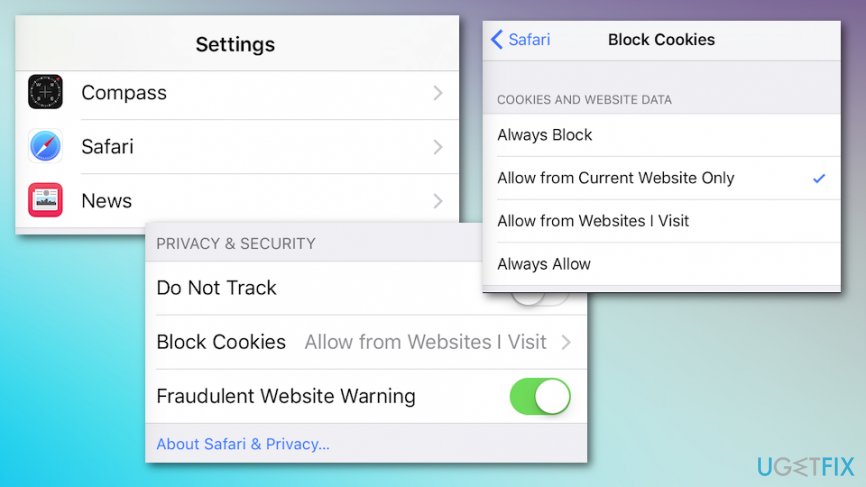
How to block third party cookies safari ios
Bottom line
To block third-party cookies, you can manually disable them in your browser settings. Additionally, scanning for adware with professional anti-malware software and resetting your web browser can help reduce unwanted advertisements. If these solutions do not work, consider seeking further technical assistance.
Frequently asked questions
To block third-party cookies in Microsoft Edge on Windows 10, go to Settings > Privacy, search, and services, and under 'Cookies and site data,' select 'Block third-party cookies.'
In Google Chrome on Windows 11, click on the three-dot menu, go to Settings > Privacy and security > Cookies and other site data, then select 'Block third-party cookies.'
Yes, in Firefox on Windows 10, navigate to Options > Privacy & Security, and under 'Cookies and Site Data,' choose 'Block third-party cookies' to manage your settings.




Report an issue
What's wrong with this guide? We review every report and update or remove content.
Report received — thank you. We'll review and fix it.
You need a free account to submit a report.
Be the first to comment