How to fix
Speed Up the Load Time of Windows Downloads Folder
on Windows
Transform your Windows 10 or 11 downloads folder for lightning-fast access. Optimize settings now for improved efficiency! Expert-tested solutions await.

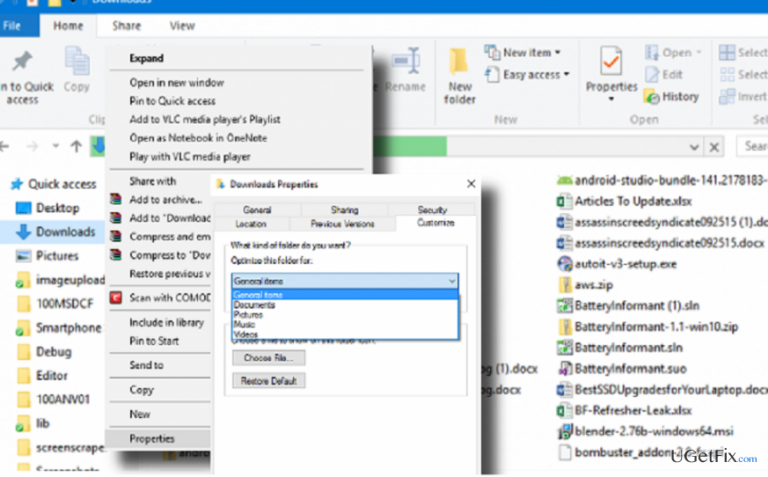
Why does How to Speed Up the Load Time of Windows Downloads Folder occur?
- Loading time is longer for the Downloads folder compared to other folders
- Windows creates thumbnails for photos and videos in the Downloads folder
- Overfilled Downloads folder may contribute to slow loading
- Using an older PC or HDD instead of a speedy SSD can affect loading time
Repairs Windows system files, removes malware, and restores a clean OS state — without reinstalling.
Every other folder in File Explorer opens virtually immediately to show all contents but why does the Download folder have to reload the contents, which takes quite some time, the first time the folder is accessed after switching on. Is it possible to speed it up?
Windows 10 users have noticed that the loading time of some Windows folders is far longer than the others. This happens when the PC user opens File Explorer (formerly known as Windows Explorer), searches for a particular folder, and tries to open it. While Documents, Music, Pictures, Music, OneDrive or any other folder is loaded in a second, it has been noticed that Windows Downloads folder often takes more than 10 seconds to load. Windows Download folder is probably the one accessed on a daily basis, so waiting in frustration for the most important files or documents to be loaded may be a very annoying experience. Not to mention, if your Download folder is loading slowly, you may be negatively surprised if you would try to upload a photo/video or any other file from that folder to the social media profile, for example, Facebook.
We have noticed that experts often ask people what the last time they emptied the Windows Download folder was. According to them, the overfilled folder may be the culprit of the issue. However, the content of this folder should not influence its loading time, especially if you are using a relatively new PC with a speedy SDD. The reason why the Downloads folder’s loading time has been elongated is the fact that Windows automatically creates thumbnails for photos and videos within it. Luckily, it’s possible to modify settings to make Downloads folder open more quickly.
How to Speed Up Windows Downloads Folder Loading Time?
Method 1
- Press Windows key + X and select Control Panel.
- Open File Explorer Options and click on View tab.
- Under Advanced Settings, uncheck the option for Show status bar.
- Click on Apply and then OK.
Method 2
- Open File Explorer and locate Downloads folder.
- Right-click it and select Properties.
- Open Customize tab and find Optimize this folder for: option with a drop-down menu.
- You should see “General items”, “documents”, “pictures”, “music”, and “videos” options. Select General items.
- Click Apply and then OK to save the changes.
- Press F5 to reload the folder and check if that helped.
If you have noticed that the whole list of Windows folders opens slowly, you can apply the methods mentioned above to speed up their loading time. To make it faster, apply the top-down approach, i.e. initiate folder optimization to the parent folder and the subfolders will be optimized automatically.
Bottom line
To speed up the loading time of the Downloads folder, you can modify settings in the Control Panel by unchecking the option for the status bar and optimizing the folder through its properties. If these methods do not resolve the issue, consider further troubleshooting or consulting expert advice.
Frequently asked questions
You can speed up the load time by disabling the 'Show all folders' option in the Folder Options, which reduces the amount of data Windows 10 needs to load at once.
In Windows 11, you can right-click the Downloads folder, select Properties, and under the Customize tab, choose 'General items' to optimize the folder for better performance.
Yes, using third-party file management tools or built-in Windows features like Storage Sense can help you organize and clear out unnecessary files, improving the load time of your Downloads folder.




Report an issue
What's wrong with this guide? We review every report and update or remove content.
Report received — thank you. We'll review and fix it.
You need a free account to submit a report.
Be the first to comment