How to fix
Gap between icons in taskbar is too big
on Windows
Eliminate the annoying gaps between your taskbar icons in Windows 10 or 11 effortlessly. Follow our expert-tested tips for a clutter-free desktop today!

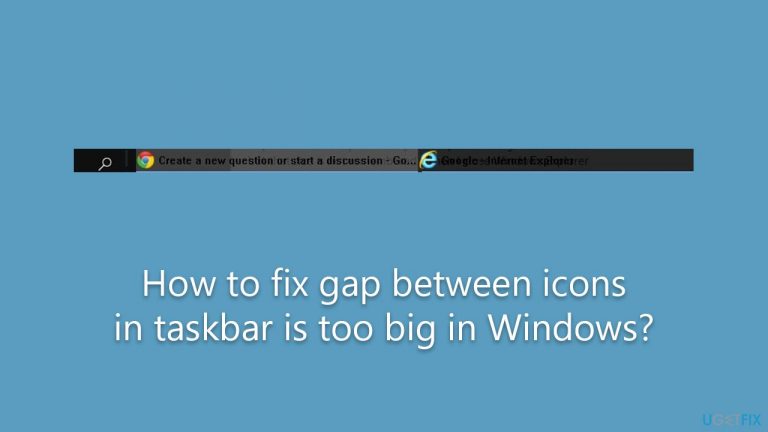
What causes How to fix gap between icons in taskbar is too big in Windows?
- Large gaps between icons after a Windows update
- Change in screen resolution
- Other system settings adjustments
- Potential corruption in taskbar settings
Repairs Windows system files, removes malware, and restores a clean OS state — without reinstalling.
Hi, I have a weird problem I've never seen before. The gap between my taskbar icons is way too big, and it looks very strange. Only a few apps fit now. This happened after the latest Windows update, and I am really not a fan of it. Is there any way to make the gap smaller, just the way it was before?
Windows is one of the most popular operating systems used worldwide. One of the key features of the Windows interface is the taskbar. It is a horizontal bar located at the bottom of the screen that displays open applications, shortcuts, and other important information. The taskbar provides quick access to frequently used programs, and it is an essential part of the Windows experience.
The taskbar is a powerful tool that can be customized to suit individual preferences. Users can pin their favorite applications, rearrange icons, and even resize the taskbar. However, some users have reported an issue with the taskbar where the gaps between icons become too large, making it difficult to access the desired applications quickly.
This issue typically arises after a Windows update, but other reasons may also be present, such as a change in screen resolution or other system settings. The large gaps can be frustrating, especially for users who rely heavily on the taskbar to navigate their system quickly.
Fortunately, there are several ways to fix the issue of large gaps between taskbar icons. One possible solution is to try the "Use small taskbar buttons" option to reduce the size of the icons and decrease the gaps between them. We explain how to do that below.
If the issue happened after the update was applied, uninstalling it might resolve the situation. On the contrary, if you have not been installing Windows updates for a while, you should definitely do so, as Microsoft fixes bugs using the update feature. You will find the manual step-by-step guide below, although we recommend you try the automatic approach with [d1] first.
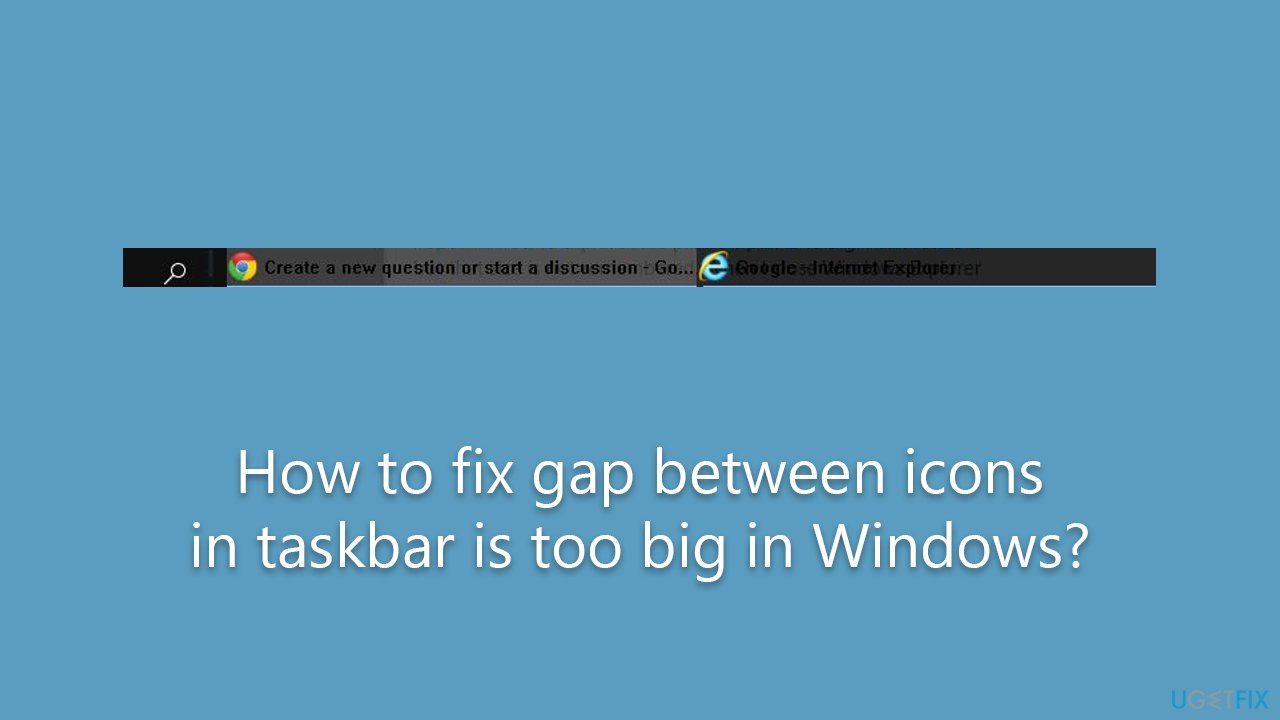
Fix 1. Repair damaged system files
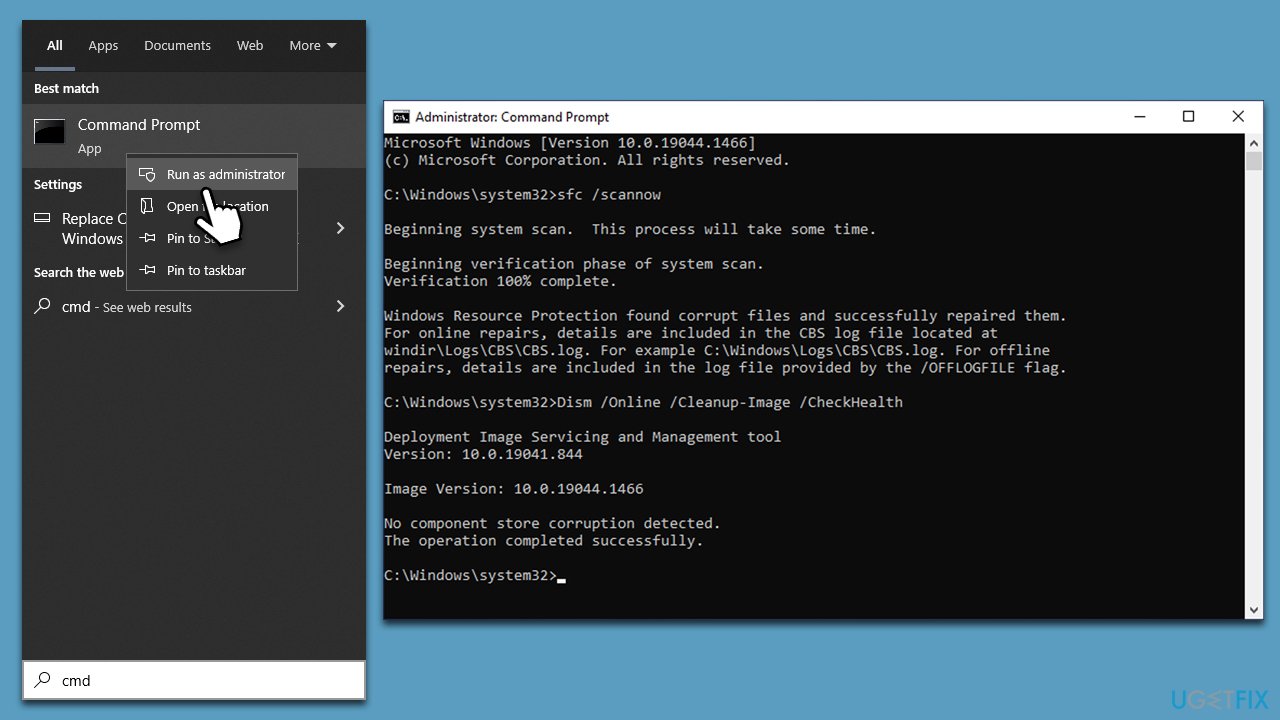
System file corruption is among the most common reasons for the icon spacing to become too large, so we recommend running checks in elevated Command Prompt. Here's how:
- Type cmd in Windows search.
- Right-click on Command Prompt search result and select Run as administrator.
- UAC (User Account Control) will ask whether you want to make changes - click Yes.
- Next, copy and paste the following command and press Enter:
sfc /scannow - Once done, run the following commands as well:
dism /online /cleanup-image /scanhealth
dism /online /cleanup-image /checkhealth
dism /online /cleanup-image /restorehealth - Restart your system.
Fix 2. Install all the updates
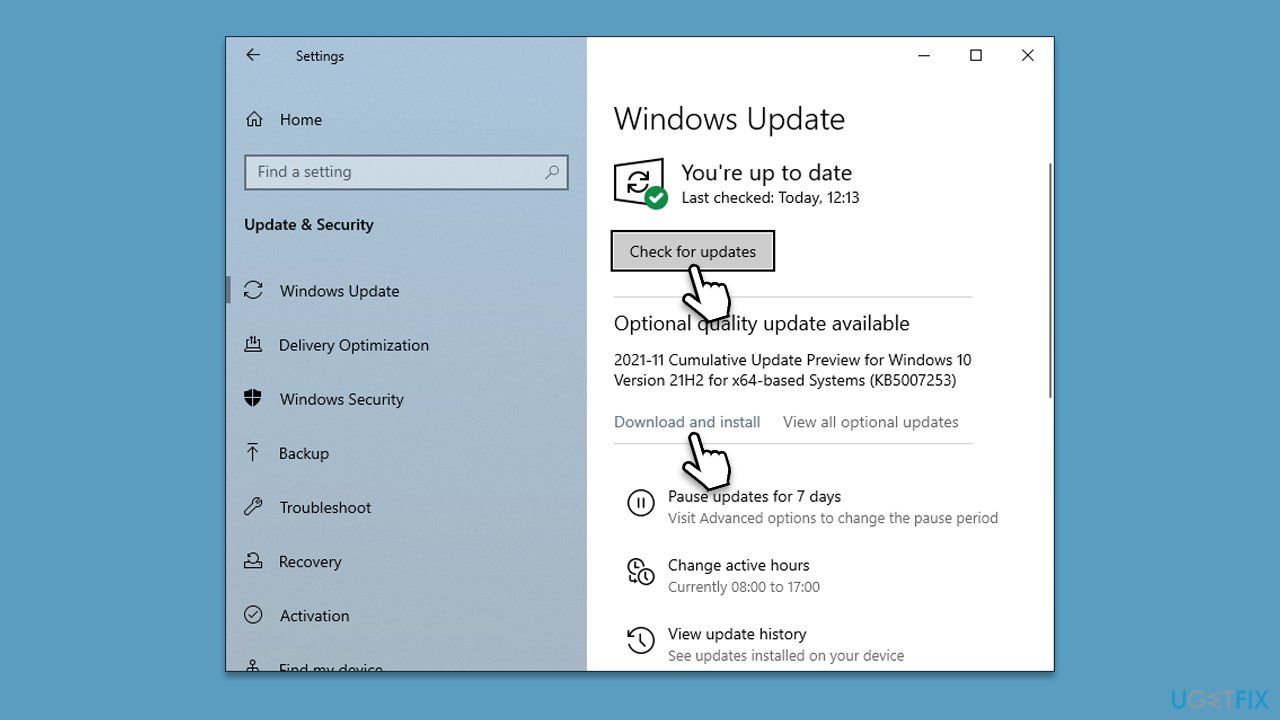
If you have been neglecting Windows updates for a while, you should install all of them, as Microsoft often ships bug fixes:
- Type Updates in Windows search and hit Enter.
- On the right side, click Check for updates.
- Wait till all the data is downloaded and installed, and don't forget to install all the optional updates.
- After it's done, restart your PC.
Fix 3. Change scaling settings
- Click on Start and pick Settings.
- Go to the System section.
- Select Display on the left.
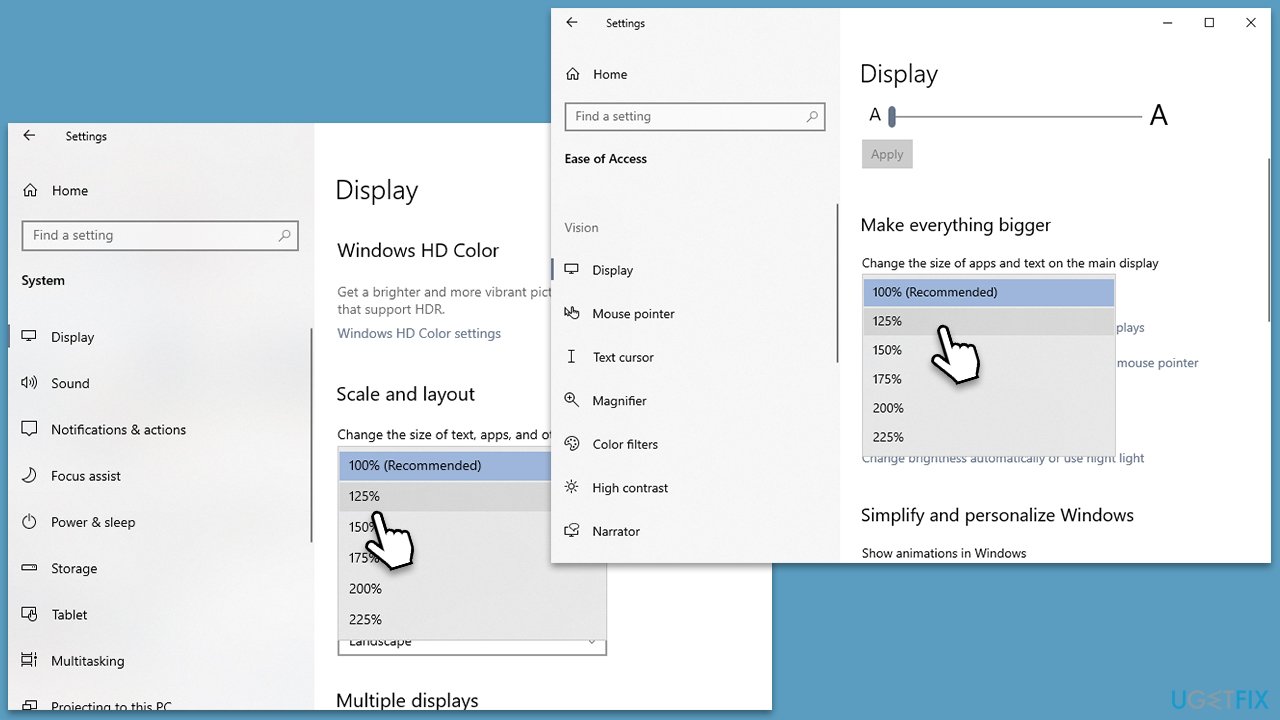
- Under Scale and Layout, set the scaling to 125%, and set it back to 100%.
- Next, go to Settings > Ease of access.
- Under Make everything bigger, set the scaling to 125% and then back to 100%.
Fix 4. Uninstall Windows update [workaround]
If a large gap between icons showed up after you installed updates, you could try uninstalling it. Note that this option is not available to everyone (depending on the Windows version, when the update was installed, etc.)
- Type Control Panel in Windows search and hit Enter.
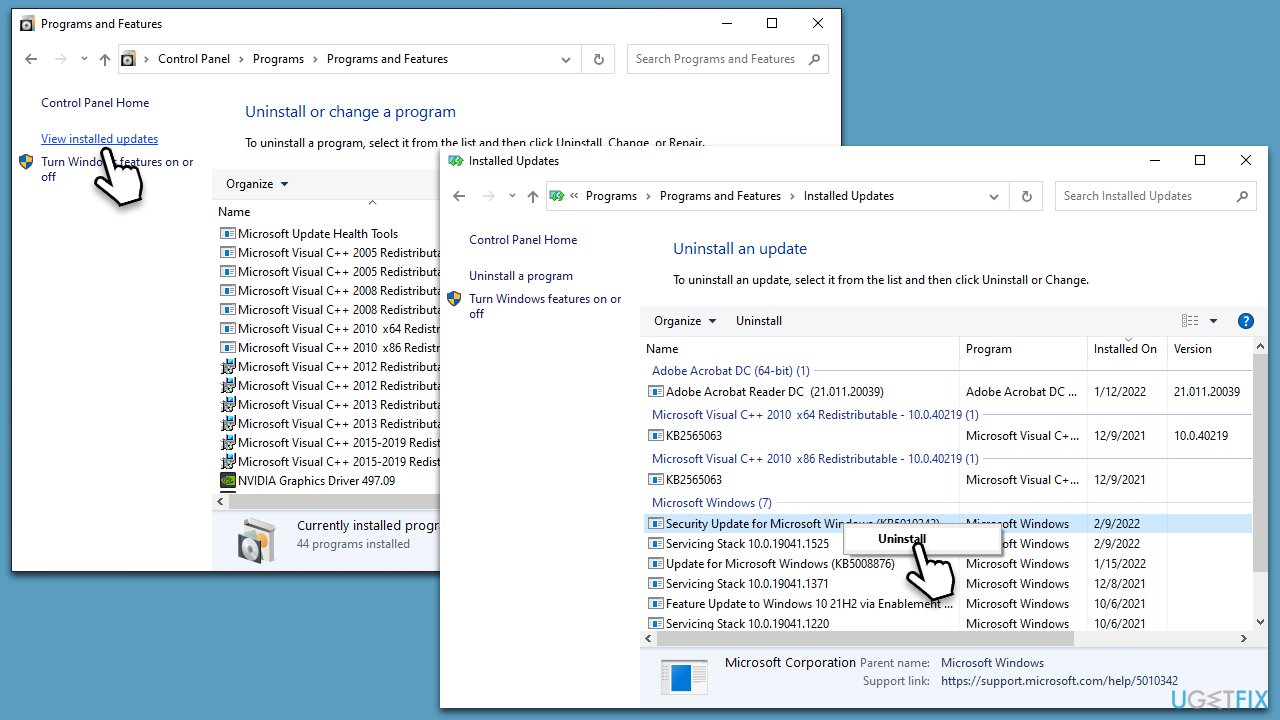
- Select Programs > Uninstall a program.
- Pick View installed updates on the left.
- Uninstall the most recent Windows update from the list by right-clicking it and selecting Uninstall.
- Next, you should pause the updates until the issue is fixed. To do that, type in Updates in Windows search and press Enter
- Here, click Pause updates for 7 days. In Windows 11, you can choose a longer timeframe.
Fix 5. Run a command in PowerShell
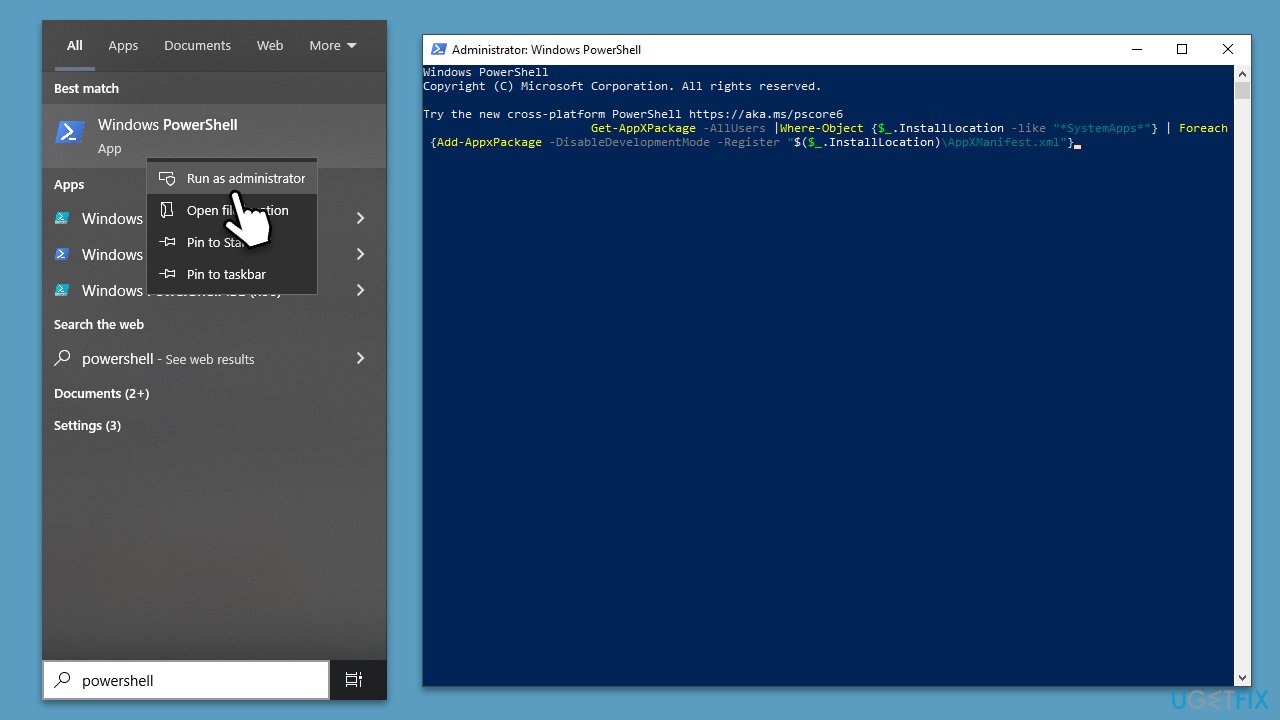
- Type PowerShell in Windows search.
- Right-click and select Run as administrator.
- When UAC shows up, click Yes.
- In the new window, copy and paste the following command, pressing Enter to execute it:
Get-AppXPackage -AllUsers |Where-Object {$_.InstallLocation -like "*SystemApps*"} | Foreach {Add-AppxPackage -DisableDevelopmentMode -Register "$($_.InstallLocation)\AppXManifest.xml"} - Close down PowerShell and restart your PC.
Fix 6. Rebuild icon cache
- Open Command Prompt as administrator again.
- Copy and paste each of the commands, pressing Enter each time:
ie4uinit.exe -show
taskkill /IM explorer.exe /F
DEL /A /Q "%localappdata%\IconCache.db"
DEL /A /F /Q "%localappdata%\Microsoft\Windows\Explorer\iconcache*"
shutdown /r /f /t 00 - Restart and see if that helped to solve the issue.
Related:
Bottom line
To fix the large gaps between taskbar icons, you can try enabling the 'Use small taskbar buttons' option or uninstalling the recent Windows update if the issue started afterward. Additionally, ensure that your Windows updates are current, as they may contain bug fixes. If none of these solutions work, consider further troubleshooting or seeking additional support.
Frequently asked questions
You can reduce the gap by right-clicking on the taskbar, selecting 'Taskbar settings,' and ensuring that 'Use small taskbar buttons' is turned on.
If the gap issue continues, try restarting Windows Explorer via Task Manager or resetting your taskbar settings to default.
Yes, changing the display scaling in Windows 10 or Windows 11 can impact the spacing of taskbar icons; adjust it to 100% for a more compact layout.




Report an issue
What's wrong with this guide? We review every report and update or remove content.
Report received — thank you. We'll review and fix it.
You need a free account to submit a report.
Be the first to comment