How to fix
Windows Sleep Mode Wake Up Problem
on Windows
Resolve your Windows 10 or Windows 11 sleep mode issues effortlessly. Get expert-tested solutions that restore functionality in minutes!


What causes How to Fix Windows Sleep Mode Wake Up Problem?
- Multiple factors affecting Sleep mode
- Issues related to hibernation
- Computer waking up automatically from sleep
- System not entering hibernation or sleep mode properly
- Problems with Fast Startup feature
Repairs Windows system files, removes malware, and restores a clean OS state — without reinstalling.
Lately, I started having problems with Sleep mode on Windows 10. I can’t wake up the PC from the first try. I even need to reboot the system. Alternatively, restart does not work properly via the manual (I need to perform forced shut down by holding up the reset key). What would be your advice?
Windows 10 Sleep Mode issues might occur due to multiple factors. Thus, to assess the situation properly, you have to take into consideration several factors despite whether you encounter computer waking up from sleep or you can't wake it up. On the other hand, Sleep Mode issues are often related to hibernation. In that case, you need to disable it. Read more about Fast Startup/Hibernation here.
Sleep Mode was devised as a way to save computer energy. In latest versions of Windows OS[ref en-1], Microsoft introduced Hibernate feature as well. Naturally, these modes might seem identical. The key difference between them is that the former uses a low percentage of power[ref en-3].
In exchange, it allows users to resume their unfinished work right after they click any key on the keyboard. In the case of hibernation, the PC employs no power at all. Therefore, in order to continue previous processes, the PC needs to load again. Depending on how long you are going to be absent, you can choose between these two options.

Alternatively, users report about the issues which are related to computer waking up from sleep. It is the opposite of the problem mentioned previously — computer automatically wakes up from sleep without any direct user interference. Likewise, the system cannot enter into hibernation[ref en-2] or sleep mode properly.
However, though these functions are practical, issues related to Sleep mode are not so rare. Thus, we present a couple of solutions if the PC does not wake up from Sleep mode or on the contrary, you encounter problems related to computer waking up from sleep randomly.
Ways to fix Sleep Mode wake up problems on Windows 10
Before you head straight to the instructions explaining how to fix Windows Sleep Mode wake up problem, keep in mind that all system-related issues might be caused by a potentially dangerous program installed on the computer. If your system is infected with malware, none of the methods presented below will work.
In this case, you should run a deep scan using a professional security tool. We highly recommend installing [d1] as it is designed to replace out-dated registry keys and repair the damage caused by a malicious program. Later, you will be able to fix Sleep Mode wake up issue with the help of the guide below.
No video except this one contains more information about solving this problem :
[youtube KnbdQMFBVIk]
Method 1. Disable Hibernate feature
Technique 1. Turn off hibernate function manually
- Click on the Start button and type power.
- Choose Power & Sleep settings.
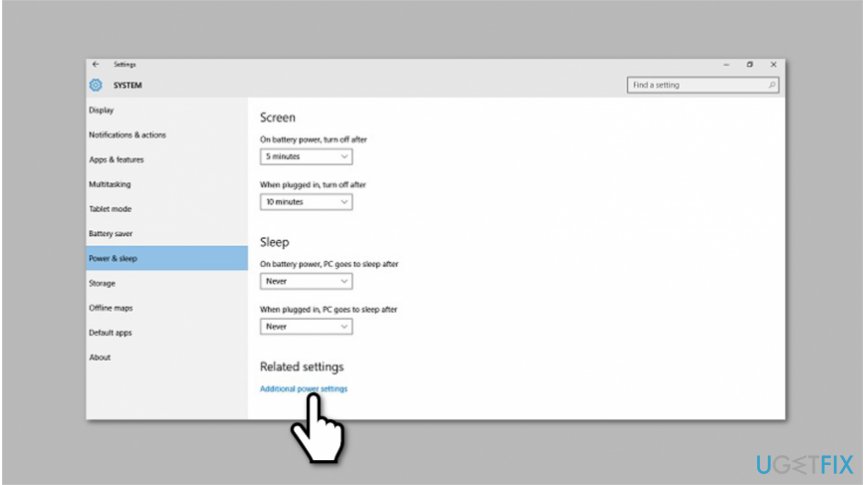
Fix sleep mode wake up problems on windows - Enter Additional power settings.
- On the left side, click on Choose what the power buttons do.
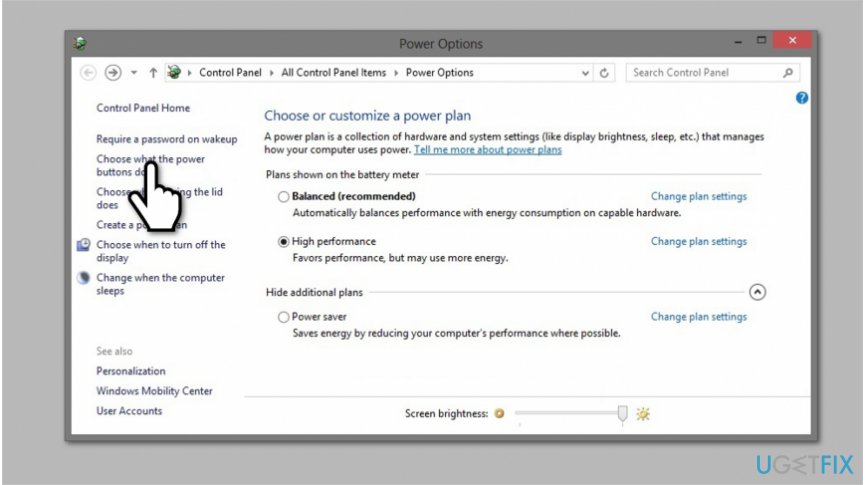
Fix sleep mode wake up problems by disabling hibernation - In order to activate inactive options, select Change settings that are currently unavailable.
- Once you do that, remove the checkmark from Hibernate function.
Technique 2. Stop hibernation via Command Prompt
- Click Windows+R and type cmd, hit Enter
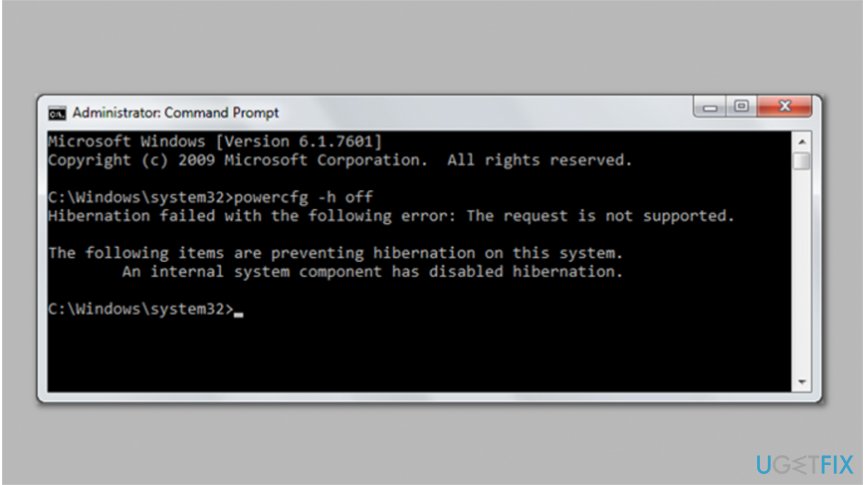
Get rid of sleep mode wake up issue on windows - In the newly opened window, type the following command:
- powercfg /h off
- Press Enter button.
- Reboot the device for the changes to take effect.
Method 2. Make sure that your driver are up-to-date
If you had already tried troubleshooting, and it did not show any issues, you should check whether all the drivers are up-to-date. If you decide to reinstall them, make sure you visit the official website of the device manufacturer.
Method 3. Recover Windows to the previous version after update
Some users have reported that the problem occurred after installing a certain Windows update. There is also a solution to reinstall the operating system.
Method 4. Use Command Prompt to check Sleep Mode information
- Click Start button and type Command Prompt.
- Right-click on it and select Run as administrator.
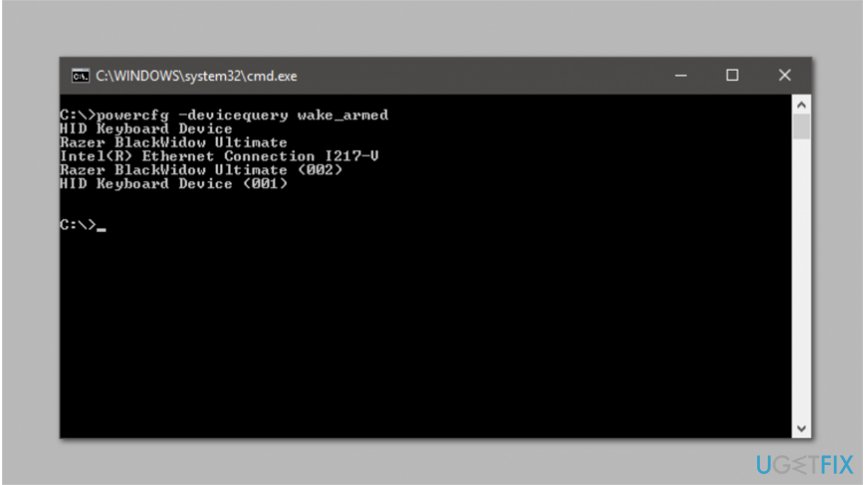
Ways to fix windows sleep mode wake up issue - Type in the following entry and hit Enter:
- powercfg –devicequery wake_armed
- Later, submit another entry and press Enter:
- powercfg –lastwake
Bottom line
To fix the Windows Sleep Mode wake up problem, you can disable hibernation, adjust Fast Startup settings, and ensure that your system is properly configured for Sleep mode. If these solutions do not resolve the issue, further troubleshooting may be necessary.
Frequently asked questions
Try pressing the power button briefly or moving the mouse to wake your computer. If that doesn't work, check your power settings and ensure that the device drivers are up to date.
You can adjust your power settings by going to Control Panel > Power Options > Change plan settings > Change advanced power settings, and disable 'Allow wake timers'.
Yes, you can run the Power Troubleshooter by going to Settings > System > Troubleshoot > Other troubleshooters and selecting Power to identify and fix sleep-related issues.




Report an issue
What's wrong with this guide? We review every report and update or remove content.
Report received — thank you. We'll review and fix it.
You need a free account to submit a report.
Be the first to comment