How to fix
Disable Sleep Mode
on Windows
Easily disable Sleep Mode in Windows 10 and 11 for uninterrupted productivity. Expert-tested tips and tricks for optimal system performance, updated 2025.

Why does How to disable Sleep Mode in Windows occur?
- Computer is set to go to sleep after a period of inactivity
- Large downloads or lengthy tasks may be interrupted by Sleep Mode
- Users may want to save power while on battery
- Users may not want their computer to sleep during extended periods of use
- Sleep Mode is enabled by default in Windows
Repairs Windows system files, removes malware, and restores a clean OS state — without reinstalling.
Hello. Is there a way to disable Sleep Mode in Windows? My PC keeps going to sleep when I leave it for a longer time. Any tips would be appreciated.
Sleep Mode is a Windows power-saving feature that puts your computer into a low-power state. This feature is useful when you need to step away from your computer for a short period of time but don't want to completely shut it down. Your computer uses very little power while in Sleep Mode, but it remains on, making it faster to resume working than a full restart.
When you put your computer to Sleep, Windows turns off the display, hard drives, and other devices to save energy, but the computer's memory remains powered on. This means you can easily restart your computer and pick up where you left off. Sleep Mode differs from Hibernation in that the computer saves its current state to the hard drive before shutting down completely.
Some people, however, may wish to disable Sleep Mode in Windows for a variety of reasons. For example, if you're downloading a large file or performing a lengthy task that will take several hours to complete, Sleep Mode may interrupt it, causing you to lose progress. Furthermore, some people may disable Sleep Mode to save power when running on battery power or when not using their computers for an extended period of time.
Fortunately, there are several ways to disable Sleep Mode in Windows, including the Control Panel's Power Options, Registry Editor, and Group Policy Editor. Command Prompt and PowerShell commands are also available. This guide will show you 10 different ways to disable sleep mode in Windows.
Method 1. Windows Settings
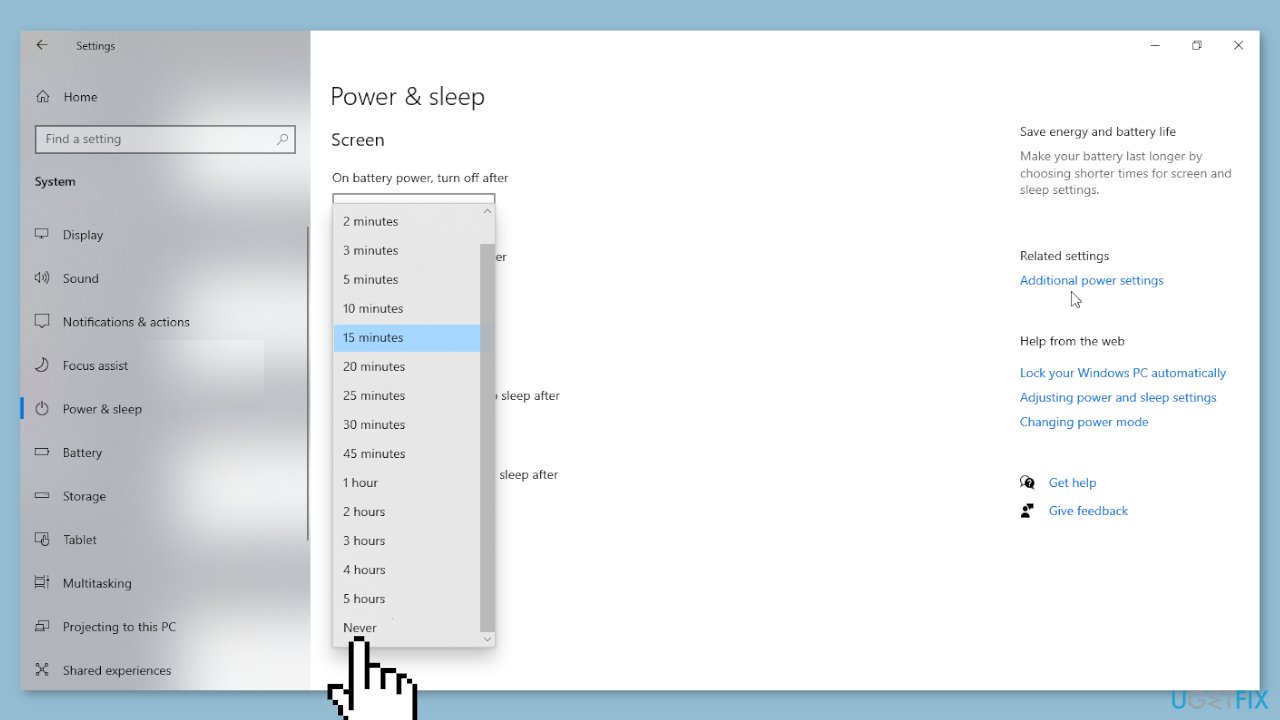
- Press the Windows key + I to open the Settings app.
- Click on the System option.
- Select Power & sleep from the options on the left-hand side of the screen.
- Under the Sleep section, click on the dropdown menu.
- Choose Never from the list of options in the dropdown menu.
Method 2. Command Prompt
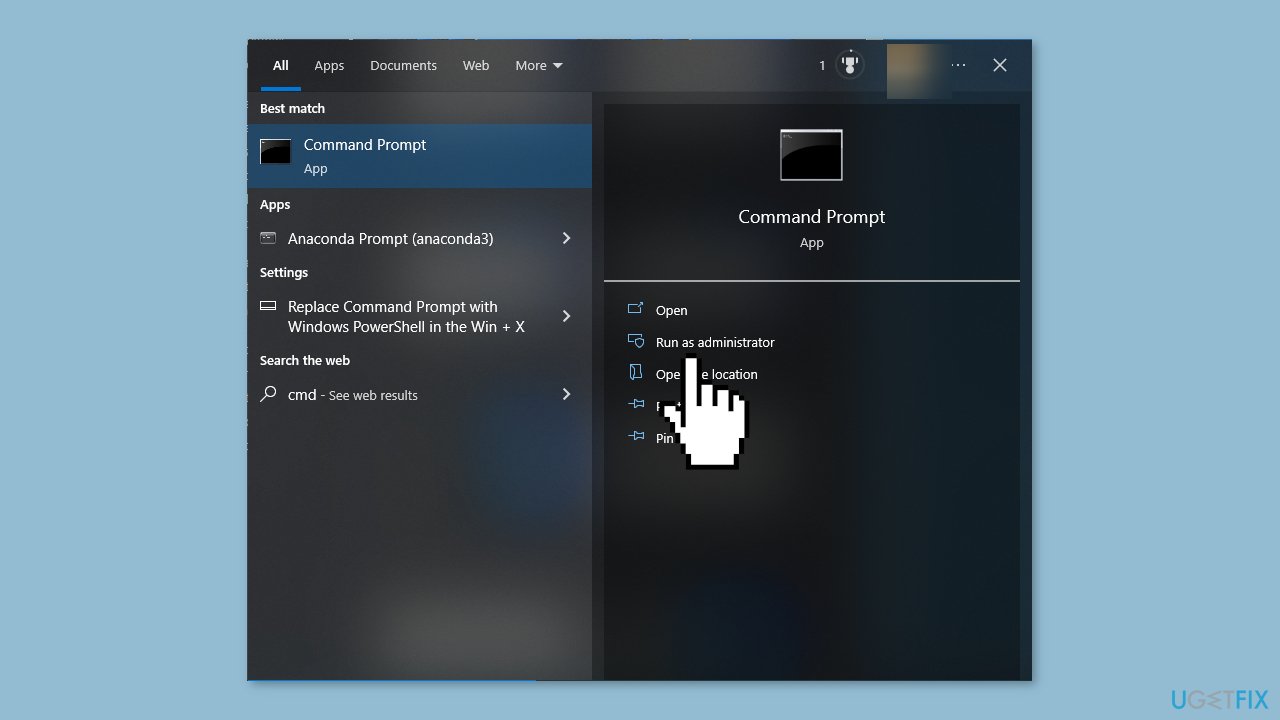
- Press the Windows key on your keyboard.
- Type cmd into the search bar.
- Right-click on Command Prompt and select Run as administrator.
- In the Command Prompt window, type the following command: powercfg -h off.
- Press the Enter key to execute the command.
Method 3. Control Panel
- Press the Windows key on your keyboard.
- Type Control Panel and click on the Open option that appears.
- In the Control Panel, select Category for the View as option.
- Click on Hardware and Sound.
- Choose Power Options.
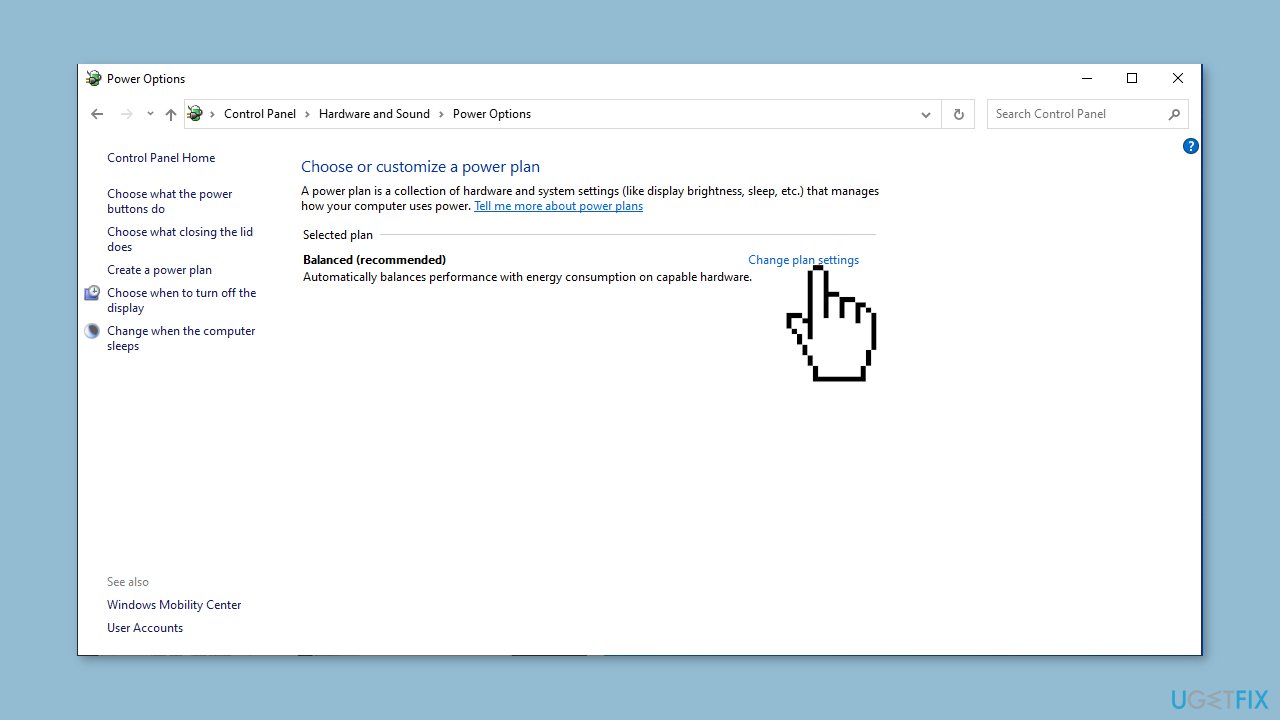
- Locate the current power plan and click on Change plan settings.
- Click on the Put the computer to sleep option.
- Choose Never from the dropdown list.
Method 4. Registry Editor
- Press the Windows key + R to open the Run dialog box.
- Type regedit into the search box and click on OK.
- In the Registry Editor window, navigate to the following path: Computer\HKEY_LOCAL_MACHINE\SYSTEM\CurrentControlSet\Control\Power
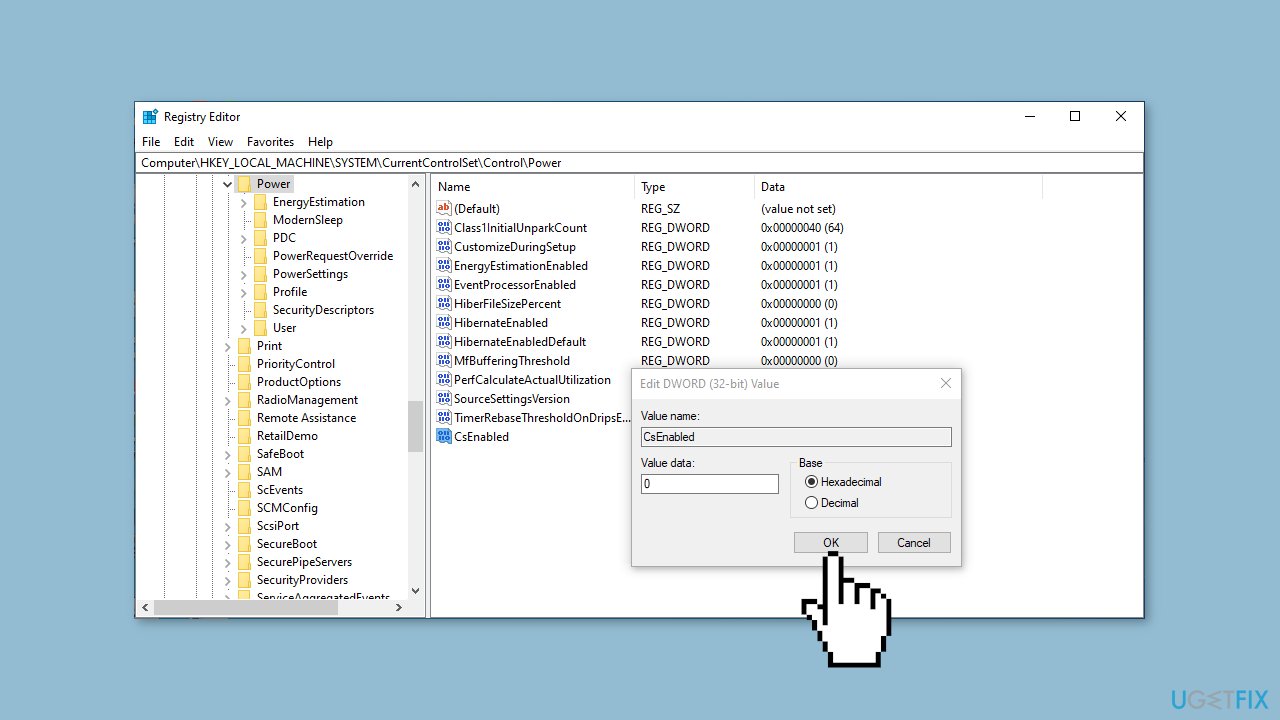
- Double-click on CsEnabled.
- In the Edit DWORD (32-bit) Value window that appears, change the Value data from 1 to 0.
- Click on OK to save the changes.
- Restart your computer to apply the changes.
Method 5. Group Policy Editor
- Press the Windows key + R to open the Run window.
- Type gpedit.msc into the search box and click on OK.
- In the Group Policy Editor window, navigate to the following path:
Computer Configuration \Administrative Templates\System\Power Management\Sleep Settings
- Select Allow Standby States (S1-S3) When Sleeping (Plugged In) and double-click on it.
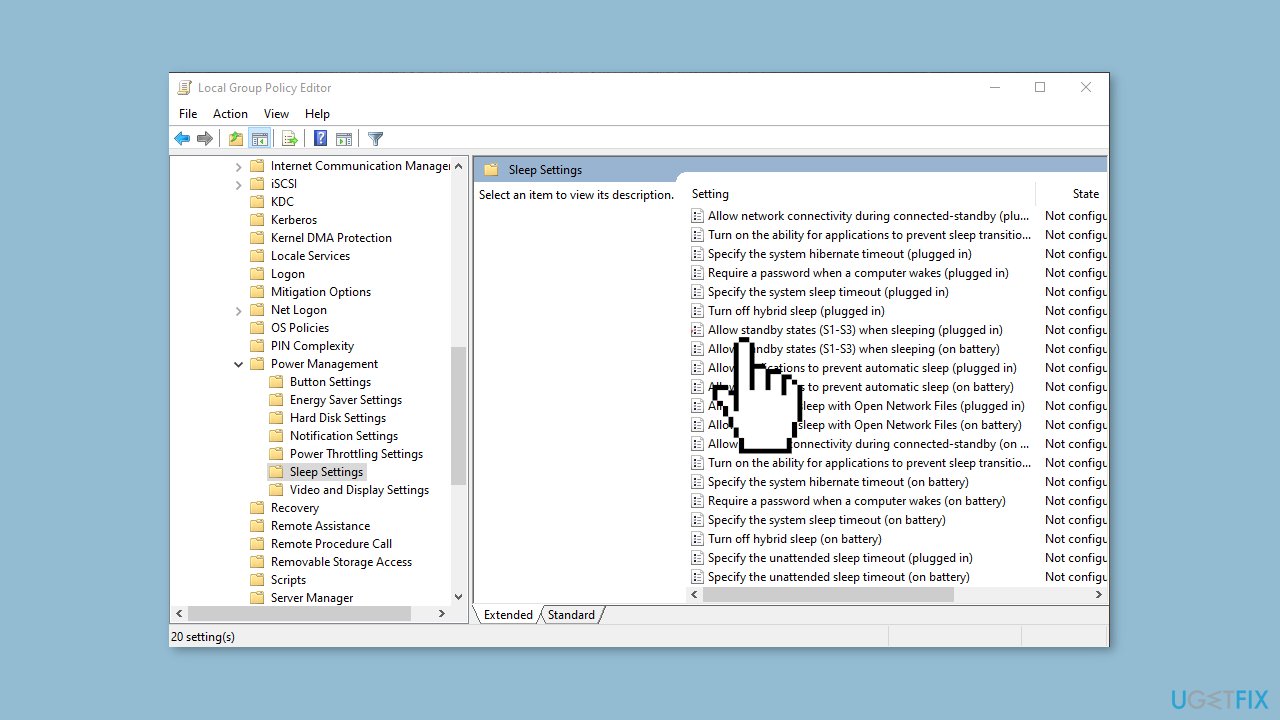
- In the properties window that opens, select Enabled.
- Set the time to Never.
- Click on Apply and then OK to save the changes.
Method 6. Device Manager
- Press the Windows key + R to open the Run console.
- Type devmgmt.msc into the search box and click on OK.
- In the Device Manager window, double-click on System devices to expand it.
- Locate the device you want to modify, and double-click on it to open its Properties.
- Switch to the Power Management tab.
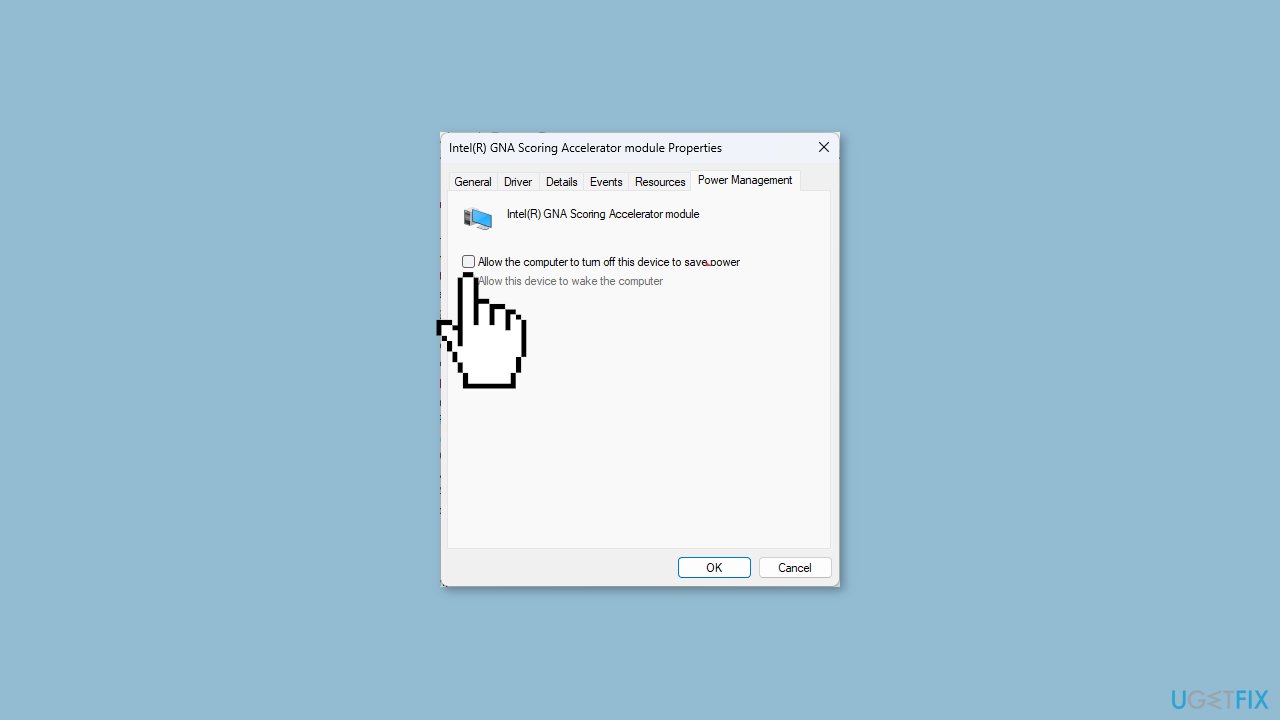
- Remove the checkmark next to Allow the computer to turn off this device to save power.
- Click on Apply and then OK to save the changes.
Method 7. Task Scheduler
- Press the Windows key and search for Task Scheduler. Click on Open.
- Click on Create Task.
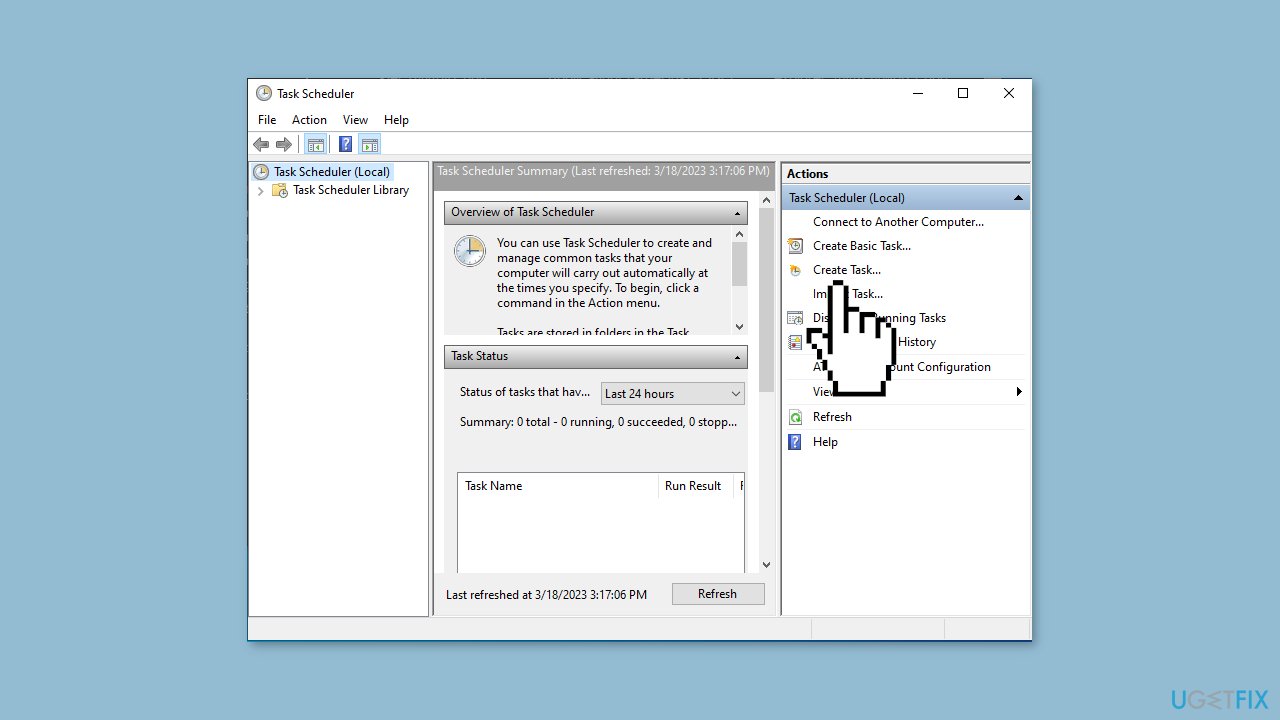
- Name the task Disable Sleep Mode.
- Go to the Conditions tab, and remove the checkmark next to Start the task only if the computer is idle for.
- Under the Actions tab, click on New.
- In the Program/script field, type powercfg.exe.
- In the Add arguments field, type change -standby-timeout-ac 0.
- Click on OK.
Method 8. Windows PowerShell
- Go to the search bar and type Powershell.
- Right-click on Powershell and select Run as administrator.
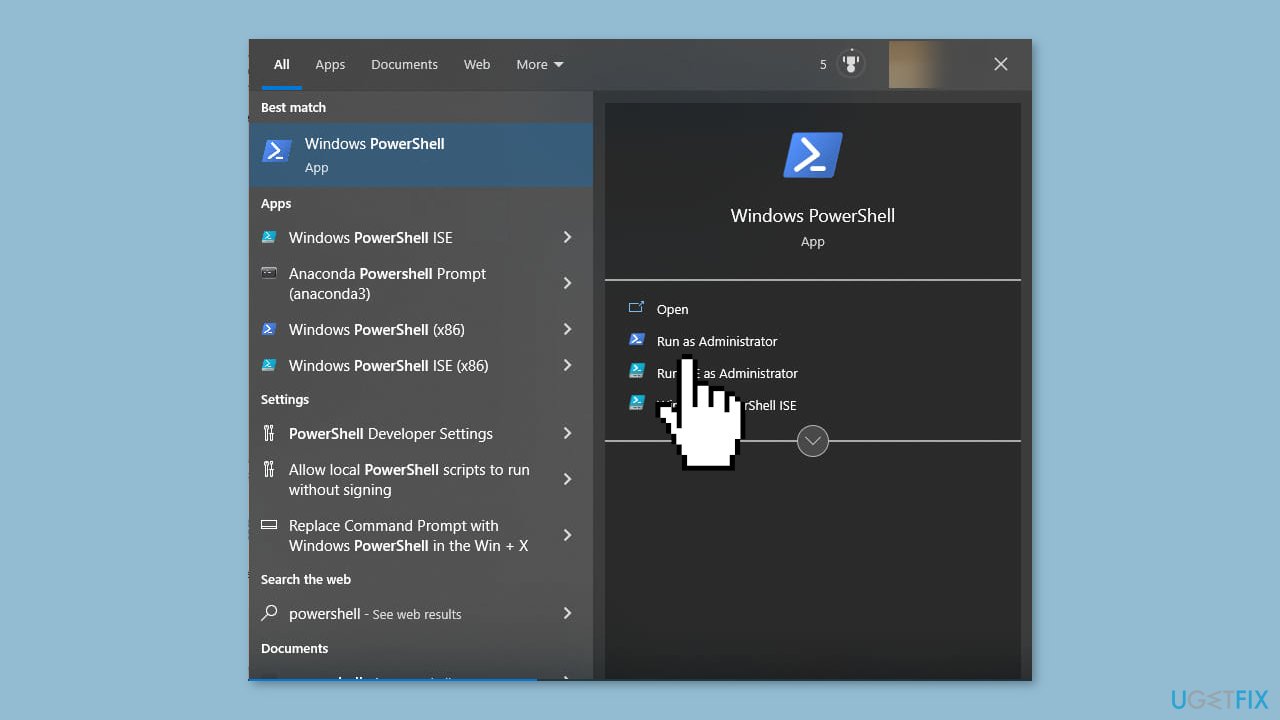
- Copy the following command:
powercfg -change -standby-timeout-ac 0
- Paste the command into the Powershell window and press Enter.
Method 9. Windows Registry
- Press the Windows key + R to open the Run console.
- Type regedit and click OK to open Registry Editor.
- Click File and then click Export.
- Save the .reg file in a desired location to back up the registry entries.
- Navigate to this path:
Computer\HKEY_LOCAL_MACHINE\SYSTEM\CurrentControlSet\Control\Power\PowerSettings\238C9FA8-0AAD-41ED-83F4-97BE242C8F20\7bc4a2f9-d8fc-4469-b07b-33eb785aaca0
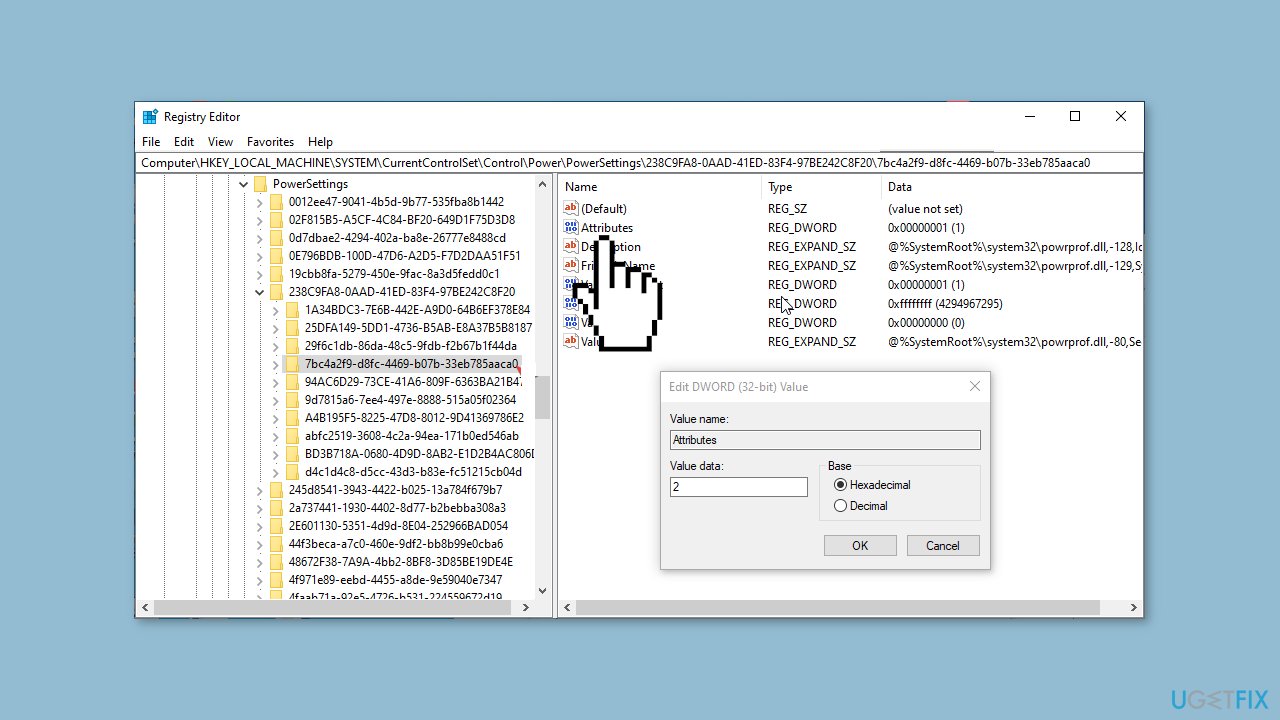
- Double-click on Attributes and change the Value data to 2.
- Restart your computer for the changes to take effect.
Method 10. BIOS Settings
- Press the Windows key + I to open the Settings menu.
- Click on System.
- Go to Recovery and under Advanced options, click Restart now.
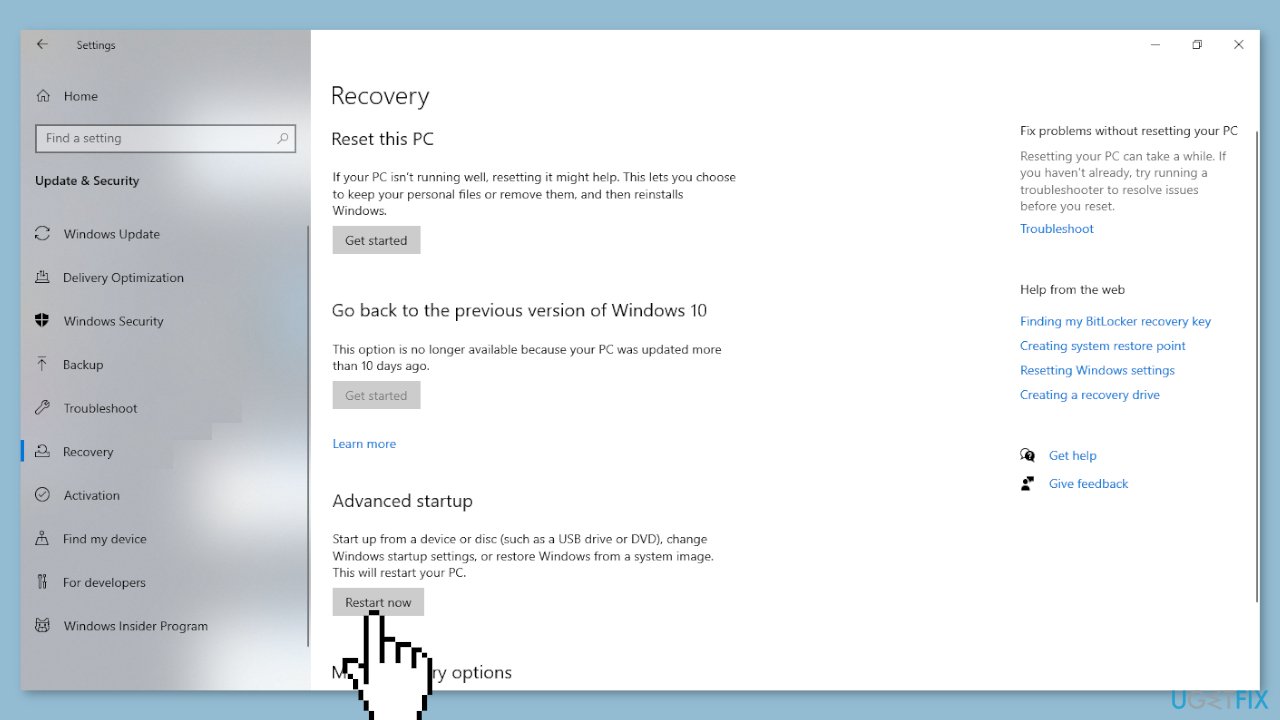
- On the Choose an option page, click on Troubleshoot.
- Select Advanced options.
- Select UEFI Firmware Settings.
- Click on Restart.
- Select the appropriate option to reach BIOS (e.g. Power Management or ACPI settings).
- Locate Sleep Mode or Suspend Mode.
- Choose Disabled or Off.
Bottom line
There are several methods to disable Sleep Mode in Windows, including using Windows Settings, Command Prompt, Registry Editor, and Group Policy Editor. If these methods do not resolve the issue, consider checking for any power management software that may override these settings.
Frequently asked questions
To disable Sleep Mode in Windows 10, go to Settings > System > Power & sleep and select 'Never' under the Sleep section.
Yes, in Windows 11, you can prevent Sleep Mode by navigating to Settings > System > Power & battery and adjusting the 'Sleep' settings to 'Never' for both battery and plugged-in options.
Disabling Sleep Mode may improve performance for tasks that require constant activity, but it can lead to higher energy consumption on Windows 10 or Windows 11.




Report an issue
What's wrong with this guide? We review every report and update or remove content.
Report received — thank you. We'll review and fix it.
You need a free account to submit a report.
Be the first to comment