How to fix
0x800B0108 error code
on Windows
Resolve the 0x800B0108 error in Windows 10 and 11 effortlessly with our expert-tested fixes. Get back to smooth functioning in minutes!

What causes How to fix 0x800B0108 error code in Windows?
- Missing certificate
- Empty value for an important field
- Issues with COM-based APIs
- Inability to install critical software updates
- Problems with specific programs or APIs
Repairs Windows system files, removes malware, and restores a clean OS state — without reinstalling.
Hello. I was working with a COM-based API in Windows when I received the 0x800B0108 error code. How do I fix it?
The error code 0x800B0108 is a common problem encountered by Windows 11 and Windows 10 users when attempting to install Windows Updates or working with COM-based[ref en-1] APIs or libraries. The complete error message that users may receive is as follows:
[info- 0x800B0108. CERT_E_MALFORMED. A certificate is missing or has an empty value for an important field, such as a subject or issuer name]
APIs or libraries based on COM are a type of software component model that allows applications to share code and data. These APIs and libraries, in essence, allow different programs to communicate with one another and share resources. This facilitates the creation of new applications by reusing existing code and functionality.
The error code 0x800B0108 can have a variety of effects on users. It can prevent them from installing critical software updates or security patches, making their systems vulnerable to security threats and other problems. Furthermore, it can cause issues when working with specific programs or APIs, which can disrupt productivity and frustrate users.
There are several solutions to the error code 0x800B0108. Users may need to use the Certificate Manager to manually install missing certificates or run the Windows Update troubleshooter, which is a built-in tool that can automatically fix minor issues.
In this guide, you will find 3 steps that should help you fix 0x800B0108 error code in Windows. If you want to avoid a lengthy troubleshooting process, you can try using a maintenance tool like [d1] that can fix most system errors, BSODs,[ref en-2] corrupted files, and registry[ref en-3] issues. Otherwise, follow the step-by-step instructions provided below.
Solution 1. Troubleshoot Certificate Issues
This Microsoft documentation contains a list of standard certificate and certificate trust return values, including the CERT_E_MALFORMED error code 0x800B0108, which are found in the Winerror.h header file. While the Microsoft certificate store is expected to have all valid and acceptable certificates, it may not include a certificate for a particular piece of software on certain Windows systems, even when the software is up-to-date.
This can result in the aforementioned error code, indicating a missing or incorrectly configured certificate. To resolve this issue, a manual process to add certifications can be used through the Certificate Manager (certmgr.msc). To install individual certificates, they must first be downloaded from the appropriate source or publisher. This process allows for the installation of new certificates with the same or different keys, and also enables the exporting or importing of certificates. Instructions to import a certificate in Windows using Certificate Manager:
- Press the Windows key + R on your keyboard to open the Run dialog box.
- Type certmgr.msc and press Enter to open the Certificate Manager.
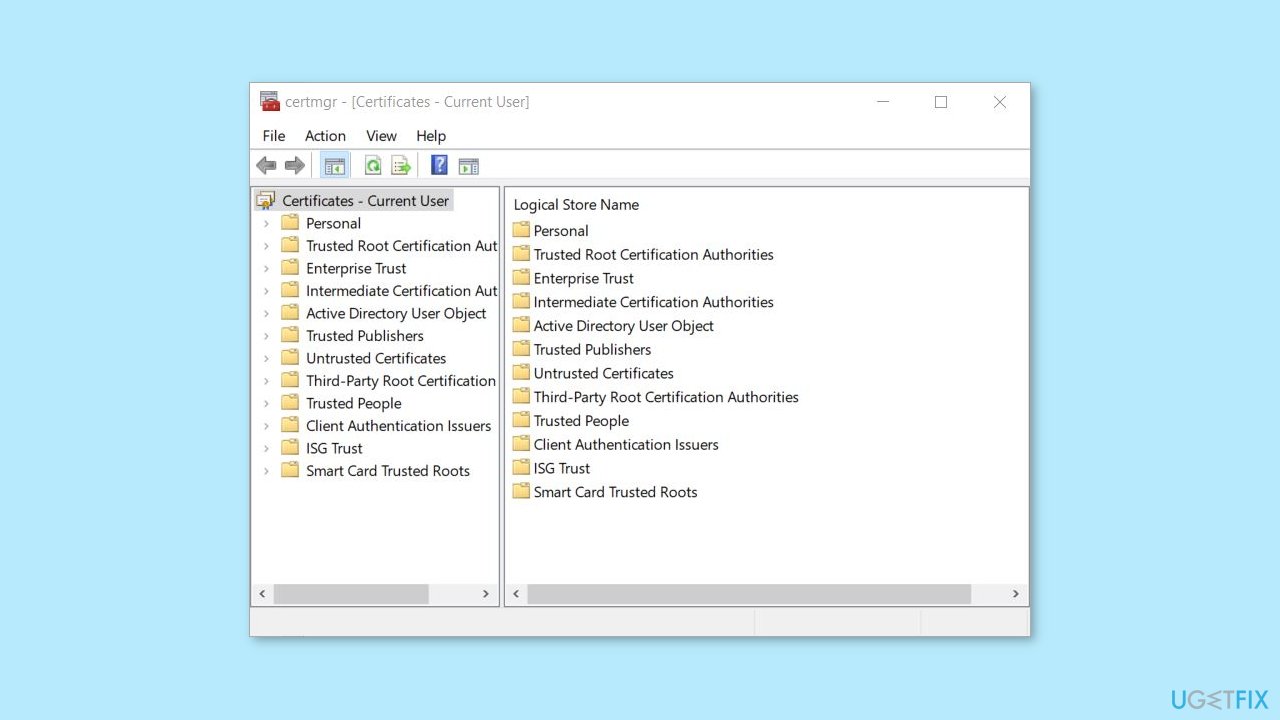
- In the Certificate Manager window, select the certificate store where you want to import the certificate. You can choose from the following options:
Personal: for certificates related to your user account
Trusted Root Certification Authorities: for certificates issued by trusted root authorities
Intermediate Certification Authorities: for certificates issued by intermediate authorities
- Right-click on the certificate store and select All Tasks > Import.
- In the Certificate Import Wizard, click Next to begin the import process.
- Click the Browse button and navigate to the location where the certificate file is stored.
- Select the certificate file and click Open.
- Click Next to continue.
- If the certificate has a password, enter it in the Password field and check the Mark this key as exportable box if you want to be able to export the certificate later.
- Click Next to continue.
- Select the certificate store where you want to import the certificate and click Next.
- Click Finish to complete the import process.
Solution 2. Troubleshoot COM Errors
COM, or Component Object Model, is an object-oriented framework for creating interoperable binary software components that can be used across networks. Microsoft has built a number of products, such as OLE for compound documents and ActiveX for internet-enabled components, using the underlying COM technology.
This Microsoft documentation provides a collection of error codes commonly used by COM-based APIs. If you encounter issues with a third-party application you are installing or running on your Windows computer, you can contact the software's customer support for assistance. For Microsoft proprietary software, you can seek help from Microsoft Support.
Solution 3. Run Windows Update Troubleshooter
In case the error appears when a Windows update fails to install, an effective solution is to use a Windows Update Troubleshooter.
- Press the Windows key + I to open the Settings app.
- Click on Update & Security.
- From the left pane, click on Troubleshoot.
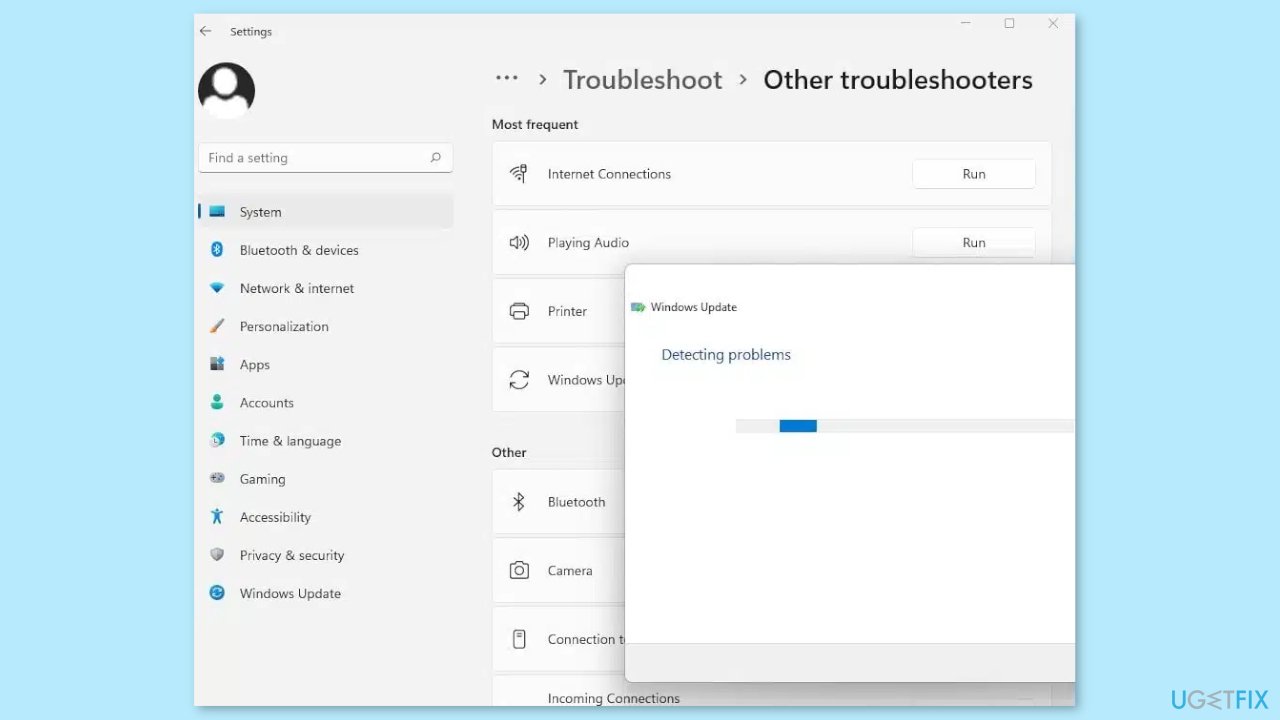
- Scroll down to find Windows Update and click on it.
- Click the Run the troubleshooter button.
- Wait for the troubleshooter to detect any problems and follow the on-screen instructions to fix the issue.
- Restart your computer once the troubleshooting process is complete.
- Check if the problem has been resolved by attempting to install the Windows update again.
To find more solutions related to Windows update issues, you can follow the How to fix Windows update error 0x8024800c? guide.
Bottom line
To fix the 0x800B0108 error code, users can troubleshoot certificate issues, use the Certificate Manager to install missing certificates, or run the Windows Update troubleshooter. If these solutions do not resolve the issue, consider using a maintenance tool to address system errors.
Frequently asked questions
The 0x800B0108 error code indicates that Windows is unable to verify the signature of a file, often due to missing or corrupted system files. This can prevent certain functionalities, such as Windows Update, from working correctly.
To troubleshoot the 0x800B0108 error in Windows 11, try running the System File Checker tool by executing 'sfc /scannow' in the Command Prompt. Additionally, ensure your system is updated and consider performing a DISM scan to repair the Windows image.
Yes, you can use the Command Prompt to run 'DISM /Online /Cleanup-Image /RestoreHealth' followed by 'sfc /scannow' to help fix the 0x800B0108 error in Windows 10. These commands will check and repair any corrupted system files.




Report an issue
What's wrong with this guide? We review every report and update or remove content.
Report received — thank you. We'll review and fix it.
You need a free account to submit a report.
Be the first to comment