How to fix
Windows activation error 0x803fa067
on Windows
Resolve Windows activation error 0x803fa067 effortlessly. Get your system back on track with expert-tested solutions for Windows 10 and 11. Fixed in min…


What causes How to fix Windows activation error 0x803fa067?
- Network connectivity issues
- Firewall blocking access to activation servers
- Mismatch between license key and Windows version
- Non-genuine Windows license
Repairs Windows system files, removes malware, and restores a clean OS state — without reinstalling.
Hi, I have reinstalled Windows 10 recently due to previous problems, and now I just can't seem to activate Windows, despite having a valid key. I always receive an error 0x803fa067. How do I fix this?
When users purchase Windows, they receive a legitimate license key that they can use to activate their copy of the operating system. Activation is necessary to ensure that the copy of Windows being used is genuine and has been purchased legally. In addition to purchasing Windows, Microsoft also offered free upgrades to the newer version of Windows for a limited time.
However, some users may encounter activation errors despite having a legitimate license key. One such error is the 0x803fa067 error. This error occurs when Windows is unable to activate because it cannot establish a connection with Microsoft's activation servers. This can happen due to a number of reasons, including network connectivity issues or problems with the user's computer system.
Another common reason for the 0x803fa067 error is a mismatch between the license key and the version of Windows being installed. For example, if a user tries to activate Windows 10 Home using a license key for Windows 10 Pro, the activation will fail with this error code.
To resolve the 0x803fa067 error, users should first check their network connectivity and make sure that their firewall is not blocking Windows from accessing the activation servers. If the issue persists, users should check that they are using the correct version of Windows for their license key. This also applies if Windows license is not genuine.
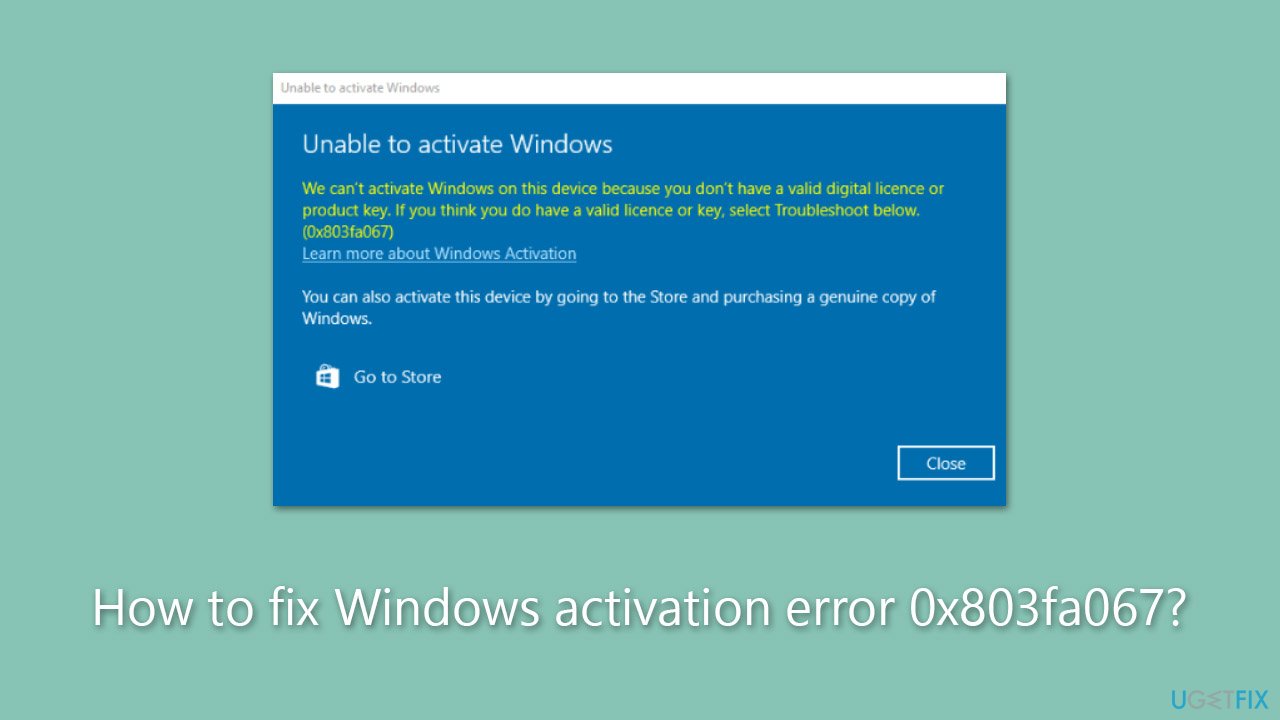
If you encountered the 0x803fa067 error after an upgrade to the newest Windows version or after reinstalling the OS, you could try activating it using several methods provided below. If you notice that you often encounter errors, crashes, or other issues, you can employ [d1] PC repair to repair them for you.
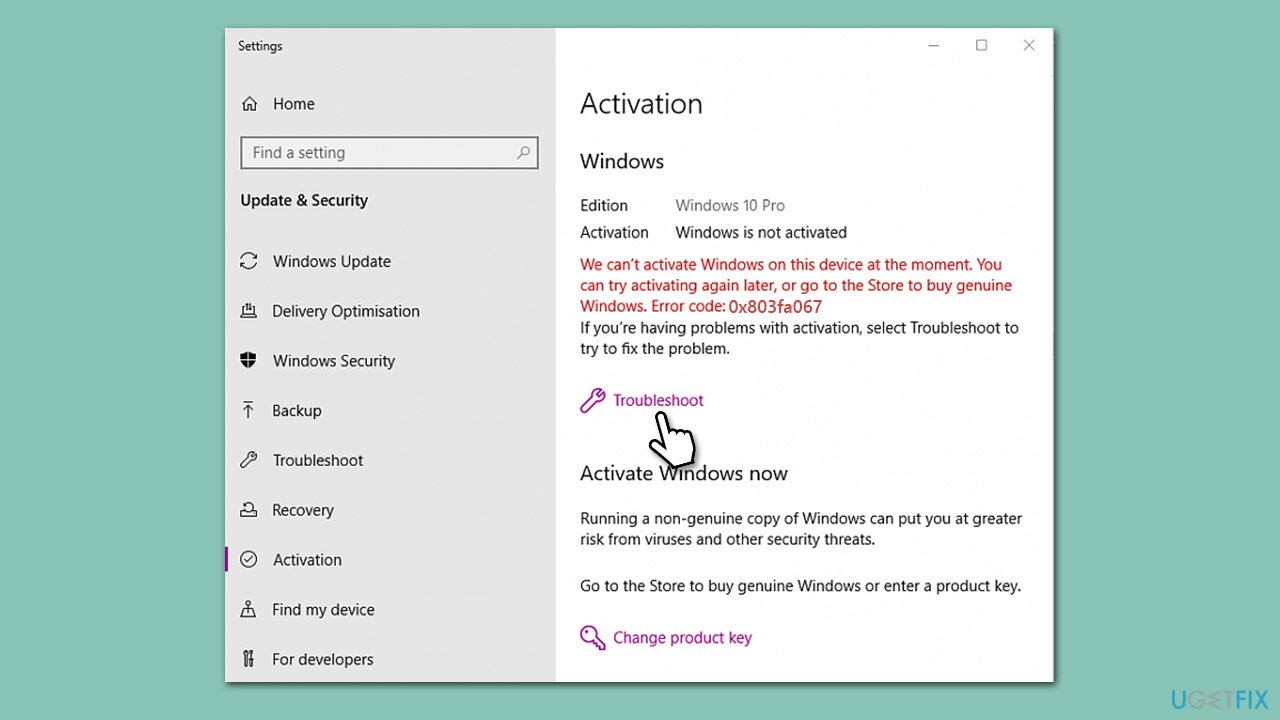
1. Begin with the troubleshooter
Troubleshooters are a set of built-in tools that can help you diagnose your computer problems and sometimes even solve them for you if possible.
- Right-click on Start and select Settings.
- Go to the Update & Security section.
- Select Activation on the left.
- Under the error code, click Troubleshoot.
- Wait till the scan is finished and apply the recommended solutions.
2. Check the Edition of your Windows
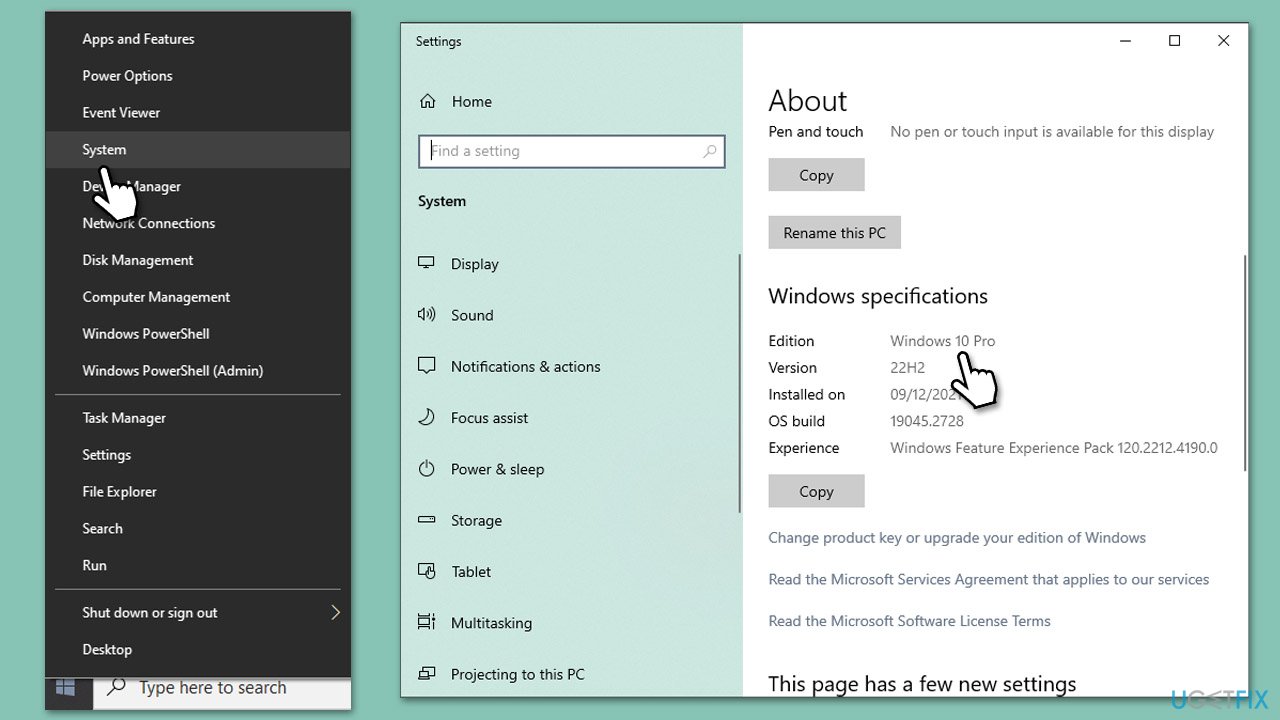
In many cases, you won't be able to activate Windows if you have upgraded using the Wrong version of Windows. For example, if you used to run Windows 10 Home and are trying to install Windows 11 Pro. To check when Windows edition you are currently using, proceed with the following:
- Right-click on Start and pick System.
- Scroll down to Windows specifications.
- Check the Edition section.
3. Update Windows
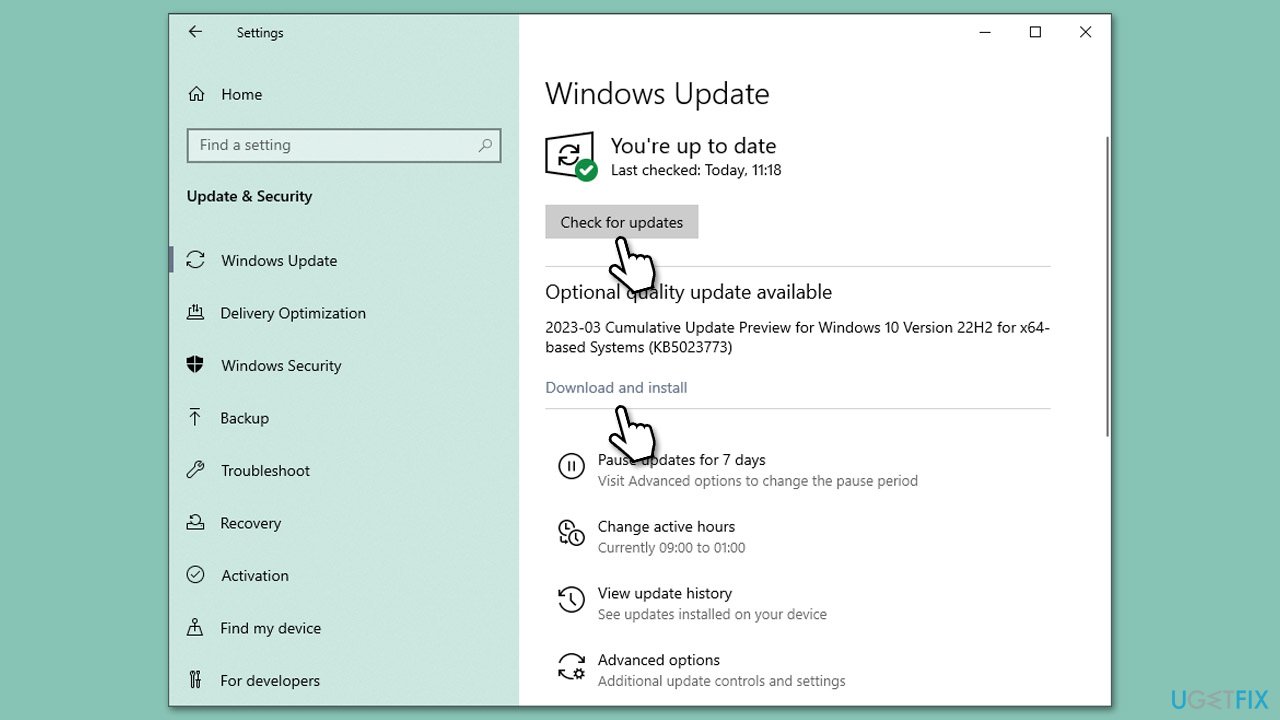
Make sure that all the latest Windows updates are installed:
- Type Updates in Windows search and press Enter.
- Click Check for updates and wait.
- If available, install all the optional updates as well.
- Restart your PC.
4. Use Command Prompt to activate Windows
When using a digital license, follow these steps:
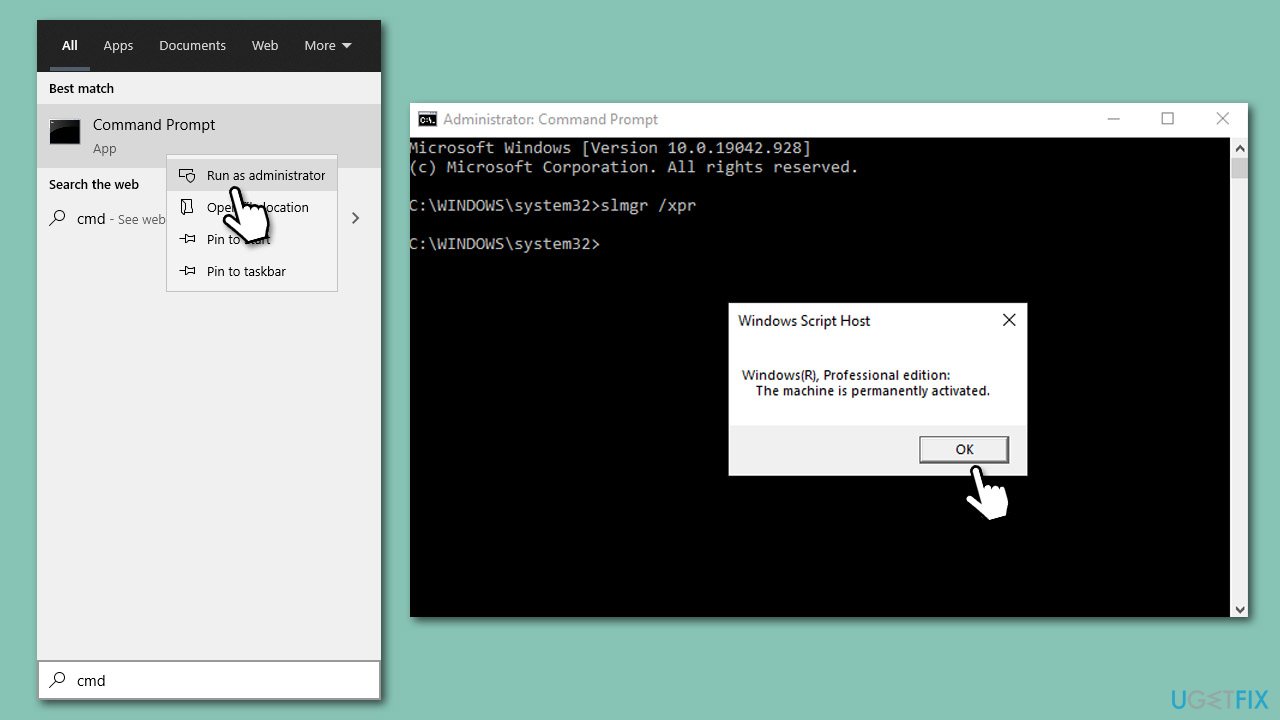
- Type cmd in Windows search
- Right-click on Command Prompt and select Run as administrator
- When User Account Control shows up, click Yes
- Once Command Prompt opens, copy and paste the following command:
slmgr /xpr - Press Enter.
If a product key was used on your system, proceed with the following:
- Open Command Prompt as administrator once again and use the following command:
wmic path softwarelicensingservice get OA3xOriginalProductKey - Paste the slmgr.vbs.ipk <product key> into the window, and press Enter
- Finally, use slmgr.vbs/ato command and hit Enter
- Restart your PC and see if the problem persists.
5. Disconnect your internet connection before activating
If the solutions above do not help, you can use a small workaround for the error by disconnecting your device from the internet before proceeding with the activation process.
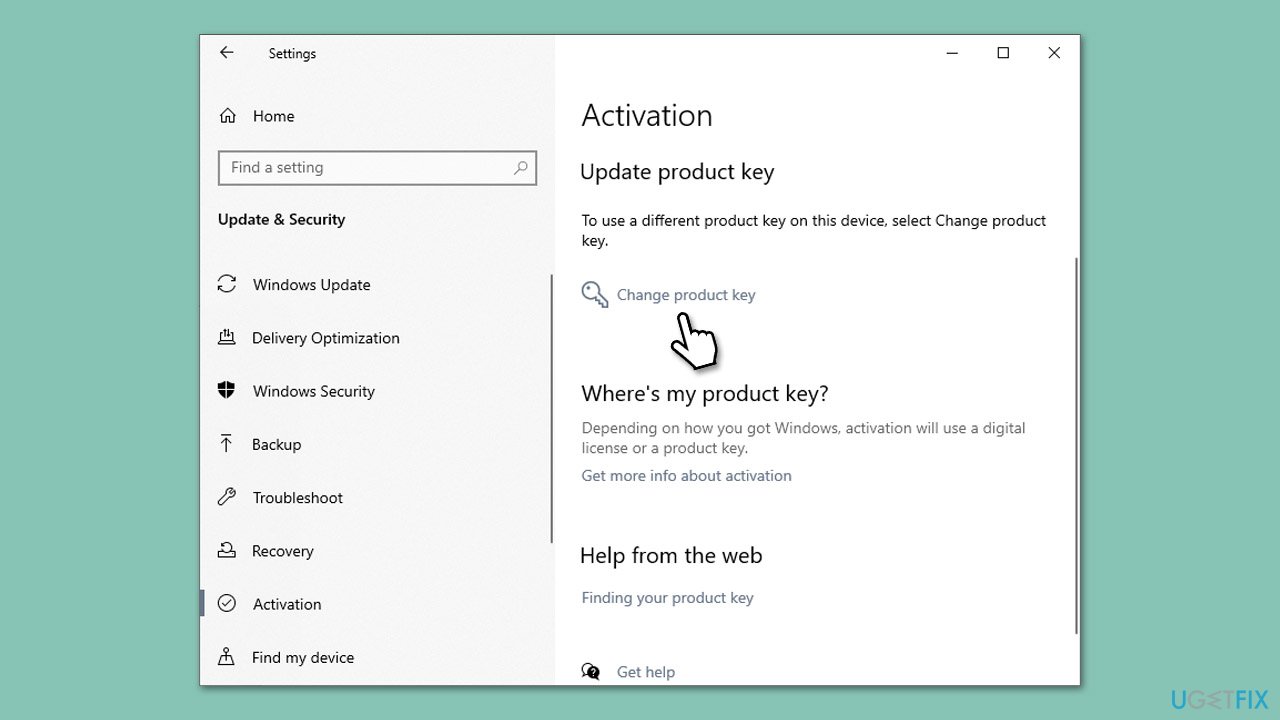
- Click Start and go to Settings.
- Go to Update & Security > Activation.
- Under Update product key, click Change product key.
- Enter the official key provided by Microsoft:
VK7JG-NPHTM-C97JM-9MPGT-3V66T - When done, disable your internet by disconnecting from WiFi or unplugging your Ethernet cable.
- Then, use the steps to activate Windows with your own key.
6. Activate by phone
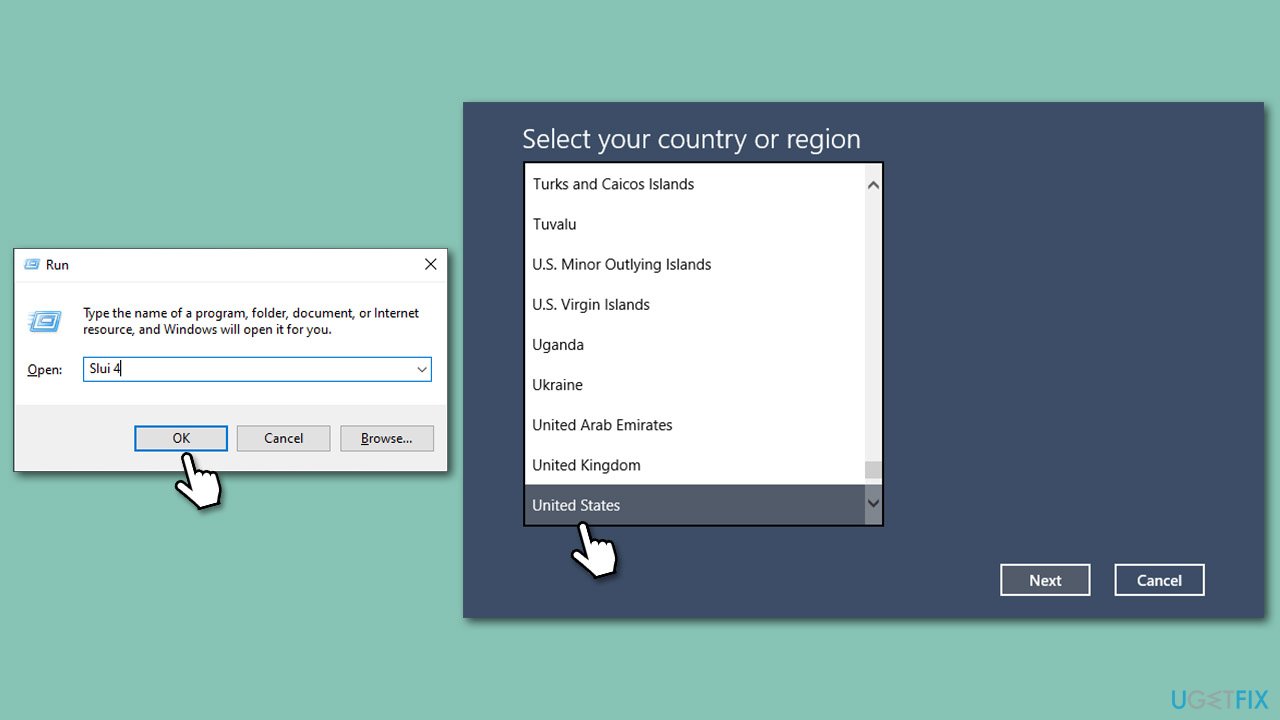
- Press Win + R, type Slui 4, and press Enter.
- In the new window, select your country and press Next.
- This should provide you with a local support number.
- Pick up your phone and follow the provided instructions.
- You might need to provide some information about your Windows license. To acquire it, open Command Prompt as administrator and type in slmgr.vbs /dlv command and hit Enter.
Other related topics that might be relevant:
Bottom line
To fix the 0x803fa067 error, users should check their network connectivity, ensure their firewall is not blocking access to Microsoft's activation servers, and verify that they are using the correct version of Windows for their license key. If these steps do not resolve the issue, utilizing the built-in troubleshooter or seeking professional PC repair may be necessary.
Frequently asked questions
The error 0x803fa067 typically indicates that there is an issue with the Windows activation process, often related to a problem with your Microsoft account or the activation server. This can occur in both Windows 10 and Windows 11.
To resolve the 0x803fa067 error on Windows 10, try signing out of your Microsoft account and then signing back in, or run the Activation Troubleshooter found in Settings under Update & Security. Additionally, ensure your internet connection is stable.
Yes, you can open Command Prompt as an administrator and run the command 'slmgr /ato' to attempt to activate Windows 11 again and potentially fix the error 0x803fa067. If this does not work, consider reaching out to Microsoft Support for further assistance.




Report an issue
What's wrong with this guide? We review every report and update or remove content.
Report received — thank you. We'll review and fix it.
You need a free account to submit a report.
Be the first to comment