How to fix
Windows update error 0x8024500C
on Windows
Resolve the Windows update error 0x8024500C swiftly with expert-tested solutions. Get your Windows 10 or 11 system running smoothly again! Fixed in minu…


What causes How to fix Windows update error 0x8024500C?
- Network connectivity issues
- Incorrect system settings
- Corrupted system files
- Misconfigured firewall
- Proxy settings
Repairs Windows system files, removes malware, and restores a clean OS state — without reinstalling.
Hi, since a few days ago, I can't install the newest Windows update because of the error 0x8024500C. I rebooted the PC, but that did not help. I also waited a few days but to no avail. Any idea of what is happening and how to fix this?
Windows updates are an essential part of keeping your computer secure and up to date. They provide critical security patches, bug fixes, and feature updates to enhance the user experience. However, sometimes errors can occur during the update process, such as the 0x8024500C error.
The 0x8024500C error usually occurs when Windows is unable to download updates from the Microsoft update servers. This error can be caused by various factors, such as network connectivity issues, incorrect system settings, or corrupted system files.
One common reason for this error is network connectivity issues. If your internet connection is unstable or too slow, it can prevent Windows from downloading updates, resulting in the 0x8024500C error. Another reason could be incorrect system settings, such as a misconfigured firewall or proxy settings, which can block the connection to the update servers.
Corrupted system files can also cause the 0x8024500C error. These files can become corrupted due to various reasons, such as malware infections, unexpected system shutdowns, or faulty hardware.
It's worth mentioning that users might also encounter the same error when trying to download apps from the Microsoft Store. This error can have similar causes to the Windows update error, such as network connectivity issues, incorrect system settings, or corrupted system files.
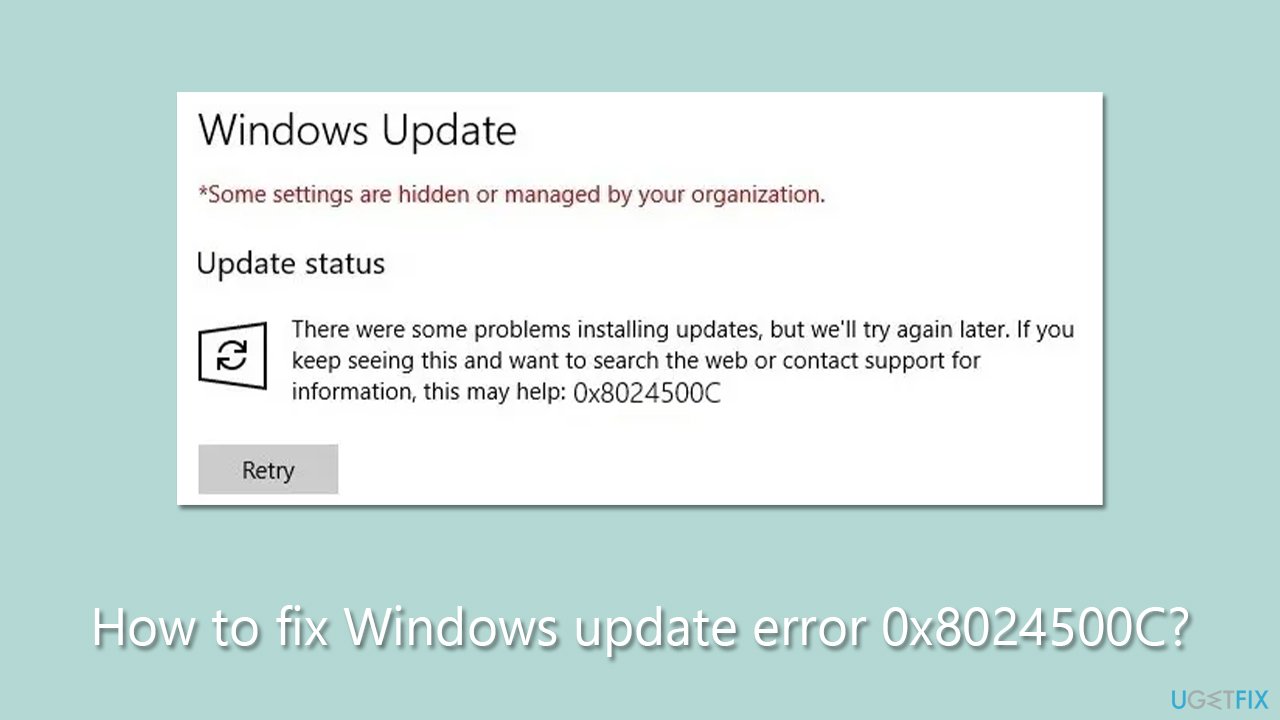
In this article, we will provide ways to fix the 0x8024500C error when trying to download and install the newest Windows updates. If you are a less proficient user or/and would like a quicker and more effective solution, we recommend running a scan with [d1] - an automatic PC repair tool capable of fixing corrupted files and other common Windows issues quickly.
Fix 1. (Re)start relevant services
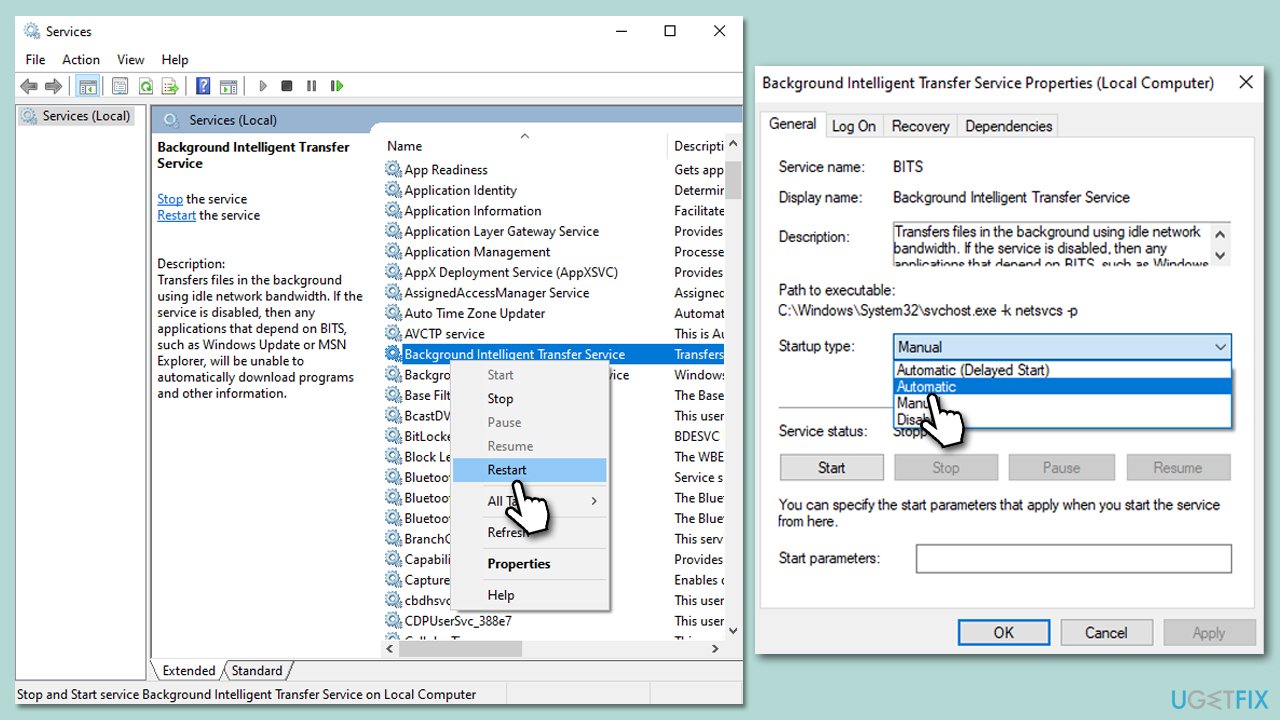
There are several services that should be running in order for the update to go through. If these services are already running, restarting them can help in some circumstances.
- Type in Services in Windows search and press Enter.
- Locate Background Intelligent Transfer Service (BITS).
- If it is already running, right-click and select Restart.
- if the service is not running, double-click it, select Automatic under the Startup type from the drop-down menu
- Click Start, Apply, and OK.
- Repeat the process with the Windows Update service, Cryptographic service, and Windows Installer service.
Fix 2. Run the troubleshooter
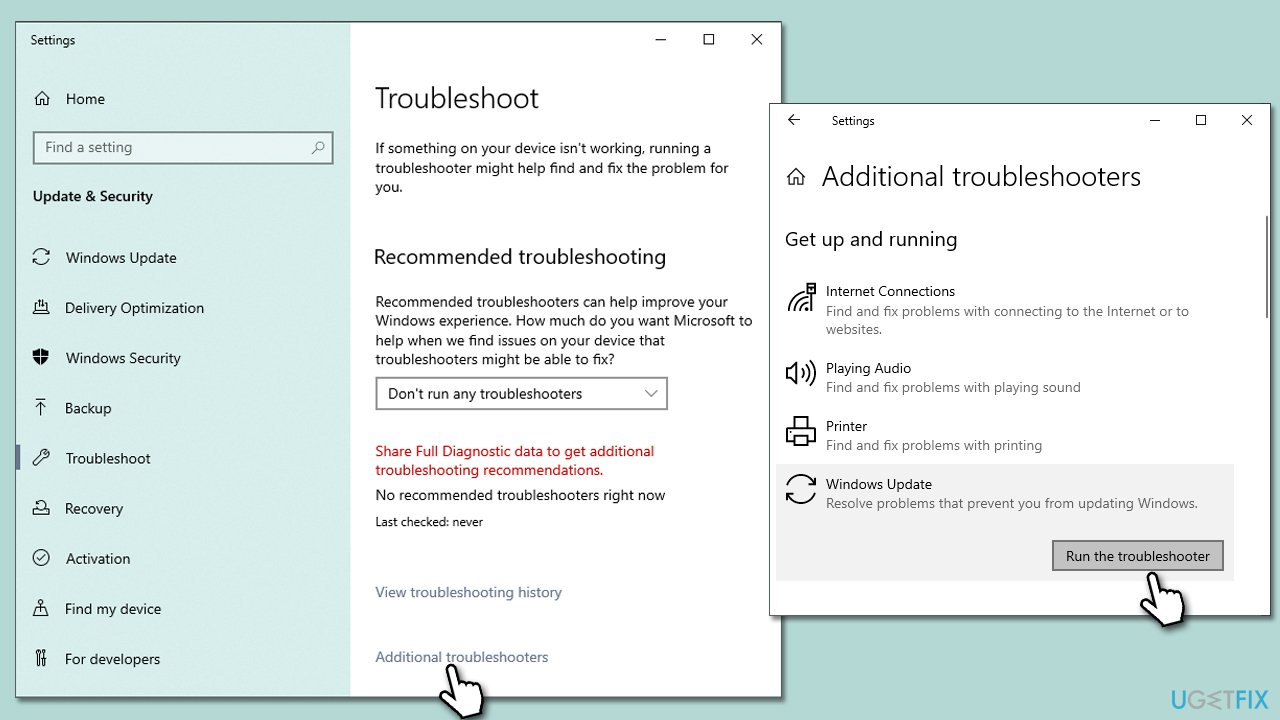
Troubleshooters in Windows are built-in diagnostic tools that help users identify and fix common system problems, including those users have with Windows updates.
- Type Troubleshoot in Windows search and hit Enter.
- Select Additional troubleshooters/Other troubleshooters.
- Find Windows Update from the list and click Run the troubleshooter/Run.
- The troubleshooter will automatically scan your system for potential problems and display any issues.
- If the troubleshooter finds any issues, it will provide recommended solutions.
- Follow the on-screen instructions to apply the recommended solution.
Fix 3. Perform Disk Cleanup
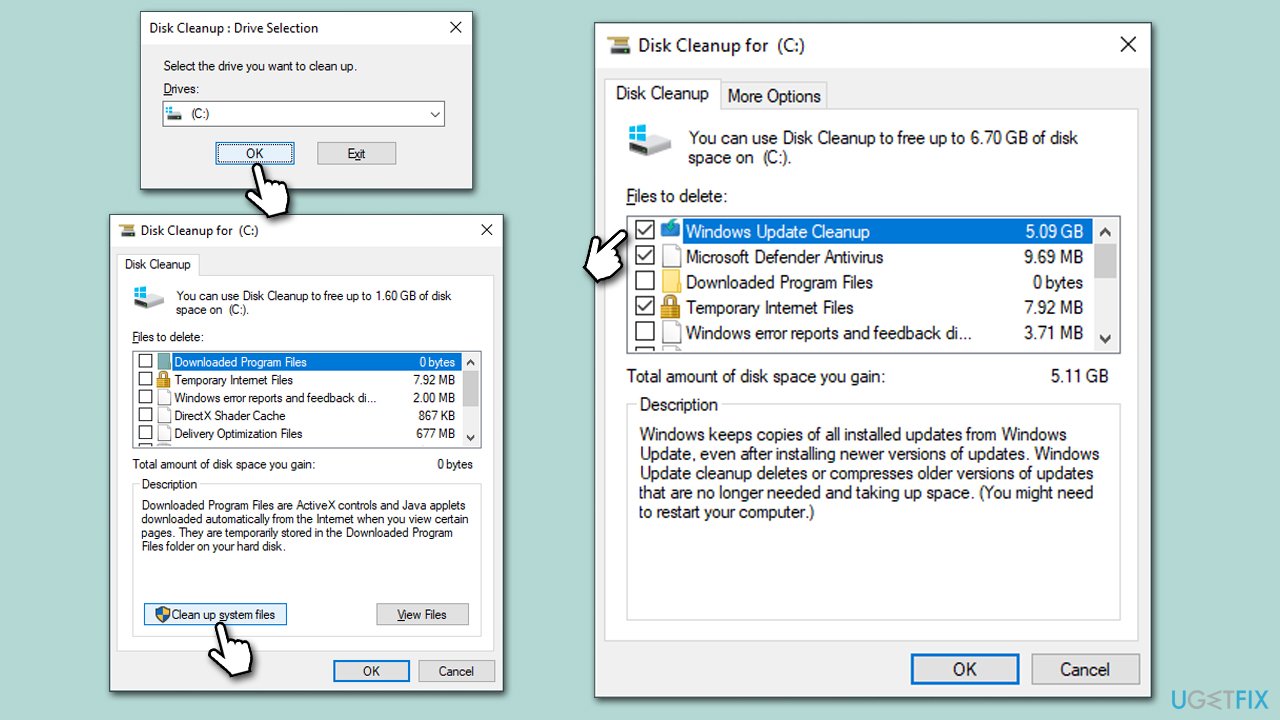
- Type Disk Cleanup in Windows search and press Enter.
- Select your main drive (C: by default).
- Select appropriate fields (Temporary files, Recycle Bin, etc.) and click OK.
- If you want a more thorough cleanup and require even more space, select Clean system files in the Disk Cleanup window.
- Select your main drive again - Windows will compute how much space can be retrieved.
- The largest data dumps are usually accumulated in Windows Update and Delivery Optimization sections, although Temp files can also take a lot if it hasn't been cleaned.
- Select appropriate fields and click OK - Windows will remove all these files from your device and free up space.
Fix 4. Run SFC and DISM
Check your system files for corruption as follows:
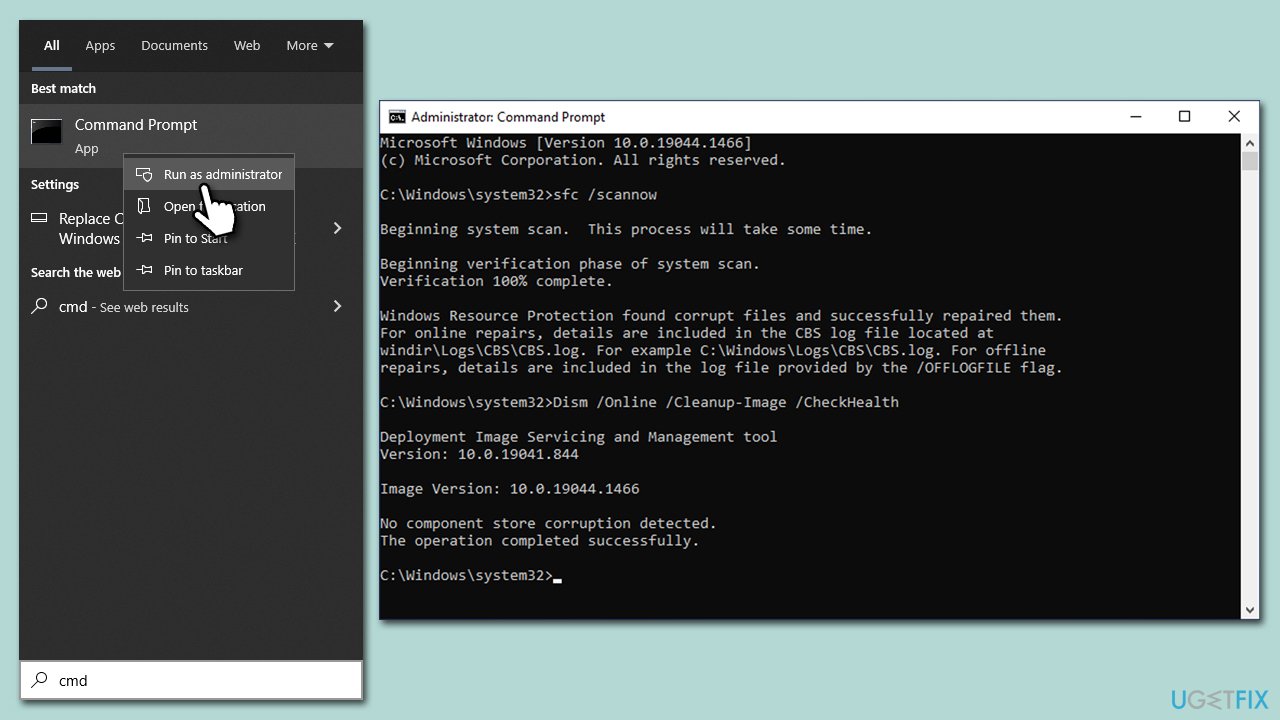
- Type cmd in Windows search.
- Right-click on Command Prompt and pick Run as administrator.
- User Account Control (UAC) will ask whether you want to allow changes - click Yes.
- Use the following command and press Enter:
sfc /scannow - Once the scan is complete, you should also run the following commands to repair Windows image files if needed:
DISM /Online /Cleanup-Image /CheckHealth
DISM /Online /Cleanup-Image /ScanHealth
DISM /Online /Cleanup-Image /RestoreHealth - Restart your system.
Fix 5. Reset Windows update components
- Open Command Prompt (Admin) as explained above.
- Copy and paste the following commands, pressing Enter each time:
net stop wuauserv
net stop cryptSvc
net stop bits
net stop msiserver - Press Win + E on your keyboard to open File Explorer.
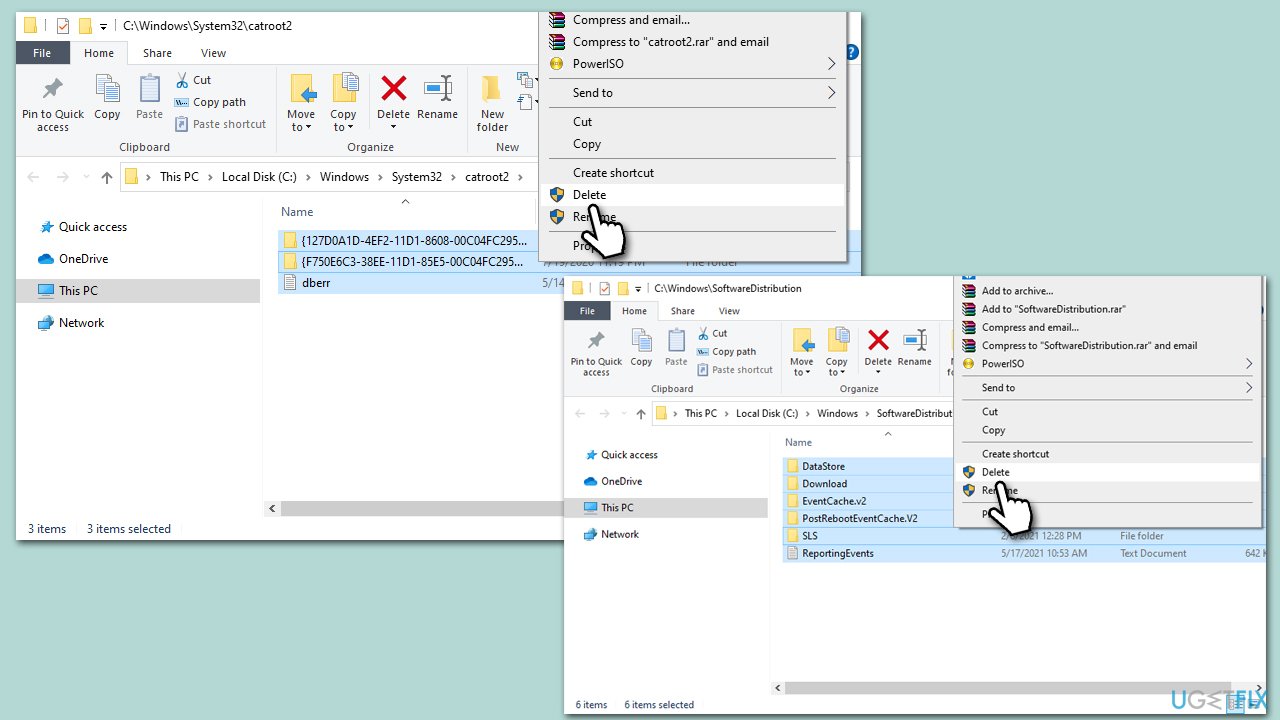
- Go to the following directories and delete the contents of these folders:
C:\Windows\System32\catroot2
C:\Windows\SoftwareDistribution - Open Command Prompt again and paste these command lines:
net start wuauserv
net start cryptSvc
net start bits
net start msiserver - Restart your system.
Fix 6. Disable third-party security software
When installing Windows updates, third-party security software can create problems by detecting the update as a threat and blocking its installation, which may lead to errors or crashes. To prevent this issue, users should disable their security software temporarily or configure it to allow Windows updates to install without interference to ensure that the system is secure while receiving the latest updates.
Fix 7. Use Media Creation Tool
Before proceeding, please disconnect all unnecessary devices, such as printers, from your device and uninstall any third-party security software.
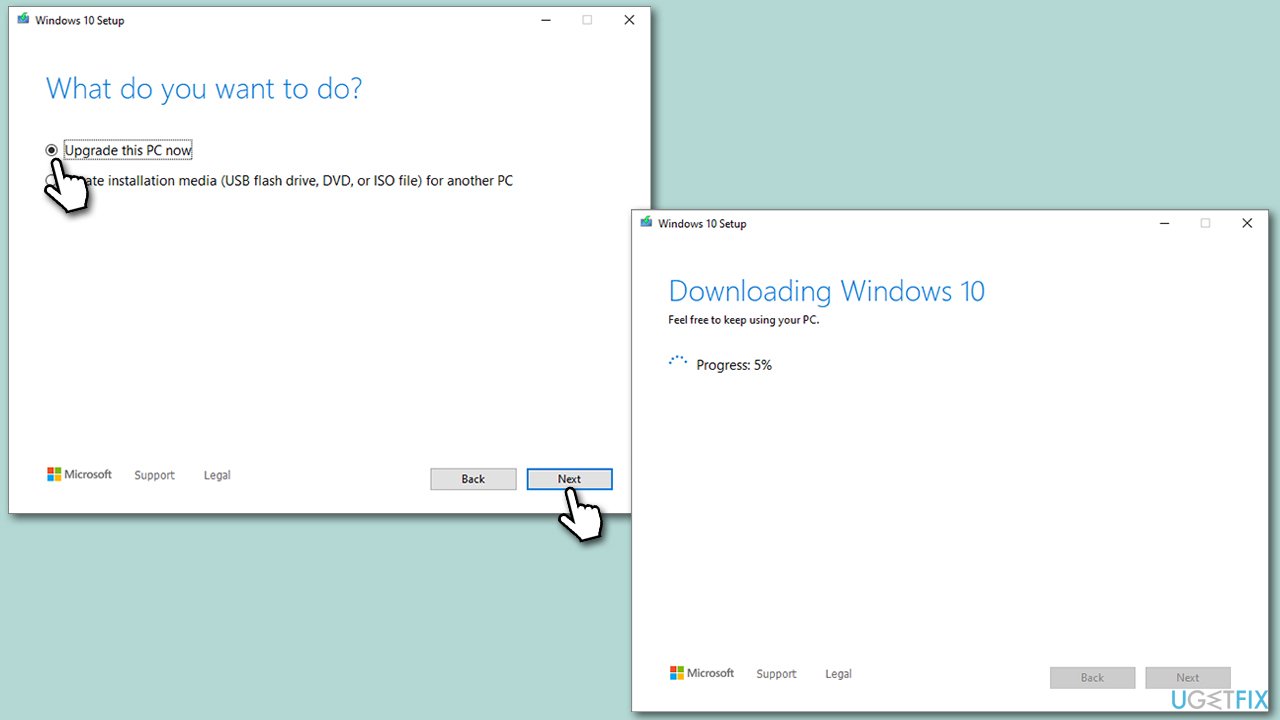
- Visit the official Microsoft website and download Windows 10 installation media (Windows 11 version).
- Double-click the installer, select Yes when UAC shows up, and agree to the terms.
- Select Upgrade this PC now and click Next.
- Windows will start downloading the needed files.
- Agree to the terms once again and click Next.
- Before installing, ensure you are happy with your choices (you can click Change what to keep option if not).
- Click Install to begin the upgrade process.
Bottom line
To fix the 0x8024500C error, you can try restarting relevant services, checking your network connection, and ensuring your system settings are correct. If these solutions do not resolve the issue, consider running a scan with an automatic PC repair tool.
Frequently asked questions
The error 0x8024500C typically occurs due to issues with the Windows Update components or network connectivity problems. It may also be triggered by corrupted system files or configuration settings.
To fix this error in Windows 11, try running the Windows Update Troubleshooter, resetting the Windows Update components, or performing a System File Checker scan. These steps can help identify and correct the underlying issues.
To minimize the chances of encountering error 0x8024500C on Windows 10, ensure that your system is regularly updated and perform routine maintenance, like checking for corrupted files and clearing the update cache.




Report an issue
What's wrong with this guide? We review every report and update or remove content.
Report received — thank you. We'll review and fix it.
You need a free account to submit a report.
Be the first to comment