How to fix
Fatal D3D Error in Resident Evil 4 Remake
on Windows
Resolve the Fatal D3D Error in Resident Evil 4 Remake on Windows 10/11 effortlessly with our expert-tested solutions for seamless gameplay.


What causes How to fix Fatal D3D Error in Resident Evil 4 Remake?
- Outdated Video Drivers
- Incompatible High Graphics Settings
- Overclocking the Graphics Card
- Overclocking the RAM
- Damaged D3D Program
Repairs Windows system files, removes malware, and restores a clean OS state — without reinstalling.
Hi, I have been randomly getting Fatal D3D Error while playing Resident Evil 4 Remake. I've got a powerful system (RTX 3080/Ryzen 9 5950X), so this is a mystery to me. Sometimes, I can go on for hours without crashes, and in other cases, several crashes happen almost in succession. Any idea what to do?
Resident Evil 4 Remake, a 2023 survival horror game developed and published by Capcom, has been receiving critical acclaim and selling more than three million copies in just two days of its release.
The game, which is a remake of the 2005 game Resident Evil 4, features an updated plot, new visuals, characters, cast, and improved gameplay. Players control the US agent Leon S. Kennedy, who must save Ashley Graham, the daughter of the United States president, from the mysterious Los Iluminados cult.
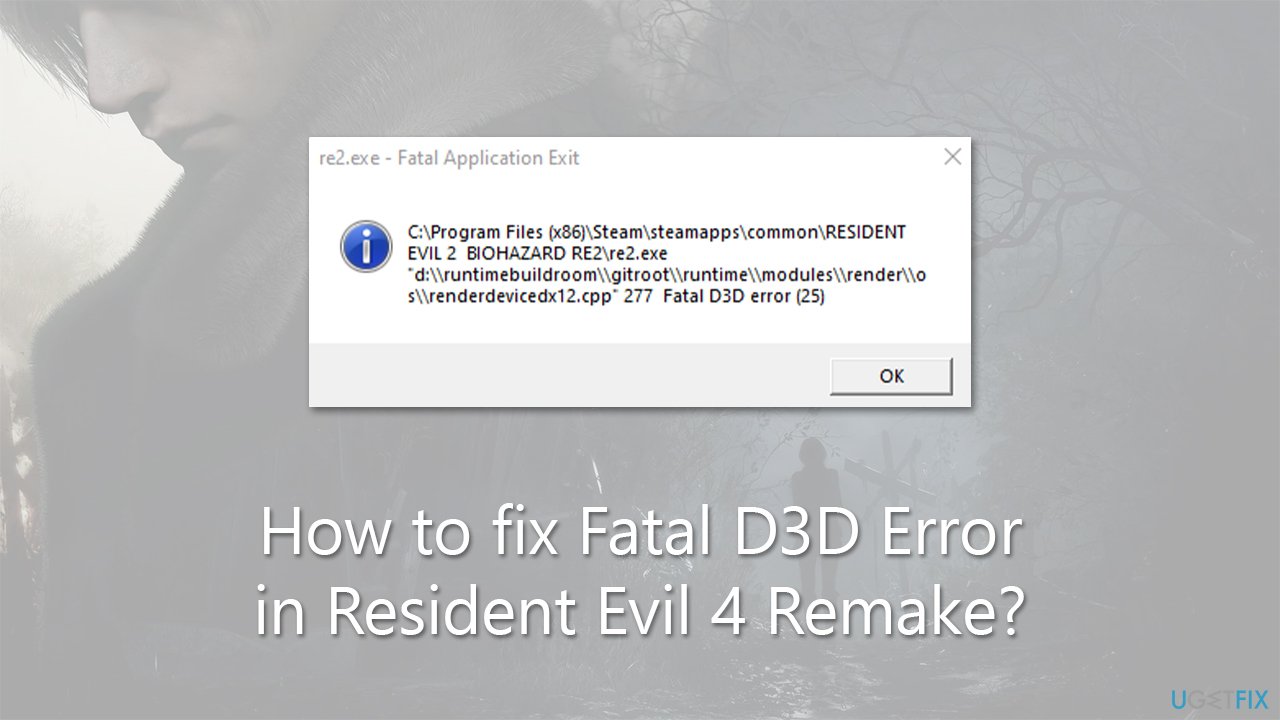
Despite the game's success, some players have reported experiencing a Fatal D3D Error while playing Resident Evil 4 Remake. Direct3D or d3d is a graphics application programming interface that renders three-dimensional graphics in video games on Windows. This error mostly occurs when the d3d program is damaged, the system requirement does not match with the game, or when the game is run on high settings.
After investigating the issue, it was discovered that several causes could be behind the Fatal D3D Error. Outdated video drivers are one of the primary reasons for d3d errors. Therefore, it is advised to update your video drivers to avoid such errors. Running a game on high graphics settings that are not compatible with your hardware can also cause it.
Overclocking the graphics card or RAM can also be the cause of the Fatal D3D Error. Overclocking the GPU, which involves gradually increasing the graphics card core frequency to boost performance, has been reported by some users as a cause of the error. Similarly, overclocking the RAM, which increases its speed beyond the normal level, can also lead to the Fatal D3D Error.
To ensure that Windows itself is not the one to blame, we recommend running a check with a powerful PC repair tool [d1], which can find corrupted files and replace them with brand new ones, ultimately resolving BSODs, crashes, and other common issues.
1. Update your GPU drivers
Game crashes can sometimes be a result of outdated GPU drivers. You can use the Windows update feature to check for new drivers:
- Type Updates in Windows search and hit Enter.
- Click Check for updates and wait till all the files are downloaded.
- Look for optional updates and install them as well.
- Once everything is installed, restart your computer to implement the changes.
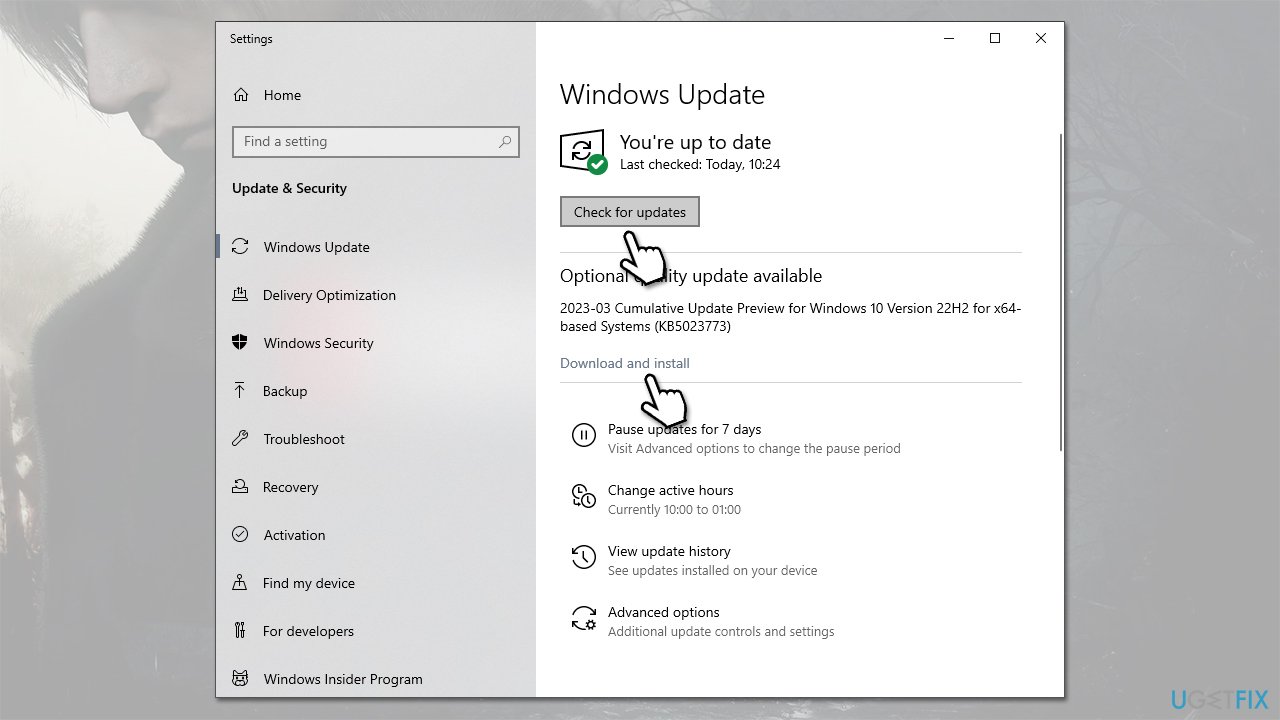
It is important to note that the Windows update feature is not the best when it comes to driver updates, so we recommend visiting Nvidia or AMD website and downloading the latest driver version from there. If it seems too complex for you, you can always rely on a third-party app such as [rev id="DriverFix"], which will install the latest drivers for you automatically.
2. Reinstall GPU drivers
If updating drivers didn't help, you can try reinstalling them.
- Right-click on Start and pick Device Manager.
- Expand Display adapters.
- Right-click on your GPU and select Uninstall device.
- Mark the Delete the driver software for this device tickbox.
- Click Uninstall and follow the instructions to finish the process.
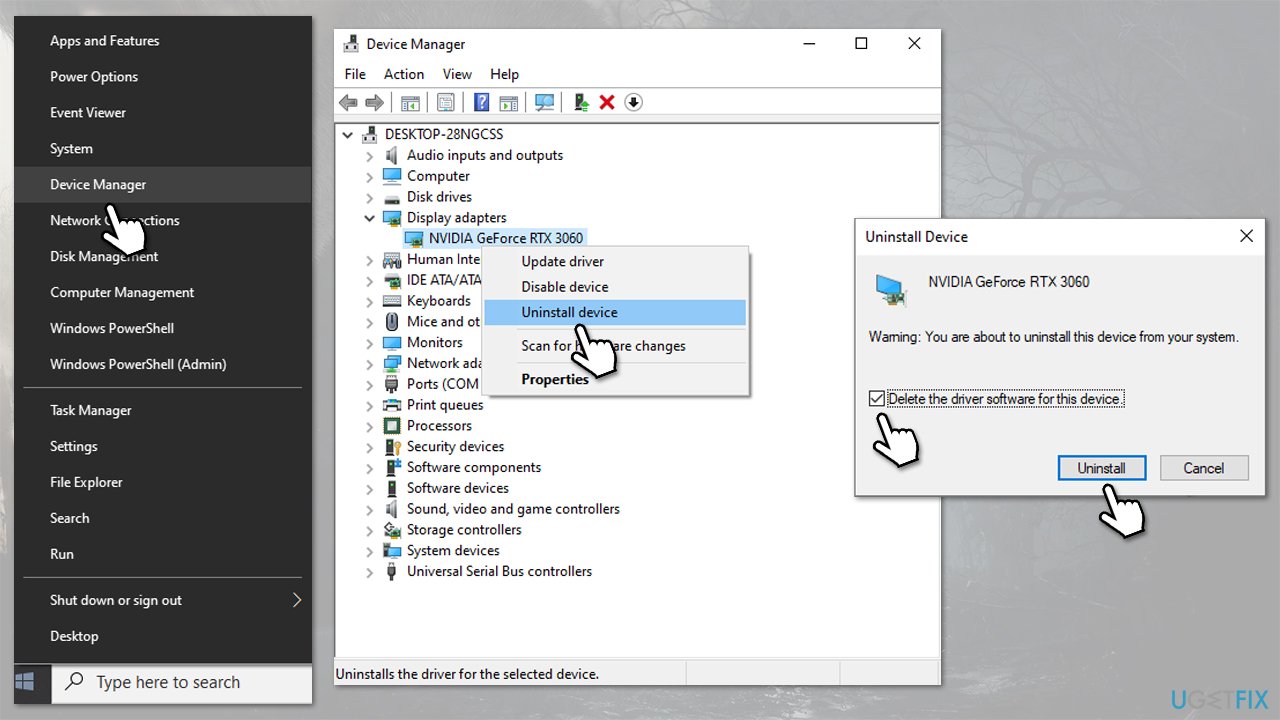
After a reboot, use one of the methods to install the latest GPU drivers on your system, or you can use our comprehensive guide on how to reinstall graphic drivers.
3. Verify the integrity of game files
Verifying game files on Steam checks the game files installed on your computer for missing or corrupted files and replaces them with the correct ones from the Steam servers. It can fix issues and improve game performance.
- Launch Steam and select Resident Evil 4 Remake from the installed games list.
- Right-click on it and select Properties.
- Pick Local Files on the left.
- Click Verify Integrity of game files.
- Wait till the process is complete and relaunch the game.
4. Disable XMP
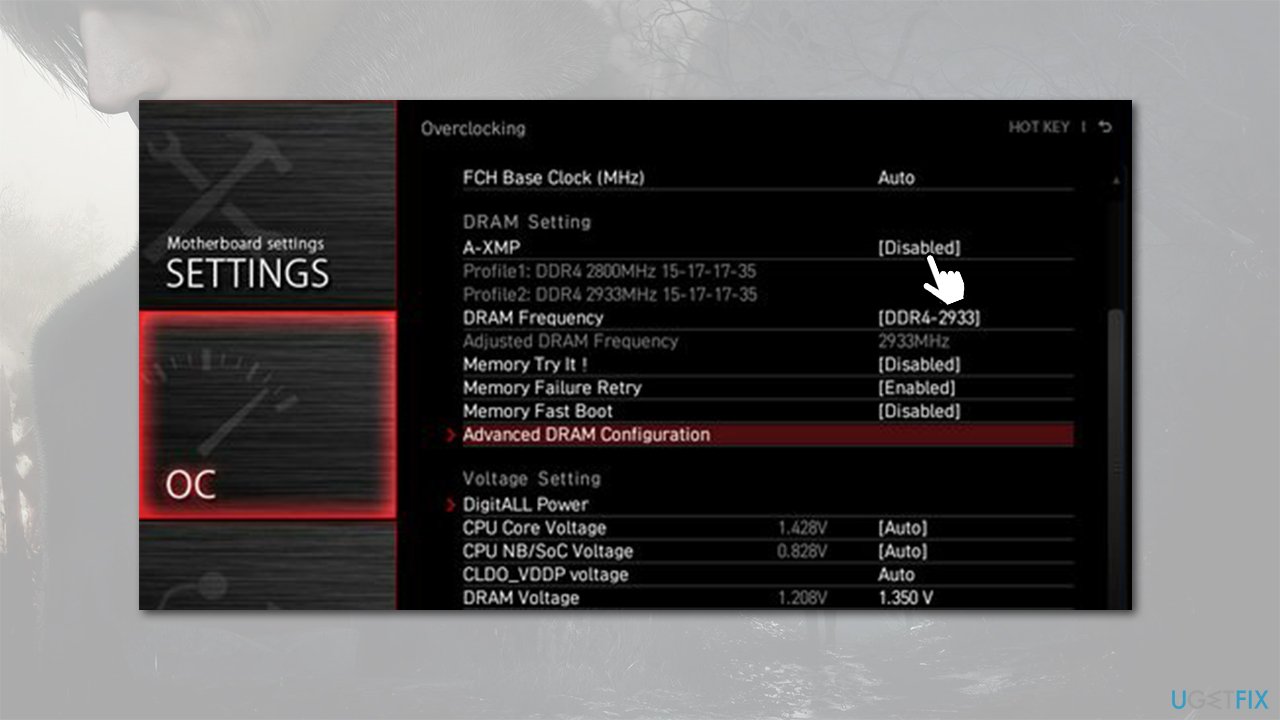
XMP (Extreme Memory Profile) is a technology that allows your RAM to run at higher frequencies than its default speed, which can improve overall system performance. However, some games may not be compatible with XMP and can cause crashes or stability issues. Disabling XMP can resolve game crashes by setting the RAM frequency to its default speed and ensuring compatibility with the game. This can prevent the system from encountering memory errors that can cause crashes while playing games.
- Restart your PC and start repeatedly pressing F2, F8, F10, Del, Esc, or another button (refer to your motherboard manufacturer for the instruction) - this should boot you into BIOS
- Check Overclocking, Advanced, or a similar section to find the XMP feature.
- Disable XMP and restart your system in normal mode.
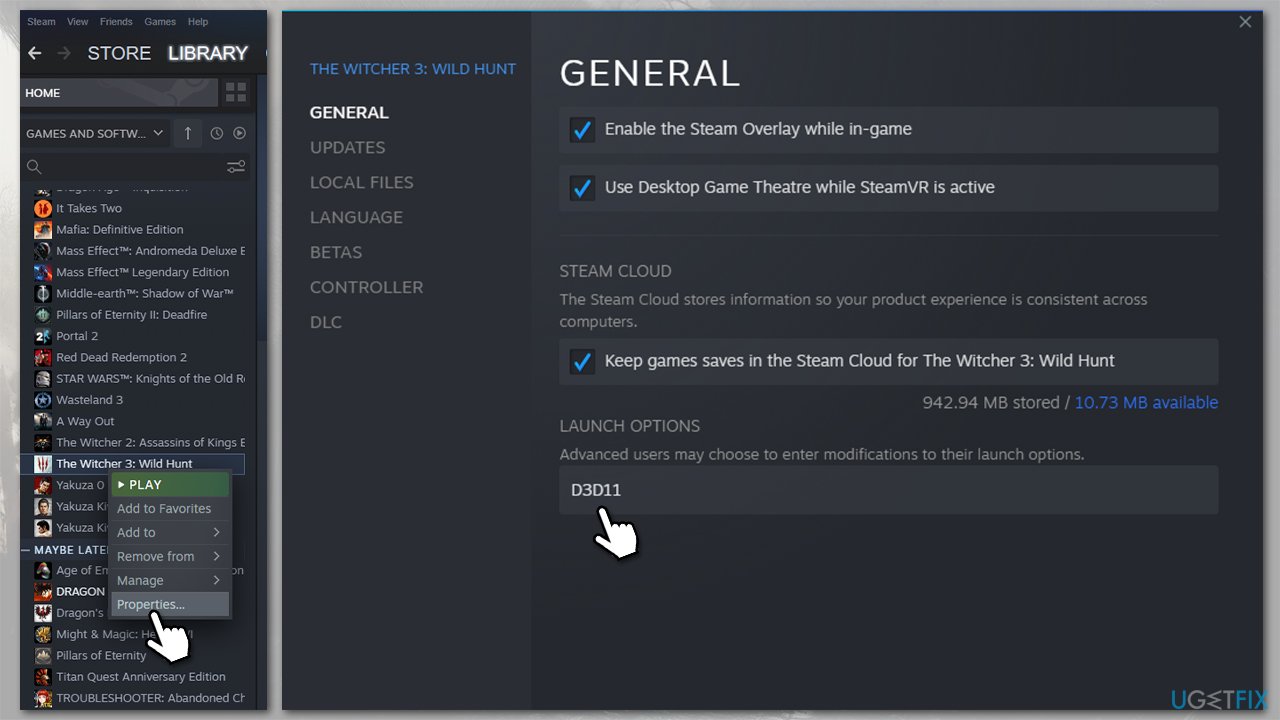
5. Launch with D3D11 enabled
- Open Steam and right-click the game from your library.
- Select Properties...
- On the right side of the window, you should see the Launch options section.
- Here, type in D3D11.
- Try launching the game again.
6. Tweak in-game settings
When it comes to new releases, some people tend to overestimate their system configurations and what they can handle. The crashes may sometimes be a result of too high or incorrect in-game settings.
- Lower the graphics settings to medium, for example.
- Try disabling V-sync. If you already have it disabled, try enabling it.
- Disable Ray tracing and Strand Hair. Some people said that changing the Ray Tracing from "High" to "Normal" also helped them.
- Try limiting your FPS to 60.
Bottom line
To fix the Fatal D3D Error in Resident Evil 4 Remake, ensure your video drivers are updated and adjust the graphics settings to match your hardware capabilities. If you have overclocked your GPU or RAM, consider reverting to default settings. If these solutions do not resolve the issue, further investigation may be necessary.
Frequently asked questions
The Fatal D3D Error is often caused by outdated graphics drivers, DirectX issues, or incompatible graphics settings. Ensuring your Windows 10 system is fully updated can help resolve these issues.
To update your graphics drivers in Windows 11, right-click the Start menu, select Device Manager, expand the Display adapters section, right-click your GPU, and choose 'Update driver'.
You should have DirectX 11 or higher installed on your Windows system to avoid the Fatal D3D Error. You can check and update DirectX through the Windows Update settings.




Report an issue
What's wrong with this guide? We review every report and update or remove content.
Report received — thank you. We'll review and fix it.
You need a free account to submit a report.
Be the first to comment