How to fix
Clear Bing Browsing History in Microsoft Edge
on Windows
Easily clear your Bing browsing history in Microsoft Edge on Windows 10 or Windows 11. Quick tips and expert-tested methods for a clean slate.

Why does How to Clear Bing Browsing History in Microsoft Edge occur?
- Errors within the browser
- Geo-filtering bugs
- Cookies tracking user actions
- Public network usage
- Browser loading issues
Repairs Windows system files, removes malware, and restores a clean OS state — without reinstalling.
I seem to struggle to delete Bing search history even though I used the manual issued by Bing. Though the settings under Search history are set to off, I noticed that my browsing history is still visible in MS Account. Thanks for the advice.
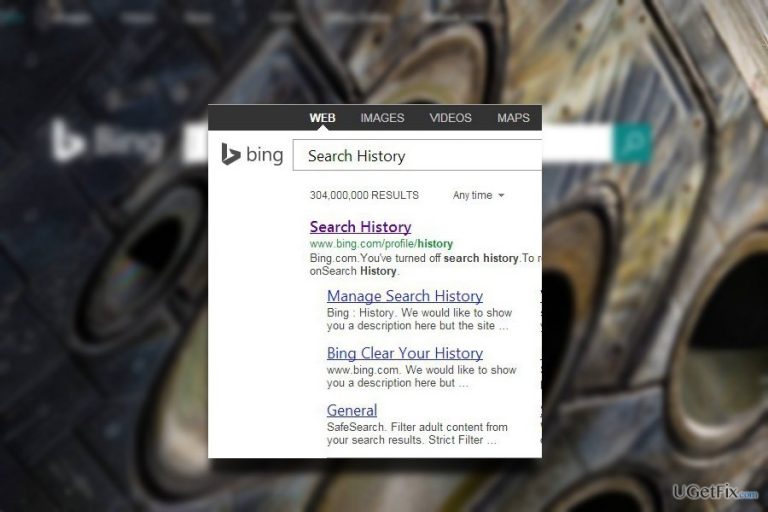
Clearing Bing browser history is a frequent habit practiced by more cautious Internet users. It is common knowledge that every browsing tool collects information about your search entries, search frequency, and other browsing-related information. Consequently, if you tend to educate yourself about the striking numbers of malware and, especially, spyware, growth, online security might become quite relevant to you. Acquiring knowledge about users’ interests provides various crooks with opportunities to develop more efficient hacking techniques. In addition, online advertisers also aspire to track your browsing history. As a result of the recent Congress approval to permit online advertisers to share and sell your browsing data, you may be inclined to take extra security measures. Clearing browsing data limits third-parties capabilities of spying on you. Signing into private accounts via a public network, constant browser loading issues, and intention to change login credentials are other reasons why you might want to change your browsing history. However, some users report encountering problems performing this action in Microsoft Edge browser. Most likely, it is related to errors within the browser and geo-filtering bugs. Thus, you may succeed in clearing your browsing history if you change your IP address or reset MS edge.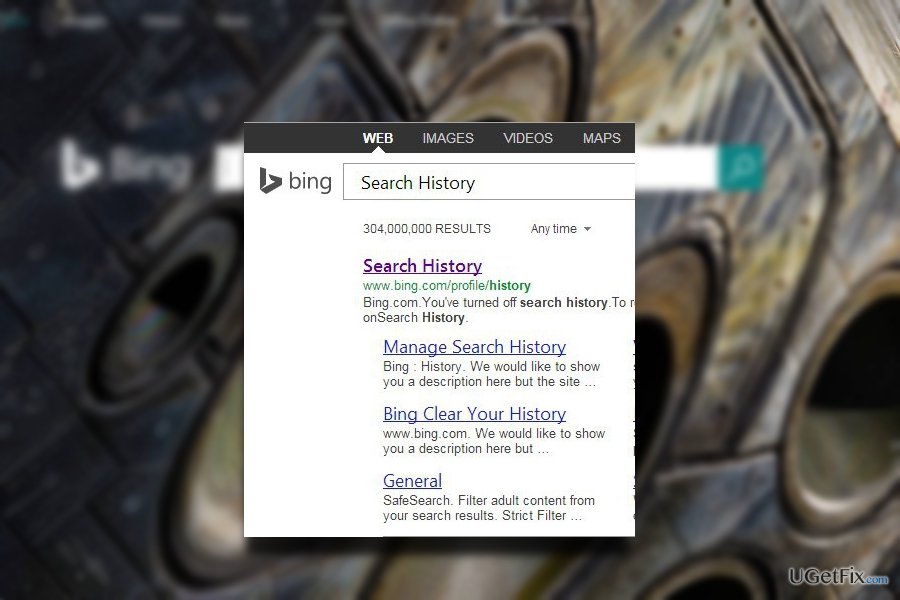
Option 1. Disable cookies in MS Edge
If you are looking for a way to limit third parties tracking your actions online, you may disable cookies. Here are the steps.
- Click on the three dots in the top-right corner of the browser.
- Opt for Settings.
- Choose View advanced settings.
- Select Cookies in a drop-down menu.
- Click on Block all cookies. As a result, Edge will collect no information about your browsing history.
Option 2. Change IP address
If you tend to browse the Web via a mobile device rather than a laptop or standalone computer, you can easily change your IP by connecting to a public Wi-Fi. As a result, you may attempt to delete Bing search history. Below you will find instructions how to do that with the help of Command Prompt.
- Press Windows+R and type in cmd. Click Enter.
- Enter ipconfig /release.
- Restart the computer.
- Turn off all ethernet hubs/switches.
- Turn off cable/DSL modem.
- You may need to wait a while and turn everything on.
Option 3. Reset MS Edge browser
- Find this folder by typing the address in File Explorer: C:\Users\%username%\AppData\Local\Packages\Microsoft.MicrosoftEdge_8wekyb3d8bbwe.
- Select every entry which is saved on it and right-click on them. Choose Delete option.
- Right-click the Windows PowerShell entry and choose Run as administrator.
- When Windows PowerShell window appears, paste this command line after PS C:\WINDOWS\system32> and press Enter: Get-AppXPackage -AllUsers -Name Microsoft.MicrosoftEdge | Foreach {Add-AppxPackage -DisableDevelopmentMode -Register $($_.InstallLocation)\AppXManifest.xml -Verbose}
- Click Enter and relaunch MS Edge.
Option 4. Make sure your device is virus-free
You may also want to scan your device with an anti-malware utility such as [rev id=”Reimage”]. In some cases, corrupted files might bother the effectiveness performance of browsers. It will scan the device and eliminate all potentially malicious files on the system.
Bottom line
To clear your Bing browsing history in Microsoft Edge, you can disable cookies or change your IP address by connecting to a public Wi-Fi. If these methods do not resolve the issue, consider resetting Microsoft Edge for further troubleshooting.
Frequently asked questions
To access your Bing browsing history in Microsoft Edge on Windows 10, click on the three-dot menu, select 'History', and then view your browsing history from there.
Yes, in Microsoft Edge on Windows 11, you can delete specific entries by going to 'History', hovering over the item you want to remove, and clicking the 'X' icon next to it.
To clear all Bing browsing history in Microsoft Edge on Windows 10, open the 'History' menu, click on 'Clear browsing data', select the time range, and ensure 'Browsing history' is checked before confirming.




Report an issue
What's wrong with this guide? We review every report and update or remove content.
Report received — thank you. We'll review and fix it.
You need a free account to submit a report.
Be the first to comment