How to fix
Change Windows User Account Name
on Windows
Easily change your Windows 10 or Windows 11 user account name with our expert-tested guide. Complete with screenshots for a hassle-free experience!

Why does How to Change Windows User Account Name occur?
- Log-in problems after entering password
- Incorrect password notifications
- Inability to use keyboard to type password
- Malicious presence affecting system
- Failure to install latest Windows updates
Repairs Windows system files, removes malware, and restores a clean OS state — without reinstalling.
Hi, somehow I encountered a very simple but odd bug – how do you change your MS account profile name? I can‘t seem to fund “Change” or “Rename” button. Any ideas? Btw, my OS is Windows 10.
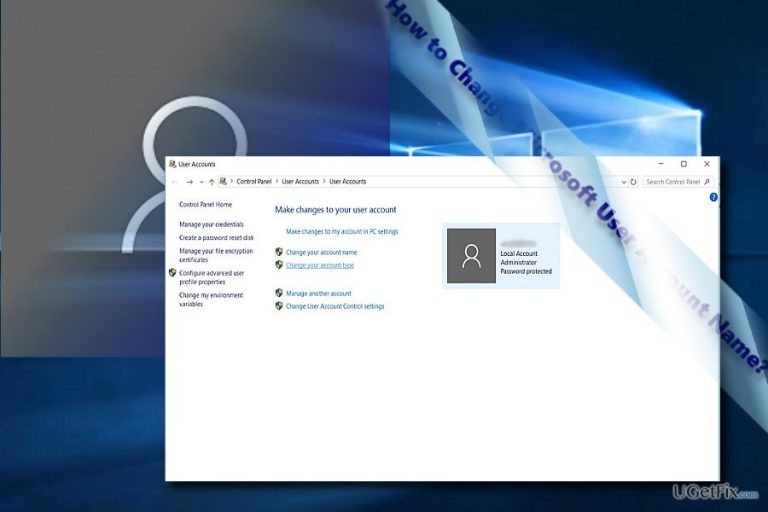
“Change Windows User Account Name” option is easily accessed via Control Panel or shortcuts. Usually, Windows OS users encounter log-in problems. After typing into the password, they might see notifications about incorrect passwords. Inability to use keyboard, type in password, adding a new user account are prevalent issues. Since the release of Window 10, Microsoft has released multiple patches which should solve these problems. Additionally, note that such issues might be also triggered by malicious presence. In that case, it would be useful to check your system for fraudulent files with [d1] or anti-spyware utility. Rarely users encounter issues with changing their names. You can simply do this by typing user settings after expanding startup options. Then, you will be redirected to the window where you can choose from a variety of options: from changing your user name to user account control settings. Lastly, if you cannot change your Windows account user name, check whether latest Windows updates have been installed successfully. If you still cannot perform this action, below is an alternative solution.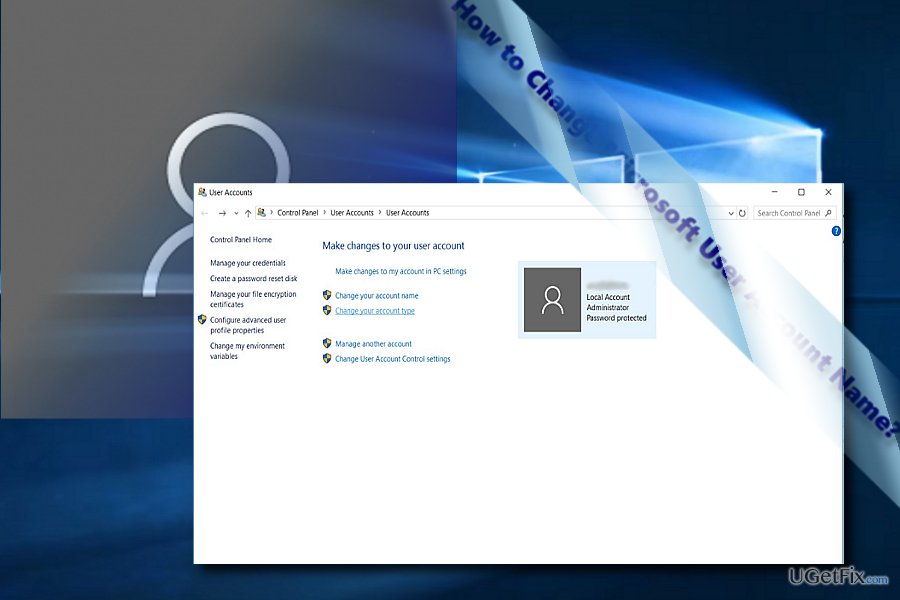
Option 1. Change User Account Name with Command Prompt
- Pres Windows+R keys and enter cmd into a prompt box. Hit Enter and Command Prompt will launch. You can open it by clicking on Start button and typing prompt. Right-click on the entry and run it as administrator.
- Enter Net user administrator /active:yes and press Enter.
- Boot Windows into enabled Administrator account, open C:\Users folder.
- Change your user profile folder name.
- Open the Registry Editor by pressing Windows key + R. Type regedit and press Enter.
- Go to HKEY_LOCAL_MACHINE\SOFTWARE\Microsoft\Windows NT\CurrentVersion\ProfileList
- Click each subkey to locate the key related to user account folder that you intend to rename. The ProfileImagePath value data will have the user profile path and name. Alter the name to match the same name of that folder.
- After you have finished with Administrator account, disable it by typing following command:
Net user administrator /active:No
In case, you are not sure how to change your Microsoft account profile name, here is the guide:
- Use the Windows key + I keyboard shortcut to open the Settings app.
- Click Accounts.
- Click Your email and accounts.
- Click on the Manage my Microsoft Account link to open the web browser and launch your profile.
- In the main page, click on the Edit name link.
- Alter your name, and hit Save.
- Reboot the device.
Bottom line
To change your Windows user account name, you can use the Control Panel, access user settings, or utilize the Command Prompt method. If these methods do not work, check for any malicious files or ensure that your Windows updates are installed successfully.
Frequently asked questions
Open the Control Panel, select 'User Accounts', then click 'Change your account name' to enter a new name for your Windows 10 account.
Yes, go to Settings > Accounts > Your info, and click on 'Edit name' to change your Windows 11 account name.
No, changing your user account name in Windows 10 or Windows 11 will not affect your files or settings.




Report an issue
What's wrong with this guide? We review every report and update or remove content.
Report received — thank you. We'll review and fix it.
You need a free account to submit a report.
Be the first to comment