How to fix
“Your credentials could not be verified” error
on Windows
Resolve the "Your credentials could not be verified" error in Windows 10 and 11 effortlessly. Follow our expert-tested solutions to regain access quickly.

What causes How to fix “Your credentials could not be verified” error in Windows?
- Incorrect PIN
- Microsoft account glitch
- Conflicting data in the NGC folder
- Insufficient permissions on the NGC folder
- Corrupted Access Control Lists (ACLs)
- Credential Manager service configured to Manual
Repairs Windows system files, removes malware, and restores a clean OS state — without reinstalling.
I can't seem to log into my Windows account. It keeps showing the "Your credentials could not be verified" error message every time. Please help, I don't know what to do.
If you've ever encountered the "Your credentials could not be verified" error message when attempting to log in to your Windows computer, you're not alone. This issue can be frustrating and may prevent you from accessing your device, but fortunately, there are several potential solutions you can try.
One of the most common causes of this error is an incorrect PIN. If the PIN associated with your account is incorrect, you can reset it by booting your computer in Safe Mode and accessing the PIN reset feature. Another possible cause is a Microsoft account glitch, which may require switching to a local account temporarily.
Another culprit is conflicting data in the NGC folder. You can clear this folder manually and restart your PC to resolve the issue. If the NGC folder doesn't have sufficient permissions to retrieve login data, modifying the folder's permissions can fix the problem. Corrupted Access Control Lists (ACLs) on the NGC folder can also cause this issue, but resetting the entire ACL component via an elevated Command Prompt can help.
If the Credential Manager service is configured to Manual instead of Automatic, it can also prevent login data retrieval. Changing the behavior of this service to Automatic can help resolve this issue. Lastly, system file corruption can sometimes cause this error. Performing a system restore, a repair, or a clean install may be necessary to fix the issue.
If you frequently encounter errors in Windows, it may be worth considering using a PC repair tool to automatically diagnose and fix issues. Tools like [d1] can help keep your system running smoothly and efficiently, reducing the risk of encountering frustrating errors like "Your credentials could not be verified."
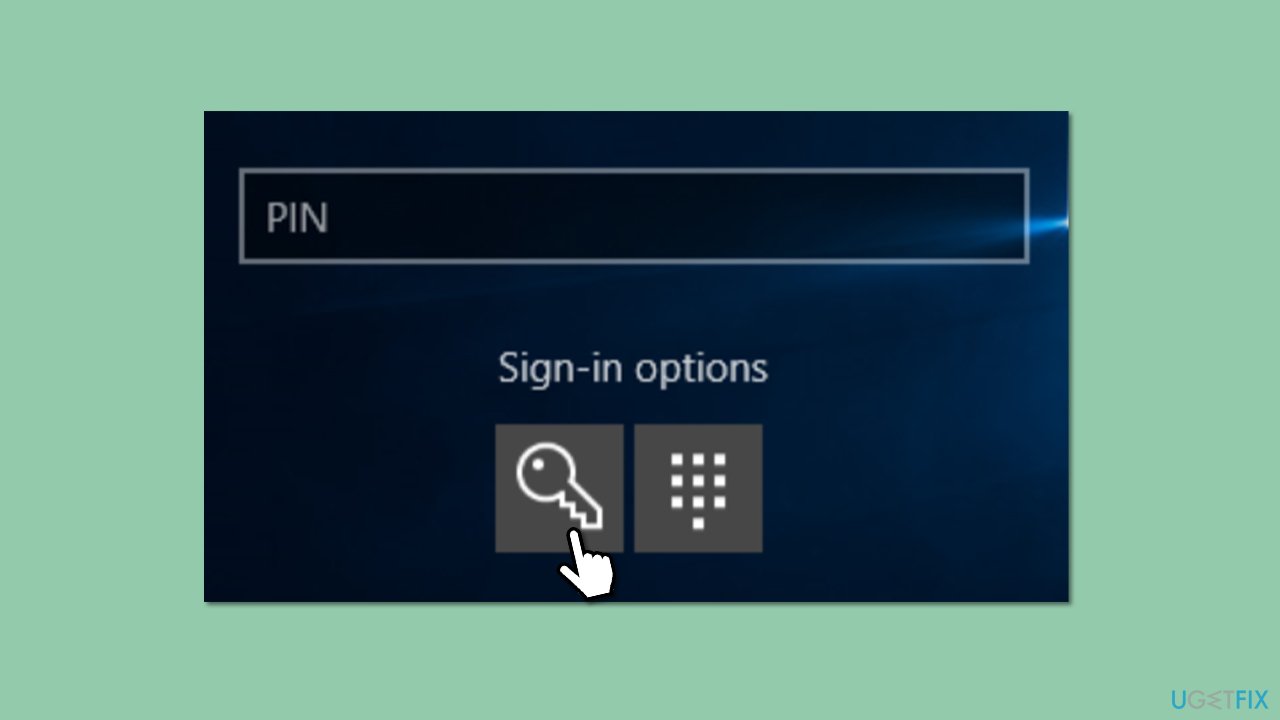
1. Login using a password or another authentication method
You may attempt to use a different sign-in method if you have configured multiple options for logging in, such as a PIN, password, or biometric authentication. For instance, if you typically sign in using a PIN, you could try accessing your account with your password or biometric authentication (if it's supported).
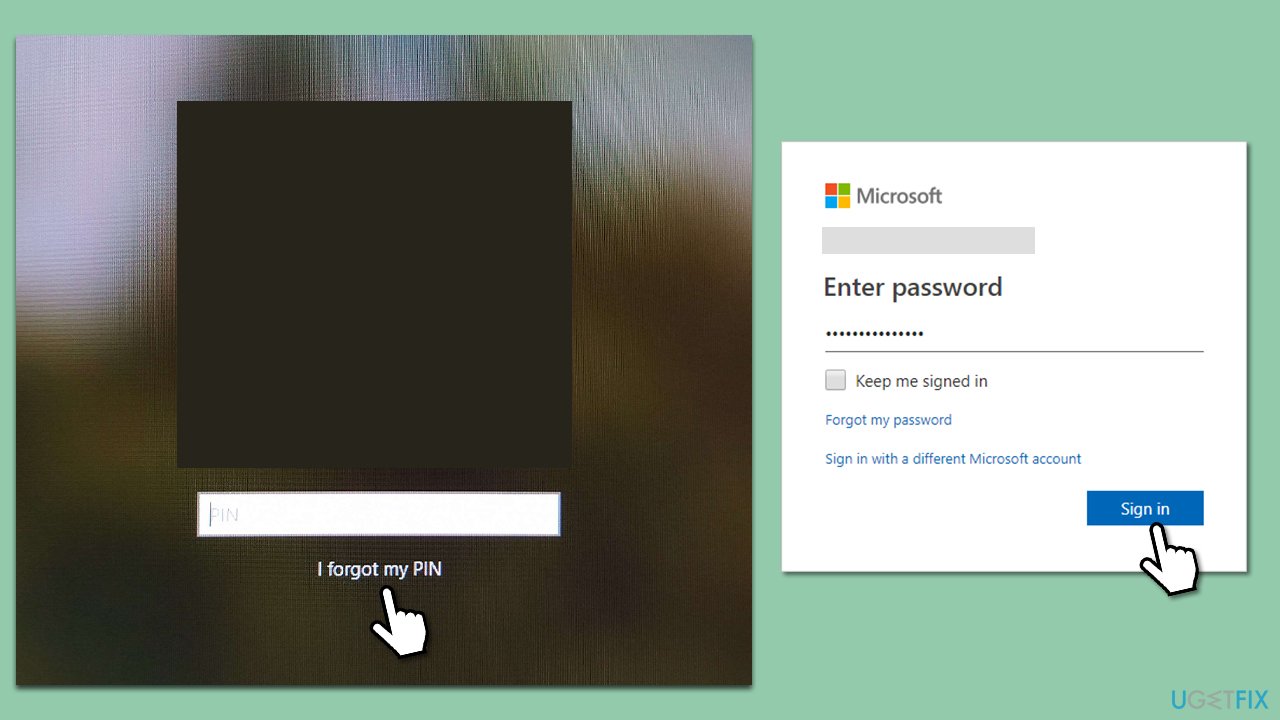
2. Use I forgot my PIN/password option
- From the login screen, click on I forgot my password/PIN.
- In a few moments, Windows will show you the login screen.
- Here, enter the password for your Microsoft account and click Sign in.
- If you can't remember your Microsoft password, you should click Forgot password?
- In the verification method screen, pick your email and click Next.
- Enter the verification code sent to your email and click Next.
- Create a new password and log back in.
3. Remove your PIN in Safe Mode
If you would like to get rid of the PIN/password for now, you can do so by accessing Safe Mode.
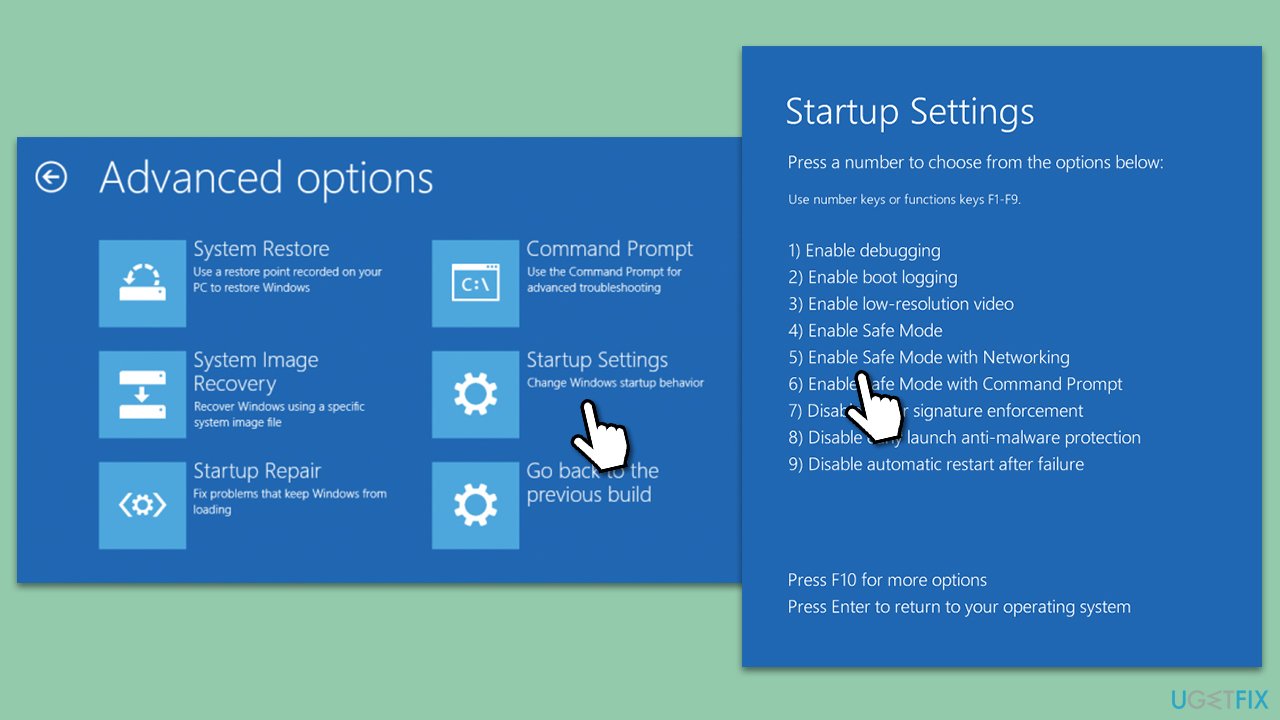
- In the Windows sign-in screen, press and hold the Shift key, then click Power > Restart.
- After a reboot, you will be presented with several options - pick Troubleshoot.
- Go to Advanced options > Startup Settings and then pick Restart.
- After a reboot, pick either 4/F4 for Safe Mode or 5/F5 for Safe Mode with Networking.
4. Use Command Prompt to alter permissions
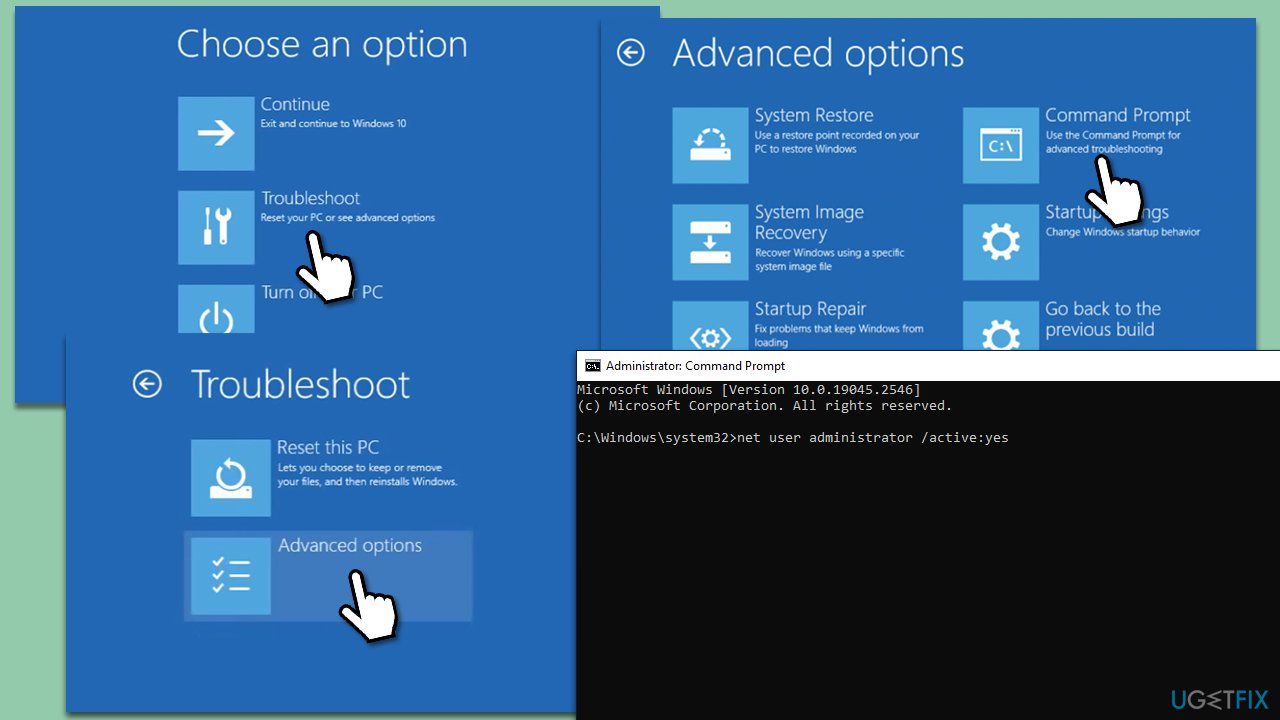
If you can't log in to Safe Mode or other methods, you can try using commands in Command Prompt. Here's how:
- Follow the steps in the previous method to access Advanced options.
- Select Command Prompt.
- Here, type in the following commands, pressing Enter after each:
net user administrator /active:yes
icacls.exe /reset - Close down Command Prompt and log in as normal.
5. Prevent the "Your credentials could not be verified" message from showing up next time
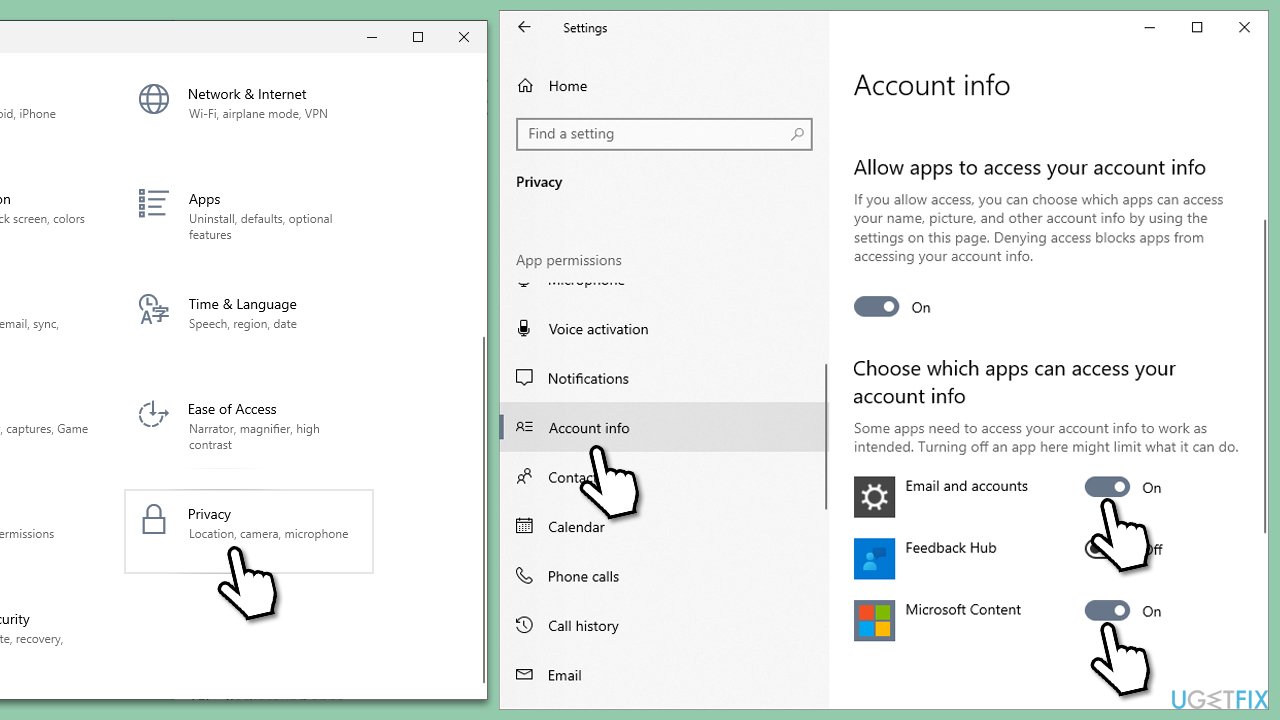
Once You've logged in, to resolve the issue, you should change permissions on your account as follows:
- Click on Start and pick Privacy.
- Go to the Account info section.
- Under Choose which apps can access your account info section, enable Email and accounts and Microsoft Content options.
6. Reinstall Windows
If none of the solutions above help and you still can't log in to Windows, your last option is to reinstall Windows. There are several ways you can do this, depending on your situation. You can check out our article on how to reset Windows or follow these steps to create a bootable ISO, which you will need another computer for:
- Download Windows 10 installation media (Windows 11 version) from the official Microsoft website.
- Double-click the installer to launch it.
- Agree to Terms and select Next.
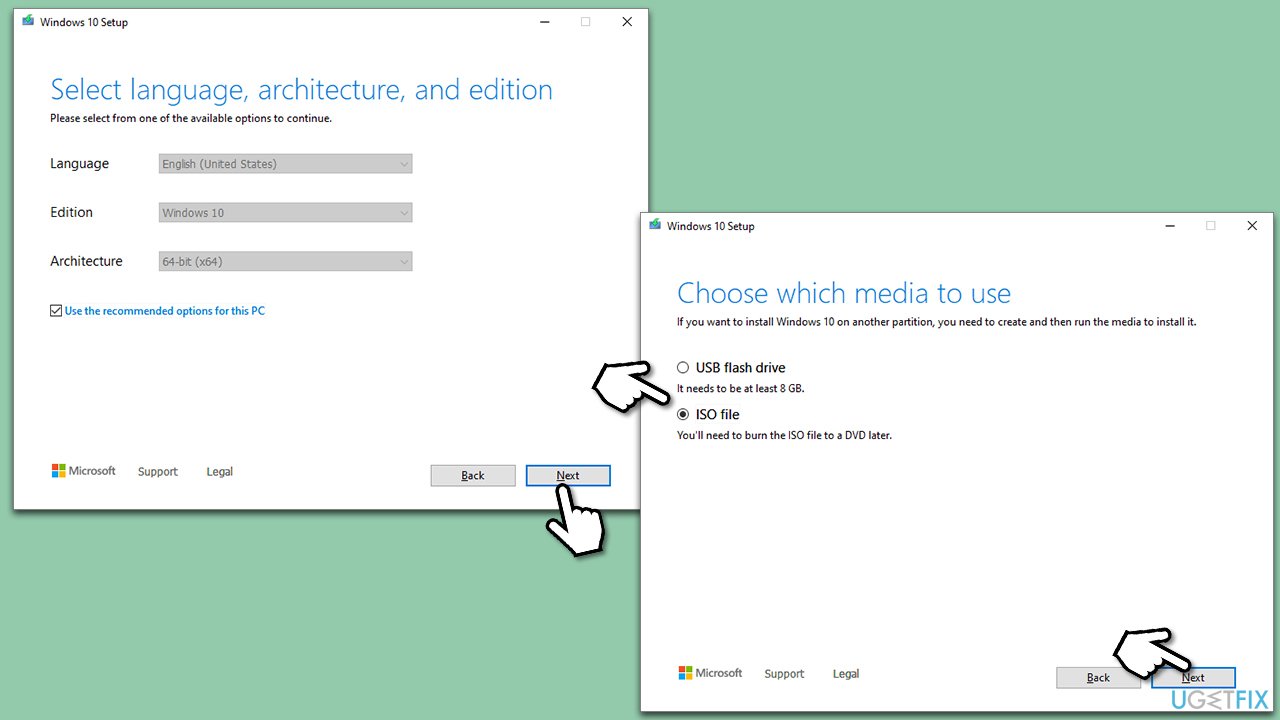
- Select Create installation media (USB flash drive, DVD or ISO file) for another PC and click Next.
- Pick a USB flash drive (make sure you have USB connected to your PC).
- Mark the Use Recommended options for this PC checkbox and click Next.
- Connect the USB to the PC that you are having trouble with.
- Boot into BIOS (typically by pressing F2, F8, F12, Del, or another key several times) and go to Boot menu.
- Here, select the Boot priority option and set it to USB.
- Restart the computer.
- When the system boots, you should see the Install now option - click it.
- Pick all the preferences and click Next.
- Skip Windows activation for now - select I don't have a product key.
- Select the correct operating system version.
- Select an option to keep your files and follow the prompts to begin the installation process.
Bottom line
To resolve the 'Your credentials could not be verified' error, you can reset your PIN in Safe Mode, switch to a local account, clear the NGC folder, modify its permissions, reset ACLs via Command Prompt, or change the Credential Manager service to Automatic. If these solutions do not work, consider performing a system restore, repair, or clean install.
Frequently asked questions
Try resetting your password using the Microsoft account recovery page, or if you're using a local account, boot into Safe Mode and change your password.
Ensure that your Wi-Fi password is correct and update your network adapter drivers through Device Manager.
Clear the Microsoft Store cache by running 'wsreset.exe' in the Run dialog, then restart your computer and try accessing the Store again.




Report an issue
What's wrong with this guide? We review every report and update or remove content.
Report received — thank you. We'll review and fix it.
You need a free account to submit a report.
Be the first to comment