How to fix
Remove previous Windows installations
on Windows
Easily reclaim storage by removing previous Windows 10 or 11 installations. Follow our expert-tested guide for a clutter-free system, fixed in minutes.

Why does How to remove previous Windows installations occur?
- Previous installations consume significant hard drive storage space
- Slower system performance due to accumulated files
- Longer boot times caused by excess data
- Limited storage space on older computers
- Potential issues with system stability after updates
Repairs Windows system files, removes malware, and restores a clean OS state — without reinstalling.
Hello. Is there a way to delete previous Windows installations to free up space?
Windows is a popular operating system that is used by millions of people around the world. Windows, which was created by Microsoft, is well-known for its user-friendly interface, extensive software support, and powerful features, which make it suitable for a wide range of tasks, from personal computing to business and enterprise applications.
One of the features offered by Windows is the ability to save previous installations to the system drive. In the event that the current installation fails, users can revert to a previous version of Windows. For example, if a new update causes problems with your system, you can restore it to a stable state by using a previous installation.
However, previous installations can consume a significant amount of hard drive storage space. This can result in slower system performance, longer boot times, and less disk space for other files over time. This can be especially troublesome for users who have limited storage space or older computers with slower hardware.
To address this issue, it is recommended that previous Windows installations be removed in order to free up hard drive space, improve system performance, and speed up the boot process. To remove previous Windows installations, use the built-in Disk Cleanup utility, configure Storage Sense, use the Command Prompt, or use third-party disk management tools.
It is critical to note that before removing previous Windows installations, you must ensure that you no longer require a previous version of Windows. This can be accomplished by ensuring that the current version of Windows is stable and functional, as well as backing up critical files and data.
Once you've determined that removing previous Windows installations is safe, you can use one of the methods listed below to free up hard drive space. To avoid accidentally deleting important files or system components, carefully follow the instructions.
Method 1. Storage Sense
Storage Sense is a Windows feature that automatically frees up storage space on your device by deleting temporary and unnecessary files, such as temporary internet files and recycle bin files. It can also remove outdated Windows versions as well as unused apps and games. Storage Sense can be set to run automatically or manually, depending on your preferences.
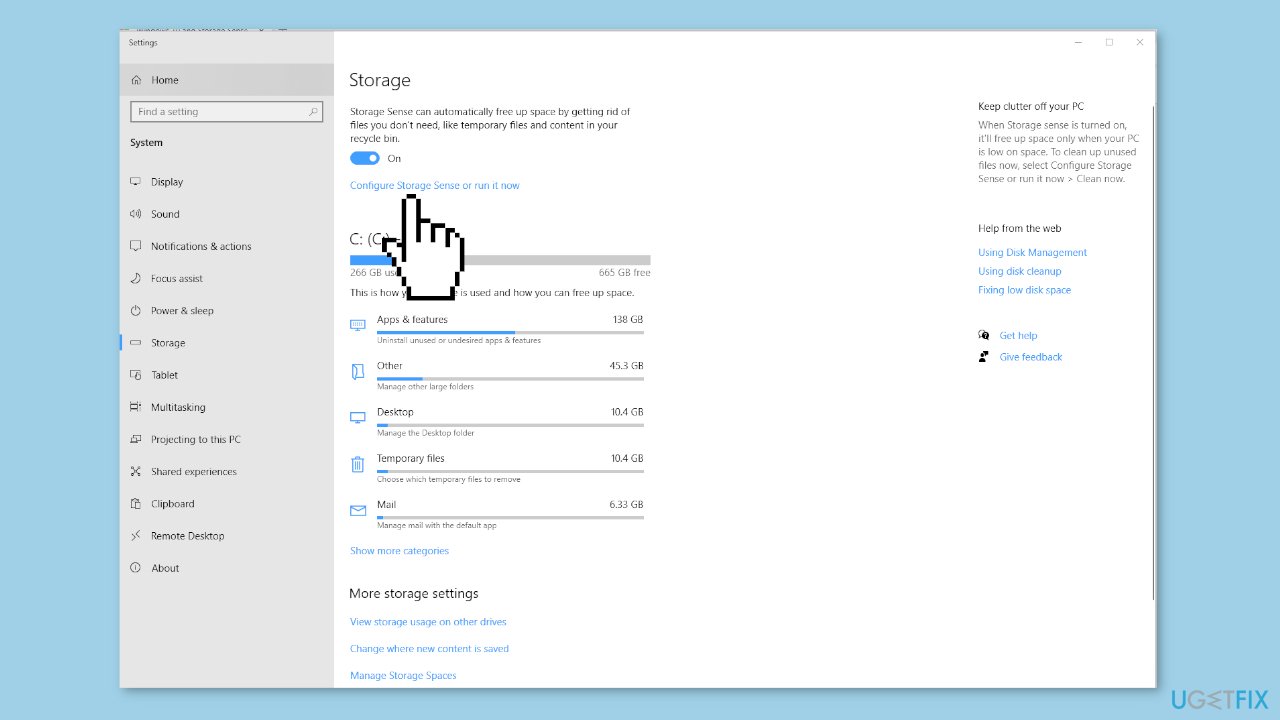
- Open the Settings app.
- Click on the System tab.
- In the left pane, click on the Storage option.
- In the right pane, click on the Configure Storage Sense or run it now option.
- Scroll down the list on the next screen.
- Select the Delete previous versions of Windows option.
- Click on the Clean now button.
- Wait for Storage Sense to remove all the files related to the previous Windows installation from your computer.
Method 2. Disk Cleanup
Disk Cleanup is a built-in Windows utility that helps you free up hard drive space by deleting temporary files, system files, and other unnecessary files. It also has the ability to compress old files and clean up the Windows Update files. You can use Disk Cleanup to manually free up space or set it to run automatically.
- Click on the Start button.
- Type Disk Cleanup in the Search bar.
- Right-click on the Disk Cleanup app.
- Click on Run as Administrator.
- When prompted, enter your Admin Password.
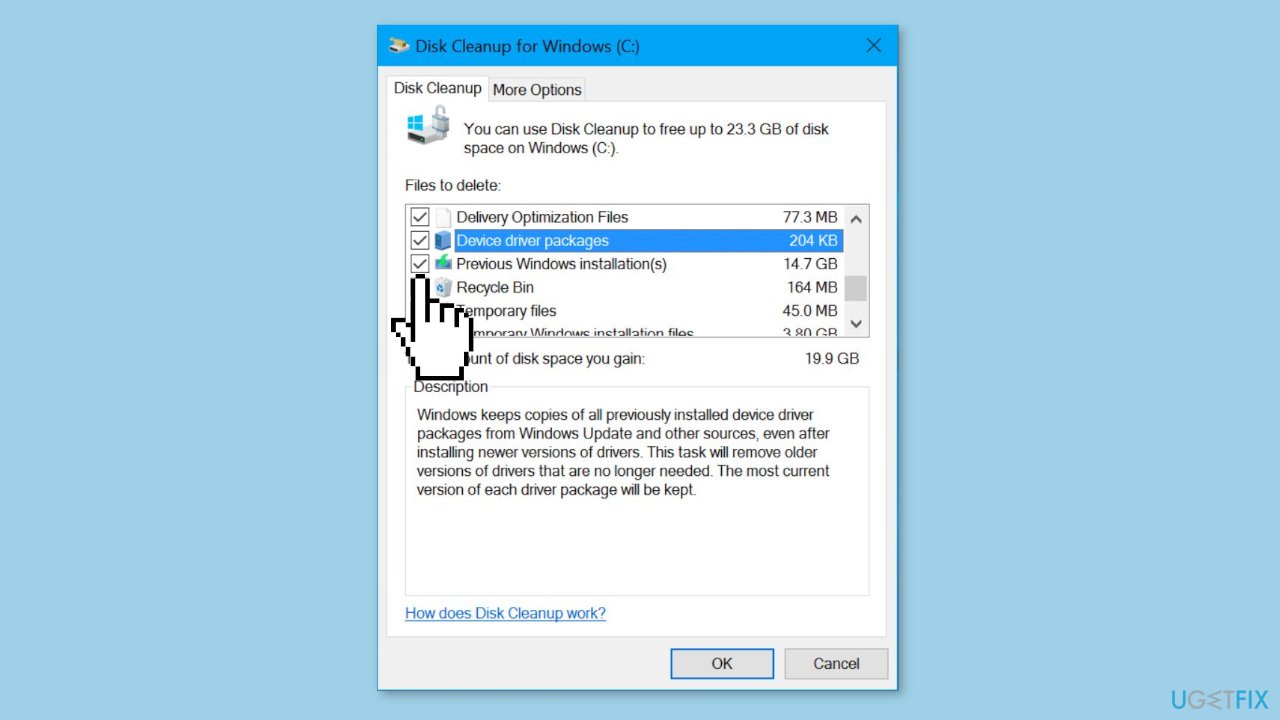
- Wait for Windows to calculate the amount of storage space that can be saved on your computer.
- On the next screen, select Previous Windows Installations.
- Click on OK.
Method 3. Command Prompt
In Windows, Command Prompt is a command-line interface that allows users to execute commands and perform tasks by using text-based commands rather than a graphical interface. It provides a direct way to interact with the operating system and can be used to perform various tasks, such as managing files and directories, configuring network settings, and troubleshooting issues.
- Right-click on Start.
- Click on Command Prompt (Admin).
- On the Command Prompt window, type:
RD /S /Q %SystemDrive%\windows.old
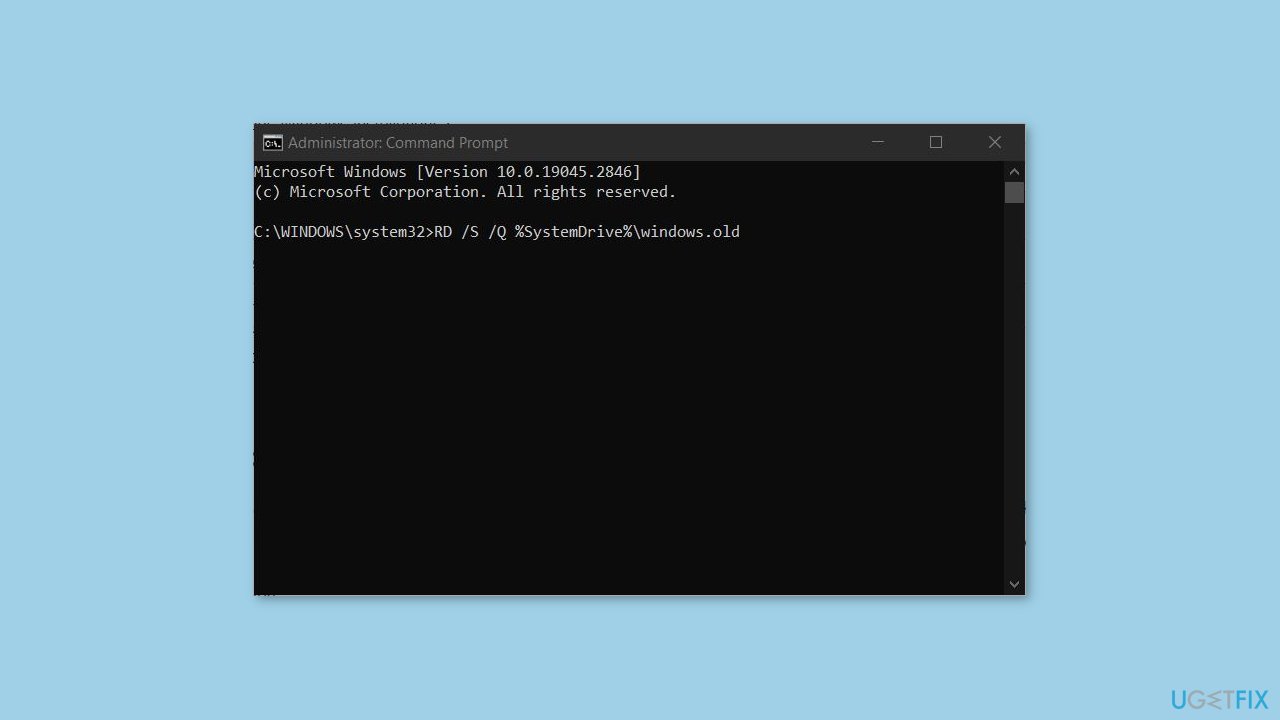
- Press the Enter key on the keyboard of your computer.
- Wait for the command to be completed. It usually takes a few minutes to complete.
- Do not close the Command Prompt window until you get to the next prompt.
Bottom line
To remove previous Windows installations, you can use the built-in Disk Cleanup utility, configure Storage Sense, use the Command Prompt, or third-party disk management tools. Ensure that your current version of Windows is stable and back up critical files before proceeding. If none of these methods work, consider seeking professional assistance.
Frequently asked questions
To remove previous Windows installations on Windows 10, go to Settings > System > Storage, then select 'Temporary files' and check 'Previous version of Windows' before clicking 'Remove files.'
Yes, it is safe to delete old Windows installations on Windows 11 if you are sure you won't need to revert to them, as this can free up significant disk space.
Before removing previous Windows installations, ensure you have backed up important files and created a recovery drive for Windows 10 or Windows 11 in case you need to restore your system.




Report an issue
What's wrong with this guide? We review every report and update or remove content.
Report received — thank you. We'll review and fix it.
You need a free account to submit a report.
Be the first to comment