How to fix
Action Center if It Won’t Open
on Windows
Resolve Action Center issues on Windows 10 or 11 effortlessly. Get expert-tested solutions and restore functionality quickly, with zero traces left.

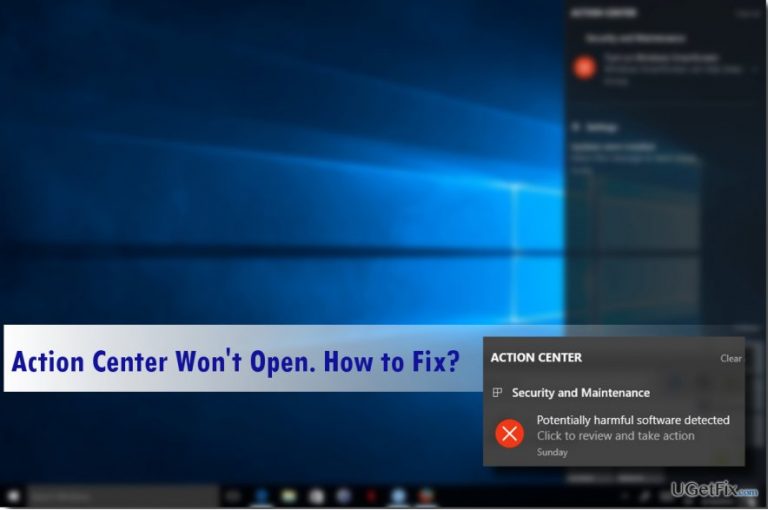
What causes How to Fix Action Center if It Won’t Open?
- Action Center icon is grayed out
- No new notifications despite pop-up alerts
- Other icons in the system tray are inactive
- UsrClass.dat file may be corrupted
- Registry issues preventing access to Action Center
Repairs Windows system files, removes malware, and restores a clean OS state — without reinstalling.
I used to receive a pop-up „New Notifications“ on the Action Center, but when I open it, there are no new notifications. Unfortunately, but for the past couple of days, I can‘t access the Action Center at all. It seems that the other icons in the system tray are also inactive. What should I do?
Action Center is a Windows feature that was first introduced by Windows XP operating system. It keeps PC users informed about the condition of the system and the urgent tasks that he/she has to perform. When the Action Center has an alert, for example, about an available installation of a Creators Update, the Action Center displays a small pop-up box saying „New Notifications.“ The icon of Action Center looks like a small text box. Since it is not always placed on the taskbar, you should certainly notice the „newcomer.“ To check for the new notifications, the PC owner has to click on the Action Center icon. On the one hand, this feature is useful as it keeps the user informed about the current state of the system. On the other hand, Action Center pop-ups may become annoying. Many people reported that pop-ups like „Windows Defender needs to scan your PC“ remains on the taskbar even if the user opens the Action Center and checks it. Besides, Action Center may display perverse notifications, which report about „New Notifications“ while in reality, there are no new notifications all. Recently, several people reported the service for being unavailable. The Action Center icon is grayed out and does not respond. Luckily, here is a couple of things that you can do to fix Action Center errors on Windows quite easily.
Method 1. Rename the Usrclass.dat File
- Press Windows key + R, type %localappdata%\Microsoft\Windows, and press Enter.
- Scroll down and locate the UsrClass.dat file.
- Right-click it, select Rename, and type UsrClass.old.dat.
- If you receive an error message saying „The action can't be completed because the folder or a file in it is open in another program,“ you should perform a quick Registry tweak.
- Press Windows key +R, type regedit, and press Enter.
- Use the left pane to navigate to the HKEY_CURRENT_USER\Software\Policies\Microsoft\Windows\CurrentVersion\Explorer directory.
- Right-click on the Explorer key and select New -> DWORD Value.
- Name the new value as DisableThumbsDBOnNetworkFolders.
- Double-click on the newly created value and set it to 1.
- Press Enter and close Registry Editor.
- After that, try to rename the UsrClass.dat file as explained by the 1-3 steps above.
Method 2. Use an Elevated PowerShell to Disable Development Mode
- Open Search and type Powershell.
- Right-click on the Windows PowerShell option and select Run as Administrator.
- Type the below-given command and press Enter after it:
Get-AppxPackage | % { Add-AppxPackage -DisableDevelopmentMode -Register "$($_.InstallLocation)\AppxManifest.xml" -verbose } - To save the changes, it‘s advisable to reboot the system.
If neither of the two Action Center fixes helped, we would recommend you to reset your Windows OS. Don‘t worry. It‘s possible to do that without loosing personal information. You can find information on how to do that on this post.
TIP: we would also strongly recommend checking your PC with [d1], which is a professional PC optimization tool. The Action Center bug may be influenced by the clogged system, damaged registries, or missing system files, so a scan with Reimage would easily solve such issues.
Bottom line
To fix the Action Center issues, you can rename the UsrClass.dat file and perform a Registry tweak if you encounter an error. If these methods do not resolve the problem, further troubleshooting may be necessary.
Frequently asked questions
Try restarting the Windows Explorer process through the Task Manager, as this can often resolve the issue with the Action Center not opening.
You can reset Action Center settings by running the 'Get-AppxPackage' command in PowerShell, which reinstalls the apps related to the Action Center.
Yes, you can use the 'sfc /scannow' command in Command Prompt to repair system files that might be causing the Action Center to malfunction.




Report an issue
What's wrong with this guide? We review every report and update or remove content.
Report received — thank you. We'll review and fix it.
You need a free account to submit a report.
Be the first to comment