How to fix
Microsoft Store error 0x803F7003
on Windows
Resolve the Microsoft Store error 0x803F7003 on Windows 10 and 11 easily. Get expert-tested solutions to fix it in minutes and enjoy seamless downloads.

What causes How to fix Microsoft Store error 0x803F7003?
- Network inconsistencies
- Server issues
- Corrupted system files
- Poor internet connection
- Incorrect system configuration
Repairs Windows system files, removes malware, and restores a clean OS state — without reinstalling.
So I was trying to update an app via Microsoft Store because I was having some problems with it. To my disbelief, I now can't update it because I get a 0x803F7003 error. What should I do now?
Microsoft Store, a crucial part of the Windows operating system, serves as a digital distribution platform for users to easily download, install and update software applications. With its user-friendly interface, it offers a diverse selection of apps, games, and even multimedia, such as music, movies, and TV shows, all in one convenient location.
Despite its profound usefulness and well-structured design, it is not immune to occasional glitches and errors. One such problem that some users may encounter is the Microsoft Store error code 0x803F7003. This particular error typically arises when attempting to download or update applications, disrupting the smooth operations that users are accustomed to.
Error 0x803F7003 essentially reflects a communication issue between your device and the Microsoft servers. It is generally provoked by network inconsistencies, server issues, or, occasionally, due to corrupted system files.
The root cause can be multifaceted, ranging from temporary server outages, which are beyond the user's control, to something as straightforward as a poor internet connection. Sometimes, the error may be the result of system file corruption or incorrect system configuration, which can make it challenging for the Microsoft Store to retrieve or update data from the server.
Though this error can cause frustration, especially when urgently needing to install or update an application, solutions are within reach. The user can try several methods, including resetting the Microsoft Store cache, checking and ensuring a stable internet connection, or even performing a system scan for corrupted files.
All these instructions for troubleshooting the 0x803F7003 error and more can be found in the sections below this article. Remember, patience and methodical troubleshooting are often key to resolving such issues.
In addition, it is worth noting that using tools like the [d1] PC repair tool could be beneficial. This particular software does not directly fix the error 0x803F7003, but it is capable of resolving a plethora of other issues that could indirectly influence the smooth running of the Microsoft Store.
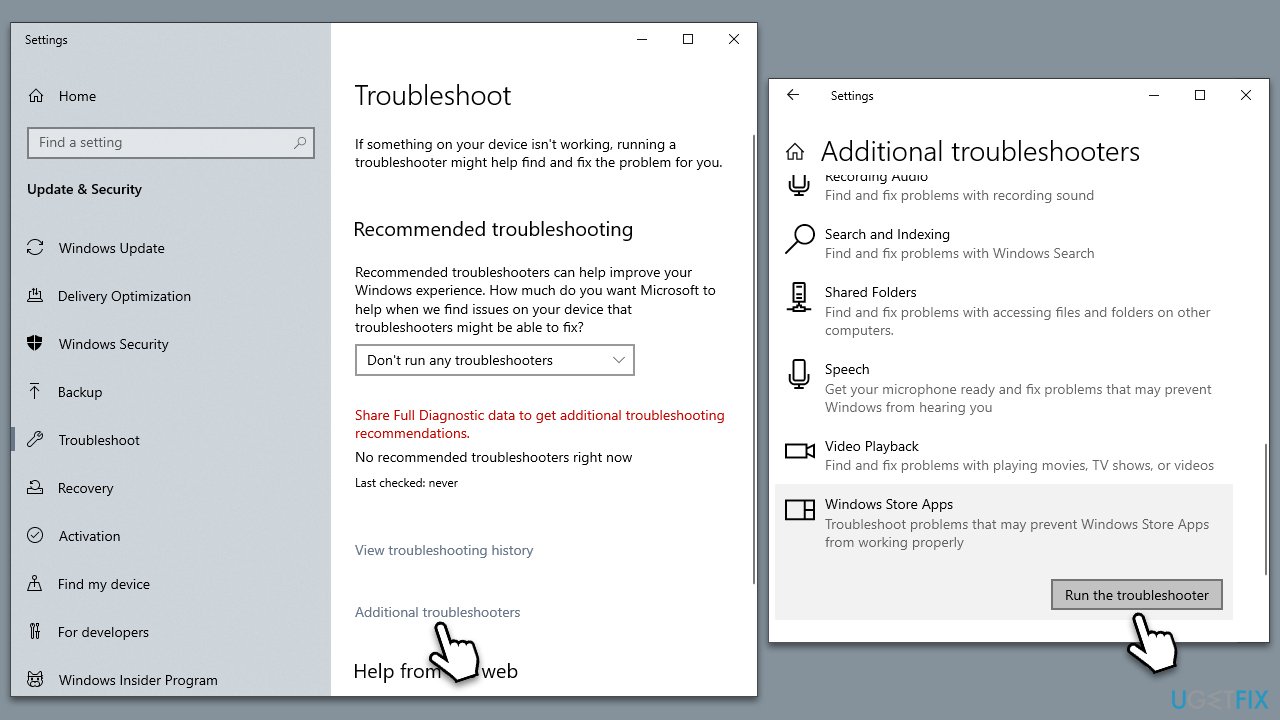
Fix 1. Start with Windows Store Apps troubleshooter
Windows Store Apps troubleshooter is a built-in tool designed to identify and automatically fix issues with Windows Store and its apps. It works by scanning for problems and applying pre-defined solutions.
- Type troubleshoot in Windows search and press Enter.
- On the right, choose Additional troubleshooters/ Other troubleshooters.
- Find Windows Store Apps and click Run the troubleshooter.
- Wait till the process is finished and apply the suggested changes.
Fix 2. Install all Windows updates
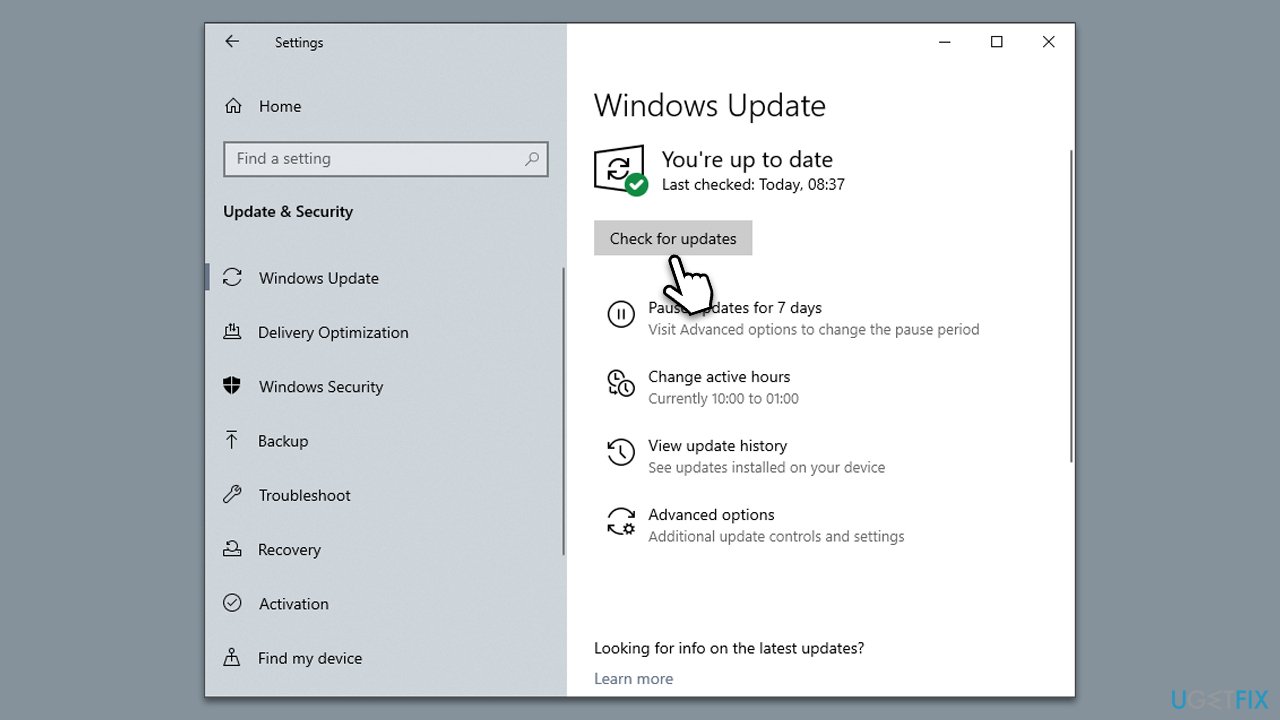
Keeping your system updated ensures that you have all the necessary patches and improvements that Microsoft has released. Sometimes, certain updates can fix issues with Windows Store and its apps.
- Type Updates in Windows search and press Enter.
- In this window, click Check for updates.
- If optional updates are available, install them too.
- When everything is installed, restart your system.
Fix 3. Reset Store cache
Resetting the Store cache can help resolve issues caused by corrupt or outdated cache files. This process refreshes the Store app and can remove any temporary files causing the error.
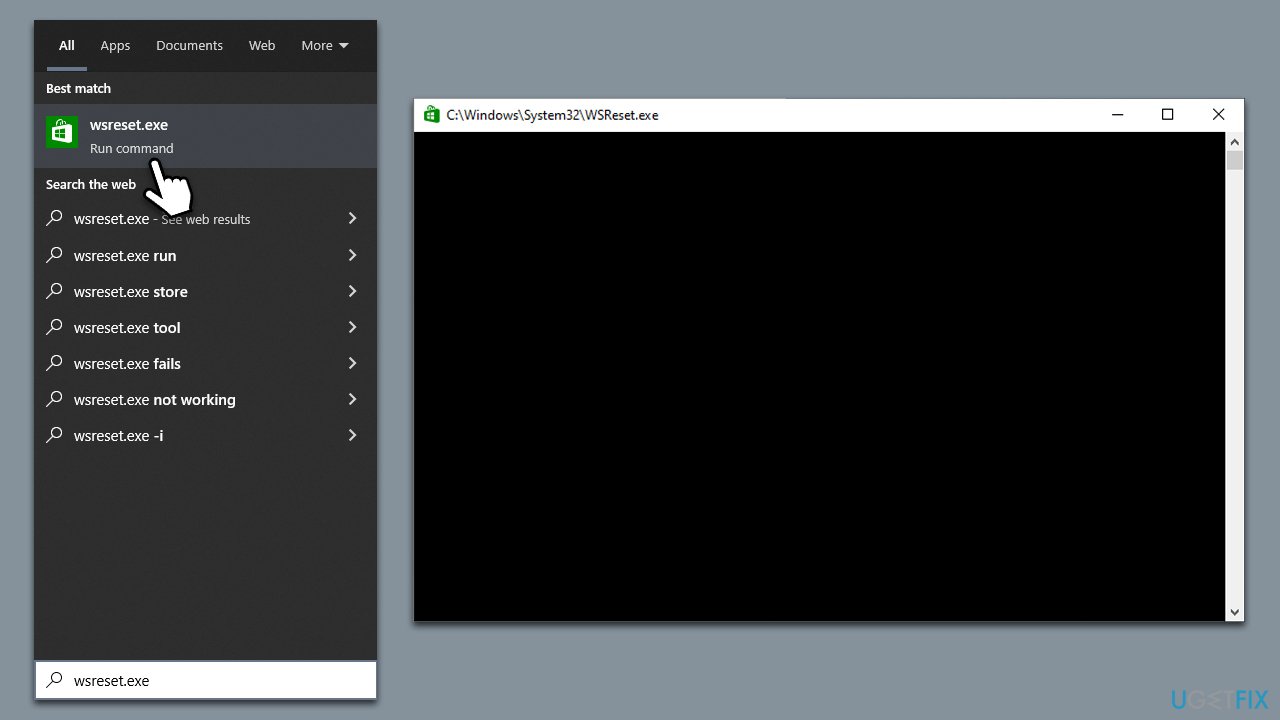
- In Windows search, type wsreset.exe and press Enter.
- Wait till a black window shows up – do not close it.
- Once it's gone, Microsoft Store should restart
- Try using the Store again.
Fix 4. Run SFC and DISM scans
System File Checker (SFC) and Deployment Image Servicing and Management (DISM) are system utilities that can repair corrupted or damaged system files, which could be causing the error.
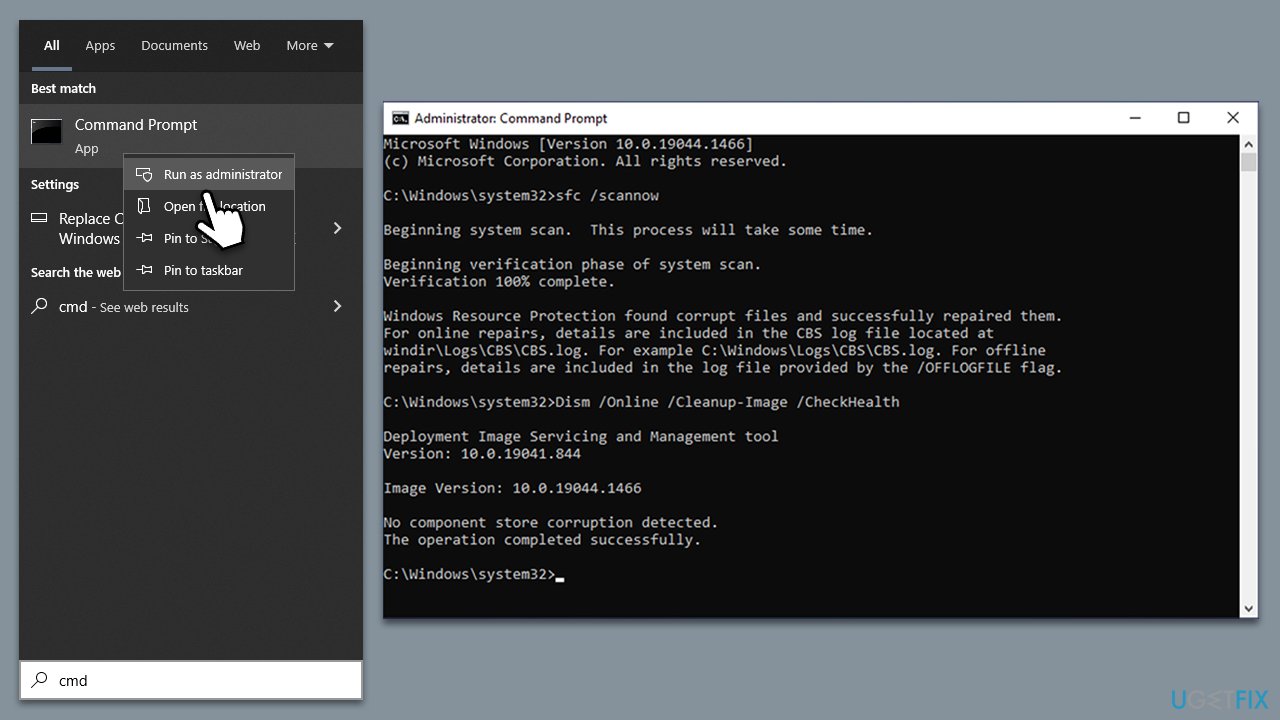
- Type cmd in Windows search.
- Right-click on Command Prompt and pick Run as administrator.
- When UAC asks you whether you want to make changes, agree by pressing Yes.
- Next, copy and paste the following commands, pressing Enter each time:
sfc /scannow
DISM /Online /Cleanup-Image /CheckHealth
DISM /Online /Cleanup-Image /ScanHealth
DISM /Online /Cleanup-Image /RestoreHealth
(Note: if you get an error executing the last command, add /Source:C:\RepairSource\Windows /LimitAccess to it and try again.) - Restart your computer.
Fix 5. Repair or reset Microsoft Store
Repairing or resetting the Microsoft Store can fix issues by restoring the app to its default settings.
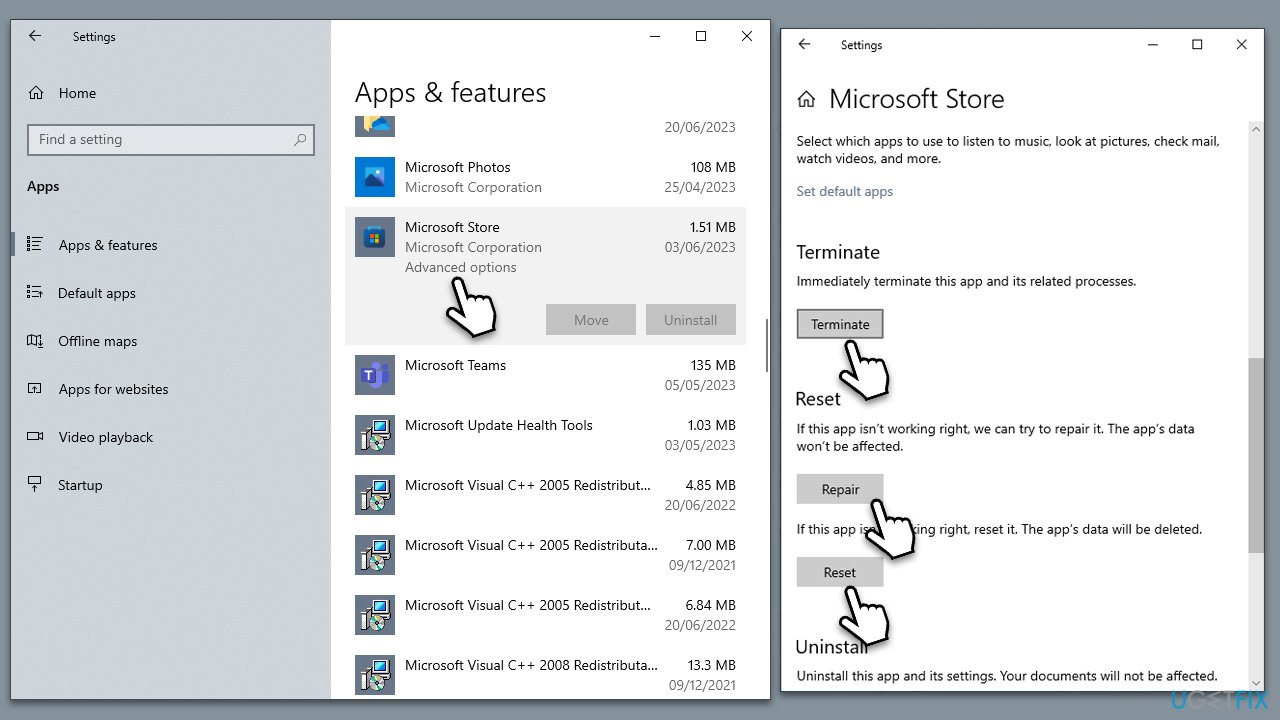
- Right-click on Start and select Apps & Features.
- Scroll down to find Microsoft Store and click Advanced options.
- Scroll down again and click Terminate and Repair.
- If that does not work, try using Reset.
Fix 6. Reinstall the Store app
As a last resort, reinstalling the Store app might help if all the above solutions fail. This should provide a clean installation of the app.
- Power PowerShell as administrator again.
- In the new window, copy and paste the following command, pressing Enter after:
Get-AppxPackage Microsoft.WindowsStore | Remove-AppxPackage - With the next command, you can install the Store:
Add-AppxPackage -register "C:\Program Files\WindowsApps\Microsoft.WindowsStore*\AppxManifest.xml" -DisableDevelopmentMode - Press Enter and close down PowerShell.

Bottom line
To fix the Microsoft Store error 0x803F7003, you can try resetting the Microsoft Store cache, ensuring a stable internet connection, or performing a system scan for corrupted files. If these methods do not resolve the issue, consider using a PC repair tool for further assistance.
Frequently asked questions
Error 0x803F7003 typically indicates that Windows cannot find the app you are trying to download or update from the Microsoft Store, often due to issues with your internet connection or the Store itself.
To fix this error, try resetting the Microsoft Store cache by running the command 'wsreset.exe' in the Run dialog, or check for Windows updates that might resolve underlying issues.
Uninstalling the Microsoft Store is not straightforward, but you can reset it through PowerShell commands, which often resolves the error without needing to fully reinstall.




Report an issue
What's wrong with this guide? We review every report and update or remove content.
Report received — thank you. We'll review and fix it.
You need a free account to submit a report.
Be the first to comment