How to fix
Use the Steam Notes feature
on Windows
Maximize your gaming experience on Windows 10 and 11 with Steam Notes. Discover tips for optimization and customization, expert-tested for best results.


Why does How to use the Steam Notes feature occur?
- In-game overlay is disabled
- User is unaware of how to access Steam Notes
- Notes feature not enabled in settings
- User does not know how to navigate to the Notes tab
- Game-specific notes are not being utilized
Repairs Windows system files, removes malware, and restores a clean OS state — without reinstalling.
Hello. I heard about the new Steam Notes feature but I am not sure how I can use it. Any tips would be appreciated.
Valve, the company behind the popular gaming platform Steam, recently released a major update in June 2023,[ref en-1] bringing significant changes to the platform's overall look as well as a number of new features. Among these updates is the Steam Notes feature, a simple but useful tool integrated into Steam's in-game overlay.
This simple addition has the potential to significantly improve players' gaming experiences, regardless of whether they engage in casual gaming or spend countless hours immersed in their favorite titles. Users can easily take notes and access them while gaming with Steam Notes, providing a versatile and accessible solution for a variety of needs.
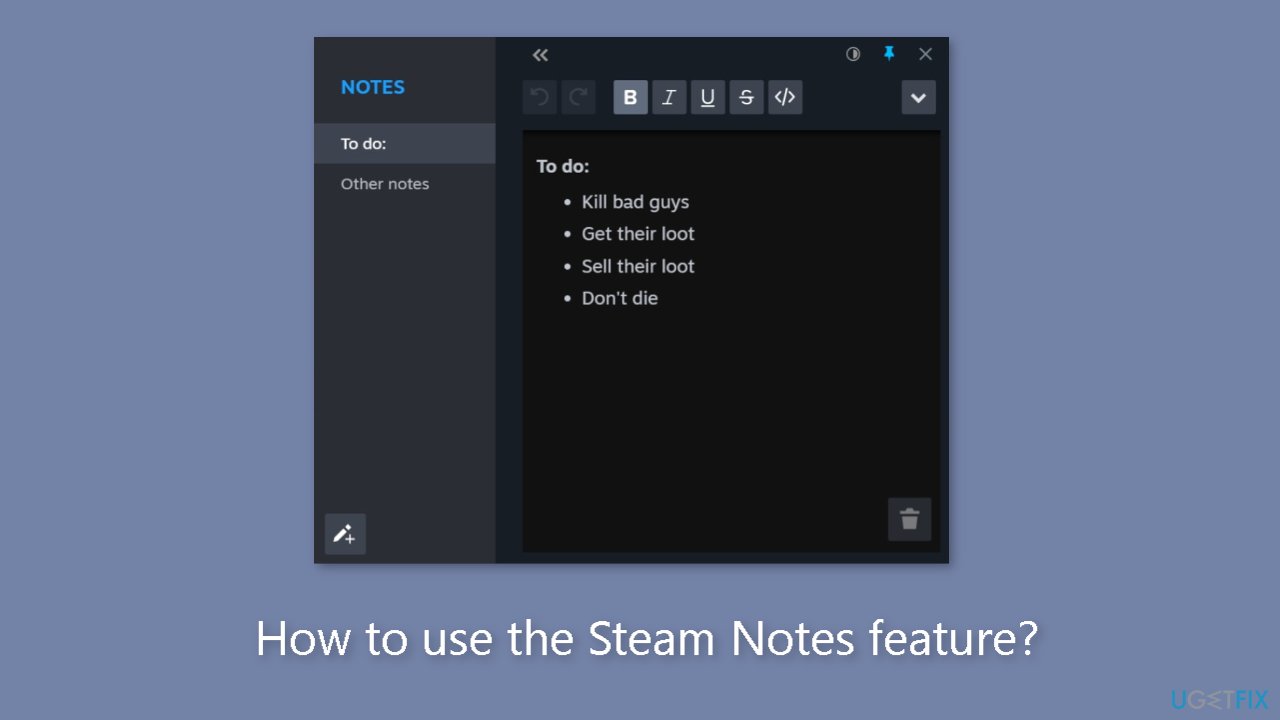
Steam Notes is more than just a simple note-taking app; it also includes a powerful text editor with a variety of features. Formatting options, spell-checking, hyperlinking, code text capabilities, the ability to pin notes, and other features are included. The addition of this feature elevates Steam Notes beyond mere scribbles, transforming it into a dynamic tool that allows users to create well-structured, informative notes that can significantly improve their gameplay.
Access Steam Notes
Users must first enable the in-game overlay before they can use the Steam Notes feature. Despite the fact that the overlay is enabled by default, users who have previously disabled it can easily reactivate it via the settings page.
- Click on Steam in the upper-left corner of the Steam app.
- Select Settings from the drop-down menu.

- Within the Settings window, navigate to In Game.
- Enable the Steam Overlay option.
Once the overlay is active, you can access Notes while playing a game by launching it and pressing Shift + Tab to reveal the overlay. Locate the pencil icon at the bottom of the overlay and click on it to access the Notes tab. You can also access and create notes specific to a specific game by checking the game details.
What to do with Steam Notes?
Because of Steam Notes' versatility, users can use it in a variety of scenarios. Its simplicity and versatility enable users to discover innovative solutions tailored to their specific gaming requirements. Steam Notes can be an invaluable tool for organizing important game information, capturing and referencing visual elements, simplifying learning processes, and even creating and sharing comprehensive guides.
Organize Game Information
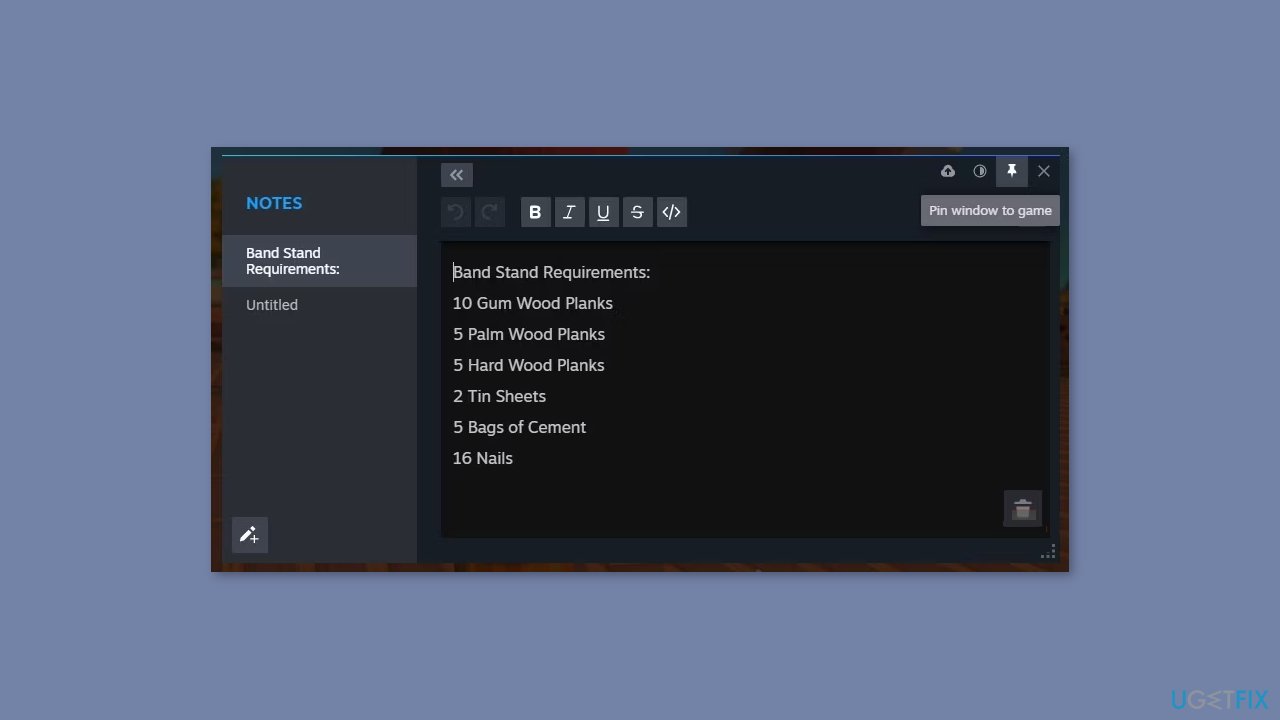
Steam Notes is an excellent tool for organizing and managing important game-related information. It is a convenient way to keep track of crafting recipes, quest objectives, and useful hints. Assume you're playing Dinkum, a game with complex building requirements. You can use Steam Notes to create detailed notes outlining the materials, steps, and prerequisites required to build specific buildings.
By pinning these notes, they remain visible on the screen even after the overlay is closed. This allows you to quickly access critical information during gameplay, allowing you to progress without constantly referring back to external sources or guides.
Visual Reference Points
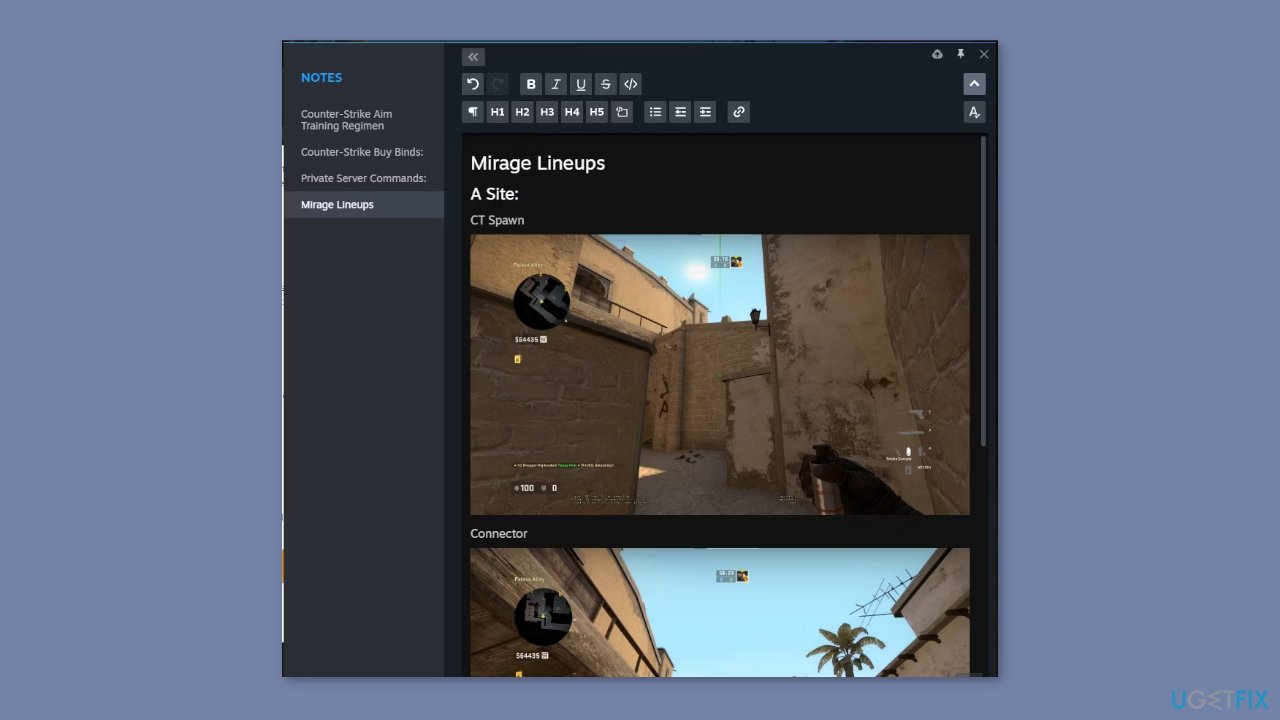
Visual cues can sometimes be more effective than written descriptions alone. Because of this, Steam Notes allows users to capture and integrate screenshots directly into their notes. This function is extremely useful for marking game secrets, documenting significant locations, and preserving critical moments.
Assume you come across a hidden treasure chest in a large open-world game. You can capture a screenshot and paste it into a Steam Note instead of relying on text-based notes to remember its location. When you're ready to continue exploring, a quick glance at the image provides an instant visual reference, easing your journey without interfering with gameplay.
This feature is especially useful for users who play on devices like the Steam Deck, where typing can be difficult, as visual references are a more efficient way to recall important details.
Simplify Learning Processes
Modifiable games from Valve, such as Garry's Mod, Counter-Strike, and Team Fortress 2, provide extensive customization and advanced configurations. When navigating the learning curve associated with these games, Steam Notes proves to be an invaluable ally.
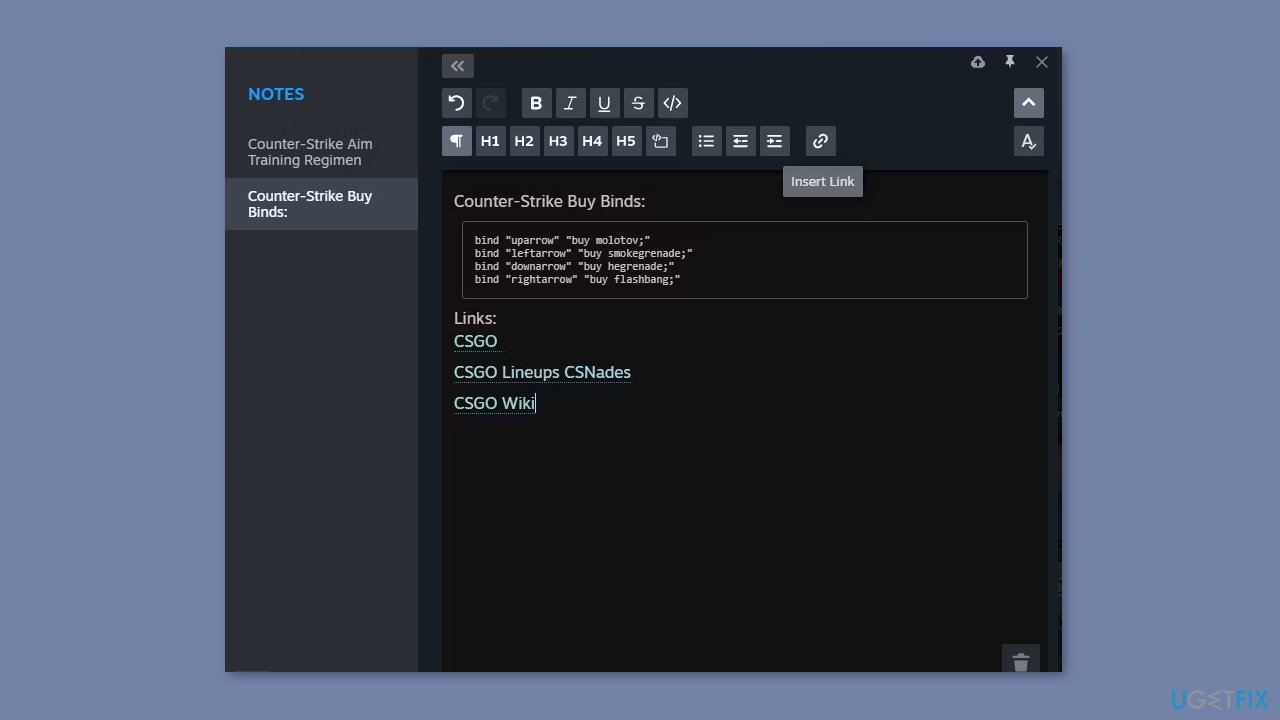
You can directly enter cheat commands, custom keybinds, or server configurations into your notes by using the code text formatting feature. This feature enables you to create a comprehensive library of code snippets that you can easily copy and paste into the game's console whenever necessary.
Steam Notes simplifies the customization process, whether you're trying out new mods, fine-tuning your gameplay, or exploring cheat commands. You no longer need to search through forums or online resources for the specific codes or configurations you require by keeping your notes easily accessible, saving both time and frustration.
Create Guides and Share Knowledge
Because of its powerful text editing capabilities, Steam Notes is an excellent tool for creating structured guides and articles. You can create comprehensive guides with features like headings, hyperlinks, indentation, emphasis, and bullets that offer step-by-step instructions, strategies, or tips for specific games or game modes.
As an avid gamer, you are likely to experience moments of inspiration and valuable insights while playing. Steam Notes allows you to immediately capture these ideas, ensuring that your guides capture the freshness and authenticity of your thoughts. You can easily copy and paste your guide created with Steam Notes into Steam's Guides feature.
This allows you to share your knowledge, strategies, and helpful hints with the larger Steam community, encouraging collaboration and assisting other players on their gaming journeys. You become an active participant in enriching the gaming experience for all by contributing to the collective knowledge base.

Bottom line
To use the Steam Notes feature, ensure the in-game overlay is enabled in the settings and access it by pressing Shift + Tab while playing a game. If you still encounter issues, check the game details for specific notes or re-enable the overlay. If none of these solutions work, consider reaching out to Steam support for further assistance.
Frequently asked questions
To access the Steam Notes feature, open the Steam client, go to the Library, select a game, and click on 'Notes' from the game's menu. Ensure your Steam client is updated to the latest version for optimal performance.
Yes, Steam Notes can be synced across devices as long as you are logged into the same Steam account on each device and have cloud synchronization enabled in the Steam settings.
You can adjust your privacy settings for Steam Notes by going to your Steam profile settings and selecting who can view your notes, ensuring that your notes are shared only with selected friends or kept private.




Report an issue
What's wrong with this guide? We review every report and update or remove content.
Report received — thank you. We'll review and fix it.
You need a free account to submit a report.
Be the first to comment