How to fix
Windows Hello Issues After Creators Update
on Windows
Resolve Windows Hello issues after the Creators Update effortlessly. Get expert-tested solutions that restore your login features in minutes.

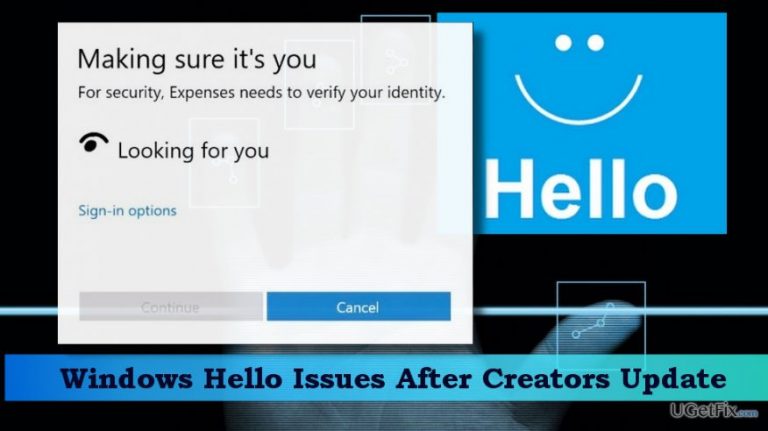
What causes How to Fix Windows Hello Issues After Creators Update?
- Windows Hello feature malfunction after Creators Update
- Incorrect password prompt when using Windows Hello
- Group Policy settings modified by the Creators Update
- Resetting Fingerprint and Facial Recognition options needed
- Users prompted to use PIN or password instead of Windows Hello
Repairs Windows system files, removes malware, and restores a clean OS state — without reinstalling.
I’ve upgraded my Surface Pro 4 to the Windows version 1703 known as Creators Update. The update has been installed without any obstacles, except that immediately after it Windows Hello started malfunctioning. When I try to enter my PIN, I receive a working that my password and user name are incorrect. Eventually, I enter my password and the desktop is successfully booted. However, incorrect password under Windows Hello keeps repeating, so I understand that it’s a kind of bug, isn’t it?
Windows Hello is a new feature developed by Microsoft and represented in Windows 10 operating system. While it hasn’t been very popular in the first year, Microsoft statistics revealed the fact that this new functionality is gaining popularity quickly. Windows Hello is, actually, a security oriented Windows 10 feature, which exhibit a modern log-in requirements, including fingerprint scanning, face recognition using the in-built camera, iris scanning, and other features. To set up Windows Hello, the PC owner simply has to open Settings app, open Accounts -> Sign-in options. After that, opt for Windows Hello and click Set up. However, people who have set up Windows Hello some time ago reported that the feature started malfunctioning right after installing the Creators Update. Now, the Windows Hello features stopped working and, consequently, people are prompted to use PIN or password to log into the system. Luckily, there is a couple of solution methods that you can practice without the interference of a professional IT technician.
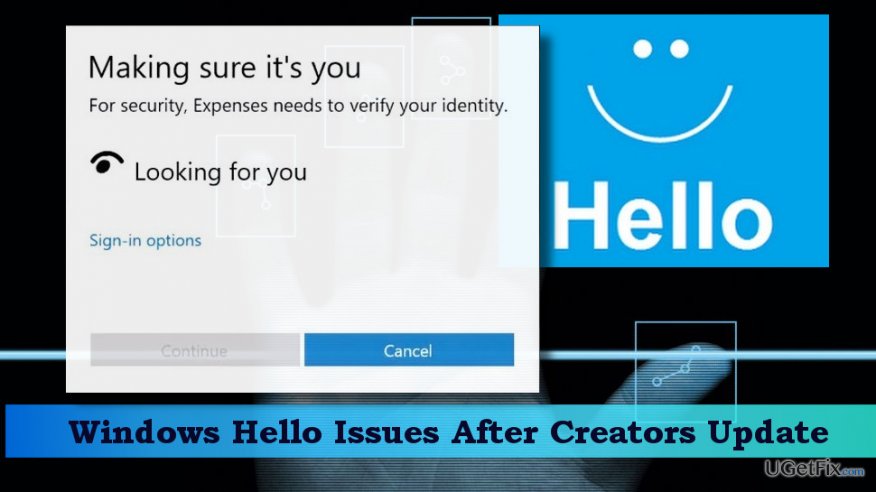
Fixing Windows Hello issues
1. Reset Facial Recognition and/or Fingerprint Options
- Press Windows key + I to open Settings.
- Click Accounts and select Sign-In options.
- Locate Fingerprint or Facial Recognition options and click Remove under them.
- After that, click Get Started and follow the on-screen instructions to reset Fingerprint and Facial Recognition.
- Reboot your PC if needed.
2. Modify Group Policy Settings
Creators Update might have modified some of the crucial settings of Group Policy. Therefore, we would recommend to launch the Group Policy Editor and check/edit the settings related to Windows Hello functionality.
- Pres Windows key, type gpedit, and press Enter.
- Click on Computer Configuration and open Administrative Templates.
- Select Windows Components and open Biometrics.
- Click on Facial Features and right-click on Configure enhanced anti-spoofing option.
- Select Edit and disable the Configure enhanced anti-spoofing feature.
- Reboot your PC.
3. Update drivers
If some of the system drivers, most probably webcam and fingerprint reader drivers, were corrupted during the upgrade process, Windows Hello may fail to perform. To fix that, try to update the corresponding drivers:
- Right-click on Windows key and select Device Manager.
- Locate the Hello, webcam, and fingerprint drivers individually and right-click on each of them.
- Select Remove driver software and wait for the removal to be finished.
- Repeat the removal with all Windows Hello related drivers and then reboot your PC.
- Once done, open Device Manager, click Action -> Scan for hardware changes.
- The system should automatically detect and reinstall the drivers.
If none of the methods listed above helped to fix Windows Hello problems, the last thing you should try is resetting your PC. You can find the consistent guidelines on how to reset Windows 10 OS in this post. By the way, it would be useful to check the system with [d1] or another professional PC optimization utility. It will ensure smooth performance of the overall system and prevent infiltration of PUPs or malware.
Bottom line
To fix Windows Hello issues, you can reset Facial Recognition and Fingerprint options or modify Group Policy settings. If these solutions do not resolve the problem, consider seeking further assistance or professional help.
Frequently asked questions
Try re-enrolling your facial recognition by going to Settings > Accounts > Sign-in options and setting up Windows Hello face again. This often resolves recognition issues after updates.
Ensure that your fingerprint device drivers are updated via Device Manager, then remove and re-add your fingerprint under Settings > Accounts > Sign-in options.
This error can typically be resolved by running the Windows Troubleshooter for Hardware and Devices, which can be accessed through Settings > Update & Security > Troubleshoot.




Report an issue
What's wrong with this guide? We review every report and update or remove content.
Report received — thank you. We'll review and fix it.
You need a free account to submit a report.
Be the first to comment