How to fix
“Steam library folder not writable” error
on Windows
Resolve the "Steam library folder not writable" error on Windows 10 or Windows 11 effortlessly, with expert-tested solutions and clear steps. Fix it in …


What causes How to fix “Steam library folder not writable” error in Windows?
- Lack of required permissions to the Steam library folder
- Folder attributes set to read-only
- Corrupted files in the Steam installation
- Issues with user account control settings
- Incorrect folder ownership
Repairs Windows system files, removes malware, and restores a clean OS state — without reinstalling.
Hello. I can't download or update any games on Steam because I get the "Steam library folder not writable" error. Please help me fix this.
The digital platform known as Steam was created by Valve Corporation and is mostly used for the distribution of video games and associated material. It provides users with an easy way to buy, download, and manage a variety of games and applications. Steam has established itself as a mainstay of the gaming community thanks to its user-friendly interface, social features, and regular deals. It offers both game makers and players a single location to connect and access content.
When users try to install, update, or manage games in their Steam library, they frequently run across the "Steam library folder not writable" error. This error message indicates that write operations cannot presently be performed on the specified installation location or library folder under Steam's settings. In other words, due to a lack of required rights, Steam is unable to create, change, or update files within the selected library folder.
For users, this issue may have a number of detrimental effects. They are unable to install, update, or even run games that are a part of the impacted library folder, to start. Inadequate access to fresh material, updates, or patches directly detracts from the game experience for users. Furthermore, the mistake could cause confusion and annoyance, especially for less tech-savvy people who might not be aware with how to solve such issues. The arrangement of their gaming collection could be hampered by their incapacity to manage the library folder appropriately.
In this guide, you will find 6 steps that should help you fix "Steam library folder not writable" error. You can also try running a maintenance tool like [d1] that can fix most system errors, BSODs,[ref en-1] corrupted files, and registry[ref en-2] issues. Otherwise, follow the step-by-step instructions below.
Solution 1. Change the Steam Folder Attributes
- Press the Windows key + E to open a new File Explorer window.
- In the address bar at the top, type the following path: C:\Program Files (x86) and press Enter.
- Double-click on the Steam folder.
- Right-click on the steamapps folder.
- From the context menu, select the Properties option.
- Navigate to the Attributes section.
- Uncheck the Read-only option.
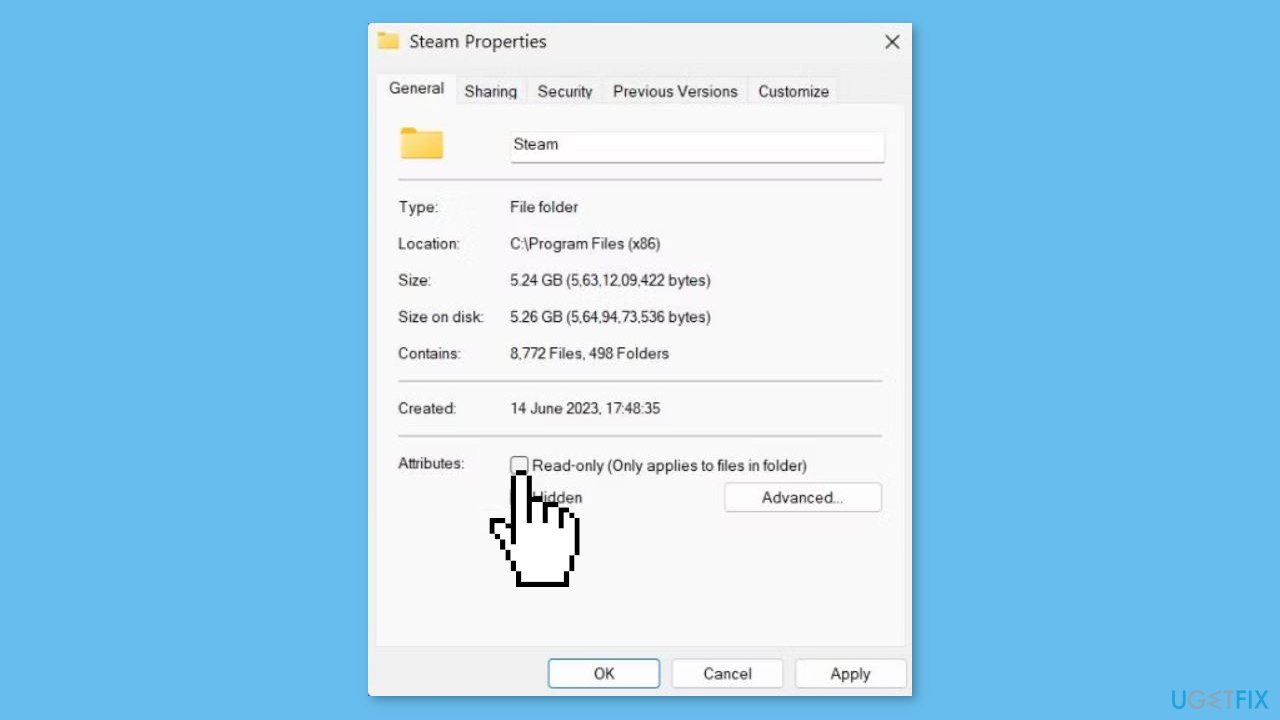
- Click on the Apply button.
- Click on the OK button.
- Close the File Explorer window.
- Reopen the Steam client.
- Attempt to install the game.
- Check if the error still appears or not.
Solution 2. Run Steam as an Administrator
- Press Ctrl + Shift + Esc keys together to launch Task Manager.
- Locate the Steam process.
- Right-click on the Steam process.
- Select the End Task option.
- Press the Windows key.
- Type Steam.
- Click on the Run as administrator option.
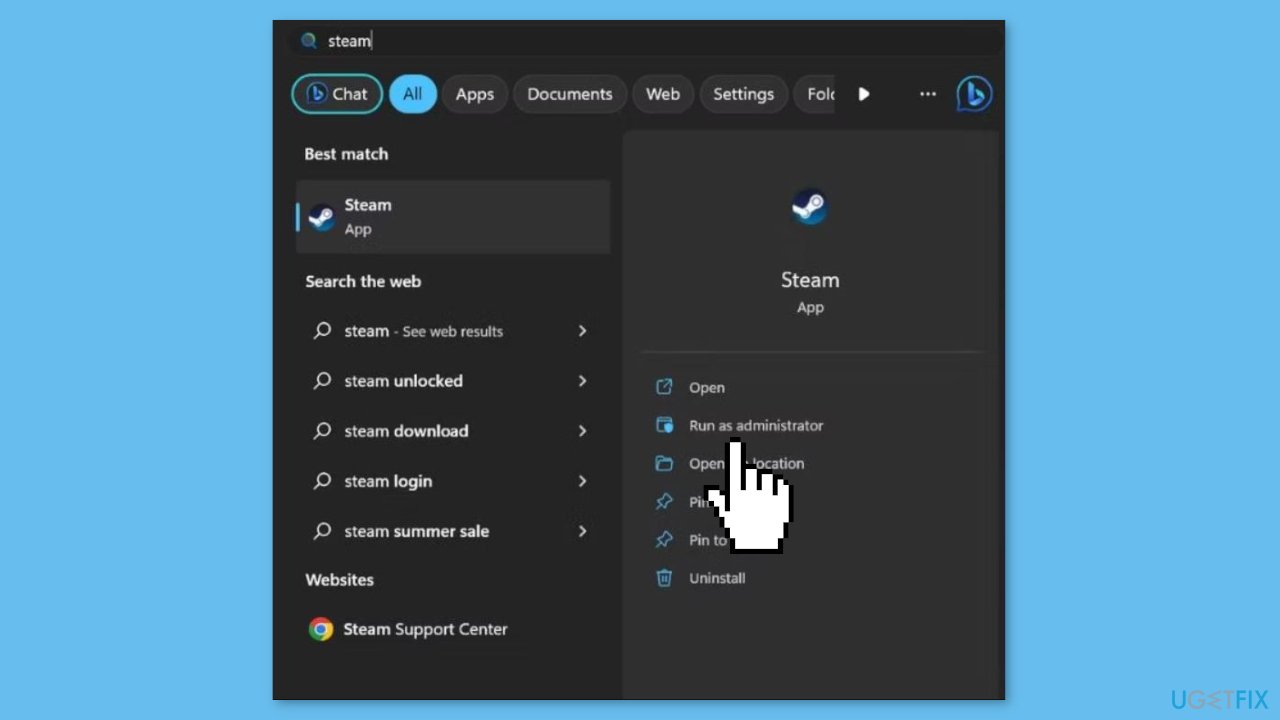
- The User Account Control window will appear.
- Click on the Yes button.
Solution 3. Take Full Control of the Steam Folder
- Press the Windows key + E to open the File Explorer.
- In the address bar at the top, type C:\Program Files (x86) and press Enter to navigate to it.
- Click on the Steam folder to select it.
- Press Alt + Enter to open the Properties window for the Steam folder.
- Switch to the Security tab.
- Click on the Edit button.
- Select your User Profile from the list.
- Click on the Edit button.
- In the Permissions dialog, locate the Full Control checkbox.
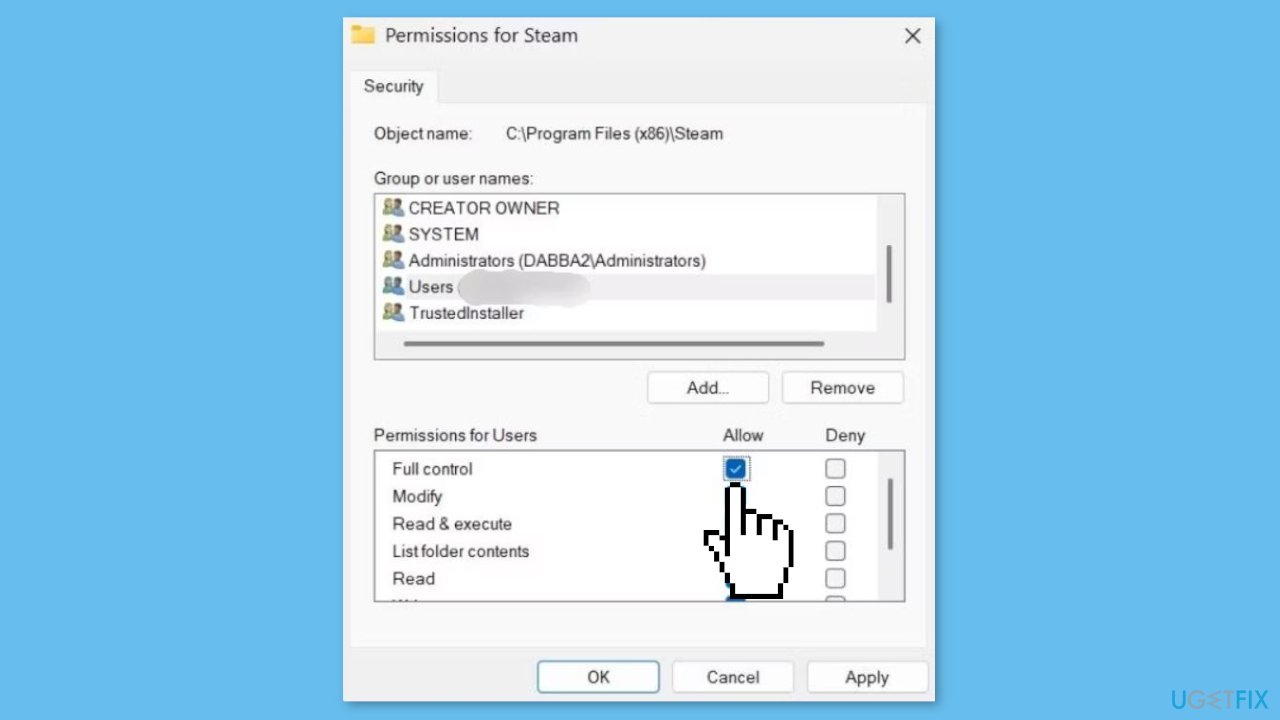
- Check the Full Control checkbox to grant all permissions for your user profile.
- Click on the Apply button.
- Lastly, click on the OK button.
- Close the Properties window.
Solution 4. Repair the Steam Library Folder
- Open the Steam client.
- Click on the Steam button located at the top left corner.
- From the context menu, select the Settings option.
- Scroll down to find and click on the Storage option.
- Click on the three dots button.
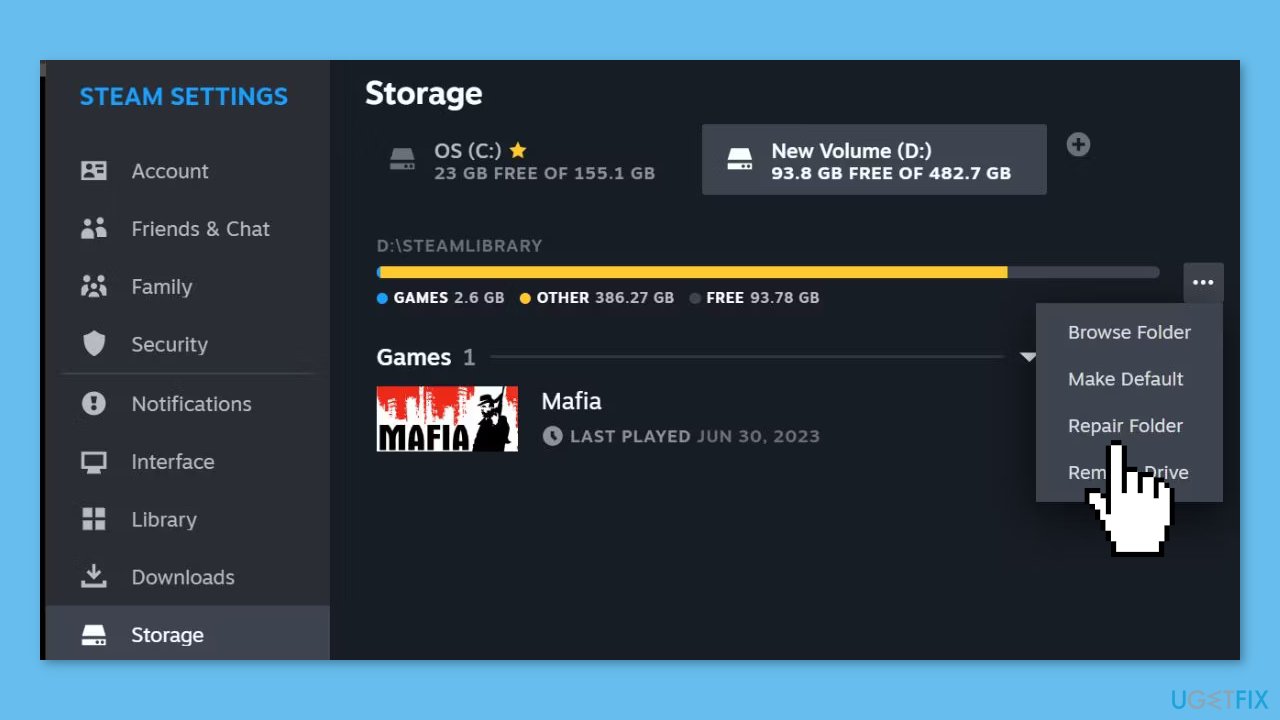
- Choose the Repair folder option from the menu that appears.
- The User Account Control window will appear.
- Click on the Yes button.
- Once the repair process is finished, click on the Close button.
Solution 5. Re-Add the Steam Library Folder
- Open the Steam client.
- Click on the Steam button, then select the Settings option.
- Scroll down and click on the Storage option.
- Choose a Steam library folder.
- Click on the three dots button.
- Select the Remove Drive option.
- Click on the plus icon.
- Choose the folder location.
- Click on the Add button.
- Close and then relaunch Steam.
Solution 6. Clear the Steam Download Cache
- Launch the Steam client on your PC.
- Click on the Steam button, then select the Settings option to access the app settings.
- Scroll down and click on the Downloads option.
- Locate the Clear Download Cache option in the right pane.
- Click on the Clear Cache button.
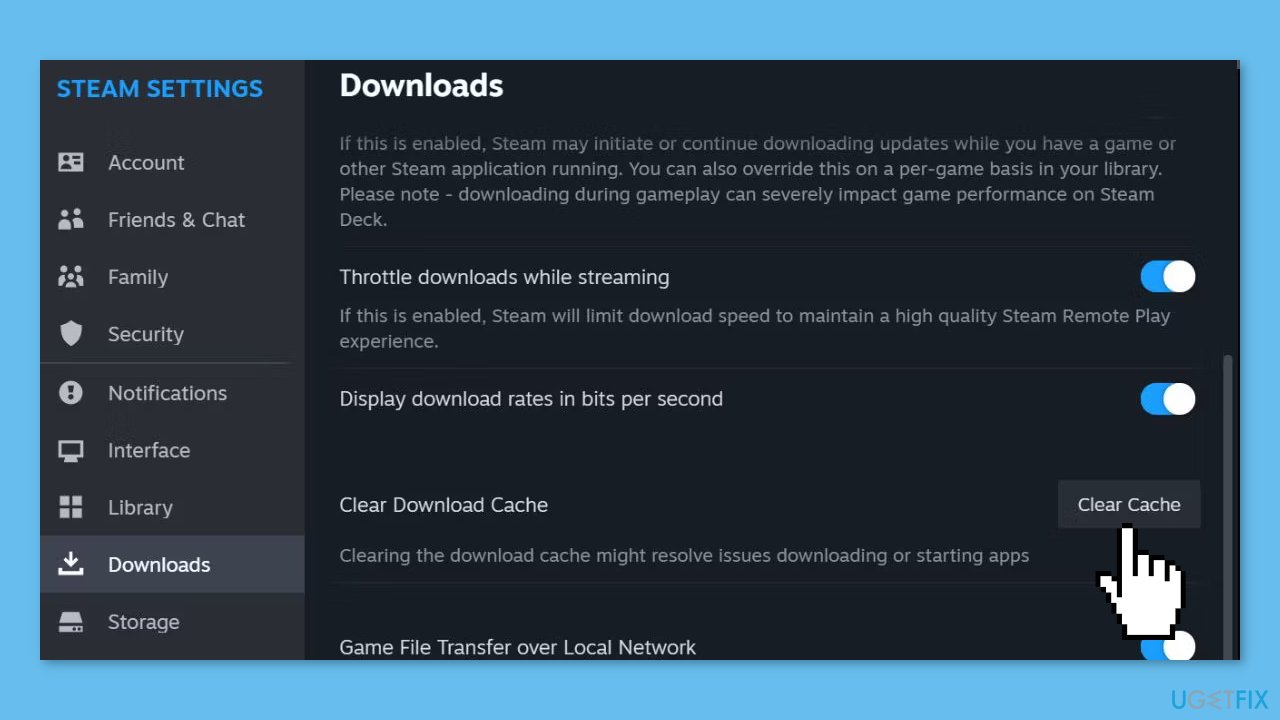
- Steam will ask for confirmation to clear the cache. Click on the Confirm button.
- The Steam app will restart after clearing the download cache.
- You'll need to sign in again to your Steam account.
Bottom line
To fix the 'Steam library folder not writable' error, you can change the folder attributes, check permissions, or run a maintenance tool. If these solutions do not resolve the issue, consider seeking additional technical support.
Frequently asked questions
First, ensure that your Steam library folder has the correct permissions by right-clicking on the folder, selecting 'Properties', and adjusting the security settings. If the issue persists, try running Steam as an administrator.
Yes, users on Windows 11 can also face this error; it usually relates to folder permissions or disk issues. Check if the drive is write-protected or if there's a problem with the disk itself.
Make sure that the Steam library folder is located on a drive that is not write-protected and is formatted correctly. You can also try moving the Steam library to another drive and updating the library folder settings in Steam.




Report an issue
What's wrong with this guide? We review every report and update or remove content.
Report received — thank you. We'll review and fix it.
You need a free account to submit a report.
Be the first to comment