How to fix
UNSUPPORTED_PROCESSOR BSOD
on Windows
Resolve the UNSUPPORTED_PROCESSOR BSOD in Windows 10 and 11 effortlessly. Get expert-tested solutions to fix it in minutes, with zero traces left.

What causes How to fix UNSUPPORTED_PROCESSOR BSOD in Windows?
- Hardware failures
- Software conflicts
- Faulty drivers
- Processor incompatibility with Windows version
- Mismatch between Windows edition and processor
- CPU not meeting minimum OS requirements
Repairs Windows system files, removes malware, and restores a clean OS state — without reinstalling.
For the past few days, my PC started crashing randomly with the UNSUPPORTED_PROCESSOR error. I am not sure what is causing it, but I didn't do anything out of the ordinary, and everything worked fine before. Any advice on this would be great. Thanks.
Blue Screen of Death (BSOD) errors, often signified by a blue screen with white text, are critical system errors that halt the normal operations of Windows due to severe issues. These errors can arise from a range of problems, including hardware failures, software conflicts, and faulty drivers. Windows identifies the nature of the BSOD through a "Stop Code," which provides a specific identification of the error. This system is intended to aid users in troubleshooting and resolving the root cause of the problem.
Recently, a number of Windows users reported encountering the UNSUPPORTED_PROCESSOR BSOD. This specific stop code indicates that the current processor in the system is not supported or is incompatible with the version of Windows being used. Such issues can arise due to a mismatch between the Windows edition and the processor or when a computer's CPU does not meet the minimum requirements of the operating system.
Alarmingly, for a significant number of affected users, this particular BSOD manifested shortly after installing the latest Windows updates: KB5029351 for Windows 11 and KB5029331 for Windows 10. A feasible solution for this predicament is to uninstall these specific updates. However, for some users, rolling back these updates might no longer be an option. This could be due to the system automatically deleting the previous version backup after a certain period or the user's manual intervention to free up storage space.
Fortunately, the UNSUPPORTED_PROCESSOR error is not a dead-end. Several alternative solutions exist to remedy this problem, such as repairing damaged system files, resolving MBR issues, adjusting BIOS settings, or even performing a fresh Windows installation. Comprehensive instructions for these solutions are available below this article for users seeking a more in-depth guide.
For a more streamlined solution, consider using the [d1] PC repair tool, designed to address common Windows issues, including various BSODs automatically.
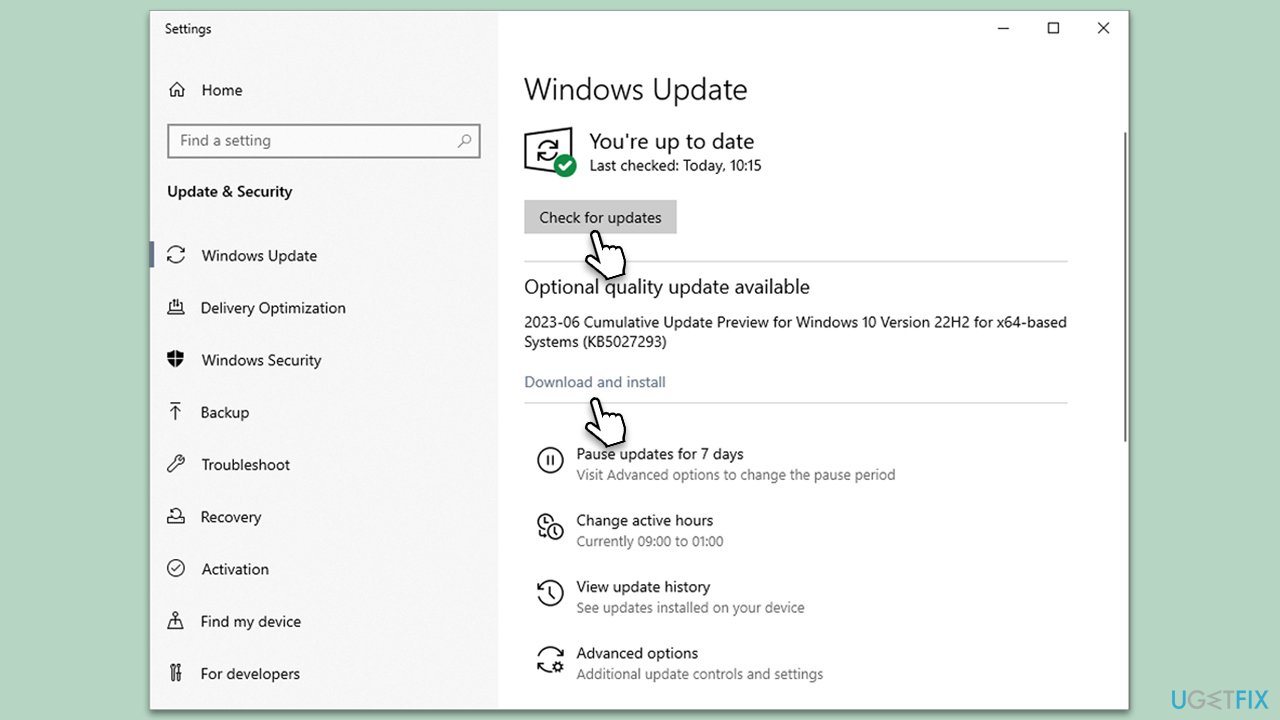
Fix 1. Install all the latest Windows updates
If your crashes were not caused by the recent Windows update, it might be because you are lacking some important updates. Microsoft patches bugs and other issues regularly, so make sure you have the newest updates installed. Otherwise, proceed with the next solution.
- Type Updates and press Enter.
- In the new window, click Check for updates.
- Wait till all the files are downloaded and installed.
- If optional updates are available, install them as well.
- Restart your device when done.
Fix 2. Uninstall the most recent Windows update (KB5029351/KB5029331)
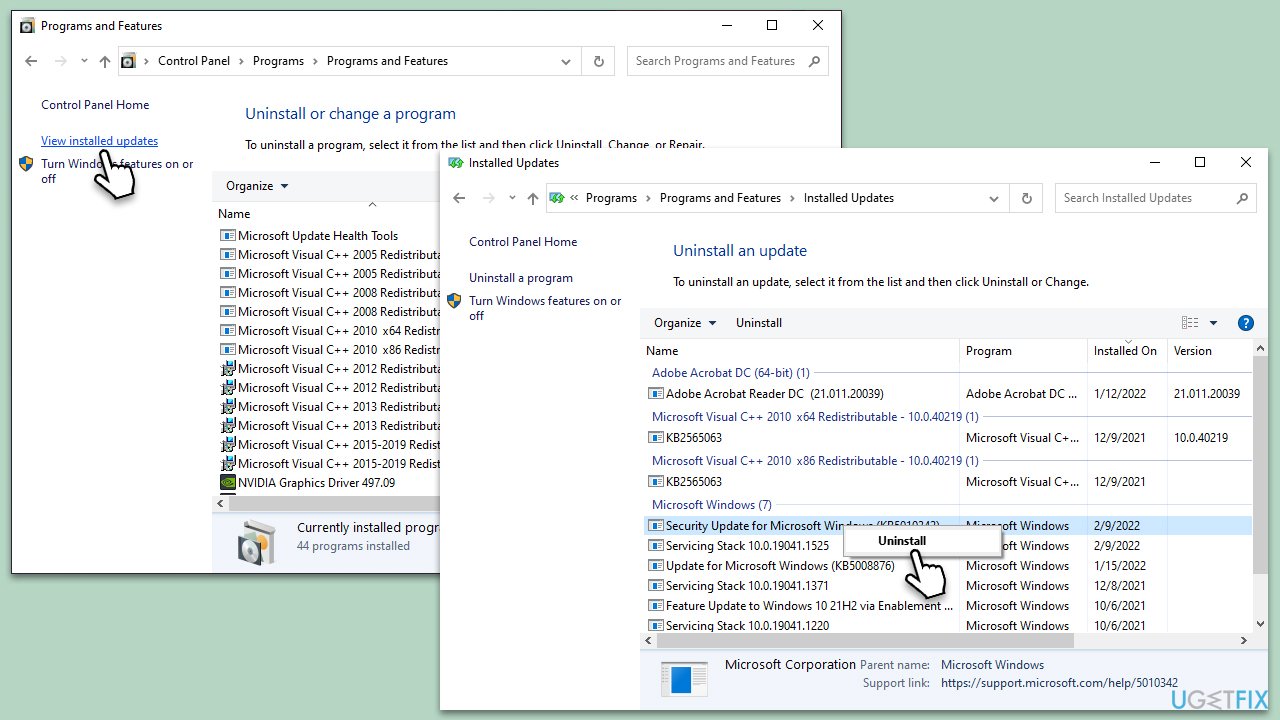
If your system was already up to date, it is likely that UNSUPPORTED_PROCESSOR BSOD was caused by a Windows update that was installed automatically. Uninstalling these could resolve the issue (note that the KB number might differ, depending on when you are reading this article):
- Press Win + R, type
appwiz.cpl, and press Enter. - On the left side, click on View installed updates.
- Scan the list for KB5029351, KB5029331, or another most recent update.
- Right-click on the problematic update and select Uninstall.
- Type Updates in Windows search and press Enter.
- Click Pause the updates for 7 days (in Windows 11, you can pick a different time period).
- Restart the computer.
Fix 3. Perform SFC and DISM scans
System integrity is vital. Damaged or missing files can cause unexpected behavior, including BSODs.
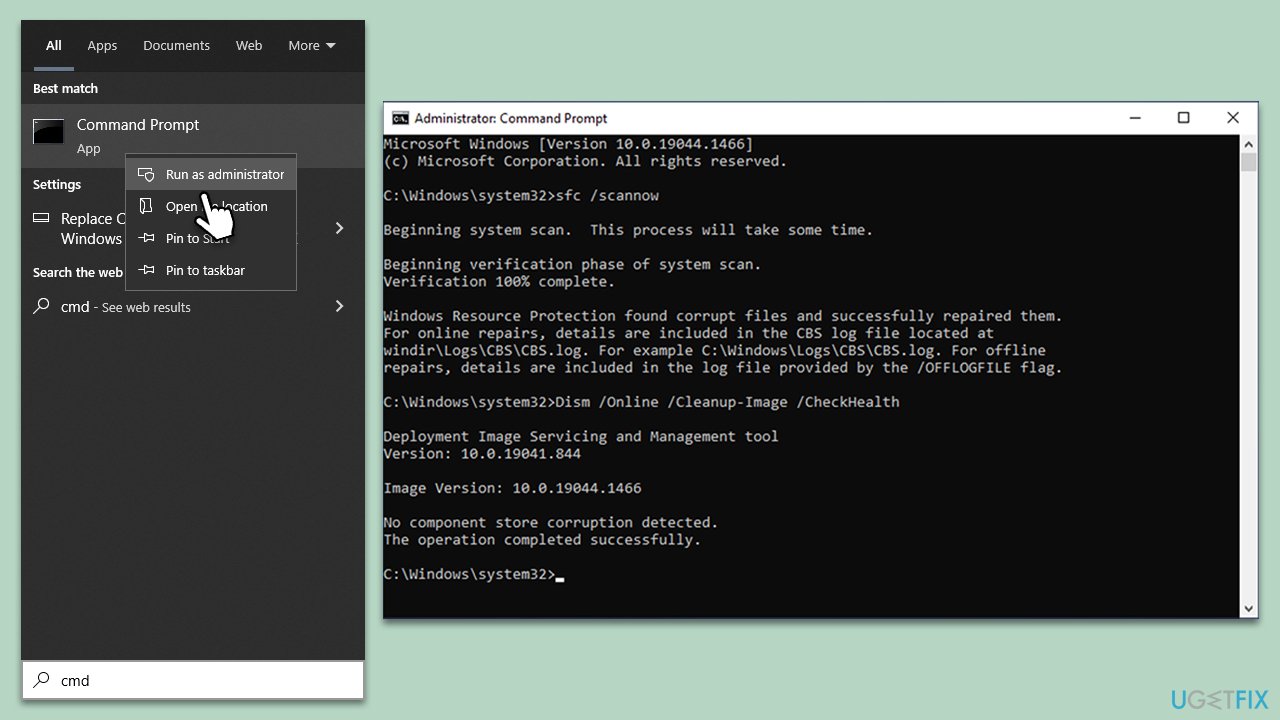
- Type in cmd in Windows search.
- Right-click on Command Prompt and select Run as administrator.
- When User Account Control shows up, click Yes.
- In the Command Prompt window, paste the following command and hit Enter:
sfc /scannow - Next, use the following commands, pressing Enter each time:
Dism /Online /Cleanup-Image /CheckHealth
Dism /Online /Cleanup-Image /ScanHealth
Dism /Online /Cleanup-Image /RestoreHealth
(Note: if you get an error executing this last command, add /Source:C:\RepairSource\Windows /LimitAccess to it and try again). - Reboot your device.
Fix 4. Run Clean Boot
Third-party software or services can sometimes conflict with Windows, leading to system instability.
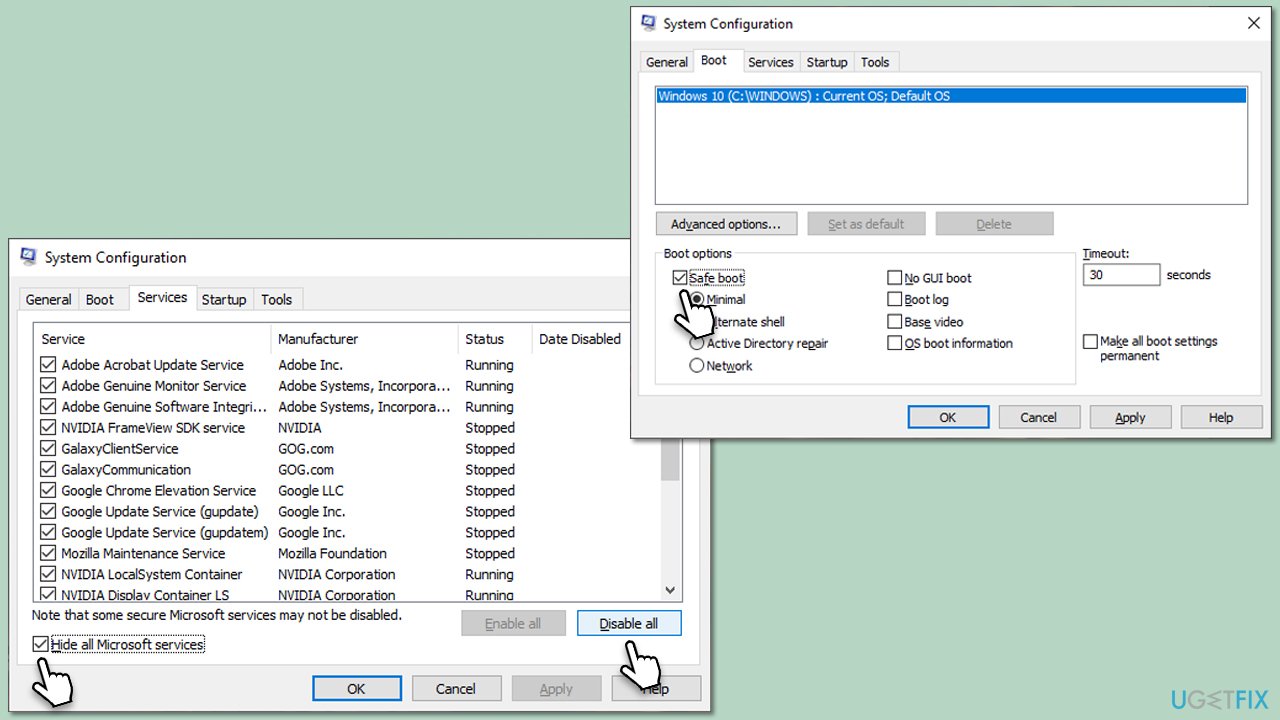
- Type msconfig in Windows search and press Enter.
- Pick the Services tab.
- Mark Hide all Microsoft services and select Disable all.
- Select the Startup tab and click Open Task Manager.
- In the Task Manager, right-click on each of the items and select Disable, then close the Task Manager.
- Go to the Boot tab, tick Safe Boot, then click Apply and OK.
Fix 5. Update drivers
Old or mismatched drivers can cause compatibility issues, leading to BSODs. There are several ways you could do this; one example would be using Windows Device Manager:
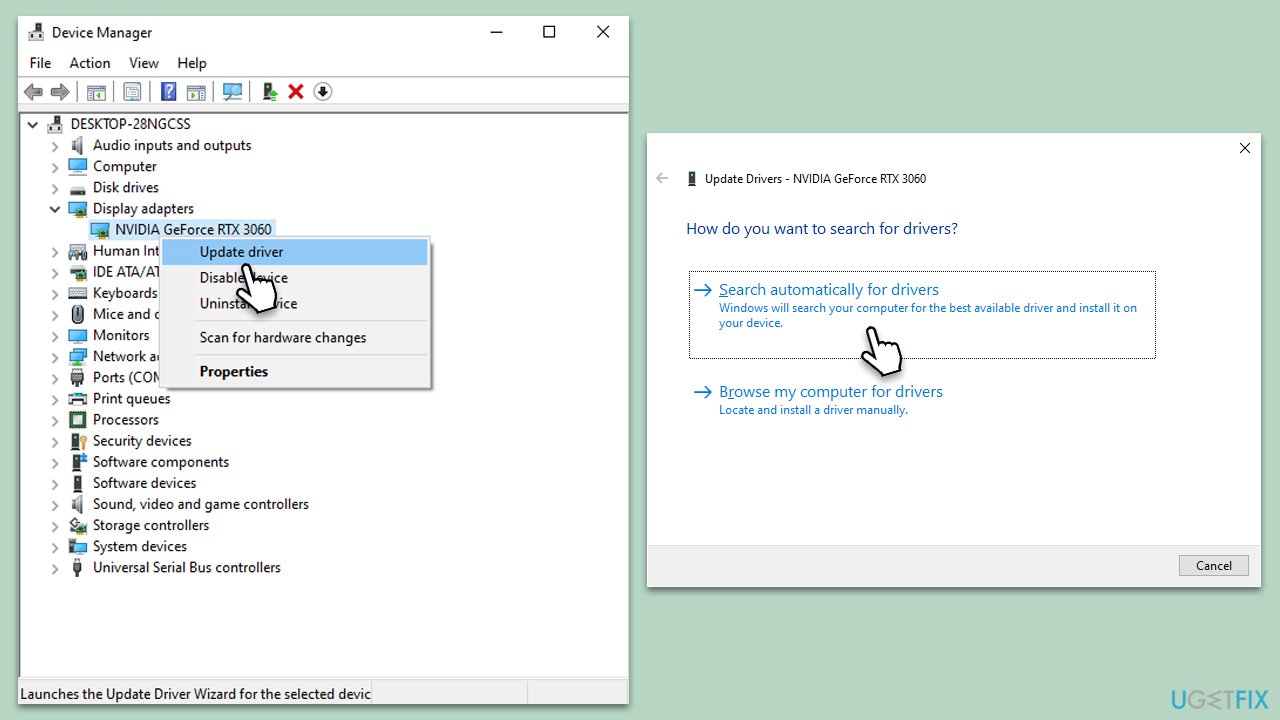
- Right-click on the Start button and select Device Manager.
- Expand the Display adapters category, right-click on your GPU, and select Update Driver.
- Select Search automatically for drivers.
- Repeat the process for all devices.
- Once done, reboot your computer.
This method is rather primitive/tedious and is not always effective, as Windows might fail to find the newest software for your particular hardware. Thus, either visit the official website of your device manufacturer and install drivers manually or employ an automatic driver updater such as [rev id="DriverFix"].
Fix 6. Repair MBR and fix boot procedure
The Master Boot Record (MBR) is crucial for booting. Corruption can hinder boot processes.
- On your keyboard, press and hold the Shift button.
- Click on Start and pick Restart to access the Advanced Startup mode.
- Here, go to Troubleshoot and choose Command Prompt.
- Type in the following commands, pressing Enter after each:
bootrec.exe /rebuildbcd
bootrec.exe/fixmbr
bootrec.exe /fixboot - Once complete, restart Windows.
Fix 7. Run Check Disk
Faulty hard drive sectors or errors can compromise system integrity.
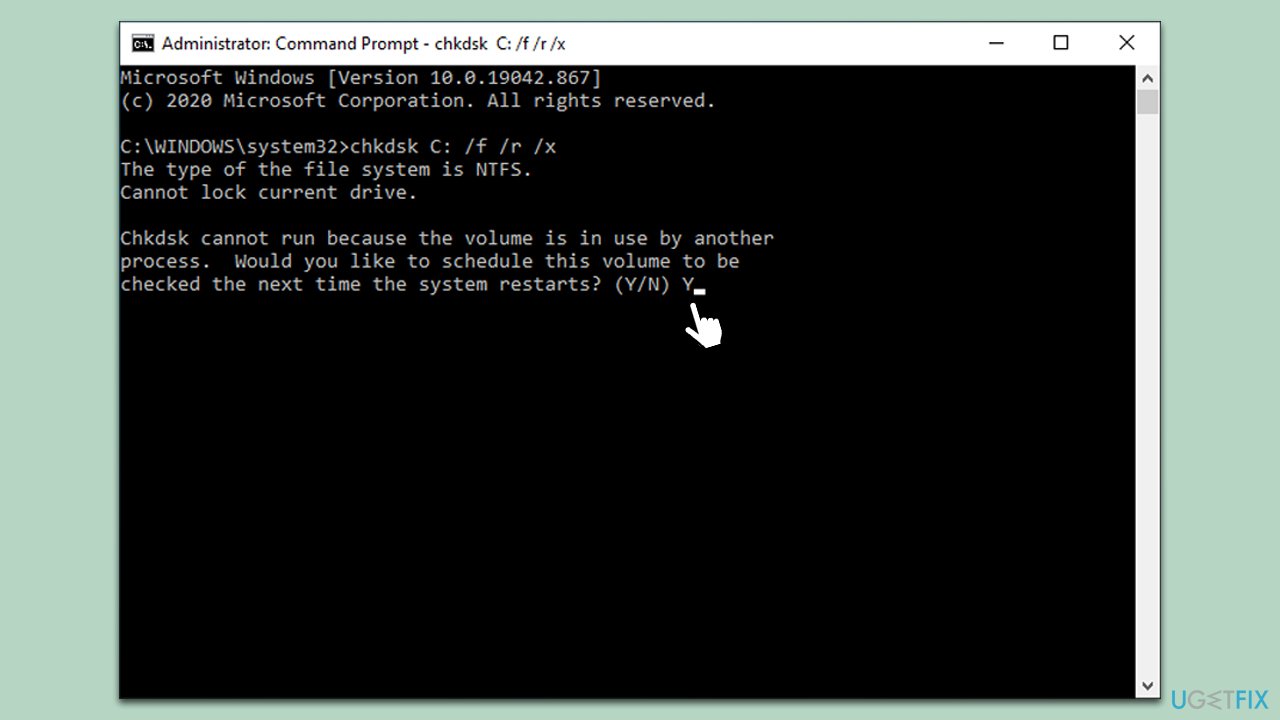
- Open Command Prompt as administrator.
- In the new window, type in the following command and press Enter:
chkdsk c: /f
(Note: use chkdsk c: /f /r /x command if you are using SSD as your primary partition). - If you receive an error, type in Y, close down Command Prompt, and restart your computer.
Fix 8. Check for hardware compatibility (and upgrade)
Windows requires compatible hardware. Outdated components might not support newer versions.
- Refer to Windows' official hardware requirements.
- Check each component's specifications against recommended requirements.
- If a component is outdated, consider consulting a tech expert for potential upgrades.
Fix 9. Use Media Creation Tool to repair-install Windows
This tool allows a system repair without data loss, resolving many underlying issues. If none of the above solutions helped, you should try to repair-install Windows as follows:
Create Windows ISO
- Download Windows 11 Installation media from the official Microsoft website. [Windows 10 version]
- Double-click the MediaCreationTool.exe file to launch it.
- When UAC shows up, click Yes.
- Accept license terms.
- Select Language and Edition (make sure it matches the one you have currently installed) or simply mark the Use the recommended options for this PC and click Next).
- Select the ISO file and click Next.
- Pick the location for your ISO file and wait till all the needed files are downloaded, then click Finish.
Repair-install Windows
- Go to the location of your ISO file, right-click, and select Mount.
- Run the setup.exe file.
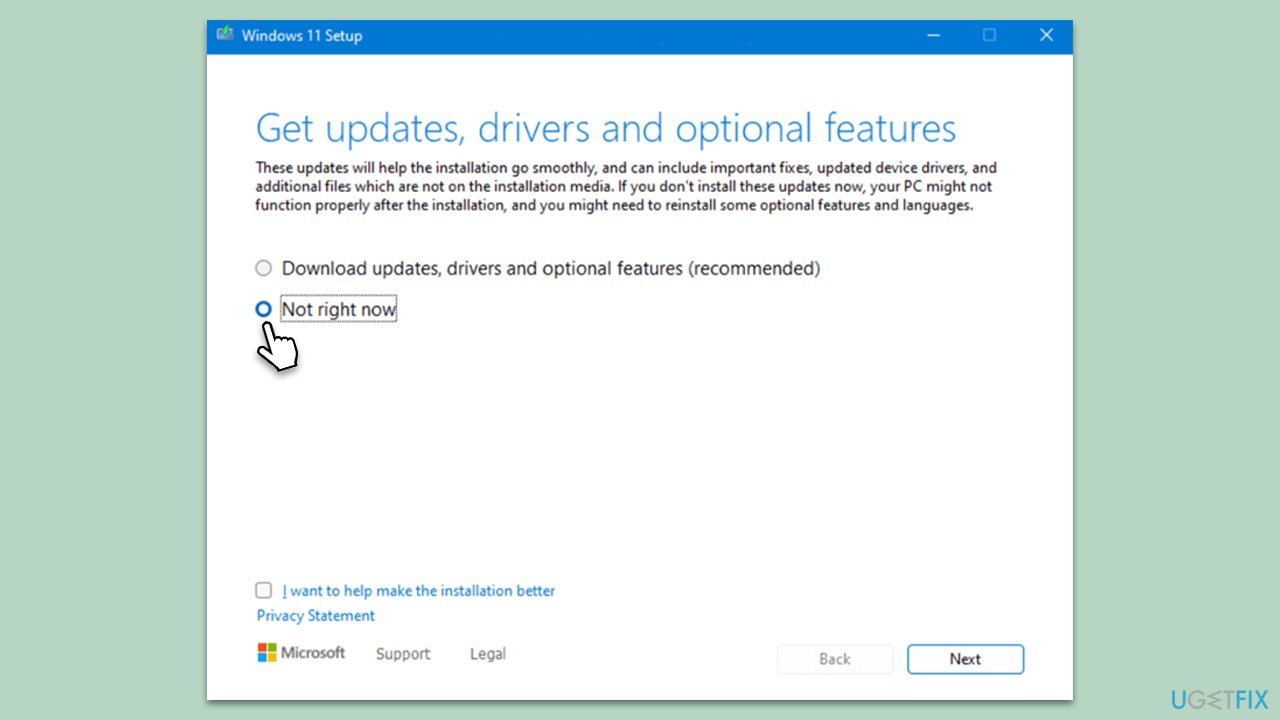
- You will be asked whether you want to update Windows to the latest version - pick Not right now and click Next.
- Accept Terms and Windows will make several checks to ensure everything is fine.
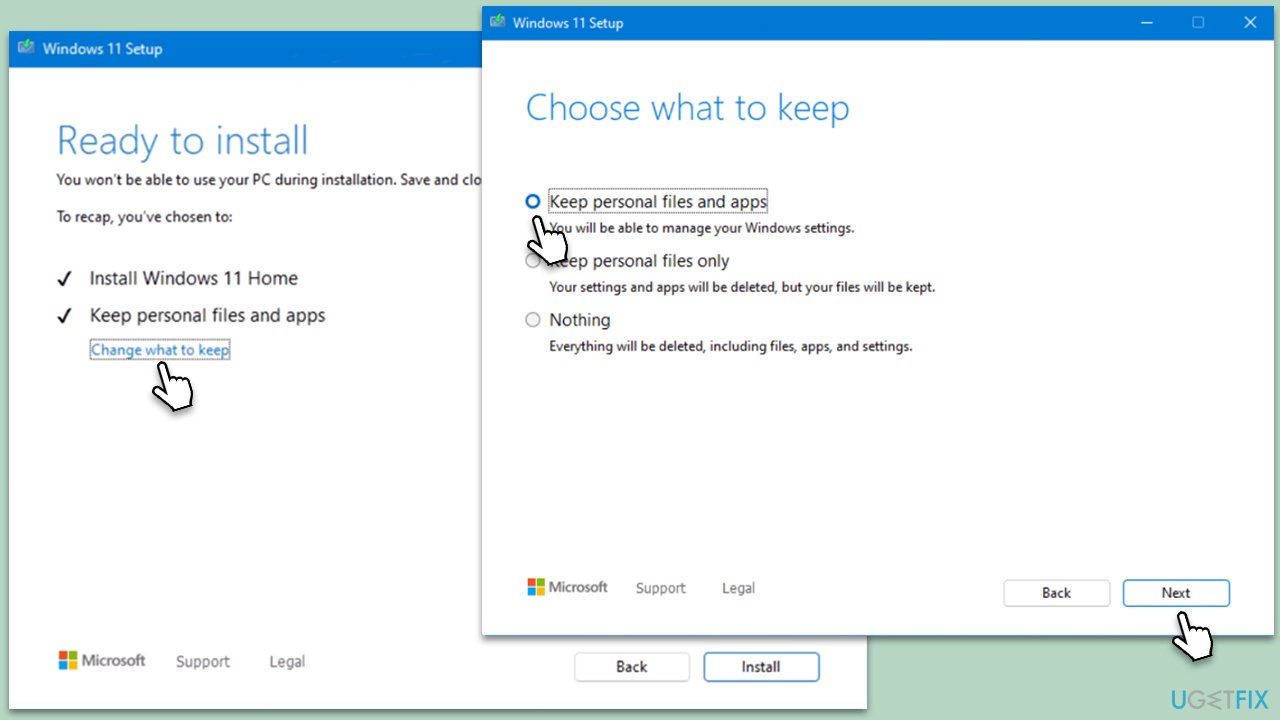
- Click Change what to keep.
- Here, you have several options: Keep your files and apps, Keep files only, or Keep nothing - choose what suits you the best. Click Next.
- Finally, click Install to begin the installation process.
Bottom line
To fix the UNSUPPORTED_PROCESSOR BSOD, you can try uninstalling recent Windows updates, repairing damaged system files, resolving MBR issues, adjusting BIOS settings, or performing a fresh Windows installation. If none of these solutions work, consider using a PC repair tool designed to address common issues.
Frequently asked questions
The UNSUPPORTED_PROCESSOR BSOD in Windows 10 is typically caused by incompatible hardware or outdated drivers. Ensuring your system meets the minimum requirements and updating drivers can help resolve this issue.
Yes, you can fix the UNSUPPORTED_PROCESSOR error in Windows 11 by updating your BIOS and drivers or rolling back recent changes that may have led to the issue. Perform these steps before considering a full reinstall.
To check CPU compatibility with Windows 10, use the PC Health Check tool from Microsoft, which will inform you if your processor meets the requirements. Additionally, consult the official Microsoft documentation for supported processors.




Report an issue
What's wrong with this guide? We review every report and update or remove content.
Report received — thank you. We'll review and fix it.
You need a free account to submit a report.
Be the first to comment