How to fix
Change a default PDF Viewer
on Windows
Easily change your default PDF viewer in Windows 10 to enhance your document experience. Expert-tested tips ensure smooth navigation and zero traces left.


Why does How to change a default PDF Viewer in Windows 10 occur?
- Microsoft Edge is set as the default PDF viewer by Windows 10.
- Windows 10 updates may reset the default PDF viewer to Microsoft Edge.
- Enabling System Restore Point can revert changes to default apps.
- System Recovery may cause changes in the UserChoice directory.
- Windows 10 File association protection mechanism prevents unrecognized software from being launched by default.
Repairs Windows system files, removes malware, and restores a clean OS state — without reinstalling.
I hate when trying to open any PDF file ends up opening Microsoft Edge. Is it possible to change open PDF files using another PDF application? I have PDF viewer installed, but Microsoft Edge is set to open PDF files by default.
Windows XP, 7, 8, 8.1, and Vista required the installation of a PDF Viewer. With the Windows 10, people no longer face the problem with the opening of PDF files because Microsoft Edge has been transformed into a default PDF viewer application. Consequently, even if Microsoft Edge is not set as your default web browser, it will be launched by default whenever you click on a PDF file or link redirecting to a website that contains PDF format window or file. Such Microsoft’s decision is praised by many Windows 10 users as they don’t need third-party tools to open PDF files, especially when it’s urgent to do so. However, people often claim that it’s more than irritating to experience redirects to Microsoft Edge whenever clicking on a PDF file.
Difficulties in changing a default PDF Reader in Windows 10
To change Microsoft Edge PDF Reader with an alternative PDF reader app is not difficult. However, the problem is that a new default PDF viewer is usually replaced by Microsoft Edge after the installation of the latest Windows 10 updates, enabling of System Restore Point or System Recovery. The default apps may be changed if the update, recovery or another system’s modification causes changes in the UserChoice directory, which is why Windows 10 File association protection mechanism reverts back the changes to prevent unrecognized software from being launched by default.
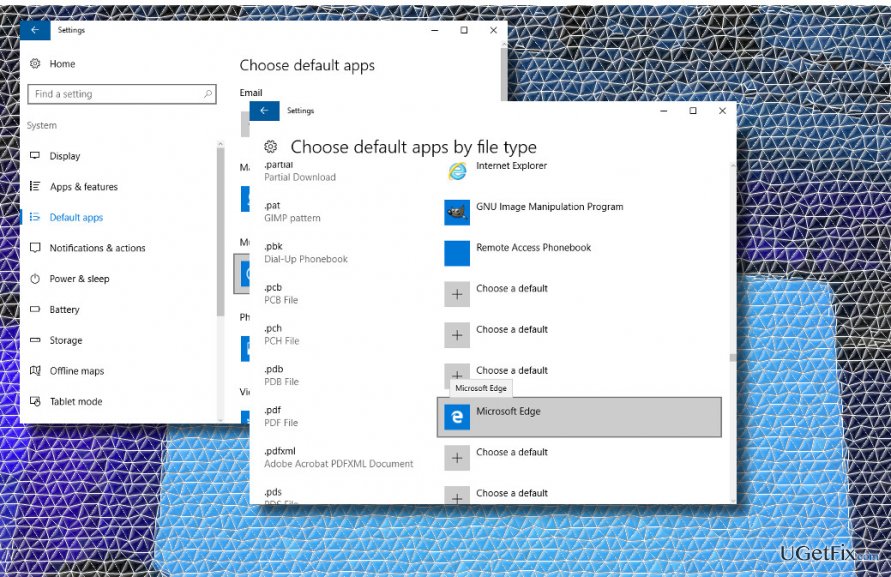
Substituting Microsoft Edge PDF Reader with another app
Method 1. Disable Microsoft Edge PDF Viewer
- Press Windows key + I to open Settings app.
- Click on System and open Apps & Features.
- Find Default apps option on the left pane and click it.
- Select Choose default apps by file type.
- Scroll down and locate the .pdf (PDF File).
- Click Microsoft Edge next to .pdf and select Adobe Reader or another preferable app instead.
Method 2. Run commands using an elevated Command Prompt
- Right-click Windows key and select Command Prompt (Admin).
- OR open Start menu, type cmd, right- click it, and select Command Prompt (Admin).
- Copy and paste for /f “usebackq” %i in (`reg query hkcr /f “AppX”`) do reg query %i\DefaultIcon | find “MicrosoftEdgePDF” && reg add %i /v NoOpenWith /t REG_SZ /f.
- Press Enter after that.
- Finally, close Command Prompt.
The steps provided above can be executed alternately. If Method 1 fails to work, running the command via Command Prompt should helo you or vice versa. Unfortunately, but these steps can't prevent Windows 10 updates or system restore from reverting Microsoft Edge PDF Viewer as a default app. If you have installed updates or initiated other system changes and found Edge PDF Viewer set by default again, you'll have to repeat the steps indicated above anew.
PRO TIP: We would strongly recommend you to install a PC optimization tool, such as [d1] and keep it up-to-date. This piece of software will prevent the system from encountering errors, crashes, freezes, slowdowns, etc. and will also protect it from malware.
Bottom line
To change the default PDF viewer from Microsoft Edge, you can disable it through the Settings app and select a preferred PDF reader like Adobe Reader. If these methods do not work, consider checking for recent updates or system modifications that may have reverted your settings.
Frequently asked questions
To change the default PDF viewer in Windows 10, right-click on a PDF file, select 'Open with,' then click 'Choose another app,' select your preferred viewer, and check 'Always use this app to open .pdf files.'
Yes, in Windows 11, go to Settings > Apps > Default apps, search for the PDF viewer you want to set, and select it to change the default for .pdf files.
If PDF files continue to open in the old viewer, try restarting your computer or ensuring that the new viewer is properly installed and set as the default again.




Report an issue
What's wrong with this guide? We review every report and update or remove content.
Report received — thank you. We'll review and fix it.
You need a free account to submit a report.
Be the first to comment