How to fix
Change Font Size
on Windows
Easily adjust font sizes in Windows 10 for improved readability and personalization. Follow our expert-tested guide for perfect results!

Why does How to Change Font Size in Windows 10 occur?
- Font size set too small by default
- User preference for larger text
- Accessibility needs for better readability
- Recent installation of Windows 10 with default settings
- Display settings not adjusted after installation
Repairs Windows system files, removes malware, and restores a clean OS state — without reinstalling.
Is there a way to make the font size bigger in Windows 10? It’s too small for me!
Windows 10 is flexible and allows users to make various customizations. Thus, changing font size is also possible.
Users can adjust to alter the size of the text, applications, and other items. However, you might also change the size of user interface objects, such as tile bars, menus, message boxes, etc.
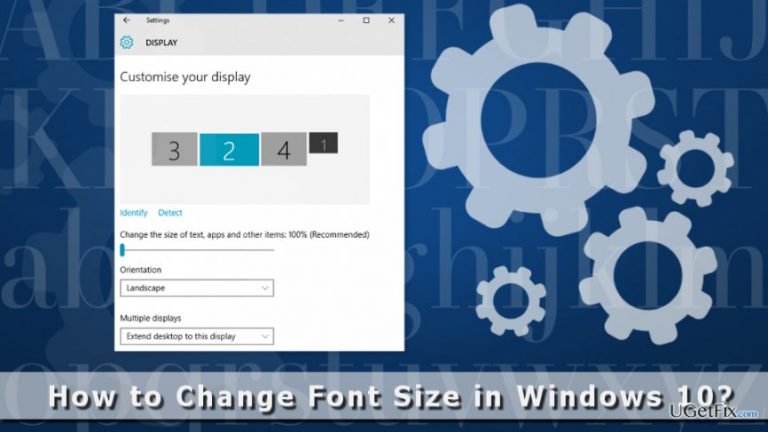
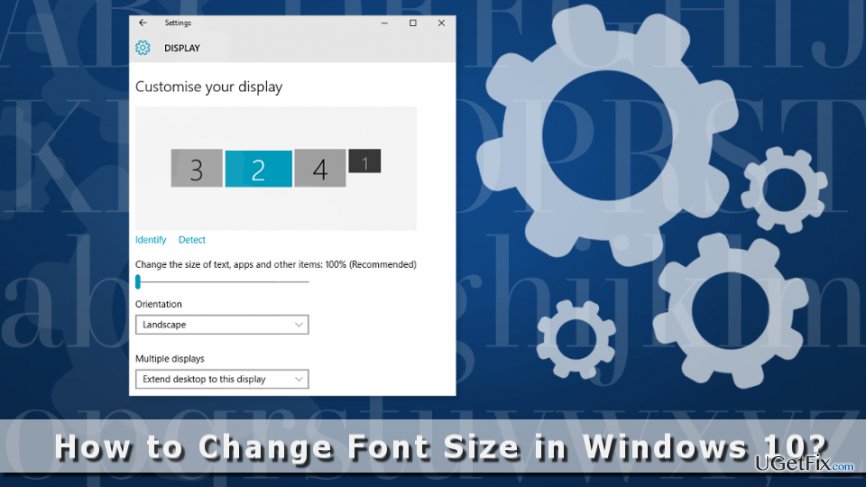
All the necessary adjustments are controlled via Display Settings that can be accessed easily from your desktop once you right-click the empty area.
Here you will find a slide that allows changing the size of the font. By default Windows 10 set the slider to 100%.
However, if these recommended settings are not suitable for you, you can change it simply. If you have problems reading the text, you can turn the slider to 125, 150, 175 or even 200 percent.
If you want to change font size of various user interface entries, you should go to Advanced display settings. Here users can set the font size from 6 pt to 24 pt.
Changing Font Size in Windows 10
If you have recently installed Windows 10, you might have noticed that the font size of the texts, icons and user interface are pretty small.
However, we have already mentioned that you can easily make the font size bigger easily. All you need to do is to access “Display Settings.” Here you will find a slider and advanced options that allow making specific adjustments.
Thus, follow the steps below and make Windows 10 fonts easily readable:
1. Access “Display Settings.” You can do it in two ways:
- Click Windows button and in the search box type “Display Settings," and click Enter.
- Right-click an empty are on the Desktop. In the appeared drop-down menu choose “Display Settings” option.
2. In the appeared window you will find the slider “Change the size of text, apps, and other items.” By default, the scale is set to 100%. However, you can make the font smaller or bigger by putting the slider to your preferred percentage.
3. When you set the font size, click Apply button below.
4. You will receive a message you will be asked to log out of the account in order to apply the changes. Click Sign out now option.
Once you log in to your account again, you should see the difference. The font size will be increased or decreased. If you are not satisfied with a result, you can go back to the Display Settings and adjust the settings.
If you want to change the font size of user interface elements, such as tile bar, menus, message boxes, and similar entries, please follow these steps:
1. At the end of the “Display Settings” window, there’s an “Advanced display settings” option. Click on it.
2. Choose "Advanced sizing of text and other items.”
3. Here you will find user’s interface elements. Set the preferred font size and click “Apply.”
4. You might also be asked to log out or reboot your computer. It's necessary to save the changes.
Bottom line
To change the font size in Windows 10, access the Display Settings and use the slider to adjust the size of text, apps, and other items. For more specific adjustments, you can go to Advanced display settings to set the font size from 6 pt to 24 pt. If these solutions do not resolve the issue, consider checking for display driver updates or consulting further technical support.
Frequently asked questions
To change the font size for all text in Windows 10, go to Settings > Ease of Access > Display, and use the slider under 'Make text bigger'.
Yes, you can change the font size for specific applications by adjusting their settings individually, usually found in the 'View' or 'Preferences' menu.
Changing the font size will primarily affect text, but you can also adjust the size of icons and other UI elements in the Display settings under 'Scale and layout'.




Report an issue
What's wrong with this guide? We review every report and update or remove content.
Report received — thank you. We'll review and fix it.
You need a free account to submit a report.
Be the first to comment