How to fix
Maximize computer battery life
on Windows
Boost your Windows 10 or Windows 11 battery life with expert tips and settings tweaks. Enjoy longer usage times without sacrificing performance. Updated…

Why does How to maximize computer battery life occur?
- Battery age and quality
- Improper care of the battery over time
- Misconceptions about keeping the laptop plugged in
- Power-efficient components not utilized
- User habits affecting battery discharge
Repairs Windows system files, removes malware, and restores a clean OS state — without reinstalling.
It seems that the battery of my laptop which is comparatively new (approximately a year) discharges in a very short period of time. Could you please advise on how can I extend the battery life at least a bit?
Laptops were among first portable devices that allowed users to take their work and, later, entertainment together with them to cafes, public transport, beaches, universities, and any other places they desire. Currently, we also have mobile phones, tablets, and similar devices to accompany laptops.
For all these gadgets to function, a battery is required, and, while first machines did not last that long without the need of being charged again, the battery life was extended drastically.[ref en-3] Users can go days without charging their laptops, thanks to improvements made not only for the battery itself but also power-efficient computer components.
As evident, the battery life highly depends on its quality, age and ways it was taken care of over time. According to tests, MacBook Pro is among one of the most battery-efficient devices on the market currently, with it being able to last over 14 hours without charging, although other brands, such as Lenovo, HP, etc., showed decent results as well.
Nevertheless, even after employing the best laptops, users tend to notice that their device starts dying much quicker, although they do not perform any actions differently. So, how can you maximize the computer's battery life?
We've compiled a few tips that might help you, so please read on!
Plug-in your laptop into a socket when available
When you have an accessible power adapter, plug in your laptop in order to keep it fully charged. Of course, for that, you have to have an AC adapter with you all the time, i.e., at home, at the office, at school or any other place. Therefore, we highly recommend you to have at least one extra AC adapter.
NOTE: the widespread opinion that keeping a laptop plugged into AC power when the battery is fully charged gradually makes the batteries life span shorter. It's a myth.[ref en-1] Lithium batteries that are used for modern laptops stop using power as soon as the battery is fully charged. Therefore, if you keep an AC adapter charged, you reduce the risk of laptop dying at that crucial moment.
Adjust screen power settings
If you want to lengthen your batteries run time, then, first of all, try to consider what are the primary power consumers. Of course, one of the leading power killers is the screen, or actually, it's brightness. Therefore, make sure that you set screen brightness to the minimum or at least average when trying to save at deadly needed minutes of your laptop run time. This can be done by following these steps:
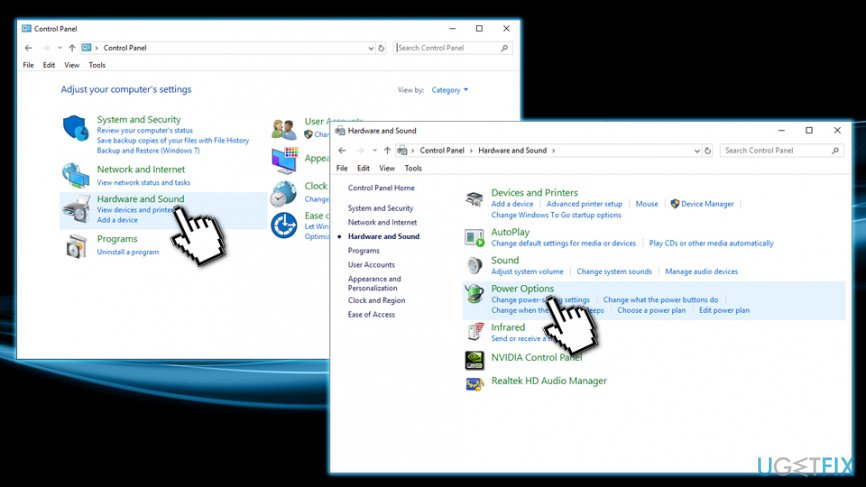
- Go to Control Panel
- Click on Hardware and Sounds and then Power Options
- Go to Change Plan Settings and pick Power saver option
In addition, think of the power that you waste when the laptop is not in use. As we have clarified the main power consumer – modern displays with Led backlights, another solution for making your battery run longer is to turn the saver mode on. In other words, change your settings so that when you are not using your laptop the screen would 'go asleep.' For that, go to Change Plan Settings again and then select a timeout of 1 to 3 minutes under the Put the computer to sleep.
Turn off unused apps and other processes
The next step is to turn off hardware, apps, and processes that are not crucial. The easiest way to reduce power consumption is to turn off unnecessary stuff. Since every component consumes a larger or smaller amount of power, make sure that you always keep running the most crucial programs, apps and processes only.
Obviously, the biggest power hogs are hardware, such as Wi-Fi and Bluetooth radios, unused optical drivers, graphics processors, and so on. Therefore, make sure that unusable devices that you are about to disable are not in use and terminate them via Device Manager.
The same should be done with unnecessary apps and processes. In order to check what unused apps are running in the background and terminate them. In order to end up processes that are stealing your battery juice by you should tap on Ctrl + Alt + Del buttons at once and open Task Manager.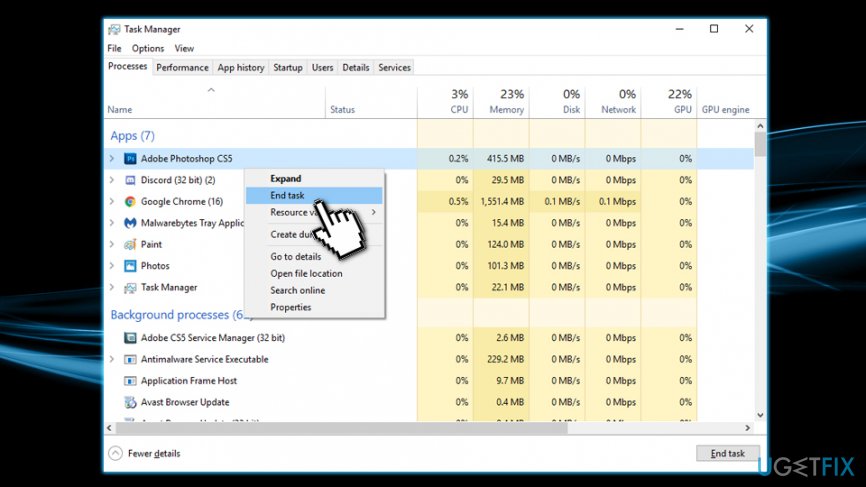
While some of the processes are crucial, the others, especially the ones related to music and video players, cloud storage services, etc. Right click on the running process and select End task. If you always remember these simple tips and mind them, we are pretty sure that you will maximize your laptop's battery life at least a little bit, which is sometimes enough to end an important task.
Use integrated graphics for low GPU intensive tasks
Some laptops, just like desktop computers, have dedicated graphics cards[ref en-2] installed on them. It goes without saying that the latter consumes much more energy than the former one. Therefore, if you need your laptop for simple document editing or even video streaming, integrated GPU can do the job without consuming too much battery. Of course, dedicated graphics card should be used for such activities as video editing or gaming.
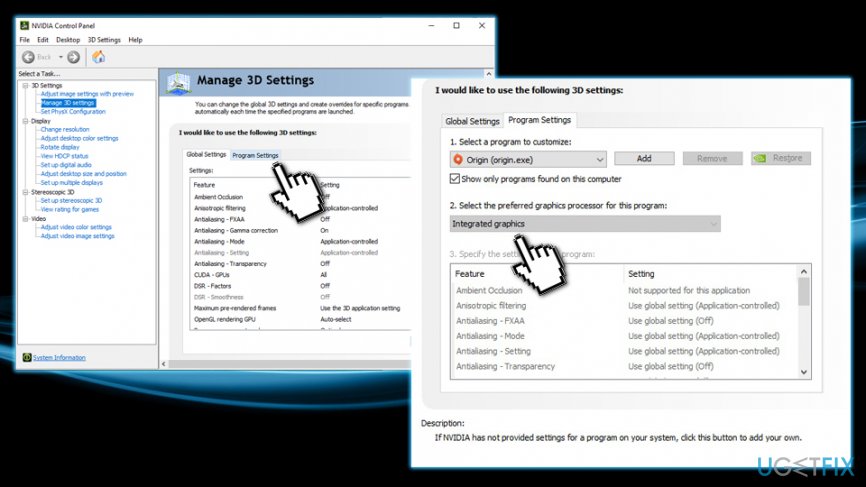
Laptops usually run Nvidia GeForce graphics, so open NVIDIA Control Panel and then do the following:
- Go to Manage 3D settings
- On the right pane, select Program Settings
- Click GPU intensive apps (such as installed games or picture editing tools like Photoshop) and then pick your graphics card in the second section
- Make sure every other app is set to Integrated graphics
Finally, you should also consider checking your machine with [d1], which is a tool used for updating drivers, cleaning Windows registry, defragmenting the disk, and similar tasks, which once fulfilled may also optimize power consumption.
Bottom line
To maximize your computer's battery life, consider plugging in your laptop when a power source is available, and ensure you have an extra AC adapter on hand. Additionally, be aware that keeping your laptop plugged in does not necessarily shorten battery lifespan. If these tips do not improve battery performance, further investigation into hardware issues may be necessary.
Frequently asked questions
You can adjust the power settings by selecting 'Battery saver' mode, reducing screen brightness, and disabling background apps in the Settings menu.
Lowering your screen brightness can significantly reduce battery consumption, as the display is one of the largest power drains on laptops.
Yes, applications that use high CPU or GPU resources, such as video editing software or games, should be limited while on battery to maximize life.




Report an issue
What's wrong with this guide? We review every report and update or remove content.
Report received — thank you. We'll review and fix it.
You need a free account to submit a report.
Be the first to comment