How to fix
What is DXCache (DirectX Shader Cache) and how to delete it
on Windows
Optimize your Windows 10 or 11 performance by understanding and deleting the DXCache. Clear up space and speed up your system with expert-tested tips.


Why does What is DXCache (DirectX Shader Cache) and how to delete it occur?
- DXCache folder can accumulate large amounts of data over time
- Shaders are compiled and stored to improve performance
- Repeated use of games and applications increases cache size
- Initial delays may occur after deletion as cache rebuilds
Repairs Windows system files, removes malware, and restores a clean OS state — without reinstalling.
I was analyzing my hard drive, and I saw that DXCache is taking up a lot of space within the NVIDIA folder. What is this folder, and can I delete its contents, seeing that it's cache-related?
NVIDIA, a multinational technology company, is renowned for its advancements in graphics processing units (GPUs) for gaming and professional markets. These GPUs enhance the visual computing experience for users and often interface with various software components to provide a seamless operation. As the NVIDIA suite continues to evolve and deliver superior graphics, users often come across various folders and files on their systems related to NVIDIA operations.
One such folder that many users have noticed is the DXCache. This folder, found within the NVIDIA directory, can sometimes occupy significant disk space, leading to queries regarding its purpose and whether it's safe to delete.
Understanding DirectX Shader Cache
The DXCache folder houses what is known as the DirectX Shader Cache. But what is a shader cache? When games or applications run, they often use shaders – small programs that help render graphics. As these shaders get compiled, it takes some time, and to avoid this repetitive compilation, the results are cached or stored for quicker access in subsequent runs.
The DirectX Shader Cache, as the name suggests, is a cache for these compiled shaders. By storing the compiled shaders, the system can quickly fetch them when needed, reducing game or application load times and ensuring smoother graphics performance.

Should you delete the DXCache folder?
The primary concern for many is whether this folder can be safely deleted, given its size. The answer is yes; it's safe to delete the contents of the DXCache folder. However, there are caveats. When deleted, the cache will begin to rebuild as you play games or run applications, which might result in slight delays during their initial runs post-deletion. Over time, as you play more games and use more applications, the cache will grow again.
As for how often one should clear this folder, it's a matter of personal preference. If disk space is a concern, you can consider clearing it periodically. However, if you're looking for the best performance without any occasional hiccups, it might be best to leave it untouched.
Instructions on how to delete the DXCache folder can be found below. But before proceeding, it's worth noting that for optimal system performance and automatic fixes for Windows errors, using [d1] software is recommended. This software can assist in maintaining a balance between system performance and storage optimization.
In summary, while the DirectX Shader Cache in the NVIDIA DXCache folder plays a pivotal role in ensuring smooth graphics performance, users have the discretion to delete it if they prioritize disk space. As always, for optimized performance, consider leveraging dedicated software tools.
Option 1. Manual removal
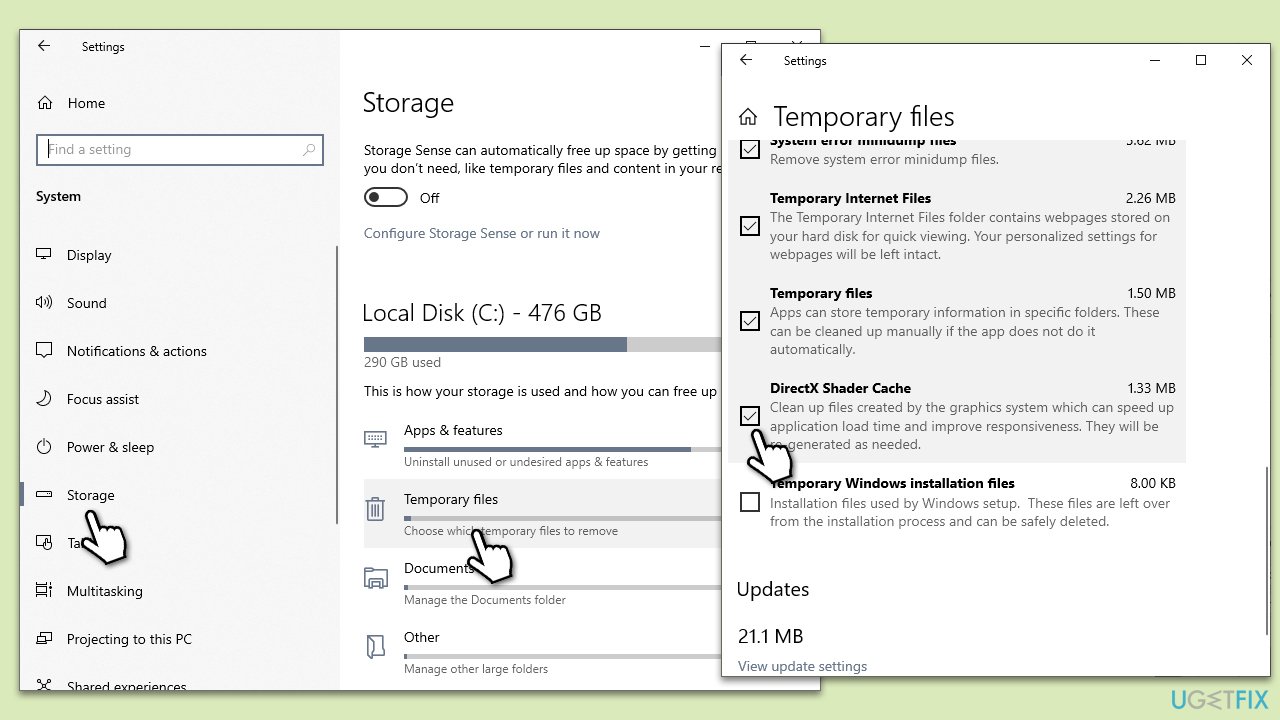
This solution allows you to remove the cache via the Settings in Windows. This is a straightforward approach and does not require any additional software or tools. By doing this, you free up disk space, but remember that the cache will start rebuilding as you run applications that use DirectX.
- Click Start and select Settings.
- Go to System and then select Storage.
- On the right side of the window, Windows will compile data you can clear.
- Select Temporary files.
- Scroll down and mark DirectX Shader Cache.
- Click Remove files.
Option 2. Disk Cleanup utility
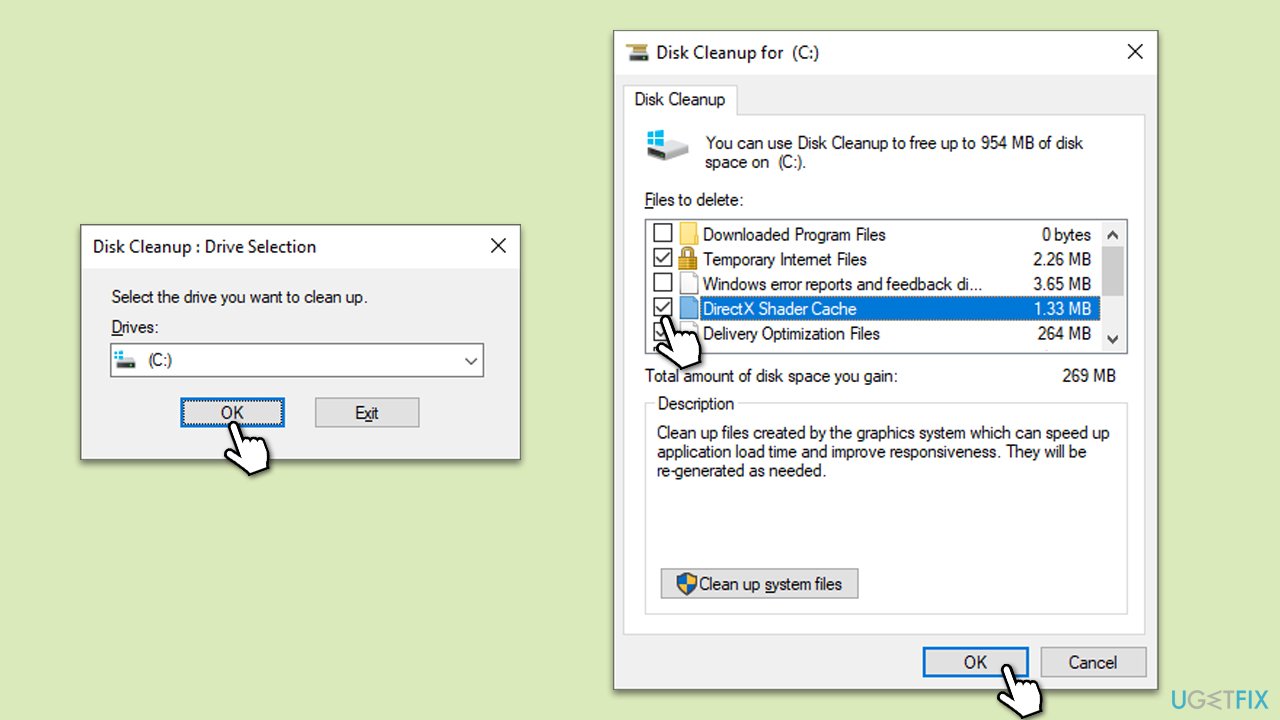
Windows provides a built-in tool known as Disk Cleanup that can help users clear up unnecessary files, including the DirectX Shader Cache. This option is relatively user-friendly and ensures that other temporary files taking up space are cleared simultaneously.
- Click on the Start button and type in Disk Cleanup.
- Select the Disk Cleanup tool from the search results.
- Choose the drive where your OS is installed (commonly C:) and click OK.
- Wait for the tool to analyze the drive.
- In the results window, locate and check DirectX Shader Cache.
- Click OK, then confirm the deletion by clicking Delete Files.
Bottom line
It is safe to delete the contents of the DXCache folder to free up space. However, be aware that this may lead to slight delays during the first runs of games or applications after deletion. If issues persist after clearing the cache, consider checking for other storage optimization methods.
Frequently asked questions
The DirectX Shader Cache stores compiled shaders to improve game and application loading times, leading to smoother performance on Windows 10 and Windows 11.
You can delete the DXCache by navigating to the 'C:\Users\YourUsername\AppData\Local\Microsoft\DirectX Shader Cache' folder and removing its contents.
Deleting the cache may temporarily reduce performance as the shaders will need to be recompiled, but it can also resolve issues related to corrupted shader files.




Report an issue
What's wrong with this guide? We review every report and update or remove content.
Report received — thank you. We'll review and fix it.
You need a free account to submit a report.
Be the first to comment