How to fix
Free Up Disk Space
on Windows
Easily reclaim disk space on Windows 10 with Storage Sense. Optimize your system automatically and reduce clutter effortlessly. Expert-tested tips inclu…

Why does How to Free Up Disk Space on Windows 10 Automatically Using Storage Sense occur?
- Third-party utilities are still actively used for disk cleanup
- Temporary files are created when applications are removed
- Duplicate files are created by the system
- Users often believe moving files to the Recycle Bin is sufficient
- Manual management of junk files is difficult and not recommended
Repairs Windows system files, removes malware, and restores a clean OS state — without reinstalling.
Is it possible to remove junk files in Windows 10 without using a third-party utility?
Windows 10 introduced a new feature called Storage Sense, which monitors the condition of hard drive regarding free space and automatically removed junk, temporary files, and other garbage from the system. This novelty has been rolled out with the Creators Update, but apparently people did not get accustomed to it because third-party disc cleanup utilities are still actively used.
Storage Sense Feature as a Part of Windows
Although Storage Sense feature is currently represented as a novelty, it’s actually not. It has been released in 2015 as a part of Windows Phone. Initially, it allowed people to manage and organize applications and files on a hard drive as it resumed how much of the free space is already occupied and indicated space occupancy of each separate file type. From the initial inspection, it seems that Storage Sense performs the same task in Windows 10 Creators Update. However, the core purpose of the feature has been improved significantly. Now, people don’t have to use third-party tools to delete old files, monitor specific file types, remove junk, duplicate files, and other tasks that are important for keeping free space on a hard drive. The best thing is that Storage Sense does the entire job automatically, except that it has to be set up to do so.
Enabling Storage Sense
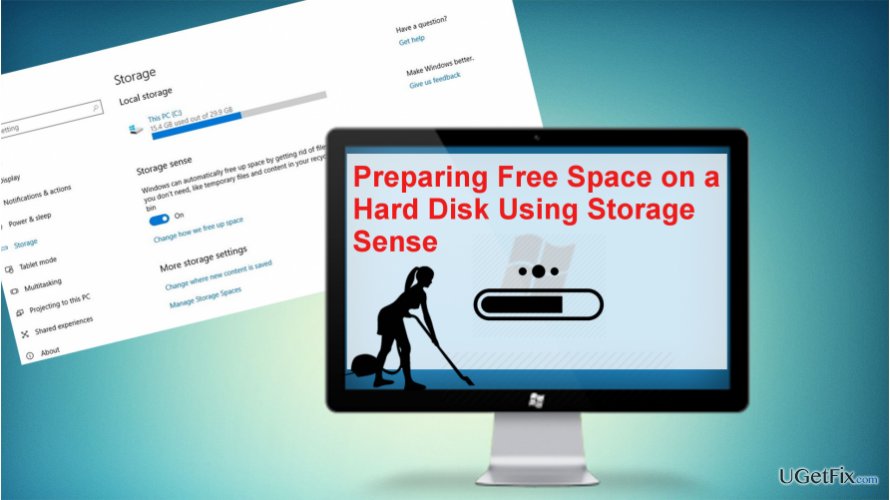
Many PC users still believe that it’s sufficient to move the unnecessary files and programs to the Recycle Bin, which is not. Removed content, especially applications, create temporary files, which are not removed automatically. Besides, system often creates duplicate files, which are not necessary and storing them undeleted unnecessarily take up free space. Since it’s difficult and not recommended to manage junk on Windows manually, you can either use a third-party optimization tool, such as [d1] or enable Storage Sense feature by following these steps:
- Press Windows key + I to open Settings app.
- Click System and open Storage tab.
- Slide the toggle that is next to Storage sense to On.
Set which items have to be removed automatically
- Press Windows key + I to open Settings app.
- Click System and open Storage tab.
- Click on the Change how we free up space link.
- Select which items you want to be removed automatically.
We would recommend choosing the removal of temporary files and files in the recycle bin that are stored for over 30 days.
Enable clean-up process with Storage Sense immediately
- Press Windows key + I to open Settings app.
- Click System and open Storage tab.
- Find the Free up space now option and click Clean now.
IMPORTANT: Storage Sense does not eliminate temporary files like Windows Update logs, previous versions of Windows 10 or installation files. Therefore, temporary files related to Windows 10 install and update will have to be removed manually.
Bottom line
To free up disk space on Windows 10, you can enable the Storage Sense feature by accessing the Settings app and adjusting the Storage settings. This feature automatically removes junk and temporary files without the need for third-party tools. If none of these methods work, consider using a dedicated disk cleanup utility.
Frequently asked questions
To enable Storage Sense, go to Settings > System > Storage and toggle on the Storage Sense option.
Yes, you can configure Storage Sense to run automatically by adjusting the frequency settings under Storage settings.
Storage Sense can automatically delete temporary files, files in the Recycle Bin, and files in the Downloads folder that haven't been opened for a specified period.




Report an issue
What's wrong with this guide? We review every report and update or remove content.
Report received — thank you. We'll review and fix it.
You need a free account to submit a report.
Be the first to comment