How to fix
System Restore Error Code 0x8007025d
on Windows
Resolve System Restore Error Code 0x8007025d on Windows 10 quickly and effectively. Expert-tested fixes ensure smooth system performance, with screenshots.

What causes How to Fix System Restore Error Code 0x8007025d on Windows 10?
- Failed extraction of the original copy of the directory from the restore point
- Issues with the AppxStaging and broken files in the %Program Files%WindowsApps directory
- Faulty Windows 10 updates released in February
- System Restore points are disabled by default in Windows 10
- Inability to locate the APPxStaging folder
Repairs Windows system files, removes malware, and restores a clean OS state — without reinstalling.
System Restore fails with an error “System restore failed to extract the original copy of the directory from the restore point. Source %Program Files%WindowsApps.” I’ve no idea what does that mean or what should I do, so any help would be highly appreciated.
Few people have reported a fatal Windows 10 Restore Point error 0x8007025d. It emerges when a PC’s owner attempts to perform a System Restore by enabling a point created earlier. For this purpose, he or she navigates to the System Properties -> System Restore and then enables the latest (not necessarily) Restore Point.
System Restore is not a new feature as it has first been introduced in Windows ME.[ref en-1] In Windows 10 the creation of Restore Points is turned off by default, but all users can create them manually by performing several simple stems. In case of some serious Windows failure, the Restore Point created before the occurrence of the issues allows people to get back to the previous Windows state regarding system files, settings, registry entries,[ref en-2] etc., except personal files. Therefore, System Restore errors like 0x8007025d are a great badge.
Install Windows 10 Creators Update to Fix 0x8007025d Error
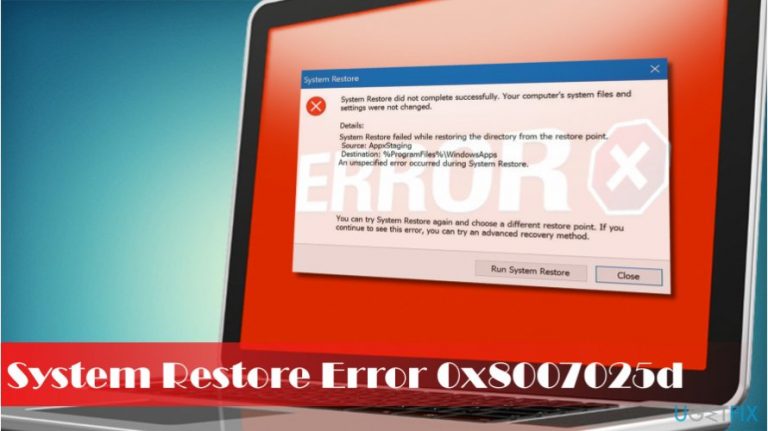
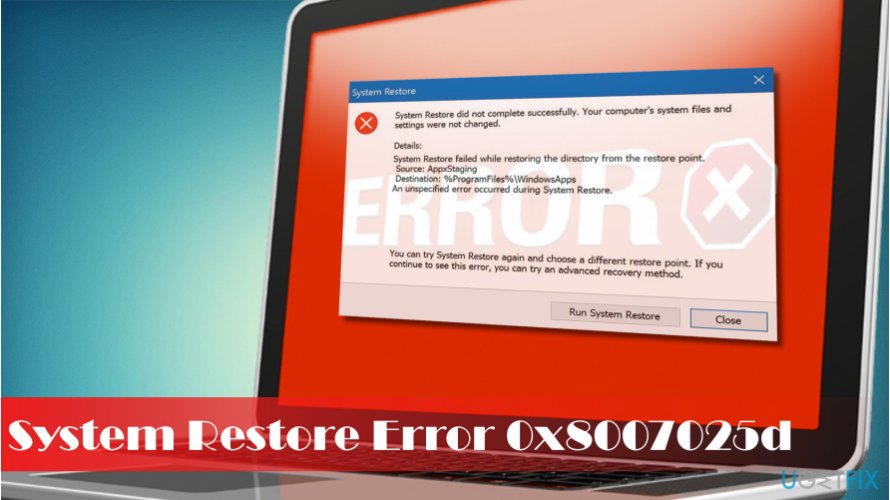
All the peculiarities of the Windows 10 Restore Point error 0x8007025d remind the ones typical for the error 0x80070091. The error 0x8007025d occurs while during the initialization of the Restore Point and then completely fails with the following error message:
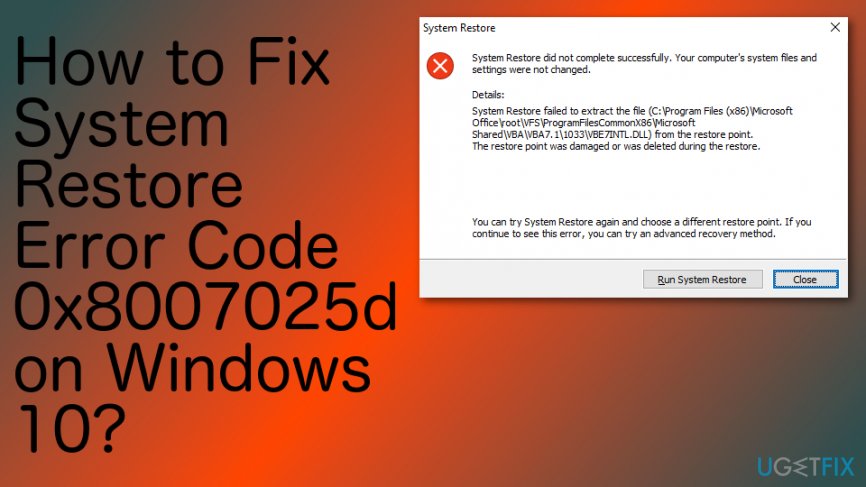
System restore failed to extract the original copy of the directory from the restore point. Source %Program Files%WindowsApps
Destination APPxStaging 0x8007025d.
It seems that the culprit of the bug is the AppxStaging and broken files located in the %Program Files%WindowsApps directory. Several people reported that when trying to grasp the trigger they have managed to find the c:\\Program Files\\WindowsApps folder, but no APPxStaging can be found.
Some experts claim that the problem may stem from faulty Windows 10 updates released in February. Therefore, the first thing to try to fix System Restore error 0x8007025d is to install Windows 10 Creators Update.[ref en-3] If the problem is happening on the on the Creators Update, the solution would be to enable System Restore at boot, clean WindowsApps folder or enlist the content of the %ProgramFiles%\\WindowsApps folder.
How to Fix System Restore Error Code 0x8007025d on Windows 10?
Repair the system at boot
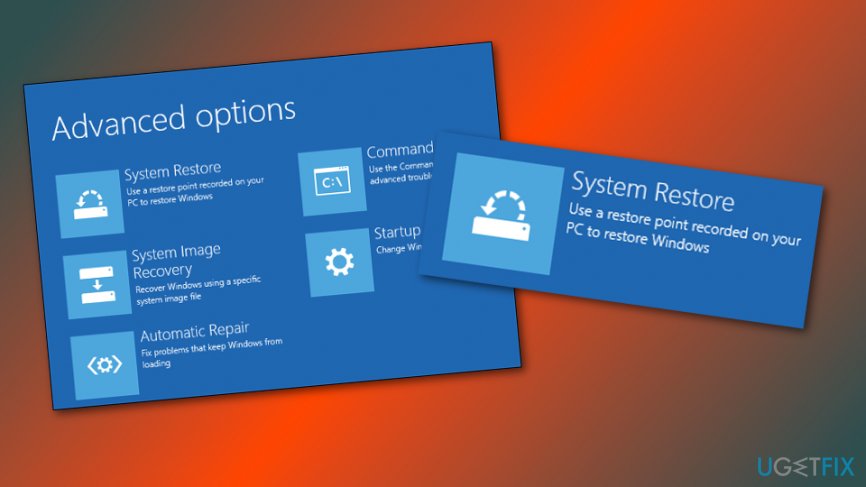
- Reboot the PC.
- Press Shift key repeatedly during the boot phase and select Repair your computer.
- Now select Troubleshoot and click Advanced options.
- Click on the System Restore option.
Fix sol
Clean WindowsApps folder
Windows Explorer won't open %ProgramFiles%\\WindowsApps folder as it's owned by TrustedInstaller. Therefore, to initiate any changes of this folder, you will have to assign the ownership of the folder by performing these steps:
- Right-click on the %ProgramFiles%\\WindowsApps folder and select Properties.
- Open Security tab and find the group or user name section.
- Select Advanced button and check the Owner section at the top of the Advanced Security Settings window.
- Select Change and then click Advanced on the User or Group window.
- Enter the name of your User Account and click Check Names (you can do the same by clicking on Find Now button).
- Select your account from the list and click OK.
- Check the Replace owner on subcontainers and objects and click OK to save the changes.
Once you assign the %ProgramFiles%\\WindowsApps folder's ownership to yourself, rename it to WindowsApps Old.
Enlist the content of the %ProgramFiles%\\WindowsApps folder
- Press Windows key + X and select Command Prompt (Admin).
- If a UAC opens, click Yes to confirm.
- Type PowerShell and press Enter.
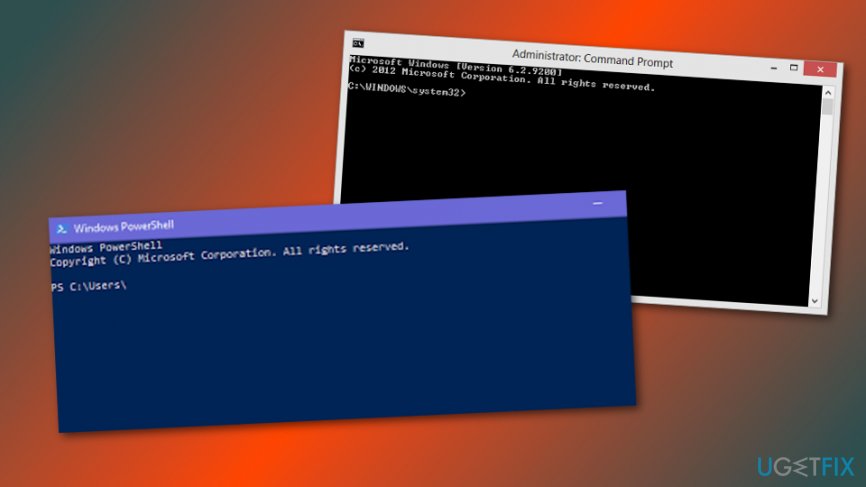
Fix sol - In the PowerShell window, look for the C:\\WINDOWS\\system32 path.
- If the path is present, type cd $env:programfiles\\WindowsApps command and press Enter to change the path of the WindowsApps folder.
- Now type (LS -Re -Fi * -Fo -Ea:Inquire).FullName | clip and press Enter to enlist all sub-folders and its content via PowerShell.
- Copy the results and store them within the clipboard.
- Finally, type notepad in the PowerShell window and click Ctrl + V.
Hopefully, these steps helped you to fix 0x8007025d error and regenerate System Restore functionality. After all, we would recommend scanning the system with [d1] optimization utility to delete temporary files, outdated system files, damaged registry keys and other garbage that may negatively influence PC's performance.
Bottom line
To fix System Restore error 0x8007025d, users should install the Windows 10 Creators Update and check for any issues in the %Program Files%WindowsApps directory. If these solutions do not resolve the issue, further troubleshooting may be necessary.
Frequently asked questions
This error often occurs due to issues with the hard drive, corrupted system files, or insufficient disk space for the restore operation.
You can try running the System File Checker tool, ensuring that your hard drive is healthy, and checking for available disk space to fix this error.
To minimize the chances of encountering this error again, regularly maintain your system by performing updates, running disk checks, and ensuring you have sufficient disk space.




Report an issue
What's wrong with this guide? We review every report and update or remove content.
Report received — thank you. We'll review and fix it.
You need a free account to submit a report.
Be the first to comment