How to fix
Disable Taskbar Notifications
on Windows
Easily disable taskbar notifications on Windows 10 with our expert tips. Enjoy a clutter-free experience, all backed by clear instructions and screenshots.

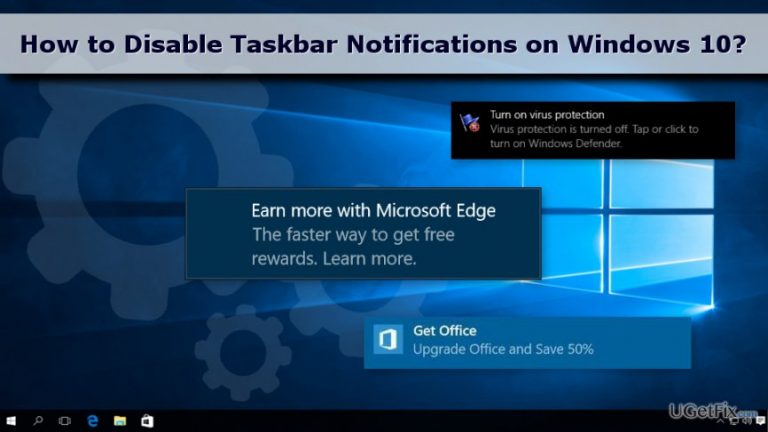
Why does How to Disable Taskbar Notifications on Windows 10 occur?
- Notifications are generated by the operating system to promote applications or features.
- Users find taskbar notifications aggressive and annoying.
- In-built advertisements promoting Microsoft products are prevalent in Windows 10.
- The 'Get tips, tricks, and suggestions as you use Windows' feature is turned on under Notifications & Actions.
- Users may not be aware of how to disable these notifications.
Repairs Windows system files, removes malware, and restores a clean OS state — without reinstalling.
Is there a way to stop pop-up notifications on the taskbar? I am using Windows 10 and I am so tired of these tips how to speed up the computer, Edge, and other stuff. I don’t need them. Hopefully, you can help me!
Microsoft Windows always included a notification area. Thus, once in a while, you may receive a pop-up informing about new files added to Dropbox, installation of USB device, security alerts and other useful messages from Windows.
However, since the appearance of Windows 10, computer users are complaining about annoying taskbar notifications. We have no doubts that the company wants to educate users and improve their browsing experience by offering tips on how to speed up various programs.
Unfortunately, these notifications seem to be aggressive and annoying. What is more, they are often compared to the intrusive pop-ups that offered to upgrade to Windows 10 a few years ago. Therefore, these notifications are the part of Microsoft’s advertising strategy. This company wants to promote their other products or give some advice on how to use them.
Windows 10 users probably have noticed the amount of advertisements displayed in the latest version of operating system. It doesn’t matter if you are one of the early birds who managed to obtain a license for free or purchased it yourself, in-built advertisements promoting Microsoft’s products are waiting for you everywhere.
Undoubtedly, these ads might be annoying, especially if you have bought the license hoping that you wouldn’t be bothered by other software promotions. Fortunately, the majority of them can be disabled, including Windows 10’s taskbar notifications.
Before telling you how to turn off taskbar notifications on Windows 10, we want to explain briefly how they work. These pop-ups are generated by the operating system itself to promote particular application or its features. Therefore, you won’t be able to disable them via promoted program’s settings.
In order to stop pop-ups, you have to access System’s settings and look up for turned on “Get tips, tricks, and suggestions as you use Windows” feature under Notifications & Actions section. In order to turn it off, follow our quick and simple instructions below.
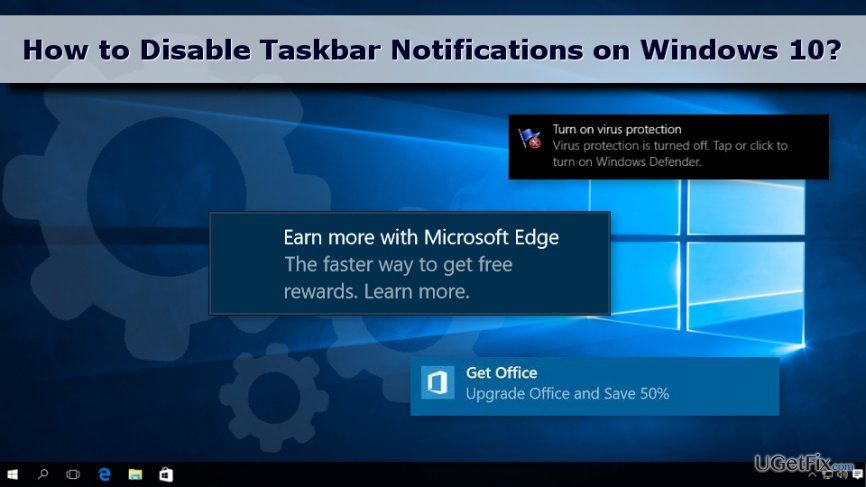
Steps to turn off Window 10’s taskbar notifications
As you already know these notifications are generated by Windows operating system. Thus, if you continuously see the notification suggesting to learn more about Microsoft Edge's features, you should not look up the way to stop them in the browser’s settings. You won’t find the “disable” button there.
In order to stop these promotional tips, you have to access System’s settings by following these steps:
1. Open Start.
2. Go to Settings.
3. Go to the System.
4. From there navigate to Notifications & Actions.
5. In the appeared window you will see a bunch of options that might be turned on or off. Find “Get tips, tricks, and suggestions as you use Windows” entry and turn it off.
As you can see, these settings allow managing other pop-up notification settings. Thus, if you would like to get or disable some of them, you should do it as well.
Bottom line
To disable taskbar notifications on Windows 10, access the System settings and turn off the 'Get tips, tricks, and suggestions as you use Windows' feature. If these steps do not resolve the issue, consider checking other notification settings or seeking further assistance.
Frequently asked questions
To disable specific taskbar notifications on Windows 10, go to Settings > System > Notifications & actions, and toggle off the notifications for the apps you want to silence.
Yes, you can turn off all taskbar notifications by going to Settings > System > Notifications & actions and toggling off 'Get notifications from apps and other senders'.
No, disabling taskbar notifications will not affect app updates; it will only stop notifications from appearing on your taskbar.




Report an issue
What's wrong with this guide? We review every report and update or remove content.
Report received — thank you. We'll review and fix it.
You need a free account to submit a report.
Be the first to comment