How to fix
Enable or disable Taskbar Overflow Menu
on Windows
Easily enable or disable the Taskbar Overflow Menu in Windows 11 for a streamlined desktop experience. Expert-tested tips and tricks included.


Why does How to enable or disable Taskbar Overflow Menu in Windows 11 occur?
- Introduction of a new taskbar overflow experience
- Taskbar hides additional apps when at full capacity
- Users need to navigate through Alt+Tab to find open apps
- Absence of basic features like text labels
- Criticism regarding the cumbersome navigation of the overflow menu
Repairs Windows system files, removes malware, and restores a clean OS state — without reinstalling.
Hello. How can I revert to the previous taskbar behavior where all my open apps were readily visible with a single click, as opposed to the current setup where I have to navigate through a Taskbar Overflow Menu after an update?
Microsoft introduced a new taskbar overflow experience in Windows 11 to enhance the user experience, particularly for those managing numerous open apps. This feature is beneficial for users with smaller, lower-resolution screens, as it optimizes the taskbar's behavior when it reaches maximum capacity.
The Windows 11 taskbar originally hid additional apps automatically when at full capacity, showing only the most recent app in the overflow section. However, this setup proved less than ideal, requiring users to navigate through Alt+Tab to find other open apps. The overflow menu incorporates familiar taskbar behaviors, including support for pinned apps, jump lists, and extended UI. Notably, the menu discreetly dismisses when users click outside of it or navigate to an application.
Despite these improvements, Windows 11's taskbar has faced criticism since its launch due to the absence of basic features such as text labels and the ability to drag and drop files. Microsoft is actively addressing these concerns through ongoing updates, but the evolving taskbar experience may still feel inconsistent and incomplete to some users.
In this guide, you will find two options that will provide you with the ability to enable or disable the Taskbar Overflow Menu in Windows 11. This customization feature is especially crucial given the varied preferences and workflow requirements of users. The Taskbar Overflow Menu, while aiming to improve multitasking efficiency, has faced criticism from some users who find it cumbersome to navigate through when accessing their apps.
If you encounter any other issues with your operating system, consider using a maintenance tool like [d1] that can effectively address common problems such as system errors, BSODs (Blue Screen of Death), corrupted files, and registry issues. These tools can contribute to a smoother and more stable system performance. Otherwise, follow the step-by-step instructions below.
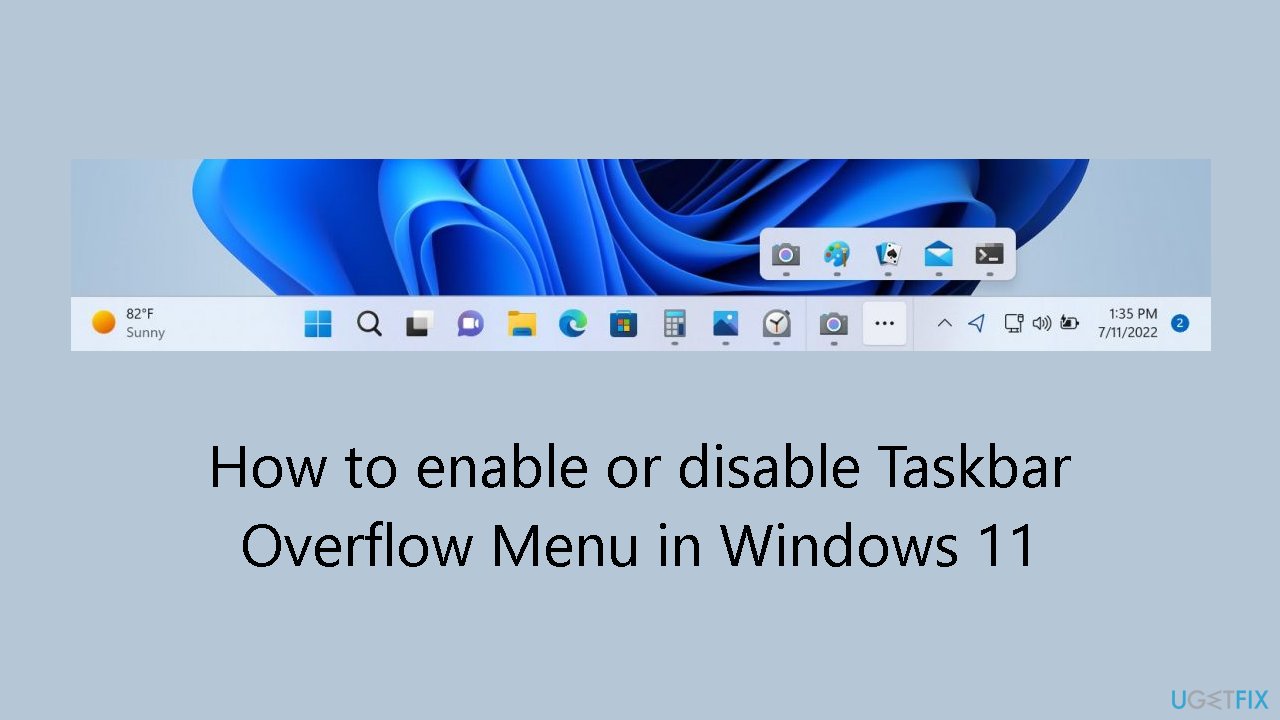
Method 1. Enable or Disable Taskbar Overflow Menu in Settings
- Open Settings.
- Navigate to Personalization.
- Click on Taskbar.
- Scroll down to the Other system tray icons section.
- Locate the Hidden icon menu toggle switch.
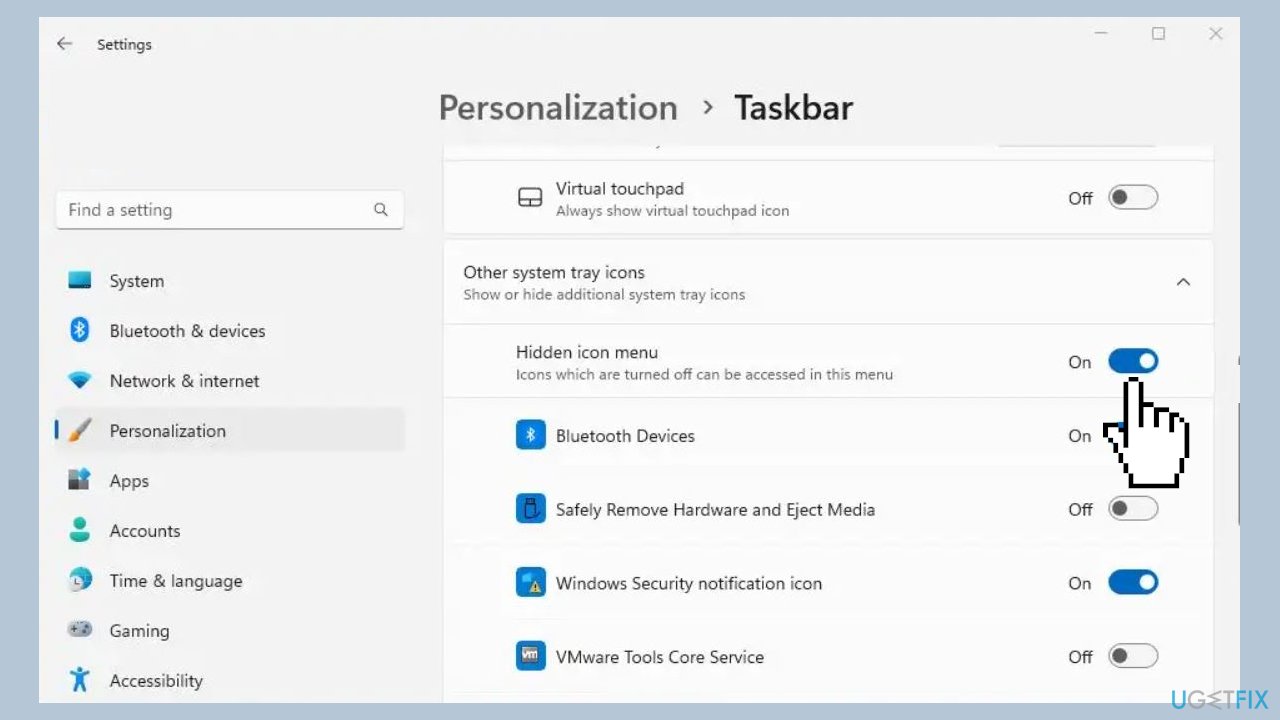
- Turn on or off the toggle switch to enable or disable the overflow menu.
Method 2. Use a Third-Party Tool
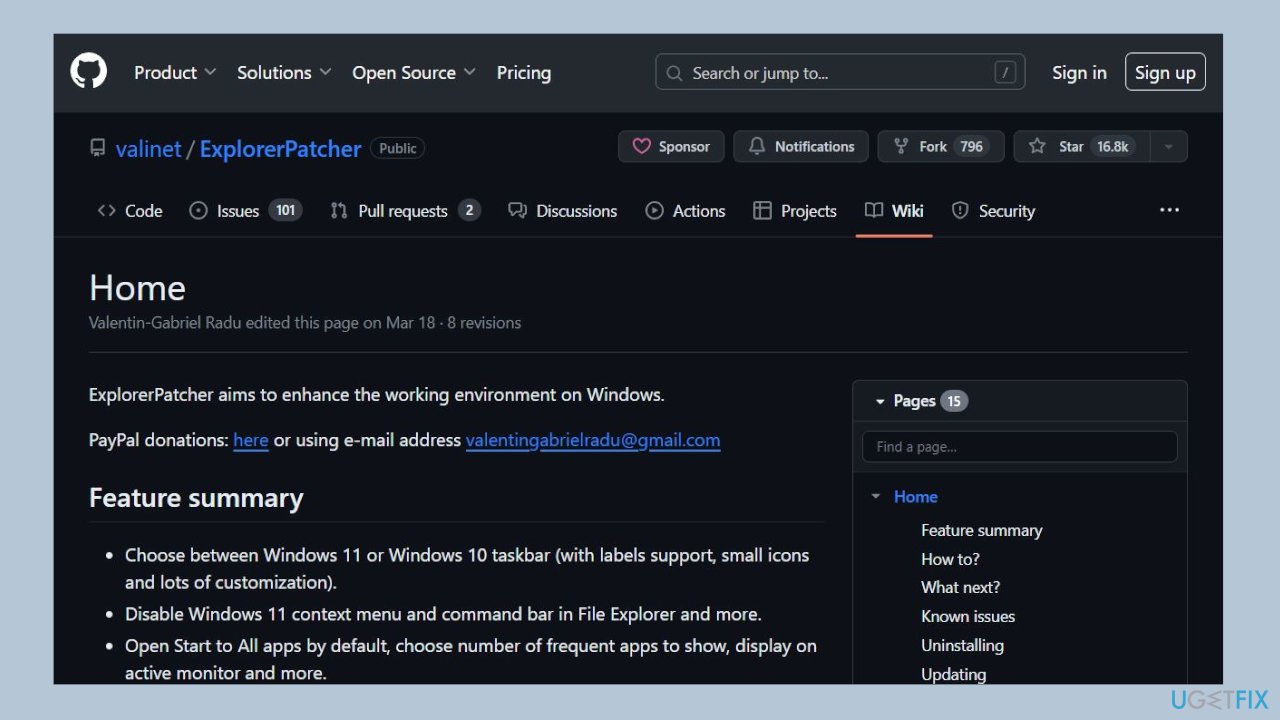
ExplorerPatcher is a versatile tool designed to empower users with extensive customization options for their Windows 11 or Windows 10 experience. With a primary focus on taskbar aesthetics and functionality, this tool allows users to choose between the Windows 11 or Windows 10 taskbar, complete with label support, small icons, and a myriad of customization possibilities. Notably, users can disable the Windows 11 context menu and command bar in File Explorer, providing a streamlined and personalized file management experience.
- Download the ExplorerPatcher tool from GitHub.
- Run the installer. It will automatically prompt for elevation, after which it will install the necessary files.
- When done, you will be greeted with the familiar Windows 10 Taskbar.
- To customize the options offered by the program, right-click the Taskbar and choose Properties.
Note: Ugetfix.com does not endorse or promote ExplorerPatcher from GitHub. Users should exercise caution and perform their own research before downloading and using any external software. Ugetfix.com is not responsible for any issues or consequences that may arise from the use of such tools. It is recommended to use official and trusted sources for software modifications and customizations.
Bottom line
This guide provides two options to enable or disable the Taskbar Overflow Menu in Windows 11, allowing for customization based on user preferences. If you encounter further issues, consider using a maintenance tool to address common problems.
Frequently asked questions
To enable the Taskbar Overflow Menu in Windows 11, right-click on the taskbar, select 'Taskbar settings', and toggle on the 'Taskbar overflow' option.
Yes, you can disable the Taskbar Overflow Menu by going to 'Taskbar settings' and toggling off the 'Taskbar overflow' option.
Disabling the Taskbar Overflow Menu will prevent apps from being grouped in an overflow area, keeping all icons visible directly on the taskbar.




Report an issue
What's wrong with this guide? We review every report and update or remove content.
Report received — thank you. We'll review and fix it.
You need a free account to submit a report.
Be the first to comment