How to fix
Reinstall Audio Drivers
on Windows
Reinstall audio drivers on Windows 10 effortlessly to restore sound quality and functionality. Expert-tested methods ensure a seamless fix in minutes.

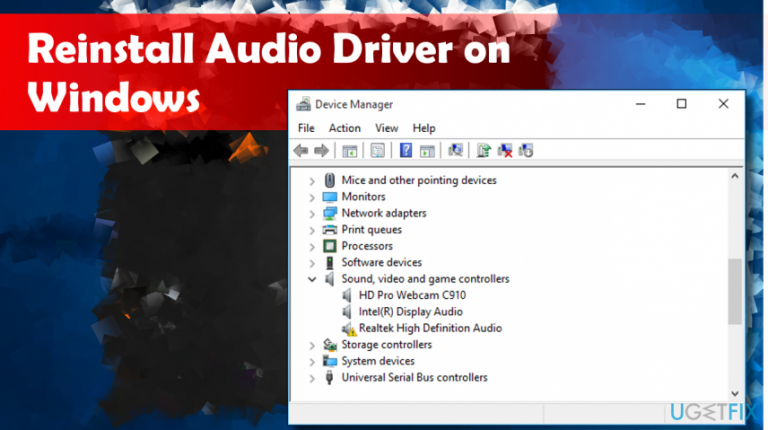
Why does How to reinstall Audio Drivers on Windows 10 occur?
- Driver issues after Windows 10 update
- Damaged audio driver
- Corrupted audio driver
- Audio driver removed during installation
- Incompatibility with Windows 10 Creators' Update
Repairs Windows system files, removes malware, and restores a clean OS state — without reinstalling.
Hi. I have sound issues and I am not sure what to do. Everything looks okay with cables and so on. Maybe it is a driver problem since everything is okay in other places. I do not know how to check them and how to reinstall or update them. How can I reinstall my audio drivers on windows 10?
Realtek High Definition (HD) Audio Driver stands for the sound driver for Windows[ref en-1] operating system. It provides high-quality DTS, Dolby, and Surround Sound. Because of its useful features, it has been dubbed as the most used sound drivers on the market.
Unfortunately, many people have complained about Realtek's HD Audio driver issues on Windows 10, which appeared after downloading the latest version of this OS. In fact, there are numerous problems related to Windows 10 Creators' Update, including the loss of important data kept on the system before downloading the recommended update. Due to this, a need arises to reinstall Audio Drivers on Windows 10, as users sometimes are unable to hear anything at all.
Numerous users have complained about broken drivers and the audio system not working even after getting updates, so reinstalling Audio Drivers often is the solution. Sometimes Windows 10 delivers a message "No Audio Device is installed." Microsoft stated that the company is investigating the issue, but they haven't released other statements.
The symptoms of the malfunctioning Realtek High Definition (HD) Audio Driver are obvious – there is no sound while you use your computer, sounds are interrupted, they play in an unusual way, no HDMI sound, the PC freezes or restarts when trying to play the sound and similar. Also, the device may return an error message[ref en-2] when trying to play the sound, for example:
- WAV sound playback error detected;
- CD audio device is in use by another application;
- MIDI output error detected;
- Your audio hardware can’t play the current file.
Usually, the no sound issue occurs on Windows 10 OS if the Audio driver is damaged, corrupted, or removed during the install/update of Windows 10, so there is no other fix but to reinstall Audio Drivers or deal with the faulty OS update. Microsoft officially confirmed that Windows 10 install had been developed in a way to automatically remove all applications and drivers that are incompatible with it.
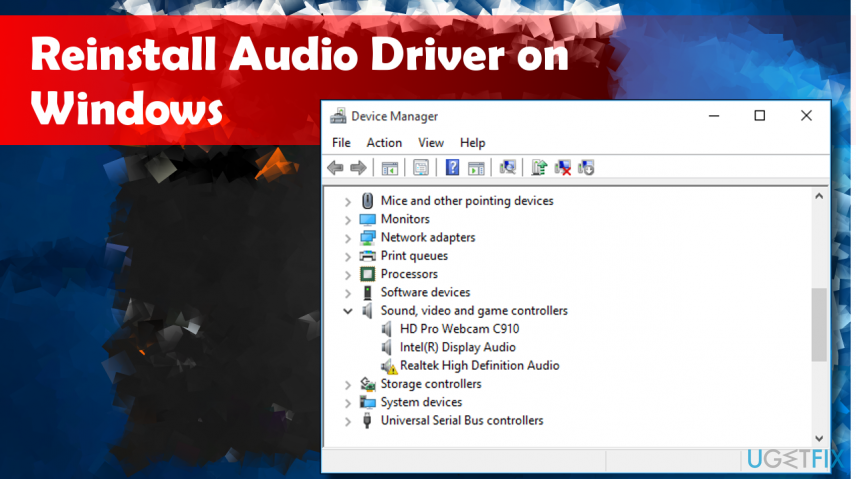
These issues can occur because of outdated drivers, hardware problems, or even malware[ref en-3] infections. You need to scan the device with the anti-malware and system repair tools like [d1] to make sure that there is no malware on your system, which may be affecting the sound or even more significant parts of the system. However, since sound missing on Windows 10 is often caused by drivers, you should learn how to reinstall drivers completely, as per the instructions provided below.
Methods to reinstall audio drivers on Windows 10
You may encounter sound problems if the Audio driver is outdated or some of the sound settings are incorrect. The most reliable way to fix sound issues on Windows 10 is to reinstall Realtek High Definition (HD) Audio Driver. However, we prepared a more in-depth guide with a few methods you should try.
Follow steps exactly and maybe try a few methods to make sure that everything runs as smoothly as possible once again.
Diagnose the problem to fix Audio Drivers issue
If you are not sure if the culprit of the problem is the audio driver, you can check that by following these steps:
- Right-click on Windows key and select Device Manager
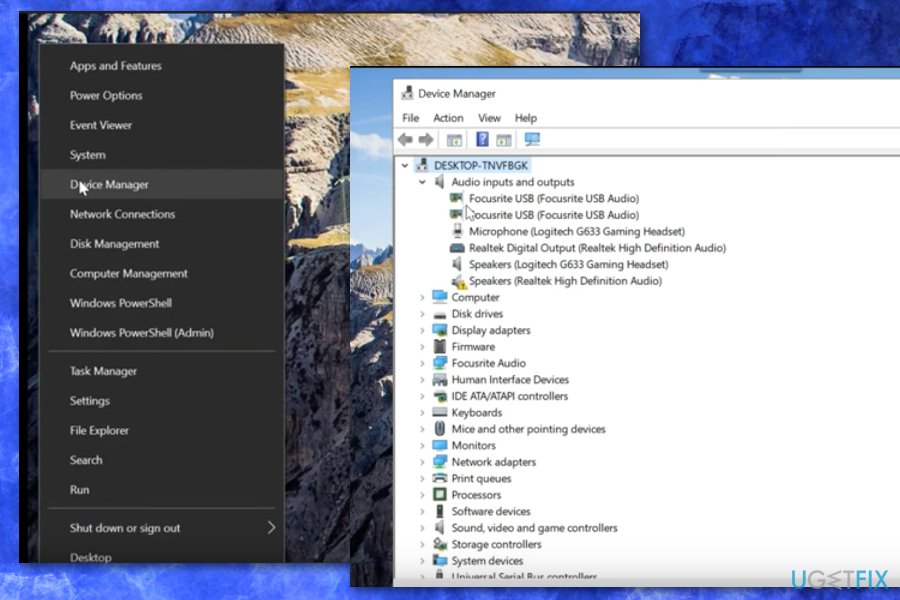
Win 10 driver audio device manager - OR press Windows key + R, type devmgmt.msc, and press Enter
- Expand the Sound, video and game controllers
- Find the Realtek High Definition Audio. If it’s marked with a yellow exclamation mark, it means that the culprit of the current sound problems on the system is the Realtek’s audio driver.
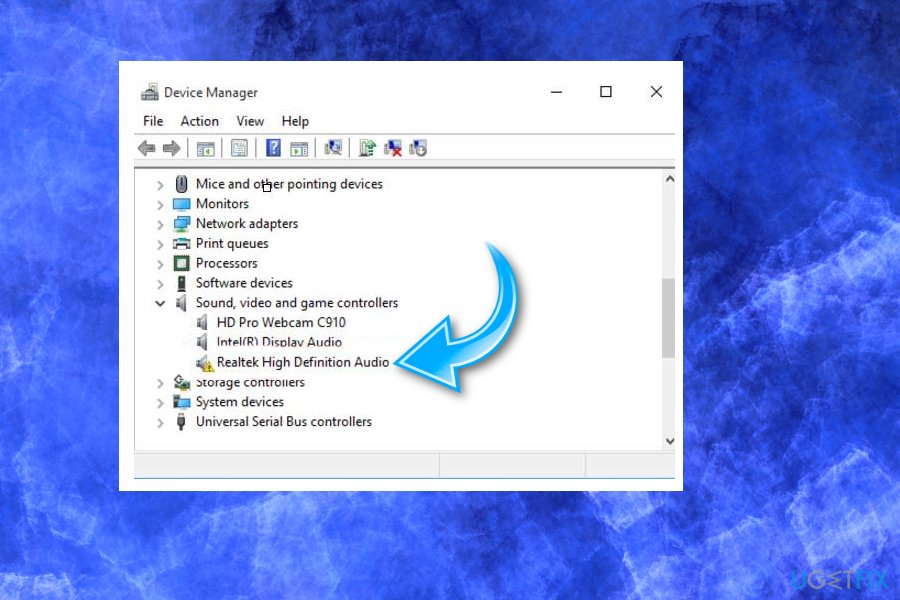
Win 10 driver audio device manager sound
Reinstall Realtek High Definition Audio Driver
- Press Windows key + R to open Run dialog.
- Type devmgmt.msc and press Enter/OK
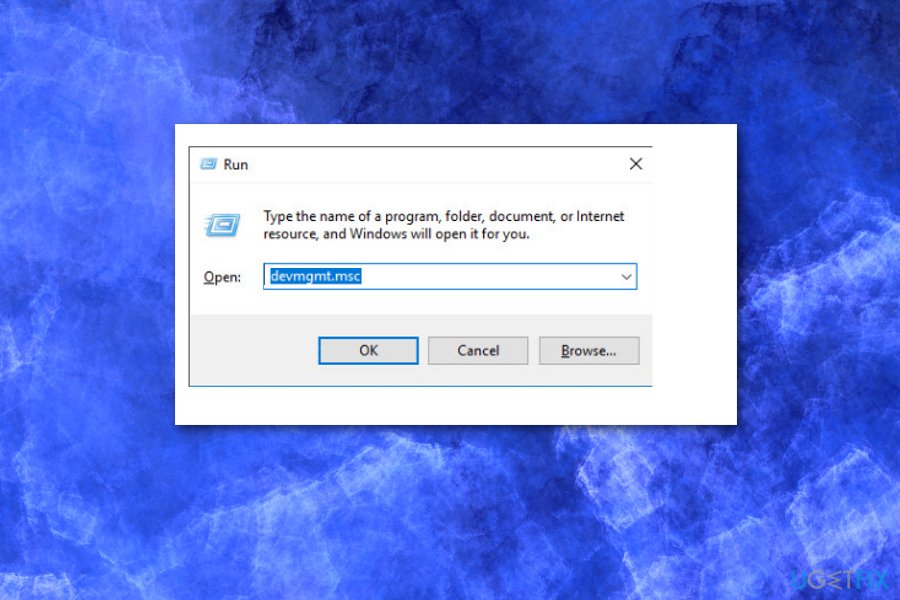
Win 10 driver audio run - OR right-click on Windows key and select Device Manager
- Expand the Sound, video and game controllers
- Right-click on the Realtek High Definition Audio Driver and select Uninstall
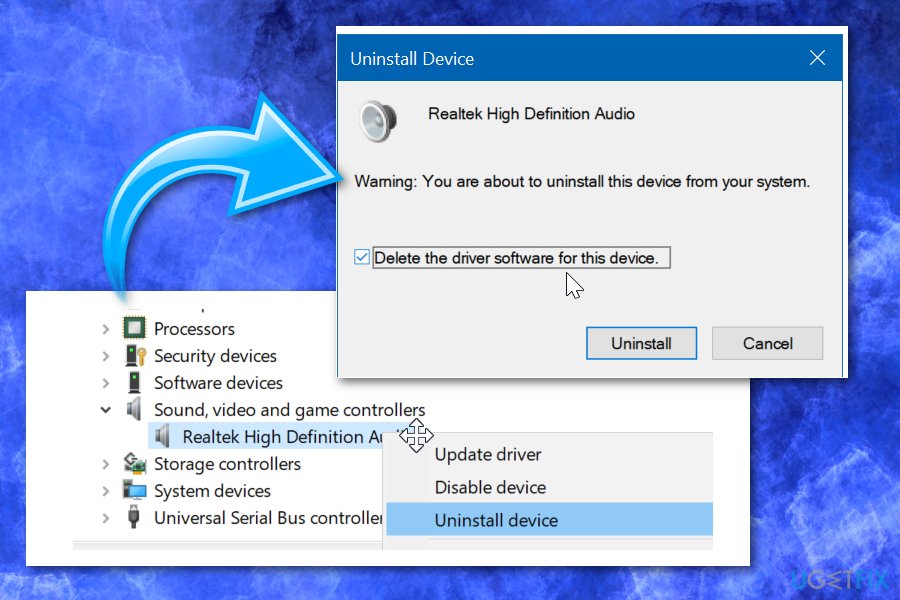
Win 10 driver audio uninstall - If you are asked for a confirmation, mark the box next to Delete the driver software for this device and press OK
- Reboot your PC
- After that, open Device Manager as explained in the steps 1-3
- Expand the Sound, video and game controllers again
- Right-click on the Realtek High Definition Audio Driver and click Scan for hardware changes
- If the system fails to detect the missing driver and install its latest version automatically, you’ll have to navigate to the official Realtek website and download the latest version of the Audio Driver corresponding with you Windows 10 type (32 or 64 bit).
Reinstall audio driver from Control Panel
- Type Appwiz.cpl in the Start or taskbar search field and then press Enter key to open Programs and Features window.
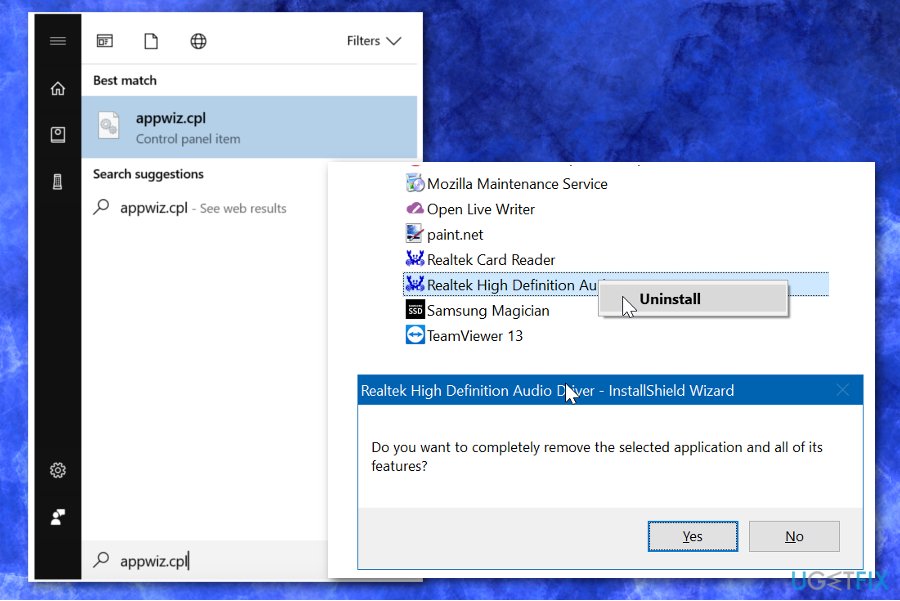
Win 10 driver audio appwiz uninstall - Find audio driver entry and Right-click on the audio driver and then choose Uninstall option.
- Choose Yes to continue.
- Reboot your device when the driver is removed.
- Get the latest version of the audio driver and install it on your PC.
Fix the issue with the incorrect Intel audio driver
According to the Microsoft, the issue appears because of the incorrect audio driver included to the update. If previously-given methods didn't help, try following these steps on your Windows OS:
- Go to Device manager and open Sound, video an game controllers section;
- Look for Realtek device (yellow triangle with "?" sign) and select it;
- While in the View menu, select Devices by connection;
- Check the parent device;
- Right-click the controller device and select Properties;
- When in the new window, click the Driver tab and check your driver's version;
- If your driver version is 9.21.0.3755, you have the driver that is incorrect.
- Click Uninstall Device and allow changes;
- Reboot the device and check if the audio works.
Update the Audio driver in Device Manager
Various users have shared this method as helpful in online support forums. Updating the driver can help to restore the audio on your Windows 10 device.
- Locate to Device manager.
- Expand the Sound, video and game controllers section.
- Look for the device with SST as a part of the name. Righ-click and select Update Driver.
- When the new window appears select Browse my computer for driver software.
- Click Next.
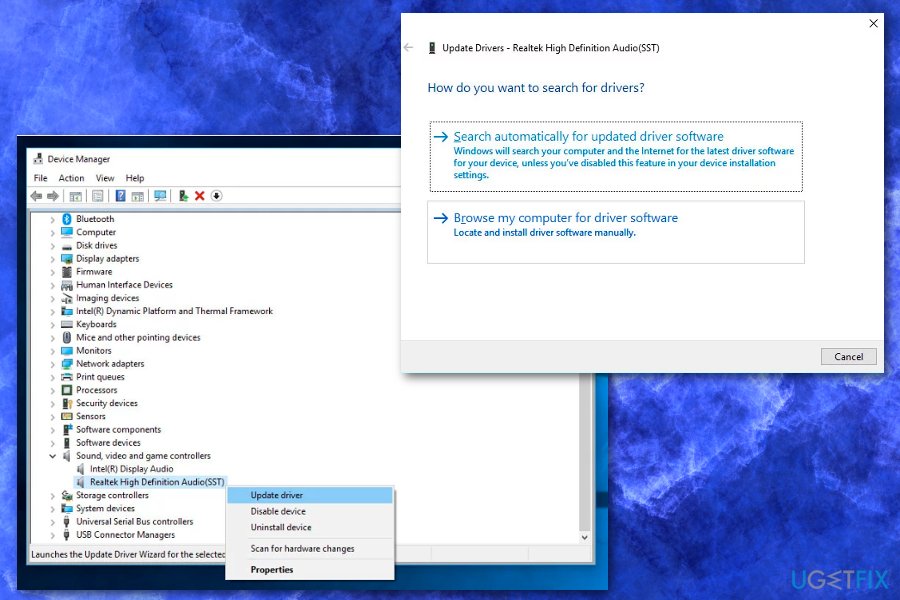
Win 10 driver issue sound update - Select High Definition Audio and then Next.
- Your audio driver should now work perfectly.
Bottom line
To resolve audio issues on Windows 10, users can reinstall or update their audio drivers, particularly the Realtek High Definition (HD) Audio Driver. If problems persist after these steps, further troubleshooting may be necessary.
Frequently asked questions
You can uninstall your current audio drivers by right-clicking the Start menu, selecting Device Manager, expanding the 'Sound, video and game controllers' section, right-clicking your audio device, and choosing 'Uninstall device.'
The easiest way to reinstall audio drivers is to go to Device Manager, right-click your audio device, select 'Update driver,' and then choose 'Search automatically for updated driver software.'
Reinstalling audio drivers can often resolve sound issues in Windows 10, especially if the drivers are outdated or corrupted.




Report an issue
What's wrong with this guide? We review every report and update or remove content.
Report received — thank you. We'll review and fix it.
You need a free account to submit a report.
Be the first to comment