How to fix
Can’t disable HDR
on Windows
Struggling to disable HDR in Windows 10 or 11? Discover quick fixes and expert tips to regain control of your display settings—zero traces left!

![[Fix] Can’t disable HDR in Windows](https://ugetfix.com/wp-content/uploads/articles/askit/fix-cant-disable-hdr-in-windows_en-768x432.jpg)
What causes [Fix] Can’t disable HDR in Windows?
- Enabling HDR mode in Windows settings
- Monitor compatibility issues with HDR
- Software incompatibilities
- Removal of the HDR toggle button
- Monitor not receiving a signal
Repairs Windows system files, removes malware, and restores a clean OS state — without reinstalling.
Hello. I was trying to set up my new LG monitor when I enabled HDR mode in Windows settings. The monitor screen immediately turned black with no signal. When I went back to settings the option to disable or enable HDR was missing. How do I fix this?
As observed by a user who recently set up a new display, enabling High Dynamic Range (HDR) in Windows can sometimes result in unanticipated complications. HDR is a display technology that improves image contrast and color range. HDR enables a wider range of brightness levels, from deepest blacks to brightest whites, resulting in more lifelike and visually spectacular content on compatible displays.
During the first setting, the user, out of curiosity, toggled the HDR option in Windows Settings. As a result, the monitor stopped working and displayed no signal. What complicates matters is that the button for enabling or disabling HDR has vanished, leaving the user unable to change the option.
While this is a rare occurrence, it can be worrying for individuals who encounter it. The absence of the HDR toggle button suggests a lack of simple means to reverse the change, and the monitor's inability to receive a signal exacerbates the situation. The lack of a visible representation makes it difficult for users to navigate through the settings and resolve the issue.
This issue highlights the necessity of recognizing the potential repercussions of activating HDR, particularly for users who are new to the function. While HDR can improve visual experiences, it is dependent on both the display device and the content being watched. Users may encounter issues similar to the one mentioned if this compatibility fails to meet requirements or if there are software incompatibilities.
This issue could be solved by navigating via advanced display settings or graphics control panels to disable HDR. However, the lack of a clear interface due to the removal of the toggle button complicates this process. Users may also need to explore other options for accessing display settings, such as utilizing another monitor or depending on keyboard shortcuts if they are available.
In this guide, you will find 5 steps that should help you fix the inability to disable HDR in Windows. You can also run a maintenance tool like [d1] that can fix most system errors, BSODs,[ref en-1] corrupted files, and registry[ref en-2] issues. Otherwise, follow the step-by-step instructions below.
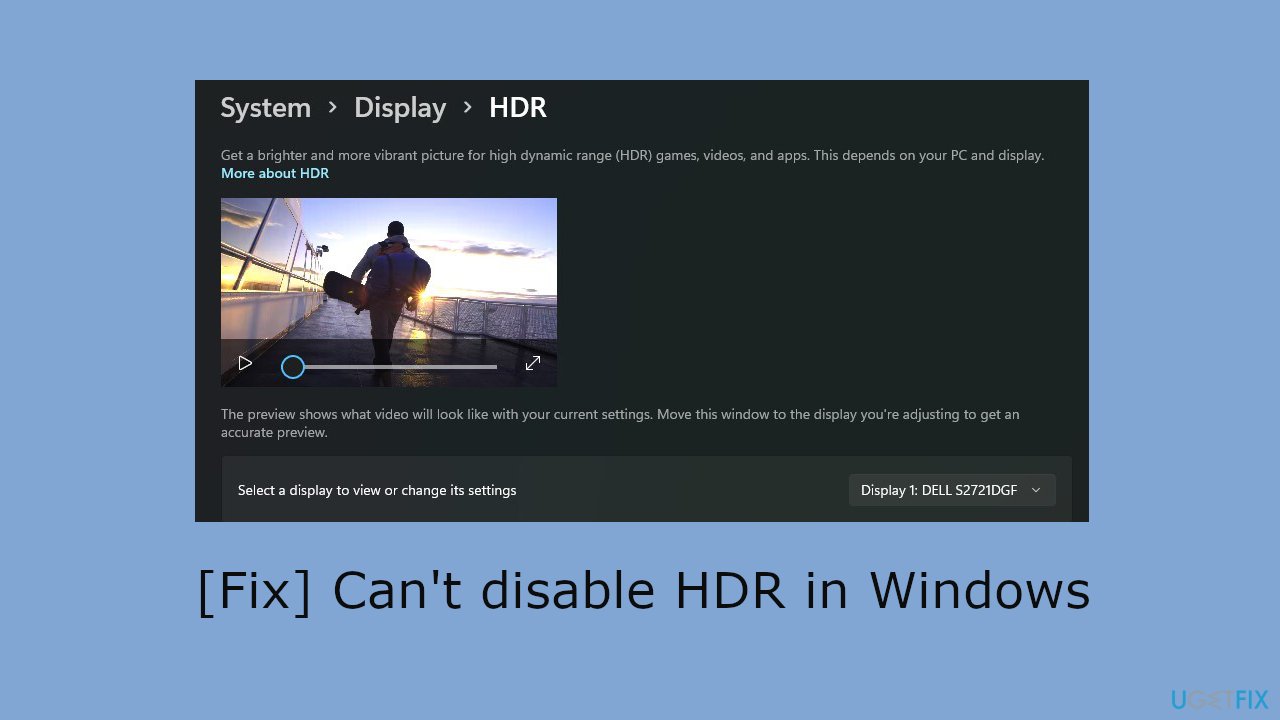
Method 1. Use System Restore
System Restore is a feature in Microsoft Windows that allows users to revert their computer's state to a previous point in time. This can be helpful if you have made changes to your system that are causing problems.
- Press the Windows key + R on your keyboard to open the Run box.
- Type SystemPropertiesProtection and press Enter.
- Go to the System Protection tab.
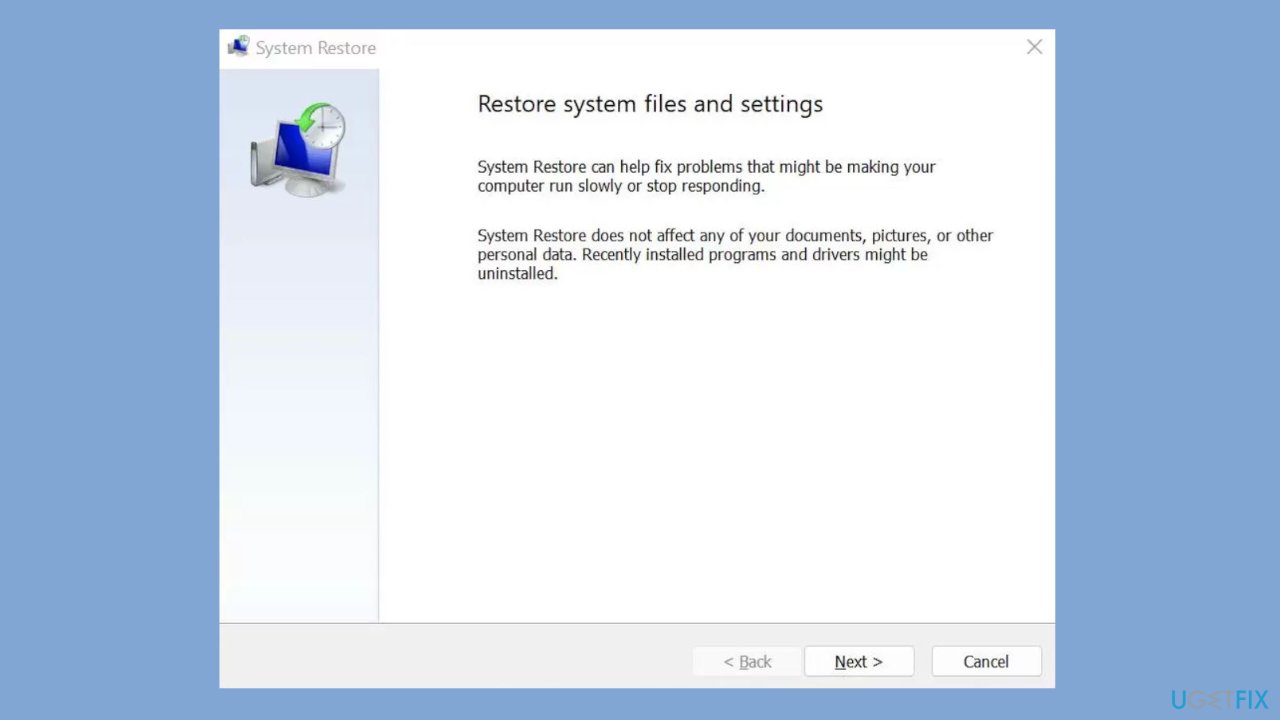
- You will see the System Restore… button. Click it to run System Restore.
- Follow the prompts until you can select a restore point.
- Select the one you want (ideally before the issue started occurring) and go ahead with the process.
Method 2. Update the Display Driver
- Press the Windows key + X on your keyboard to open the Power User menu.
- From the menu, select Device Manager.
- In the Device Manager window, find and expand the category labeled Display adapters.
- Right-click on the display adapter that corresponds to your graphics hardware. It could be named NVIDIA, AMD, Intel, or something similar.
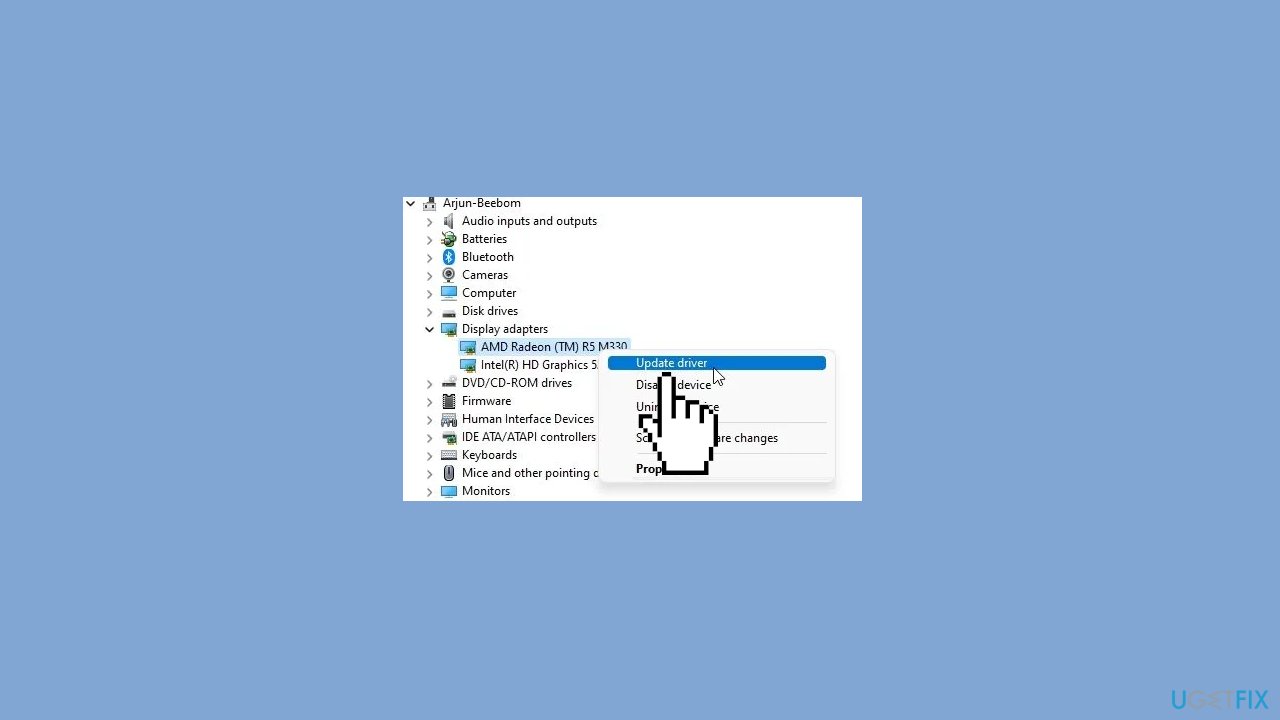
- From the context menu, choose Update driver.
- Opt for the option that says Search automatically for updated driver software.
- If prompted, follow any on-screen instructions to complete the driver update process.
- After the update is complete, restart your computer to apply the changes.
- Once your computer restarts, go back to Device Manager.
- Check the Display adapters category to ensure that the driver has been successfully updated.
You can also use a dedicated utility like [rev id="DriverFix"] that can find the best drivers for your system and install them automatically.
Method 3. Use a Different Cable
Consider changing the cable you're using for the connection. If you're currently using an HDMI (High-Definition Multimedia Interface) cable, try switching to a DisplayPort cable as a temporary solution if your monitor supports it. DisplayPort is an alternative standard for transmitting audio and video signals and might offer a quick and effective workaround. While this solution might not address the root cause, it serves as a practical and accessible troubleshooting option.
Method 4. Install Windows Updates
- Click Start and select Settings.
- Go to the Windows Update section.
- Click Check for updates and wait.
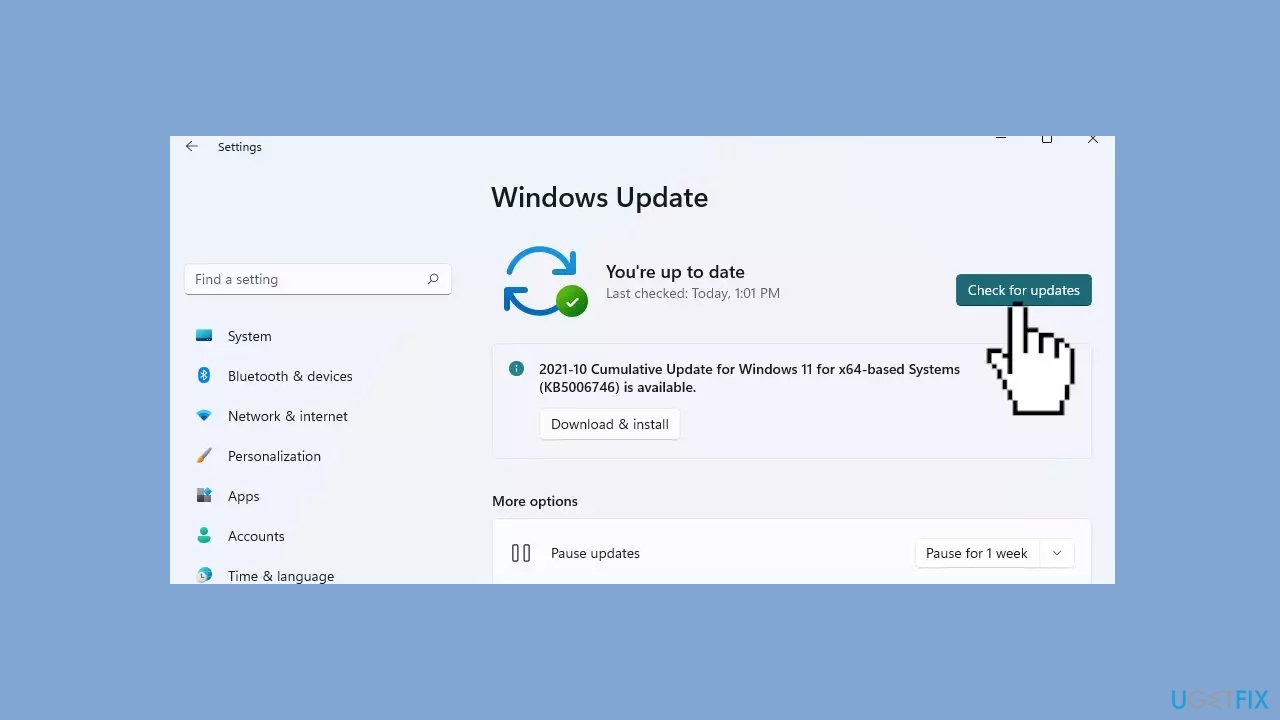
- Go to the Advanced options and install optional updates.
- Reboot your system.
Method 5. Modify the Windows Registry
Modifying the registry can have system-wide effects, so proceed with caution and ensure you follow these instructions accurately. It's recommended to back up the registry or create a system restore point before making changes.
- Press the Windows key + R on your keyboard to open the Run dialog box.
- Type regedit and press Enter to open the Registry Editor.
- In the Registry Editor, go to the following location:
HKEY_LOCAL_MACHINE\SYSTEM\CurrentControlSet\Control\GraphicsDrivers\MonitorDataStore
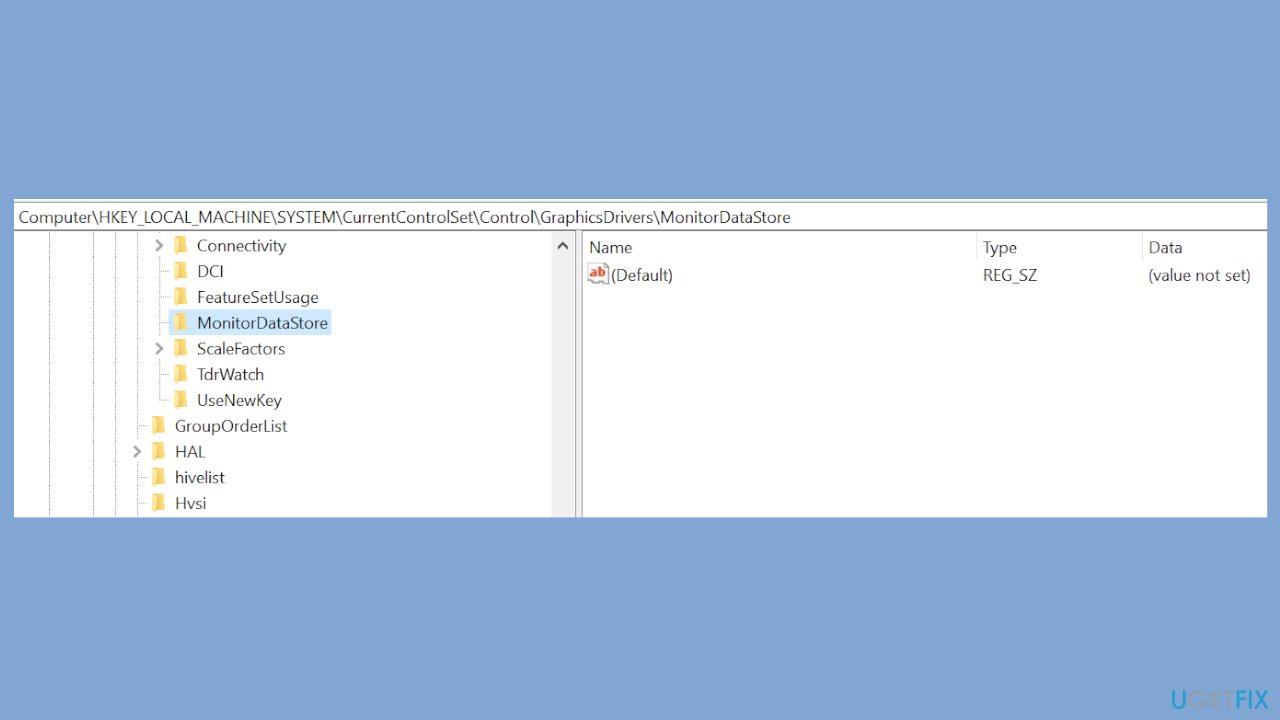
- Each monitor has its own subkey (subfolder) in the MonitorDataStore location.
- Find the subkey corresponding to the monitor you want to modify.
- Locate the value setting named AdvancedColorEnabled.
- Set the value to 0 or remove the value entirely.
- After modifying the registry setting, close the Registry Editor.
- Reboot your PC to apply the changes.
- Once your computer has restarted, enable the external monitor again as needed.
Bottom line
To resolve the issue of not being able to disable HDR, users can navigate through advanced display settings or graphics control panels. If these methods do not work, they may need to use another monitor or keyboard shortcuts to access display settings. If none of these solutions are effective, further troubleshooting may be necessary.
Frequently asked questions
If the HDR option is grayed out, ensure that your display supports HDR and that the correct display output is selected in the Windows settings. You can also try updating your graphics drivers to the latest version.
If HDR keeps re-enabling itself, check for any conflicting software that may override your display settings, such as graphics control panels. Additionally, you can try resetting your display settings to default and then disable HDR again.
You can quickly toggle HDR in Windows 10 by going to Settings > System > Display and using the 'HDR' toggle under the 'Windows HD Color' section. Alternatively, some graphics drivers provide a quick access option through their control panels.




Report an issue
What's wrong with this guide? We review every report and update or remove content.
Report received — thank you. We'll review and fix it.
You need a free account to submit a report.
Be the first to comment