How to fix
Change Your Computer’s Name
on Windows
Easily change your computer's name in Windows 10 or Windows 11 with our quick guide. Expert-tested for efficiency and clarity. Fixed in minutes!

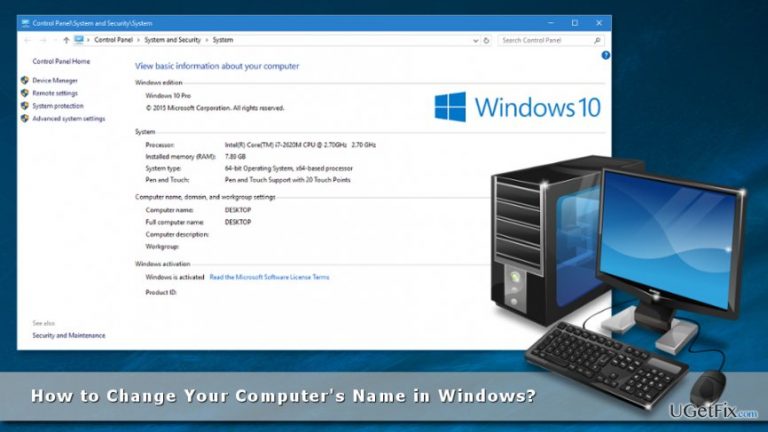
Why does How to Change Your Computer’s Name in Windows occur?
- Computer name is set to random letters or numbers
- Default name includes the brand of the PC
- Users want a more personalized name
- Easier recognition in network settings
- Facilitates pairing with other devices
Repairs Windows system files, removes malware, and restores a clean OS state — without reinstalling.
I bought a new computer with Windows 10. I know that there’s a way to change its name, but I couldn’t find it. Could you explain to me how it’s done?
Many users want to change their computer’s name for personal reasons. Most of the time they want to make it more personalized and easily recognizable in the network. Usually, when you buy a new computer, it is named with random letters, numbers or includes the brand of the PC. Thus, it’s not unique and might be hard to remember.
One of the main advantages of changing the name of your PC is that you will be able to pair it with other devices, for instance, Bluetooth mouse or printer. Therefore, in the appeared list of gadgets, you will be able to find your computer easily by its unique name.
It might seem hard to find necessary settings in order to change your computer’s name in Windows 10 and older OS versions. Indeed, there are plenty of settings, and it might be easy to get lost. Fortunately, we are here to help you to name your new computer with your preferred name.
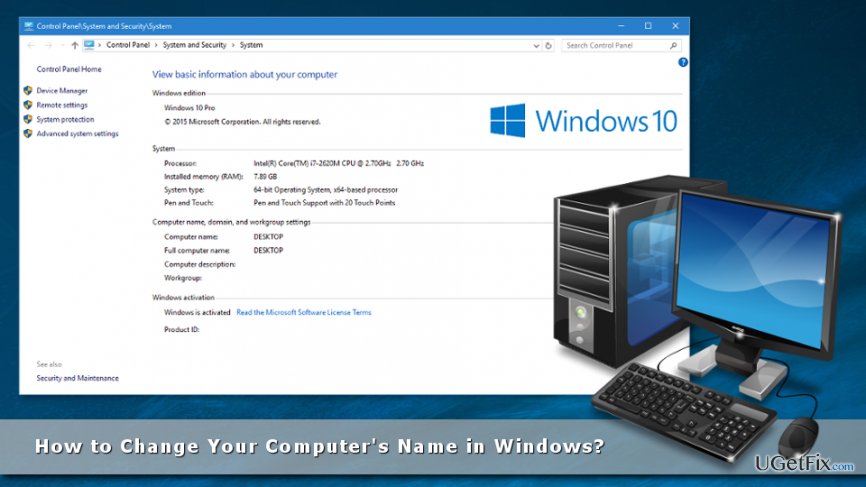
Changing computer’s name in Windows 10
In order to rename your device, you have to access System settings. Follow these steps to complete this task:
1. Go to Settings and open System option.
2. Choose About section in the left panel.
3. In the About menu, you will see the current name of your computer. Below you should see “Rename PC” button. Click on it.
4. Enter your preferred name in the new box and click Next.
NOTE. You can use all possible characters, but you won’t be able to use space.
5. You will receive a pop-up asking to restart your computer in order to change the name:
- Click Restart Now button if you want to apply these changes immediately;
- Click Restart Later if you want to see these modifications the next time you boot your PC.
Older Windows OS users can change the name of their devices too
Windows 8, 7 or XP users can replace the name of their computers as well. In this case, you have to open Control Panel and access Advanced system settings. Therefore, follow these steps:
1. Click on the Start button and navigate to Control Panel.
2. Go to the System section.
3. From there you can go to:
- Advanced system settings located in the left panel
- or Change settings under "Computer name, domain, and workgroup settings."
Both of these buttons will trigger System Properties window.
4. Click on the Computer Name tab. Here you will see saying "To rename this computer, click Change,” thus click “Change…” option.
5. In the appeared Computer Name/Domain Changes window you will see a box named “Computer name.” Enter the name there.
6. Once you type your preferred name, click OK.
7. You will receive a pop-up window asking to restart your computer to apply the changes:
- Click Restart Now to reboot computer and rename your PC right now;
- Click Restart Later to delay this process.
Keep in mind that your computer’s name will be changed only after restarting the device.
Bottom line
To change your computer's name in Windows 10, access the System settings, navigate to the About section, and click on the Rename PC button. Enter your preferred name and restart your computer to apply the changes. If you are using older versions of Windows, similar steps can be followed, but if none of these methods work, consider seeking additional technical support.
Frequently asked questions
To change your computer's name in Windows 10, go to Settings > System > About, then click on 'Rename this PC' and enter the new name.
Yes, in Windows 11, you can change your computer's name by navigating to Settings > System > About, then clicking on 'Rename' under the Device name section.
Changing your computer's name may require you to update any network settings or shared resources, but it generally does not affect your internet connection.




Report an issue
What's wrong with this guide? We review every report and update or remove content.
Report received — thank you. We'll review and fix it.
You need a free account to submit a report.
Be the first to comment