How to fix
Remove Cortana Search Box from the Windows 10 Taskbar
on Windows
Easily remove the Cortana search box from your Windows 10 taskbar. Quick tweaks for a cleaner look, expert-tested for effective results!

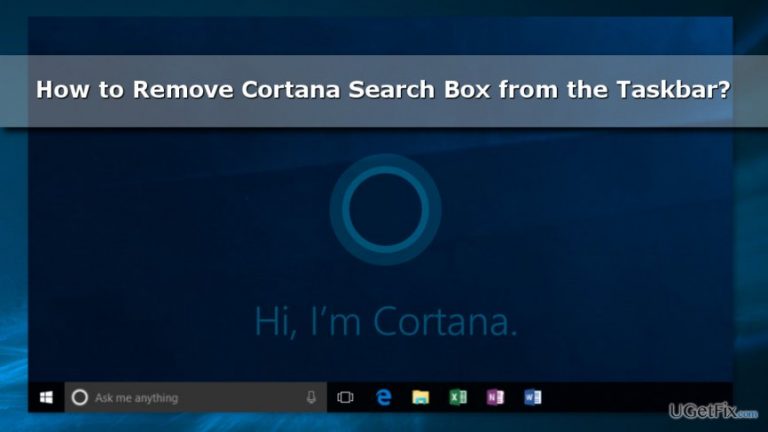
Why does How to Remove Cortana Search Box from the Windows 10 Taskbar occur?
- Cortana Search Box takes up a lot of space on the Taskbar.
- Users find the large search box unnecessary and annoying.
- Cortana's features are not utilized by all users frequently.
- The design of the Taskbar can appear clumsy with the search box present.
Repairs Windows system files, removes malware, and restores a clean OS state — without reinstalling.
Cortana Search Box takes a lot of space of the Taskbar. I do not use it a lot, so I would like to remove it. Could you tell me if it’s possible?
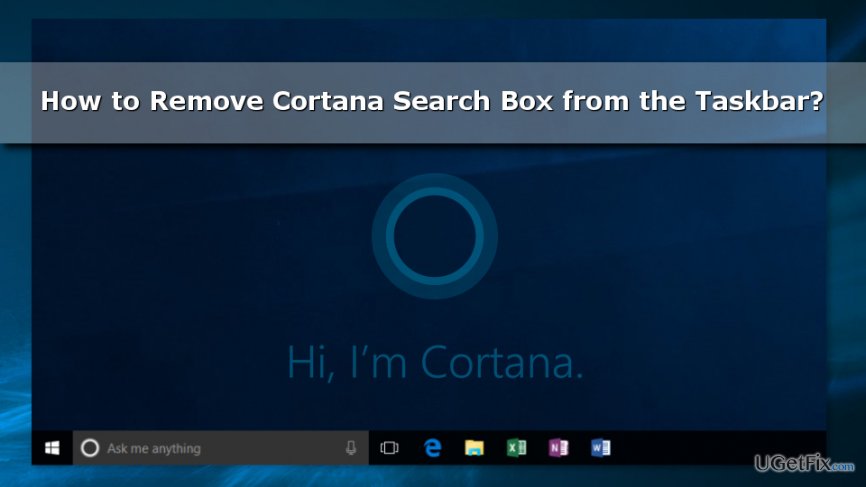
The design and convenience of Windows 10 are highly discussed by users and experts. Cortana Search Box is one of the features that has received plenty of negative feedback. It’s huge and takes over lots of space.
Cortana is a Windows assistant that is supposed to simplify work with the computer and give a better experience for the users. However, not all people find this feature useful or necessary. Many users claim that they need only simple Windows search feature once in a while.
Therefore, having a huge box that wants you to ask anything anytime might seem annoying and making the taskbar look clumsy. Fortunately, there are three ways how you can make Cortana Search Box less annoying by:
- Shrinking it.
- Hiding it;
- Removing it.
If you use Cortana once in a while and do not want to lose any of its features, you should opt for the first option and just shrink it. The huge search box will be replaced with a small circle Cortana’s icon only. Therefore, any of assistant’s functionalities won’t be affected.
If you choose to hide Cortana Search Box from the taskbar, the Windows assistant continues running in the background and performing other tasks.
Finally, you can disable Cortana entirely and get rid of the search box, annoying notifications, and other features. Though, you will be able to use a regular Windows search feature.
Shrinking Cortana Search Box from Windows 10 Taskbar
If you want only to save space on the taskbar and continue using Cortana, you just have to follow three simple steps and shrink it:
- Right-click on the search bar (or blank space in the taskbar).
- Select Cortana from the drop-down menu.
- Then click on Show Cortana Icon option.
Once you click on it, the huge Cortana search box will disappear immediately. Instead of it, you will see a little icon with Cortana circle logo. Thus, any time you need to use Windows assistant, you just have to click on it.
Hiding Cortana Search Box from the Taskbar
This option allows hiding Cortana from the taskbar. So, if you do not need Windows assistant’s services, follow these steps:
- Right click on a space in the taskbar.
- Select Cortana from the appeared menu.
- Choose the Hidden option.
The Cortana Search Box will be hidden from the taskbar. However, it will continue running in the background. So, you will be able to use other features.
Disabling Cortana from Windows 10
If you do not find Cortana useful or convenient, you can disable it completely. As a result, you will be able to use only regular Windows search. You can find detailed instructions on how to turn off Cortana here.
Bottom line
You can shrink the Cortana Search Box to a small icon, hide it while keeping Cortana running in the background, or completely remove it to eliminate notifications and other features. If none of these options work for you, consider using the regular Windows search feature instead.
Frequently asked questions
To disable the Cortana search box, right-click on the taskbar, select 'Search', and then choose 'Hidden'. This will remove the search box from the taskbar.
No, removing the Cortana search box will not affect your Windows 10 search functionality; you can still access search through the Start menu or by pressing the Windows key.
Yes, to restore the Cortana search box, right-click on the taskbar, select 'Search', and then choose 'Show search box'.




Report an issue
What's wrong with this guide? We review every report and update or remove content.
Report received — thank you. We'll review and fix it.
You need a free account to submit a report.
Be the first to comment