How to fix
Windows update error 0x801f0011
on Windows
Resolve Windows update error 0x801f0011 efficiently with our expert-tested solutions. Enjoy a smoother experience on Windows 10 and Windows 11. Fixed in…

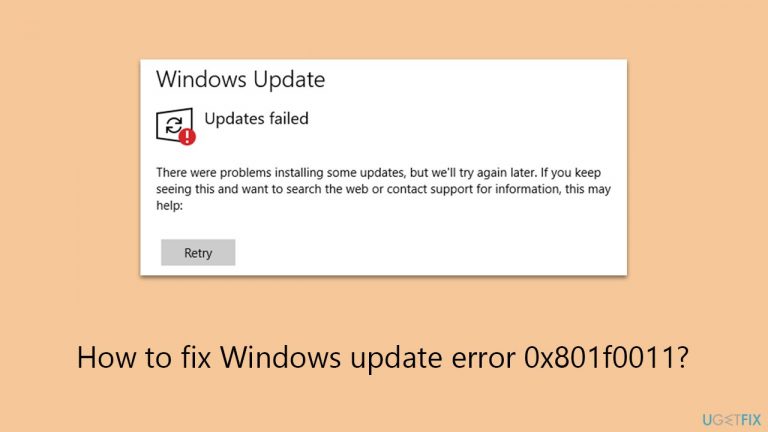
What causes How to fix Windows update error 0x801f0011?
- Corrupted system files
- Problems in the update cache
- Malfunctions in the Windows Update service
- Discrepancies in registry settings
- Interference from security software
Repairs Windows system files, removes malware, and restores a clean OS state — without reinstalling.
I keep trying to install the latest update on Windows and it keeps failing with 0x801f0011 error code. Is there anything I can do to bypass it?
Windows updates, crucial for maintaining the efficiency and security of the operating system, occasionally encounter errors during their application or when upgrading Windows, with one common issue being error 0x801f0011. This error can disrupt the update process and impact system performance, posing a challenge for users.
The emergence of error 0x801f0011 is typically attributed to system-related issues, with corrupted system files being a primary cause. These files, essential for Windows' smooth operation, may become corrupted due to various factors such as malware attacks or software conflicts, leading to update disruptions.
Additionally, problems in the update cache, where Windows stores temporary files necessary for updates, are also a prevalent cause. Corrupted or conflicting files in this cache can trigger the error, complicating the update process.
Other contributing factors include malfunctions in the Windows Update service that is responsible for downloading and installing updates and discrepancies in registry settings related to updates. When the Windows Update service is compromised or registry settings are erroneous, the system might struggle to complete the update, resulting in the 0x801f0011 error3.
For users facing this error, it's indicative of potential underlying system issues. While this text does not provide direct troubleshooting instructions, recognizing these causes is a crucial step in the resolution process. Initiatives like conducting a system scan for corrupted files or clearing the update cache could be beneficial first steps.

A comprehensive solution often involves utilizing a PC repair tool [d1], designed to automatically diagnose and rectify a variety of Windows issues, including those pertaining to system updates. Leveraging such an app can effectively address the underlying causes of error 0x801f0011, facilitating a resolution without the need for extensive manual intervention.
Fix 1. Temporarily disable security software
Security software can sometimes interfere with Windows Update by mistakenly identifying it as a threat. Temporarily disabling your antivirus or firewall can help determine if these programs are causing the error. It is vital to re-enable your security software after the update process to maintain protection.
- Open your antivirus or firewall application
- Find the option to disable or turn off the protection, usually in the settings or under a Protection tab
- Choose to disable the protection temporarily, selecting the shortest available duration
- Try running the Windows Update again
- After updating, ensure to turn your security software back on
Fix 2. Repair corrupted system files
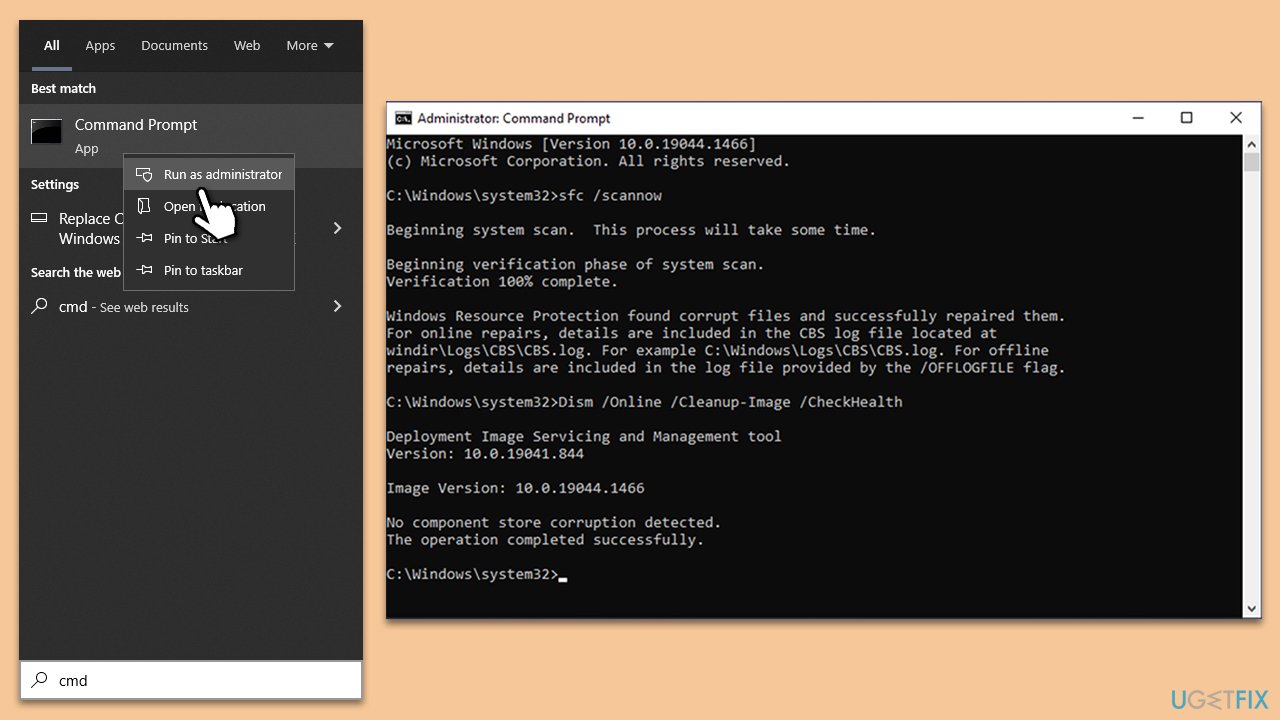
System File Checker (SFC) and Deployment Image Servicing and Management (DISM) are tools that repair corrupted system files and Windows image files, respectively. Running these scans can fix errors potentially causing update issues.
- Type cmd in Windows search.
- Right-click on Command Prompt and pick Run as administrator.
- The User Account Control window will ask whether you want to allow changes - click Yes.
- In the Command Prompt window, paste the following command and hit Enter:
sfc /scannow - Once the scan is complete, use the following commands and press Enter after each:
Dism /Online /Cleanup-Image /CheckHealth
Dism /Online /Cleanup-Image /ScanHealth
Dism /Online /Cleanup-Image /RestoreHealth - (Note: if you get an error executing this last command, add /Source:C:\RepairSource\Windows /LimitAccess to it and try again).
- Restart your system.
Fix 3. Employ Windows update troubleshooter
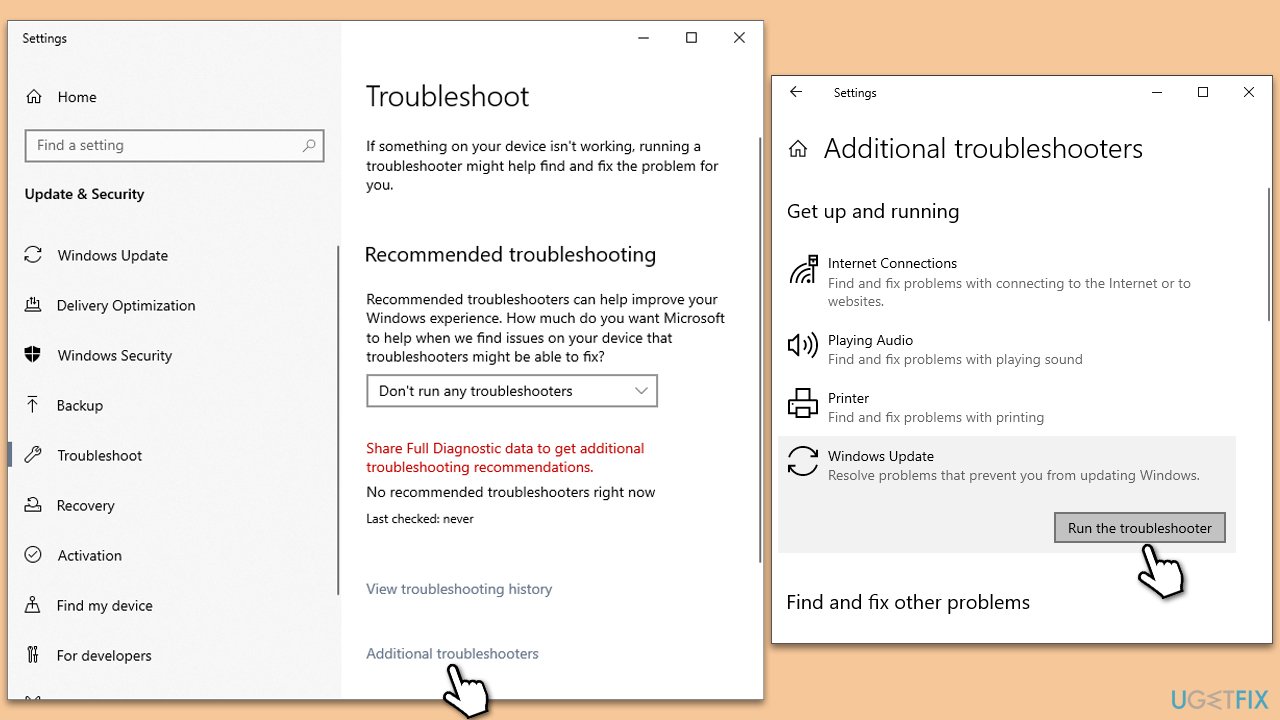
Windows Update Troubleshooter is a built-in tool that can automatically identify and fix some problems with Windows Update. It is a useful first step for any update-related issues.
- Type Troubleshoot in Windows search and press Enter.
- Select Additional troubleshooters/Other troubleshooters.
- Find Windows Update from the list.
- Click it and select Run the troubleshooter/Run.
- Restart your PC when the update process finishes.
Fix 4. Check relevant services
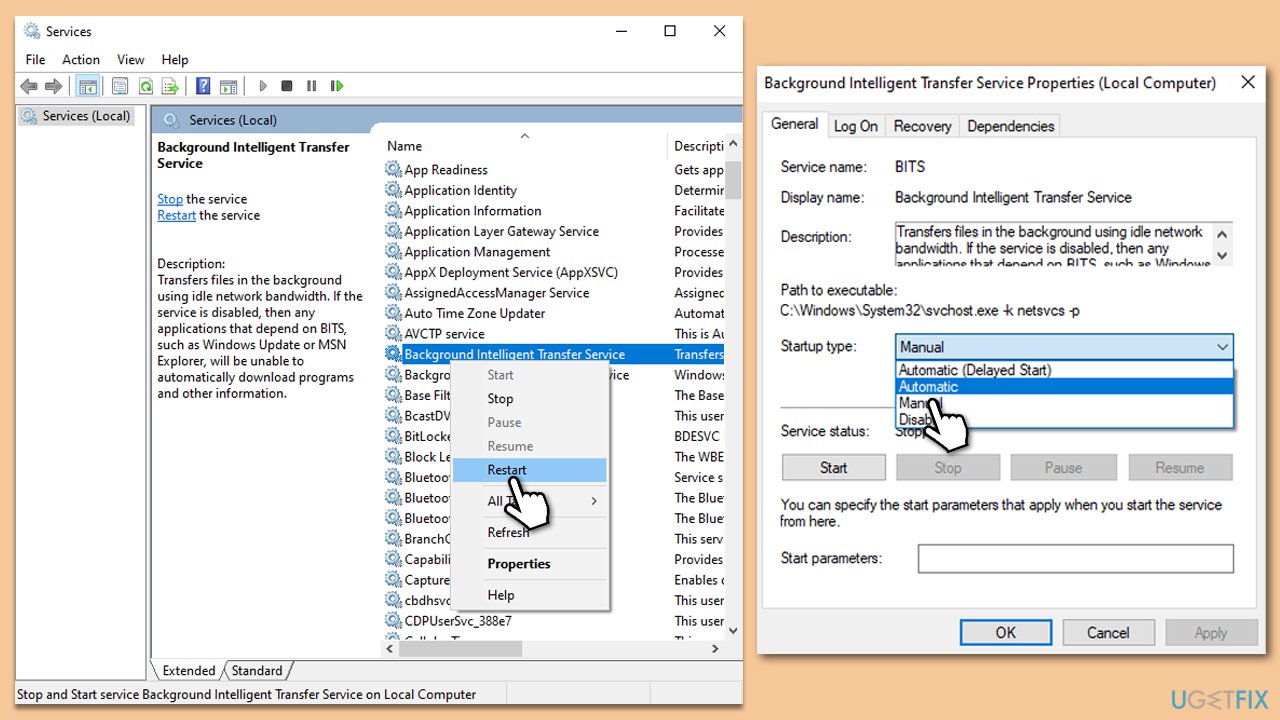
Windows Update relies on certain services to run properly. Restarting them or setting them to run automatically can resolve issues that are preventing updates from being installed.
- Type in Services in Windows search and press Enter.
- Find Background Intelligent Transfer Service (BITS).
- If it is already running, right-click and pick Restart.
- If the service is not running, double-click it, and select Automatic under the Startup type from the drop-down menu.
- Click Start, Apply, and OK.
- Repeat this process for Windows Update and Cryptographic services.
Fix 5. Install the update manually
If automatic updating is failing, you can manually download and install the specific update causing the error.
- Type in Updates in Windows search and press Enter.
- Select View update history.
- Find the update that failed with the 0xC1900109 error and copy its KB number.
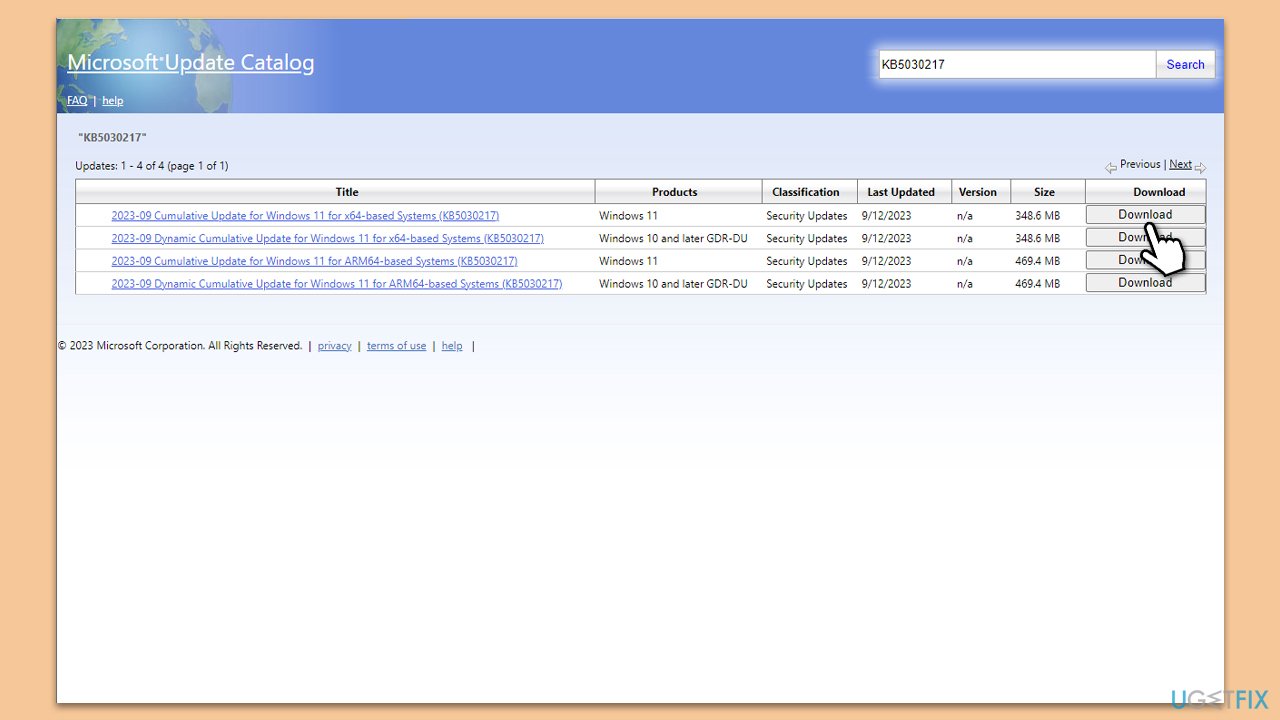
- Open your browser and go to Microsoft Update Catalog.
- Within the search bar, type in the KB number and click Search.
- Find the correct version of the update for your operating system (to check this, right-click on Start and pick System. Under Device specifications and check the System type) and click Download.
- Use on-screen guidelines to finish the installation process and restart your computer.
Fix 6. Perform Disk Cleanup
Disk Cleanup can help free up space on your hard drive and remove temporary files that might be interfering with the update process.
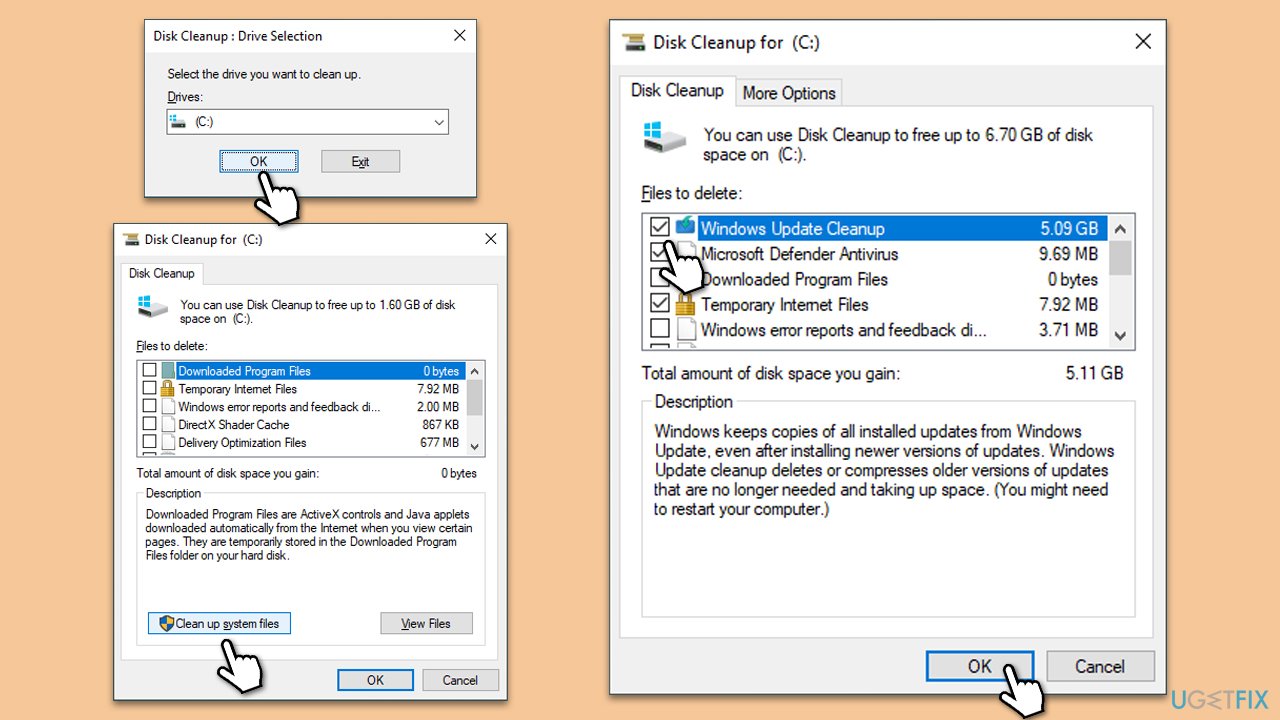
- Type Disk Cleanup in Windows search and hit Enter.
- If your Windows is installed on drive C, pick it from the list (should be by default) and press OK.
- Click Clean up system files.
- Select your main drive again and click OK.
- Here, select the largest portions of the data used - these typically include Temporary Internet Files, Windows Update, Temporary Files, Recycle Bin, Delivery Optimization Files, and others. Marking Windows Update is vital here.
- Click OK - the process should be finished shortly.
Fix 7. Reset Windows update components
Resetting Windows Update components involves stopping the update services, clearing the update cache, and restarting the services. This can resolve issues with stuck or corrupted updates.
- Open Command Prompt as administrator, as previously explained
- In the new window, use the following commands, pressing Enter after each:
net stop bits
net stop wuauserv
net stop appidsvc
net stop cryptsvc
Del “%ALLUSERSPROFILE%\Application Data\Microsoft\Network\Downloader\*.*”
rmdir %systemroot%\SoftwareDistribution /S /Q
rmdir %systemroot%\system32\catroot2 /S /Q
regsvr32.exe /s atl.dll
regsvr32.exe /s urlmon.dll
regsvr32.exe /s mshtml.dll
netsh winsock reset
netsh winsock reset proxy
net start bits
net start wuauserv
net start appidsvc
net start cryptsvc - Restart your device.
Fix 8. Use Media Creation Tool
The Media Creation Tool can be used to update your system or create installation media. Using it to update Windows can bypass issues encountered with the standard update process.
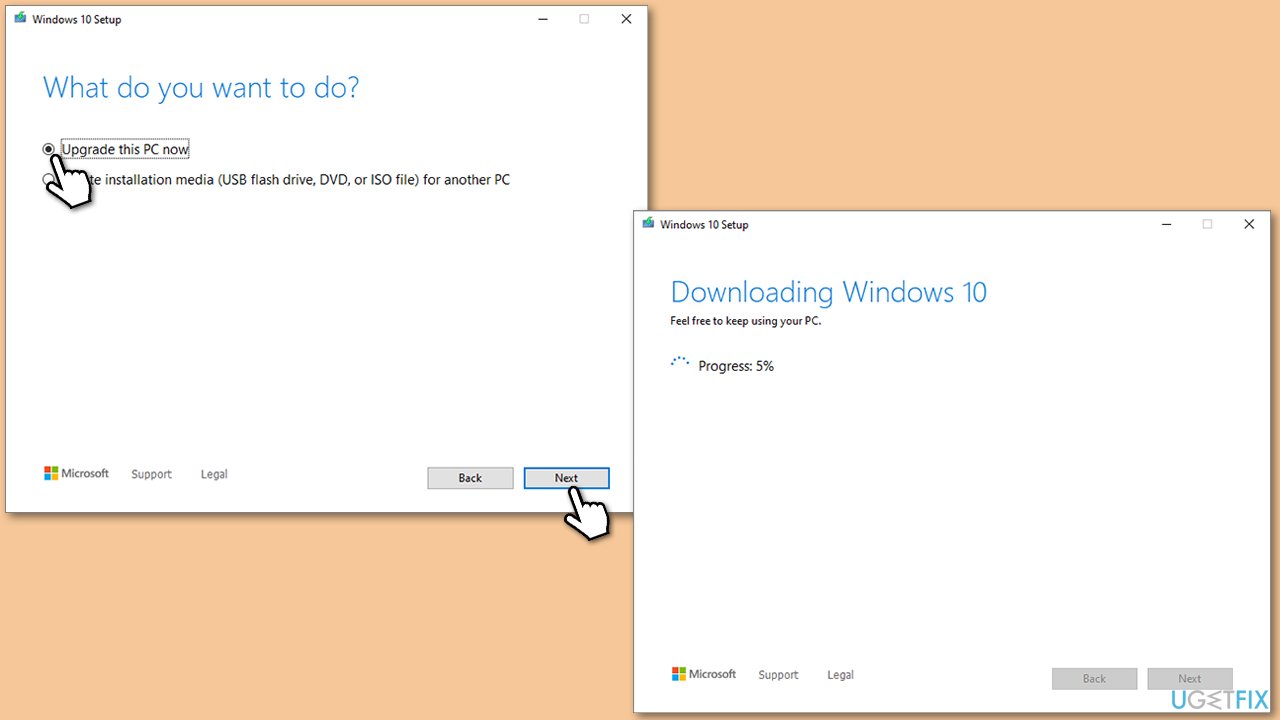
- Visit the official Microsoft website and download Windows 10 installation media (Windows 11 version).
- Double-click the installer, select Yes when UAC shows up, and agree to the terms.
- Select Upgrade this PC now and click Next.
- Windows will start downloading the needed files.
- Agree to the terms once again and click Next.
- Before installing, make sure that you are happy with your choices (otherwise, you can click Change what to keep option).
- Finally, click Install to begin the upgrade process.
Bottom line
To resolve the Windows update error 0x801f0011, consider conducting a system scan for corrupted files, clearing the update cache, or temporarily disabling security software. If these steps do not resolve the issue, utilizing a PC repair tool may help diagnose and fix underlying problems.
Frequently asked questions
The error 0x801f0011 typically indicates that there are issues with the Windows Update components or that a required update is missing. This can occur in both Windows 10 and Windows 11.
To fix the error 0x801f0011 on Windows 10, you can try running the Windows Update Troubleshooter and resetting the Windows Update components manually. This often helps in resolving the underlying issues causing the error.
To prevent the 0x801f0011 error in Windows 11, ensure that your system is regularly updated and perform routine maintenance, such as checking for corrupted system files using the System File Checker tool.




Report an issue
What's wrong with this guide? We review every report and update or remove content.
Report received — thank you. We'll review and fix it.
You need a free account to submit a report.
Be the first to comment