How to fix
Enable Auto-login
on Windows
Unlock effortless access to your Windows 10 or Windows 11 with our guide on enabling Auto-login. Expert-tested for seamless configuration.

Why does How to enable Auto-login on Windows occur?
- User prefers convenience over security
- User lives alone and feels safe
- Frequent system restarts
- User finds entering passwords cumbersome
- User is aware of security implications
Repairs Windows system files, removes malware, and restores a clean OS state — without reinstalling.
I currently have a PIN setup on my PC and I don't want to use it anymore. There is nobody to access my PC apart from me since I live alone now. How do I malware Windows auto-login?
When discussing the login system in Windows, it's vital to understand its function in keeping the safety and privacy of your computer. Typically, this system calls for entering a password or private identity number (PIN). These security features guard your files, applications, and private statistics from unauthorized access.
Autologin is a Windows feature that allows for a different approach. When you enable automatic sign-in, you can skip the standard password or PIN entry, allowing faster access to your Windows session. This feature is especially useful for users who value convenience and speed over the traditional layer of security provided by password authentication.
Enabling auto-login can be advantageous, as it eliminates the need to remember and enter your password every time you boot up your computer - it is useful for users who frequently restart their systems or who find entering passwords a pain. This is especially reasonable for those living alone or with trustworthy family members.
However, it's important to consider the security implications of this convenience, as it reduces a layer of protection against unauthorized access to your computer. This also refers to those attempting to access your device not physically but virtually, aka hackers. So keep this in mind before enabling Auto-login.
If you want to enable auto-login despite these issues, we have you covered, and you will find a few ways of doing just that below. If you want comprehensive support and troubleshooting of underlying Windows issues, consider using a professional PC repair tool like [d1] that can automatically diagnose and fix a variety of system issues.
Fix 1. Enable auto-login via Settings
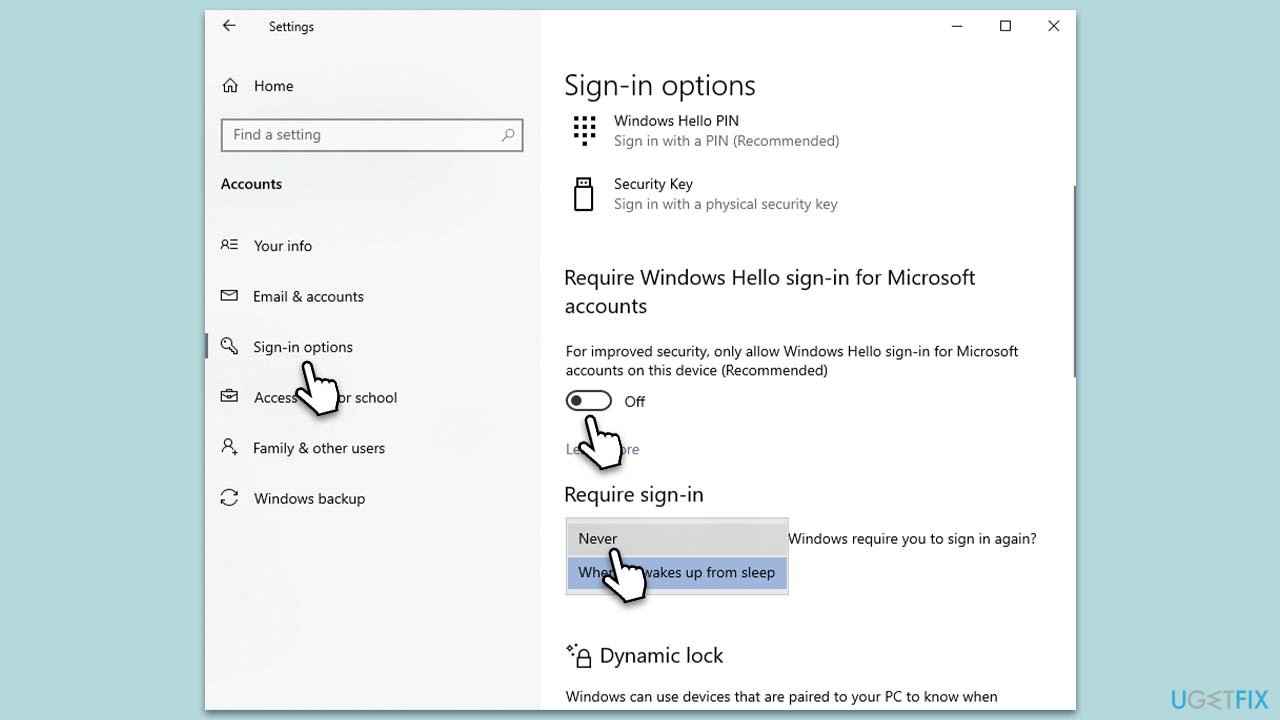
This method allows you to set up auto-login through the Windows Settings interface, which is more user-friendly and straightforward, especially for those who are not as tech-savvy. It involves navigating through a series of menus to reach the sign-in options where you can adjust the settings to enable auto-login.
- Right-click on Start and pick Settings.
- Navigate to Accounts.
- Select Sign-in options from the left pane.
- Scroll down to the Privacy section.
- Find the Require Windows Hello sign-in for Microsoft accounts and toggle it to the OFF position.
- Below it, under Require sign-in, select Never from the drop-down menu.
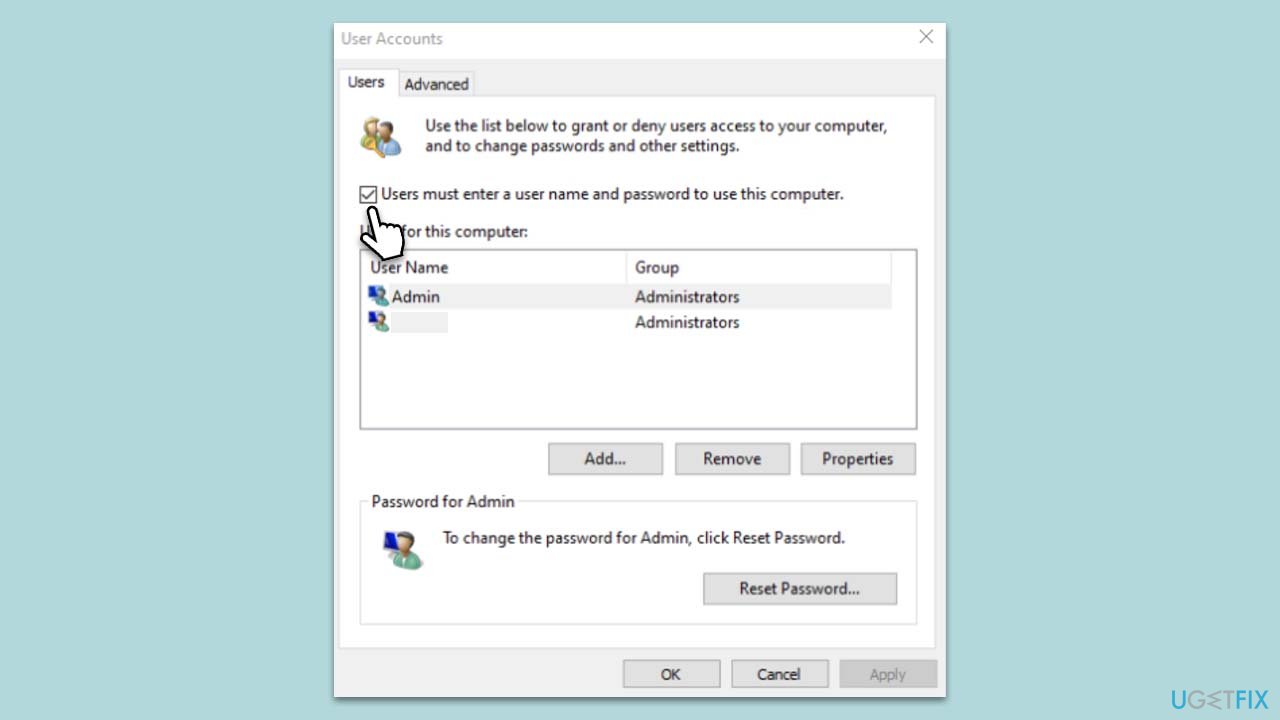
Fix 2. Disable the "Users must enter a user name and password to use this computer" option
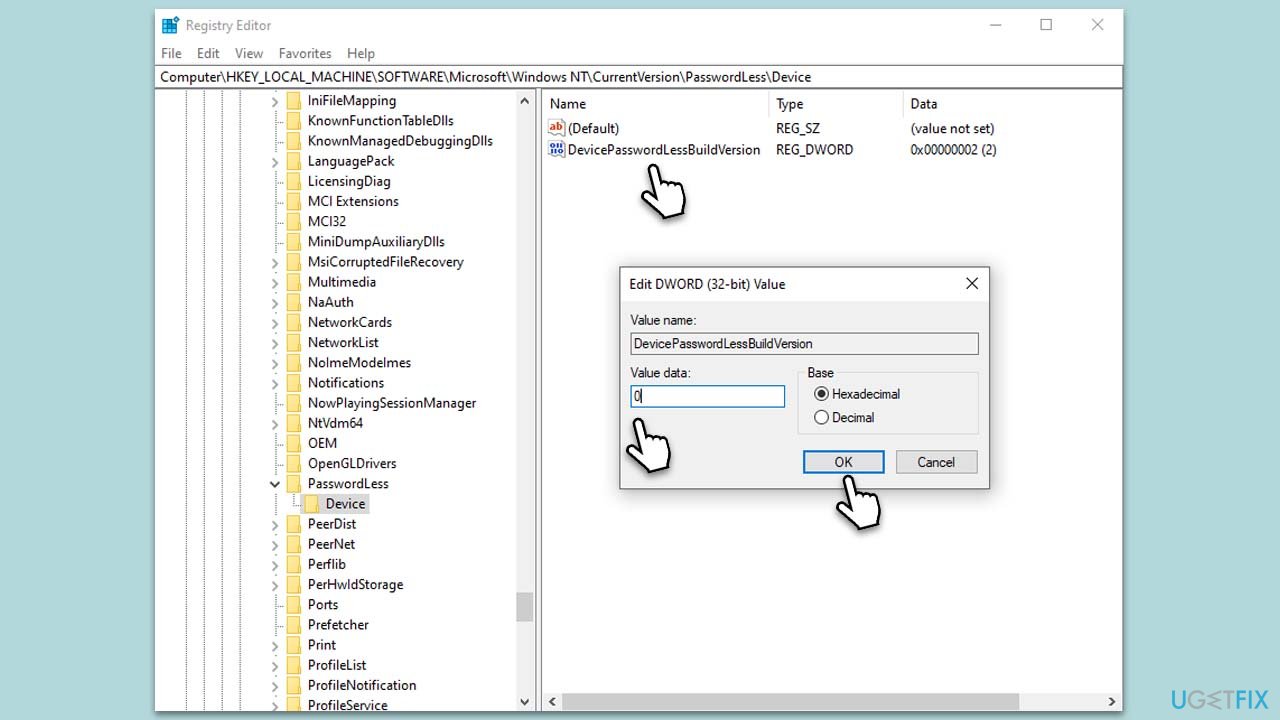
For this method, you will also have to access Registry Editor, as it might not be accessible otherwise. If it is, simply skip the first portion of these instructions. Note that you should make a backup of your Registry before proceeding.
- Type regedit in Windows search and press Enter. In the older Windows versions, you can press Win + R instead.
- User Account Control (UAC) will ask whether you want to make changes - click Yes.
- Go to the following location:
HKEY_LOCAL_MACHINE\SOFTWARE\Microsoft\Windows NT\CurrentVersion\PasswordLess\Device - On the right, double-click the DevicePasswordLessBuildVersion value.
- Set the value to 0 and click OK.
Now that you made the option accessible, follow these steps:
- Type netplwiz in Windows search and press Enter.
- Unmark the Users must enter a user name and password to use this computer checkbox.
- Click Apply and OK.
Fix 3. Enable auto-login via Registry
Using the Registry Editor is a more advanced method and is generally recommended for experienced users. This method involves modifying system registry keys, which can have significant effects on your system if done incorrectly.
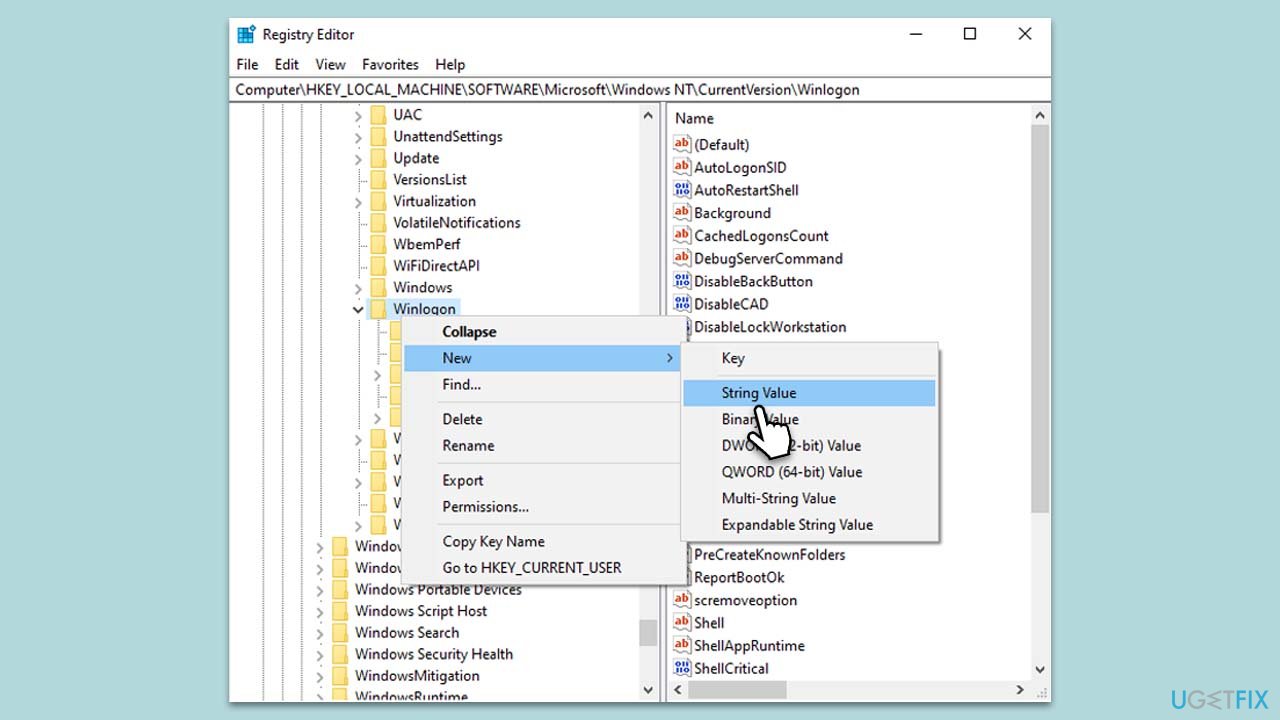
- Type regedit in Windows search and press Enter to open the Registry Editor.
- Navigate to the following location:
HKEY_LOCAL_MACHINE\SOFTWARE\Microsoft\Windows NT\CurrentVersion\Winlogon - Right-click on Winlogon, select New > String Value and name it DefaultUserName.
- Double-click on DefaultUserName, and enter your username.
- Create a new String Value named DefaultPassword.
- Double-click on DefaultPassword and enter your password.
- Find or create a new String Value named AutoAdminLogon.
- Set the value of AutoAdminLogon to 1.
- Close the Registry Editor and restart your computer for the changes to take effect.
Bottom line
To enable auto-login on Windows, you can use the Settings interface for a user-friendly setup. It's important to weigh the convenience against potential security risks. If these methods do not work, consider using a professional PC repair tool for further assistance.
Frequently asked questions
To enable auto-login on Windows 10, press Win + R, type 'netplwiz', uncheck 'Users must enter a user name and password to use this computer', and then enter your password when prompted.
No, Windows 11 only allows auto-login for one user account at a time; you can only configure the primary account to log in automatically.
If auto-login fails, ensure that your account password is correct and that you've followed the steps in the User Accounts settings properly.




Report an issue
What's wrong with this guide? We review every report and update or remove content.
Report received — thank you. We'll review and fix it.
You need a free account to submit a report.
Be the first to comment