How to fix
“Your game requires a system restart to play” Valorant error
on Windows
Resolve the "Your game requires a system restart" error in Valorant on Windows 10 and 11 effortlessly. Get back to gaming in minutes, expert-tested solu…

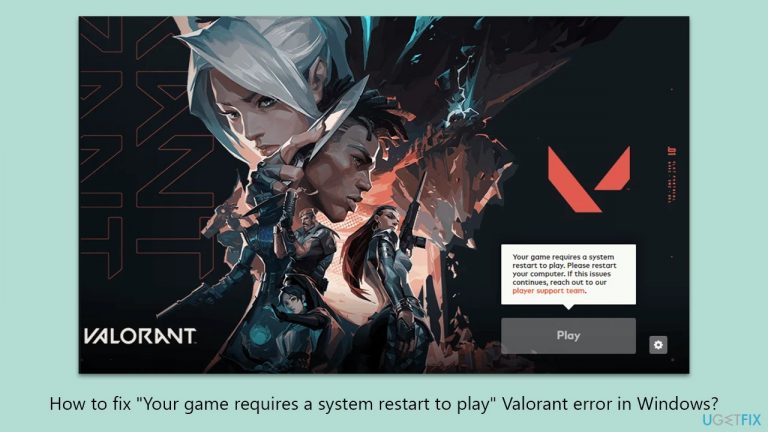
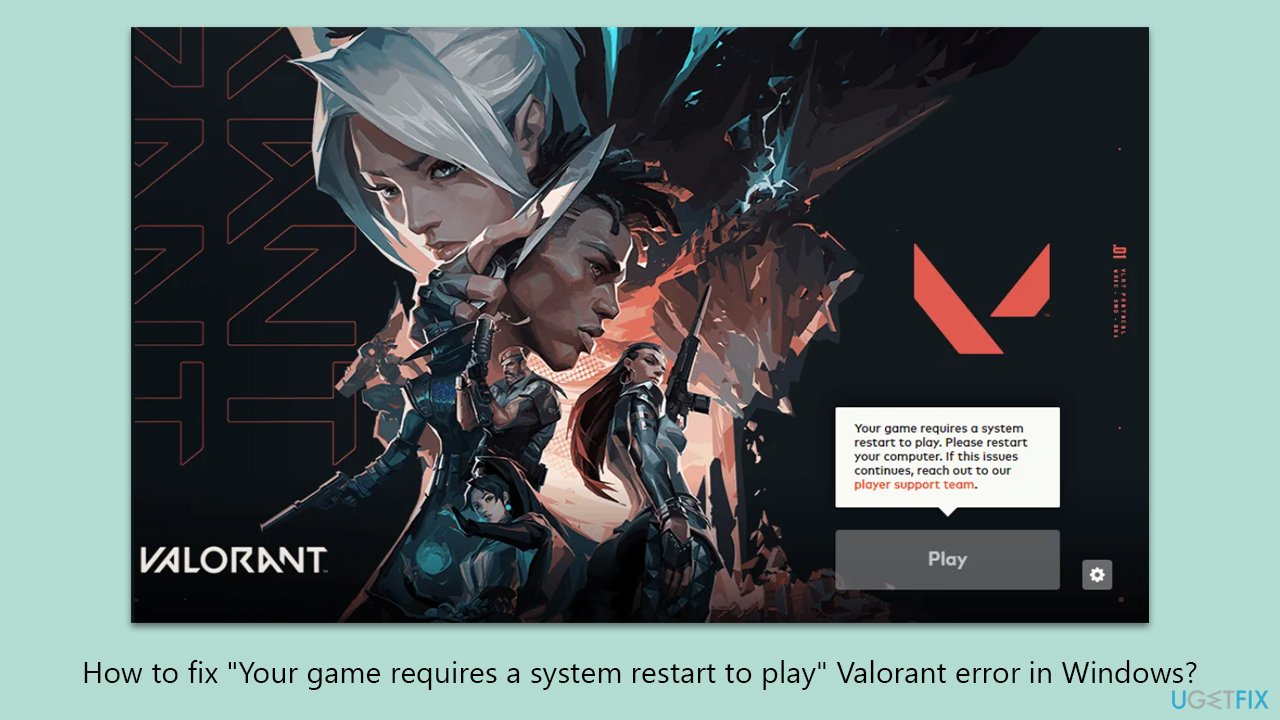
What causes How to fix “Your game requires a system restart to play” Valorant error in Windows?
- Insufficient permissions for certain system components
- Essential services not functioning as intended
- Conflicts with Vanguard anti-cheat component
- Fullscreen optimizations causing issues
Repairs Windows system files, removes malware, and restores a clean OS state — without reinstalling.
I can't launch Valorant because I keep seeing the "Your game requires a system restart to play" message on the launcher. I obviously tried restarting the game but it did nothing and I'm still stuck with it. Any ideas?
Valorant is a widely acclaimed first-person shooter game, released in 2020 and quickly rose to popularity among the gaming community. Developed by Riot Games, this free-to-play game has garnered a substantial player base due to its engaging gameplay and competitive elements.
However, as with any software, Valorant players occasionally encounter technical difficulties. One such issue that has been noted by several users is an error message saying, "Your game requires a system restart to play." Despite following the prompt and restarting their systems, users often find themselves unable to access the game, preventing access to it completely.
Many errors in Valorant are often related to Vanguard - a mandatory anti-cheat component. Vanguard operates deeply within the system to prevent cheating, but its extensive system integration can sometimes lead to conflicts, especially if there are permission issues or essential services are not running correctly on the user's computer. However, this is not likely the case in this instance, and the problem lies somewhere else.
If you are facing the "Your game requires a system restart to play" error in Valorant, the root cause may be related to insufficient permissions for certain system components or essential services not functioning as intended. In some cases, users have found that disabling fullscreen optimizations for the game can provide a temporary workaround. However, this is not a guaranteed solution and may vary depending on the specific system configuration and underlying issues.
For a comprehensive "Your game requires a system restart to play" error fix, detailed instructions are provided below. In addition to these steps, it's worth considering the use of a PC repair tool like [d1], which is designed to automatically detect and fix underlying issues within Windows systems.
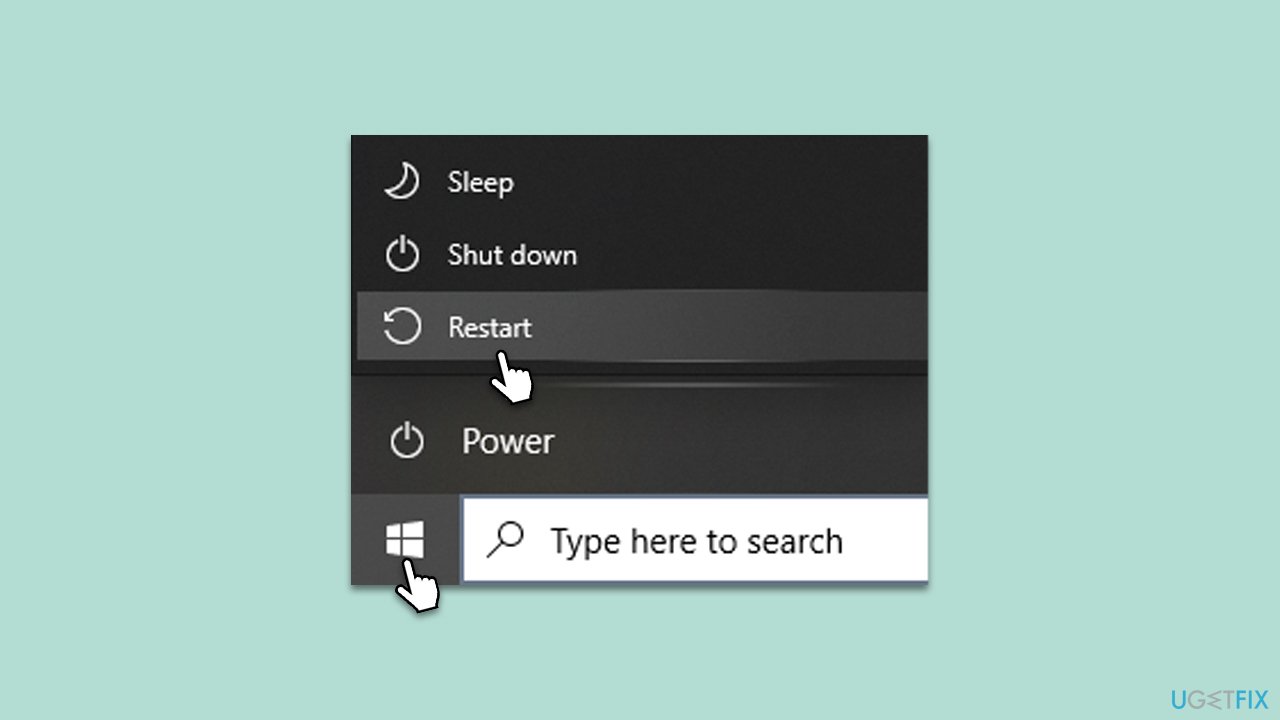
Fix 1. Restart your computer
If you haven't done so yet, please restart your system and check whether that solved the issue.
- Click on the Start menu.
- Select the Power icon.
- Choose Restart from the options.
- Wait for the computer to complete the restart process.
- Try launching Valorant again.
Fix 2. Run the game as an administrator
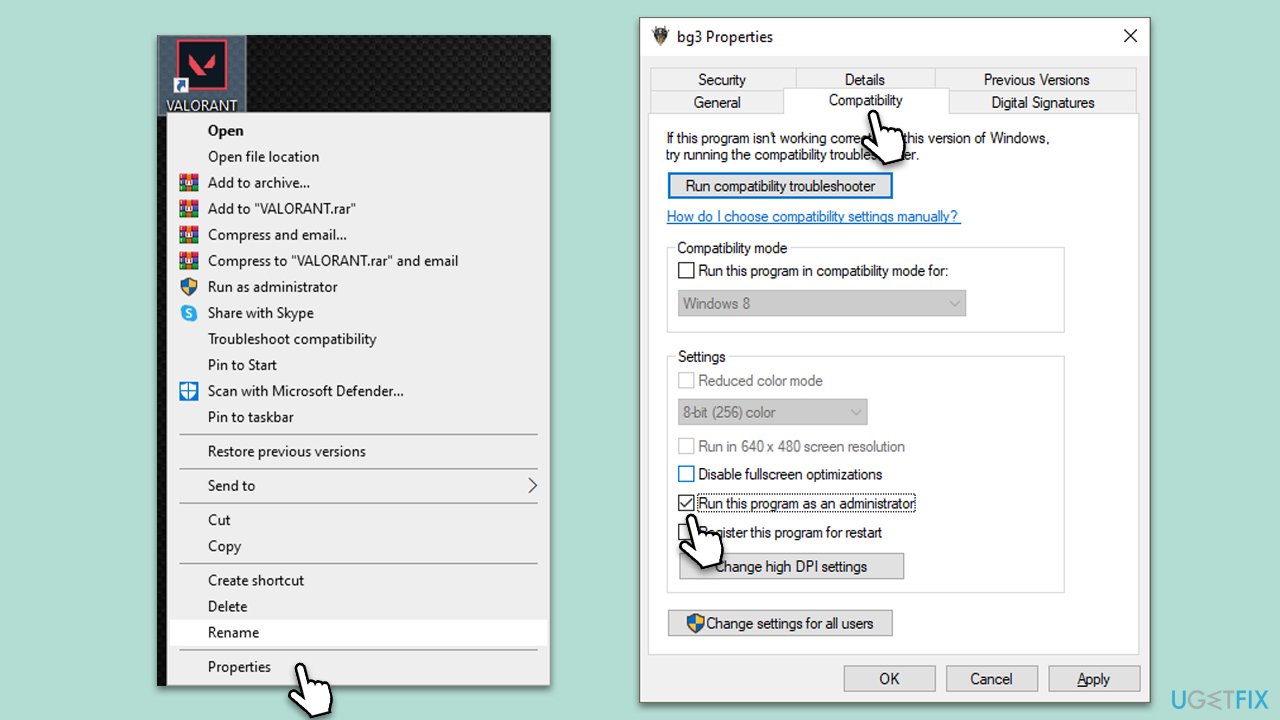
Running Valorant as an administrator grants the game additional permissions that might be required for it to function properly, especially when dealing with system-level components like Vanguard.
- Right-click on the Valorant shortcut on your desktop.
- Select Properties.
- Navigate to the Compatibility tab.
- Check the box next to Run this program as an administrator.
- Click Apply and then OK.
- Run Valorant again to see if the issue is resolved.
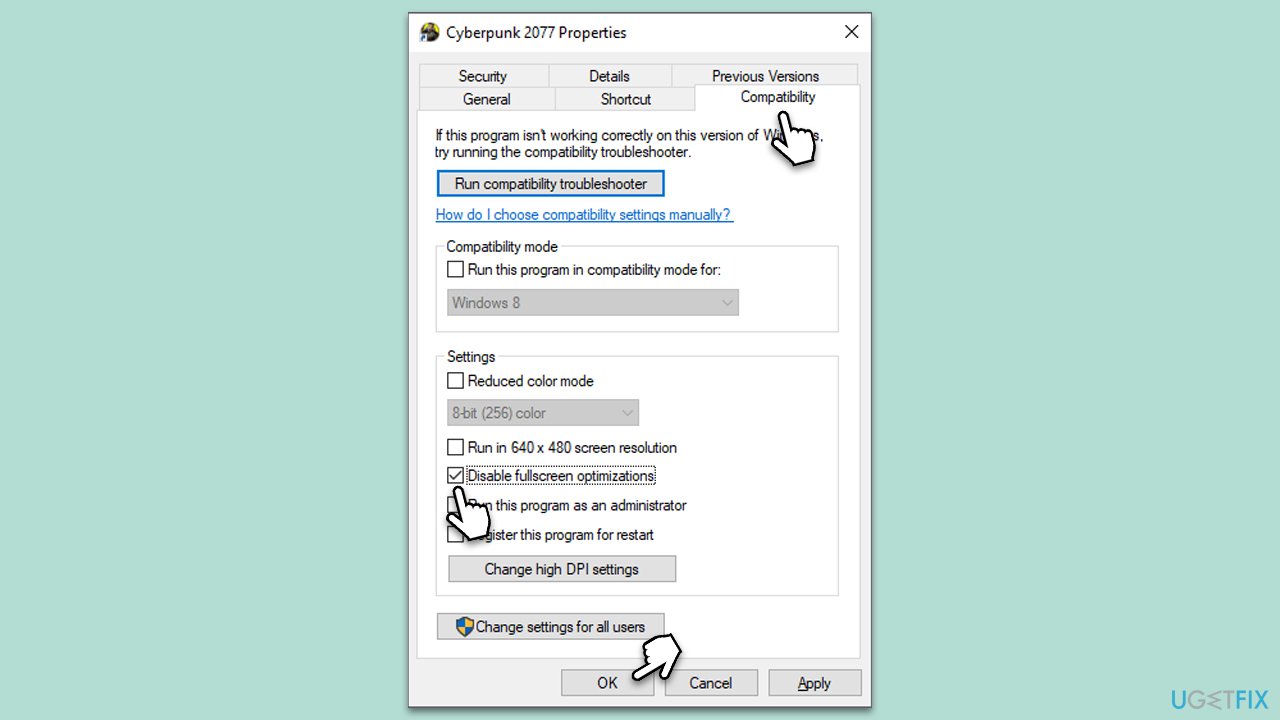
Fix 3. Disable fullscreen optimizations
Doing this can help to avoid compatibility issues and improve game performance.
- Right-click on the Valorant shortcut on your desktop.
- Select Properties.
- Navigate to the Compatibility tab.
- Check the box to Disable fullscreen optimizations.
- Click Apply and OK.
- Relaunch the game.
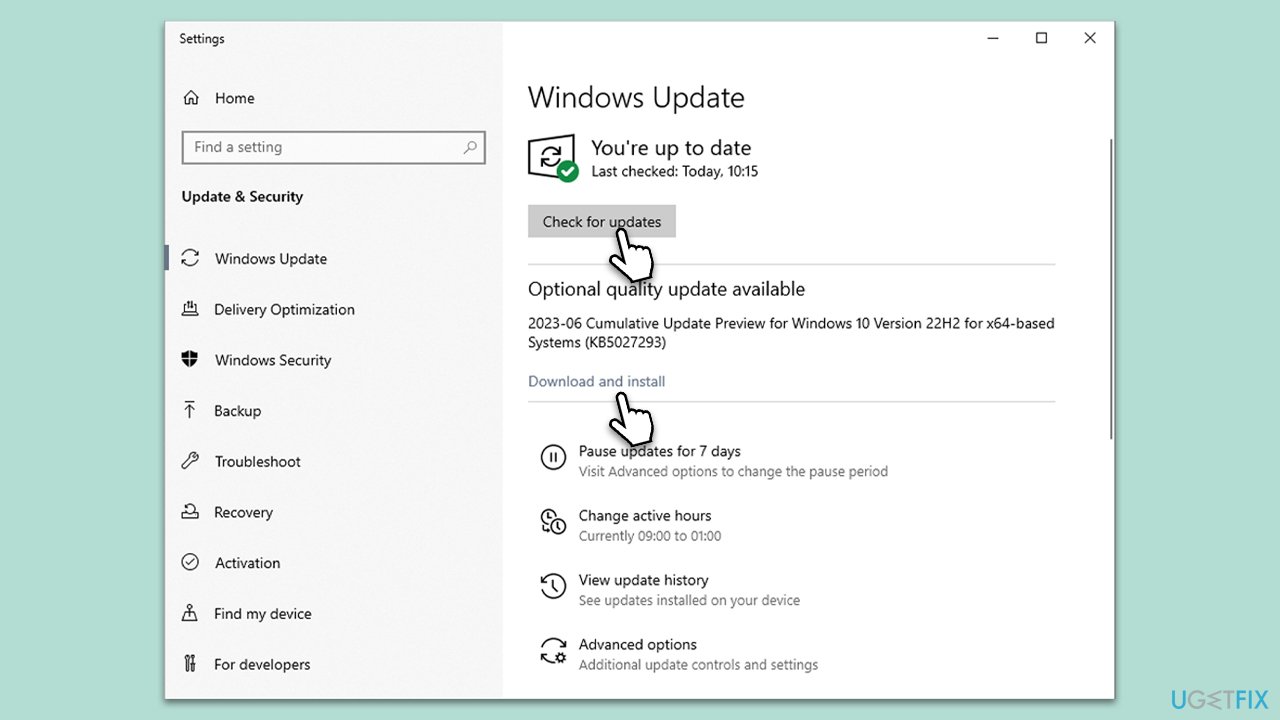
Fix 4. Install all Windows updates
You should always make sure you have the latest updates installed, especially if you are facing Windows issues.
- Type Updates and press Enter.
- In the new window, click Check for updates.
- Wait till all the files and download and installed.
- If optional updates are available, install them as well.
- Restart your system to implement these changes.
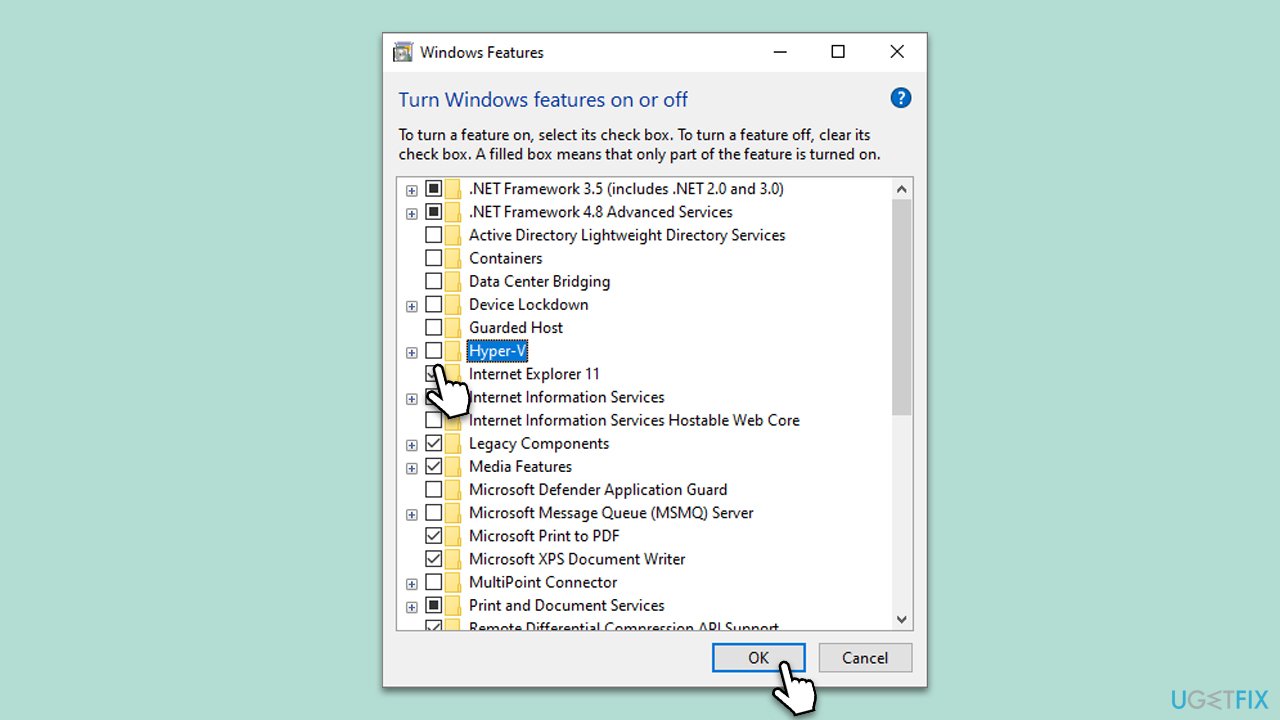
Fix 5. Disable Hyper-V
Hyper-V is a virtualization feature in Windows that can sometimes conflict with gaming software. Disabling it might resolve the error you are encountering in Valorant.
- Type Windows Features in the search bar and open Turn Windows features on or off.
- Uncheck the box next to Hyper-V.
- Click OK.
- Restart your computer for the changes to take effect.
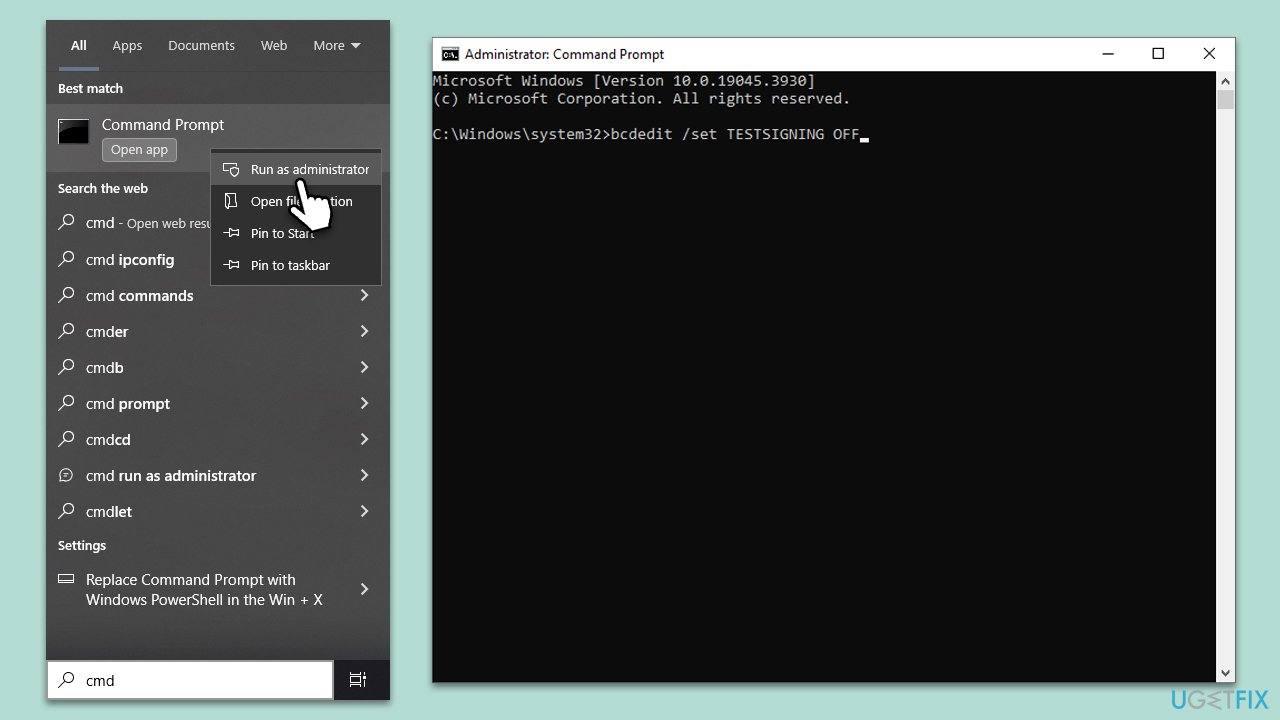
Fix 6. Exit Windows Test Mode
Windows Test Mode allows drivers that aren't digitally signed to run, which can cause security and compatibility issues.
- Type cmd in Windows search.
- Right-click on the Command Prompt result and pick Run as administrator.
- User Account Control will ask whether you want to make changes - click Yes
- Type the following command and press Enter:
bcdedit /set TESTSIGNING OFF - Restart your computer.
Fix 7. Enable vgc service
The vgc service is a crucial component of Valorant's anti-cheat system. Ensuring that this service is running is important for the game to function correctly.
- Type Services in Windows search and press Enter.
- Scroll down and find the vgc service.
- Right-click on it and select Properties.
- In the Startup type dropdown, select Automatic.
- Click Start if the service is not running.
- Click Apply and OK.
- Restart your PC and then try launching the game.
Fix 8. Reinstall Vanguard
This solution is particularly relevant if trying to enable vgc service resulted in an "Error 1: Incorrect function."
- Open system tray.
- Right-click on the Vanguard icon and select Exit Vanguard.
- Open Apps and Features and find Riot Vanguard entry.
- Select Uninstall > Uninstall.
- When User Account Control shows up, click Yes.
- Restart your PC.
- Reinstall Vanguard.
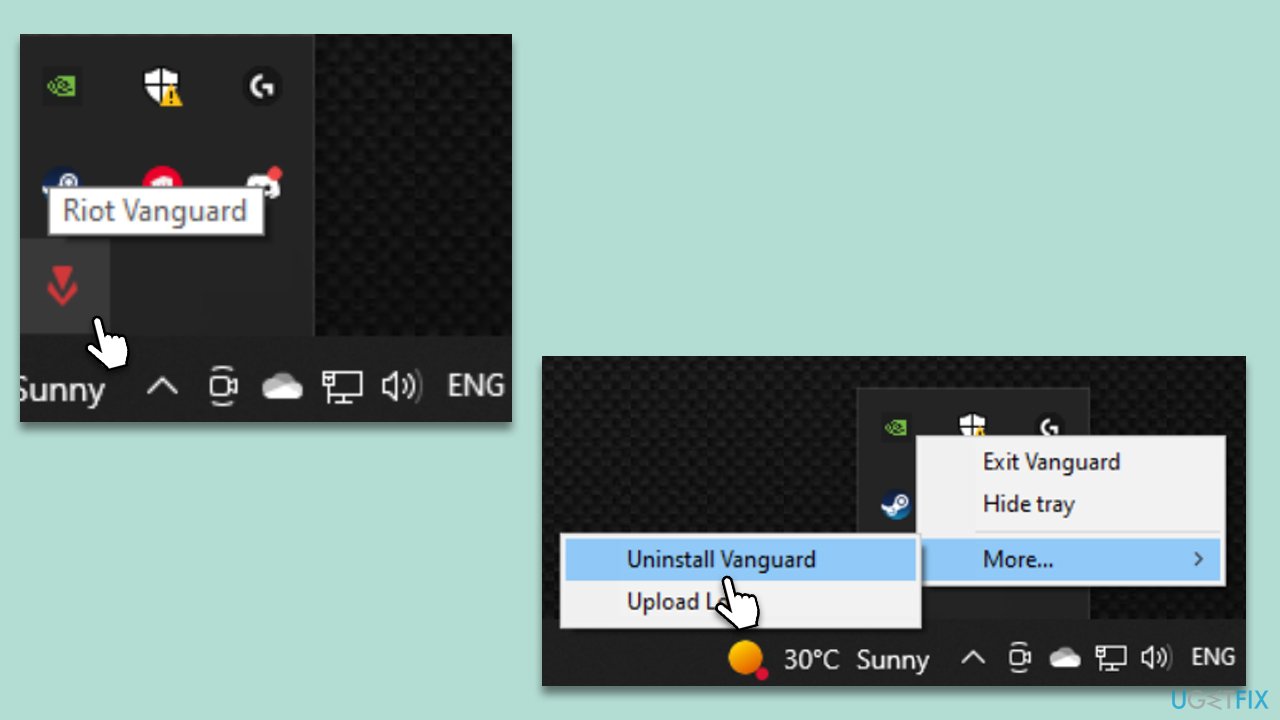
If you can't uninstall Vanguard for some reason, use the following steps instead:
- Open Command Prompt as administrator.
- Type in the following commands, pressing Enter after each:
sc delete vgc
sc delete vgk - Restart your device.
- After a reboot, press Win + E to open File Explorer.
- Navigate to the following location (note that this location can vary, depending on where you installed Valorant, so check accordingly):
C:\Program Files (x86) - Select Riot Vanguard and press Shift + Del on your keyboard.
- Open Valorant as administrator and wait for Vanguard to be reinstalled.
Bottom line
To fix the 'Your game requires a system restart to play' error in Valorant, you can try restarting your computer, disabling fullscreen optimizations, and using a PC repair tool. If these solutions do not resolve the issue, further investigation into system settings and permissions may be necessary.
Frequently asked questions
First, try restarting your computer to see if that resolves the issue. If the error persists, ensure that your Windows 10 is fully updated and check for any pending Valorant updates.
Yes, you can try verifying the game files through the Riot Client, which may fix any corrupted files causing the error without needing a full reinstallation.
To prevent this error, keep your Windows 11 system updated and ensure that all necessary drivers, especially graphics drivers, are up to date to avoid compatibility issues.




Report an issue
What's wrong with this guide? We review every report and update or remove content.
Report received — thank you. We'll review and fix it.
You need a free account to submit a report.
Be the first to comment