How to fix
Enable Adobe Flash Player on your web browser
on Windows
Easily enable Adobe Flash Player on Windows 10 or 11 web browsers with our expert-tested guide. Get it fixed in minutes for seamless browsing!


Why does How to enable Adobe Flash Player on your web browser occur?
- Flash Player is disabled in the browser settings
- Adobe Flash Player is not installed
- Browser does not support Flash Player anymore
- Flash content is blocked by the browser
- Flash Player has been discontinued and is no longer supported
Repairs Windows system files, removes malware, and restores a clean OS state — without reinstalling.
When I try to load a video on Chrome, each time I get a notification that Flash Player is disabled. None of the videos are loaded. What can I do to solve this issue?
Adobe Flash Player (also known as Shockwave Flash) is a free software utility that was developed in the mid-90s and was a dominant multimedia platform for many years. The technology can be used for a variety of purposes, such as developing and displaying animations, games, applications, etc.
To be able to view these multimedia items that were created by using Flash, users need to have Adobe Flash Player installed (although it is not the only platform compatible with Flash-related content). It can be used as an installed app both on Windows and Mac OS, as well as a plug-in on web browsers or mobile devices.
Flash Player supports 3D graphics, ActionScript, vector and raster graphics, object-oriented code, and much more. The plugin was so dominant over the years that many believed that it would stay in use forever and will never be replaced. However, new technologies always emerge, and Flash is soon to be terminated.
Adobe Flash Player, while had its purposes previously, is now being replaced by newer technologies. Quite often, the functionality is already embedded within the most modern web browsers, such as Google Chrome, Mozilla Firefox, Safari, or MS Edge. As a result, users generally do not require Adobe Flash Player to be able to view various multimedia content.
Since many web browsers implemented the technology and browsers like Firefox to disable Flash altogether, Adobe decided to put the plugin to rest - it will discontinue its support from the end of 2020.[ref en-1] There are a few reasons why Adobe Flash removal inevitable:
- Flash is known to be riddled with various software vulnerabilities[ref en-2] that hackers often exploit. Due to its popularity, Adobe Flash Player serves as a backdoor to many users' computers when a new flaw is discovered by malicious actors. Flash Player causes the browser to load an external file, known as .dll, which is often exploited by hackers and used as a medium to access the target system and install malware on it. In other words, it has been a cause of many computer infections over the years.
- While those who patch Adobe Flash on time can feel relatively safe, online scammers have been employing the plugin's name to reach their own malicious goals for years. Fake update prompts that users might encounter as soon as they visit a malicious website, are still one of the main reasons for scareware or malware infections, especially on macOS/Mac OS X platforms.[ref en-3] Thus, do not download Adobe Flash Player updates on random web domains or by clicking on pop-up ads while browsing because you may install malware instead.
- Newer technologies, such as HTML 5 or WebGL,[ref en-4] are more secure and better in functionality - most websites and browsers already replaced Adobe Flash with these.
Due to the reasons mentioned above, many website developers also decided to avoid using Flash altogether. Nonetheless, there are still plenty of websites that employ the technology for one reason or another, and users who visit such sites will not be able to view the video, audio, and animations unless Adobe Flash is enabled.
Another Flash Player problem is related to its automatic disabling. For some reason, for example, after updating Windows or the web browser, the player may be disabled on each web browser. Consequently, you may not be allowed to load videos, audio, or games. In this case, you will have to enable Adobe Flash Player manually - you can find the instructions for each of the browsers below.
Firefox to disable Adobe Flash support by December 2020
Many users found that Firefox disable Flash as soon as an update is applied. As mentioned above, this browser developers decided to eliminate Flash altogether, although the switch is happening gradually over several years.
Mozilla first announced the transition period in 2016, when Adobe Flash became click-to-activate. Over the next few years, the company disabled other NPAPI browser plugins, and only supported Adobe's version. With this, users could still choose which websites are allowed to run the plugin, although Firefox Flash block remained active on the pre-determined list of websites that are considered a security risk.
With the release of Firefox 69 in September 2019, the "Always activate" functionality was removed, essentially meaning that Firefox disabled Flash by default. Nonetheless, users can still use the plugin if they desire to do so - we explain who to do that below.
Note that Adobe Flash was disabled in all customer versions from early 2020, and can only be activated in Extended Support Release (ESR) versions of the browser.
Enable Adobe Flash on Firefox
- Launch Firefox and click on the three bar icon located at the top-right corner.
- Select Add-ons and click on Plugins on the left pane.
- Now find the Shockwave Flash and select Ask to Activate on the right. In case you would decide to deactivate it, select Never Activate.
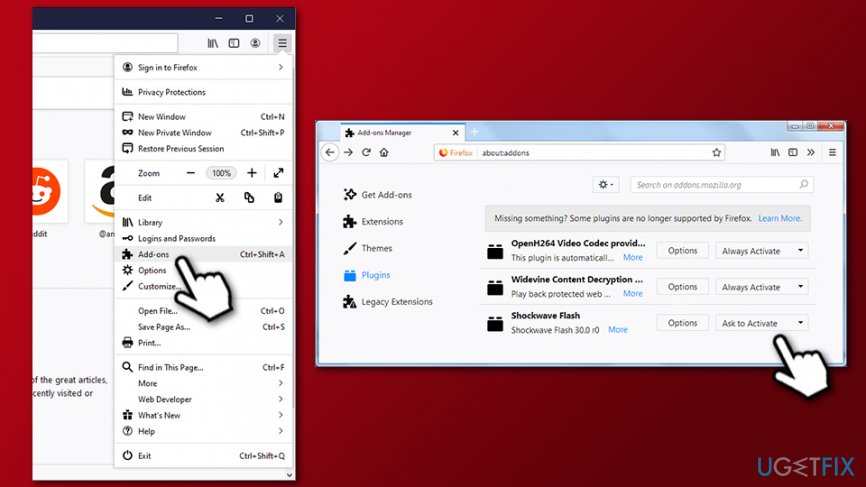
Enable adobe flash player on firefox
If you have no Shockwave Flash option available, it means that you are running a version of the browser where Firefox disabled Flash altogether.
Enable Flash Player on Chrome
- Launch Chrome and type chrome://settings/content in the address bar.
- Find Flash entry and click on it.
- You should see a switch and Block sites from running Flash (recommended) next to it.
- Click the switch once, and the option will turn to Ask first.
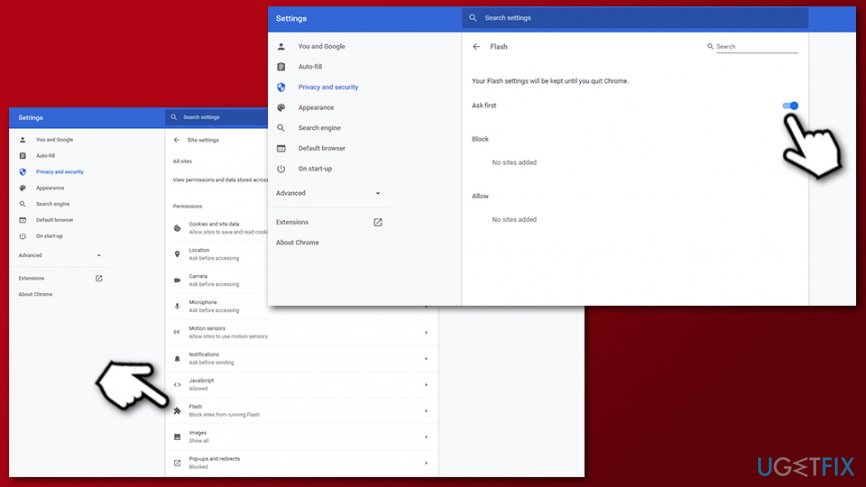
Enable adobe flash player on chrome - If you want to enable Flash Player on particular sites only, click Manage exceptions.
- Enter the addresses of preferred websites and click Allow.
- Once you add all needed sites, click Done and close Content settings.
Note that the "Ask first" setting will only persist until you close your Chrome browser. If you want to enable Adobe Flash Player on Chrome next time you open the browser, you will have to repeat the process as explained above once more.
Enable Adobe Flash Player on Edge
The instructions are for the new Chromium-based Edge:
- Launch Edge and click the three-dot icon at the top-right corner of the screen.
- Select Settings.
- On the left, pick Site permissions.
- Toggle the switch to the right in order to enable Adobe Flash
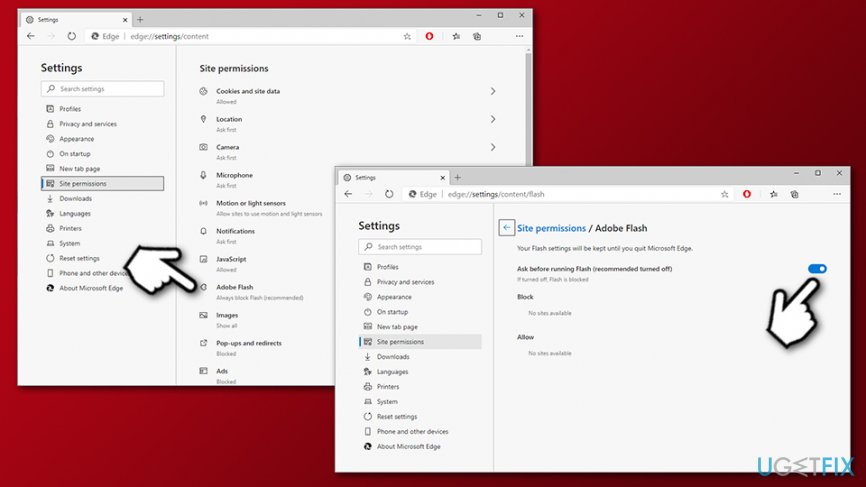
Enable adobe flash player on ms edge
Bottom line
To resolve the issue of Flash Player being disabled, users can check their browser settings to enable Flash, ensure that Flash Player is installed, or switch to a browser that still supports it. If none of these solutions work, consider using alternative technologies or platforms that do not rely on Flash.
Frequently asked questions
To enable Adobe Flash Player on Microsoft Edge in Windows 10, go to Settings > Site permissions > Adobe Flash, and toggle it on. You may need to refresh the page for changes to take effect.
No, Adobe Flash Player is not enabled by default on Google Chrome in Windows 11. You need to manually enable it by going to Settings > Privacy and security > Site settings > Flash.
If Adobe Flash Player doesn't work on Firefox in Windows 10, ensure that it is enabled in the Add-ons menu and check if the site you're visiting allows Flash content.




Report an issue
What's wrong with this guide? We review every report and update or remove content.
Report received — thank you. We'll review and fix it.
You need a free account to submit a report.
Be the first to comment